🛒 Best Price Today on Amazon
Prime members get fast, free shipping on everything above, plus member-only deals. New members get a 30-day free trial — cancel anytime.
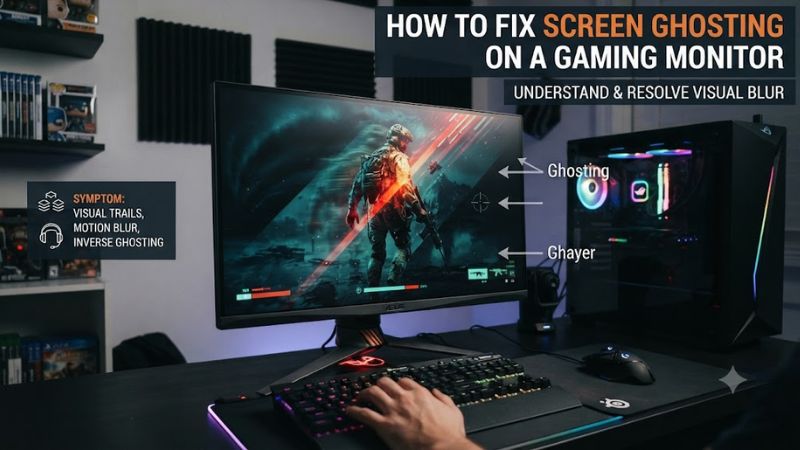
How to fix screen ghosting on a gaming monitor starts with identifying whether the trail comes from slow pixel transitions or excessive overdrive. Confirm the display is using its intended refresh rate, then compare response-time modes while watching a motion test. These checks are free and help separate a settings issue from a panel limitation.
Quick answer: Our top pick in 2026 is the Step — our #1 rated choice. See the full ranked comparison, alternatives and buying advice below.
Why Screen Ghosting Happens
Ghosting usually appears when pixels cannot complete a color transition quickly enough for moving content. Overdrive can accelerate those transitions, but an overly aggressive level can create inverse ghosting instead. Refresh rate, frame rate, VRR behavior, and panel characteristics can all change how obvious the artifact looks during games.
Slow Pixel Response Creates Trails
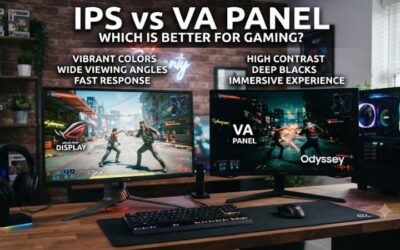
The most common cause is simply slow pixel response. A moving object can leave a darker or softer copy behind because the previous pixel state has not fully transitioned before the next image arrives. VA displays can be particularly susceptible to slow dark transitions, although performance varies substantially between individual models.
For this form of ghosting, how to fix screen ghosting on a gaming monitor depends on finding a response-time setting that reduces the trail without creating a new artifact. A browser motion test can make the difference visible, but it should be used for comparison rather than as a precise millisecond measurement.
Overdrive Can Cause Inverse Ghosting
Overdrive pushes LCD pixels harder so they can approach their target color more quickly. If the setting is too aggressive, pixels can overshoot the intended value, producing a bright or dark halo around moving objects. Lowering overdrive by one level can therefore improve motion clarity when the artifact is caused by overshoot.
Look at the moving edge rather than only the background. A soft trail that follows the object points toward slow response, while a conspicuous bright or dark edge around it points toward excessive overdrive. The correct setting is monitor-specific, so the label “Fast” or “Fastest” does not have the same meaning on every display.
Refresh Rate and VRR Change Motion
A higher refresh rate can reduce perceived motion blur and makes the display update more frequently, but it does not change the monitor’s underlying pixel response characteristics. Windows exposes the available refresh rates under Settings > System > Display > Advanced display, where the active display and rate can be checked.
VRR adds another variable because the monitor can change its refresh behavior with the game’s frame rate. FreeSync and G-SYNC address synchronization problems such as tearing, while monitor overdrive remains a separate part of motion handling. If your display offers adaptive or variable overdrive, its behavior can also depend on the current refresh rate.
What Does Not Help
RAM cleaners, registry scripts, and disabling Windows telemetry do not repair a monitor’s pixel response characteristics. They do not change the LCD transition behavior that produces conventional ghosting, so they should not be presented as monitor-motion fixes. Start with display settings and a repeatable visual comparison instead.
A GPU driver update can be worthwhile when you also have display instability, but a normal ghosting trail is not automatically a driver fault. Likewise, increasing game brightness may make dark smearing less noticeable without changing the underlying response behavior, so treat that as a visibility change rather than a repair.
How to Fix Screen Ghosting: Step by Step
The safest sequence moves from verification to display settings, then connection checks, and finally hardware diagnosis. The table below keeps each change reversible and identifies where to make it. Use Afterburner to watch frame rate where useful, HWiNFO for hardware and link information, and Event Viewer when investigating display-driver errors.
| Step | Where | How to Verify | Cost |
| 1. Confirm refresh rate | Windows Settings > System > Display > Advanced display | Check Hz in Windows and frame rate in MSI Afterburner; undo by selecting the previous rate | Free |
| 2. Tune overdrive and motion modes | Monitor OSD | Compare each response-time level with a UFO-style motion test; undo by returning to the previous mode | Free |
| 3. Check cable and VRR configuration | Monitor OSD, GPU control panel, cable connection | Check VRR state, display mode, HWiNFO information, and Event Viewer for display errors; undo by reconnecting the original cable/settings | Free or low cost |
| 4. Diagnose the panel | Monitor manual and another compatible PC/GPU | Repeat the same motion test at the normal resolution and refresh rate; undo by restoring the original setup | Hardware-dependent |
Step 1: Confirm the Active Refresh Rate
Open Settings > System > Display > Advanced display and select the affected monitor. Windows shows the current resolution and refresh rate there. Select the highest supported rate that matches your normal gaming configuration rather than assuming the monitor switched automatically after installation.
Use MSI Afterburner or another frame-rate overlay to see whether the game is producing frames at a reasonable level for the selected refresh rate. If changing the rate makes motion look different, keep the setting that matches your intended display mode. Undo the change by selecting the previous refresh rate in Advanced display.
Step 2: Tune Overdrive Carefully
Open the monitor’s on-screen display and look for Overdrive, Response Time, TraceFree, AMA, or a similar manufacturer-specific name. Start from a moderate setting, then compare one level at a time using a consistent moving pattern. Blur Busters documents how changing overdrive can move a display between ordinary ghosting and corona artifacts.
For how to fix screen ghosting on a gaming monitor, the useful comparison is visual: choose a level that reduces the trailing image without producing an obvious bright or dark halo. Do not assume the maximum level is appropriate. If the result looks worse, return to the previous OSD setting and compare again at your normal refresh rate.
Step 3: Check Cables and VRR
Inspect the DisplayPort, HDMI, or USB-C video connection for damage and make sure the connector is fully seated. HP recommends checking connected devices and cables as part of monitor ghosting troubleshooting. If possible, compare another suitable cable that supports the display mode your monitor and GPU are configured to use.
If you use AMD FreeSync, verify that the monitor and Radeon configuration support the intended mode; AMD also documents monitor-side FreeSync configuration and DisplayPort requirements. NVIDIA users can check G-SYNC under NVIDIA Control Panel > Display > Set up G-SYNC. Use HWiNFO for hardware information and Event Viewer for related display errors, then restore the original configuration if the change does not help.
Step 4: Diagnose the Panel Before Replacing Hardware
If ghosting remains after refresh-rate and overdrive checks, compare the monitor on another compatible PC or GPU using the same resolution, refresh rate, cable type, and motion pattern. If the trail follows the monitor while the source system changes, the panel or its processing becomes a more likely explanation than Windows configuration.
This final step is where hardware replacement becomes relevant, but only after the earlier checks point toward a display limitation. A replacement monitor must support the required resolution, refresh rate, input connection, and adaptive-sync mode for the PC. Keep the original monitor settings available so the comparison remains reversible and consistent.
FAQ
These answers separate conventional ghosting from related display artifacts and explain when settings can help. The important distinction is whether the moving object leaves a normal trailing image, develops a bright inverse-ghosting halo, or simply looks blurry because of sample-and-hold motion behavior rather than slow pixel transitions.
Can a Higher Refresh Rate Fix Ghosting?
A higher refresh rate can reduce perceived motion blur, but it cannot change the monitor’s intrinsic pixel response behavior. Microsoft notes that higher refresh rates can improve gaming motion, while RTINGS distinguishes refresh-rate behavior from the underlying response time of the display.
If the monitor supports a higher rate, confirm it is actually selected in Windows rather than relying on the model’s advertised maximum. For how to fix screen ghosting on a gaming monitor, use the higher rate when supported by your display and GPU, then retune overdrive because the appropriate setting can vary with refresh behavior.
Should I Set Monitor Overdrive to the Maximum?
You should not automatically set overdrive to maximum because excessive overdrive can create inverse ghosting. RTINGS explains that more aggressive overdrive can increase response speed while also increasing overshoot, so the useful setting depends on the monitor and the refresh rate being used.
Compare the monitor’s response modes with the same moving pattern and look for both types of artifact. If a higher setting shortens the trail but introduces a bright halo, step back. This makes how to fix screen ghosting on a gaming monitor a matter of balancing residual trailing against overshoot rather than selecting the strongest option.
Does G-SYNC or FreeSync Remove Ghosting?
G-SYNC and FreeSync primarily synchronize display refresh behavior with rendered frames, helping address tearing and related synchronization issues; they do not inherently make a slow LCD pixel transition faster. AMD also notes that variable overdrive is a separate monitor feature that display manufacturers can implement.
If ghosting appears after enabling VRR, compare the monitor at the same game frame rate with VRR enabled and disabled. Some displays change overdrive behavior across refresh rates, so the OSD response-time setting may need adjustment. Do not treat VRR as a replacement for diagnosing the panel’s motion response.
When Does Ghosting Mean I Need a New Monitor?
A replacement becomes reasonable to investigate when the same visible trail remains after correct refresh-rate selection, sensible overdrive tuning, cable checks, and comparison with another compatible system. RTINGS notes that a monitor’s response time itself cannot be changed through settings, even though overdrive and other motion features can affect the result.
Before replacing it, distinguish ghosting from ordinary persistence blur and from inverse ghosting. A motion test can reveal these differences visually, while the monitor’s manual identifies its available response-time and strobing features. If the panel remains unsuitable for your normal gaming conditions, changing hardware is the remaining diagnostic path.
Final Thoughts
How to fix screen ghosting on a gaming monitor is mainly a process of separating slow pixel response, excessive overdrive, refresh-rate configuration, VRR behavior, and connection problems. Start with free checks, compare settings consistently, and replace hardware only when the evidence points to a panel limitation.
Ready to decide? Our #1 pick for 2026 is the Step.
Live price & availability on Amazon.