Shopping for a 4K gaming monitor used to mean choosing between resolution and refresh rate, and paying dearly for both. In 2026, panel prices have finally come down far enough that 27-inch 4K displays running at 120Hz and beyond regularly land under $500 — but the market is crowded, and the specs sheets are noisier than ever. Marketing terms like “DFR 320Hz,” “1ms,” and “HDR” often describe features that behave very differently in practice, and a monitor that looks like a bargain on paper can disappoint the moment you plug it into a mid-range GPU.
This guide cuts through that. We’ve focused on displays that realistically sell for under $500, prioritizing genuine value-for-money over headline numbers: panel quality, refresh rate you can actually use, connectivity that won’t bottleneck your setup, and adaptive sync support that works with both NVIDIA and AMD cards. Below you’ll find our top picks, a short buyer’s checklist, and answers to the questions we get asked most.
As an Amazon Associate we earn from qualifying purchases at no extra cost to you.





⚡ Save on Your Next PC — Amazon Prime
Prime members get fast free shipping on the systems above, plus early access to Prime Day & Black Friday PC deals. New members get a 30-day free trial.
Watch: Best 4K Monitor Under $500 — Video Review
How to Choose 4K Monitor Under $500
- Panel type: IPS is the safest bet at this price for color accuracy and viewing angles. VA panels offer deeper contrast and suit curved, immersive setups, but can show smearing in fast dark scenes.
- Refresh rate you can feed: A 160Hz 4K panel is only useful if your GPU can push those frames. If you’re on a mid-range card, prioritize a solid 120Hz panel with good response times over a higher number you’ll rarely hit.
- Adaptive sync: Look for FreeSync Premium and NVIDIA G-SYNC Compatible certification. Both are common under $500 now, and there’s no reason to buy a monitor without at least one.
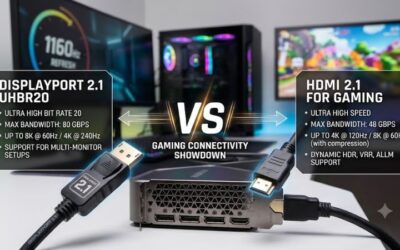
- Ports and cables: You need DisplayPort 1.4 or HDMI 2.1 to run 4K at high refresh rates. USB-C with power delivery is a genuine bonus if you also work from a laptop — but expect to pay closer to the top of the budget for it.
- HDR expectations: DisplayHDR 400 and similar entry-level certifications add brightness, not true HDR. Judge these monitors on their SDR performance and treat HDR as a small extra rather than a selling point.
The Best Picks Reviewed
Acer Nitro VG270K V4
The best all-round value here: a 27-inch 4K IPS panel at 160Hz native, with a Dual Format Refresh mode that drops to 1080p for up to 320Hz when you want maximum speed in competitive titles. Color and uniformity are strong for the money, making it a genuine dual-purpose display for gaming and content work.
ASUS ROG XG27UCSR
The premium pick in this bracket, offering 4K at 162Hz with USB-C connectivity and native G-SYNC compatibility — ideal if you’re docking a laptop as well as running a desktop. It sits at the top of the $500 budget, but the build quality, stand adjustability and port selection justify the stretch.
ASUS TUF Gaming VG27UQ1A
A well-rounded 160Hz 4K HDR monitor with 95% DCI-P3 coverage, Extreme Low Motion Blur Sync and both G-SYNC Compatible and FreeSync Premium support. The DisplayWidget software and three-year warranty add real peace of mind at this price.
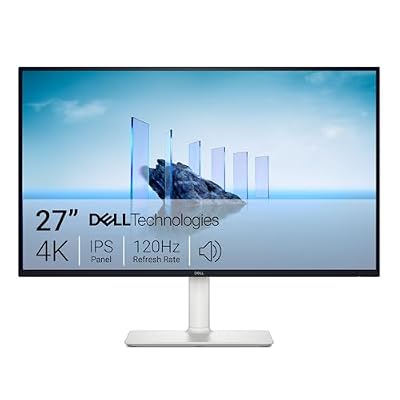
Dell S2725QS
The sensible budget choice: 4K IPS at 120Hz with FreeSync Premium, clean design and Dell’s reliable panel quality. It won’t win refresh-rate arguments, but for console gaming, single-player titles and productivity it delivers excellent value well under $500.
Samsung Odyssey G7 (G75F) 37″
If you want scale, this curved 37-inch 4K UHD panel is dramatically more immersive than a 27-inch display for racing and open-world games. It’s the largest option here and often sits near or slightly above the cap depending on sales, so buy it on a deal.
Frequently Asked Questions
Do I need an expensive GPU for 4K gaming?
For 60–80fps in modern titles at high settings, a current-generation mid-range card is usually enough, especially with upscaling like DLSS or FSR enabled. Hitting 120fps or more at native 4K still requires a high-end GPU.
Is 27 inches too small for 4K?
Not at all — 27-inch 4K gives roughly 163 pixels per inch, producing exceptionally sharp text and images. You may want to use display scaling in Windows for comfortable desktop use.
Should I choose 4K at 120Hz or 1440p at 240Hz?
If you play mostly single-player, cinematic or console games, 4K wins on image quality. Competitive shooter players are generally better served by a faster 1440p panel like the Samsung Odyssey G5 (G51F).
Does HDMI 2.1 matter for PC gaming?
Only if you’re connecting a PS5, Xbox Series X, or a GPU without DisplayPort output. On PC, DisplayPort 1.4 with DSC handles 4K at 160Hz without issue.
Final Thoughts
For most buyers, the Acer Nitro VG270K V4 is the strongest value under $500, combining a genuine 160Hz 4K IPS panel with a flexible high-refresh mode. Step up to the ASUS ROG XG27UCSR if you want USB-C and a more premium build, or save money with the Dell S2725QS if 120Hz is plenty for your library and your GPU.