🛒 Best Price Today on Amazon
Prime members get fast, free shipping on everything above, plus member-only deals. New members get a 30-day free trial — cancel anytime.
A what is a motherboard chipset question matters when building or upgrading a gaming PC, because the chipset helps determine which connectivity features, expansion options, and processor configurations a motherboard supports. It does not replace the CPU or automatically increase frame rates, but it can affect upgrade flexibility, storage options, and the number of devices you can connect.
Quick answer: Our top pick in 2026 is the Chipset consideration — our #1 rated choice. See the full ranked comparison, alternatives and buying advice below.
What a Motherboard Chipset Really Comes Down To
A motherboard chipset is a hardware controller that manages communication between the processor and many of the system’s connected devices. On modern desktop PCs, the CPU handles memory access and some direct PCIe connections, while the chipset provides additional connectivity for storage, USB, and expansion. The exact division depends on the platform and motherboard design.
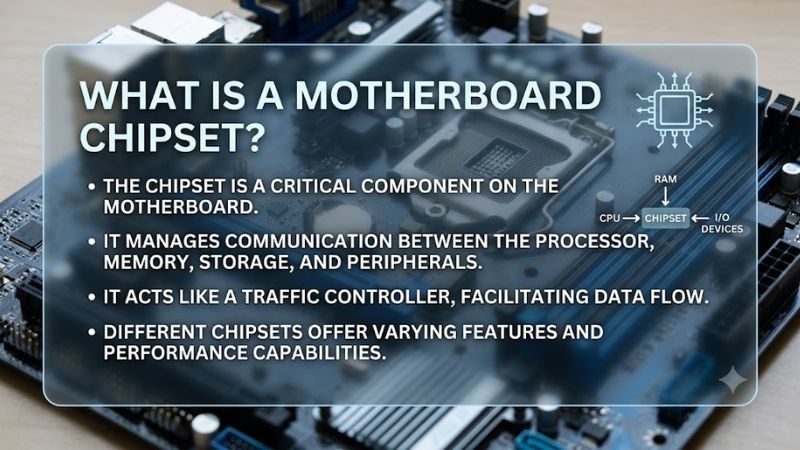
The chipset manages connectivity
Think of the chipset as a connectivity hub for your PC. It helps the processor communicate with devices that do not connect directly to the CPU, including certain PCIe expansion slots, SATA drives, USB ports, and other onboard controllers. Its capabilities influence how many features a motherboard can offer, although the manufacturer decides which features to implement on each particular board.
The chipset does not necessarily control every connection. A graphics card’s primary PCIe slot and some M.2 storage connections may use PCIe lanes supplied directly by the processor. Other connections may pass through the chipset and share its upstream link. Check the motherboard’s block diagram or specification sheet to see how its connections are arranged.
The CPU and chipset have different jobs
The CPU executes game instructions, runs applications, and processes operating-system tasks. The chipset supports the surrounding platform by providing additional input/output capabilities. A high-end chipset cannot compensate for a processor that is too slow for a particular game, and a powerful CPU cannot add ports that the motherboard does not physically provide.
This distinction is useful when comparing gaming builds. If two compatible motherboards use the same CPU and memory configuration, the board with a more expensive chipset does not automatically deliver higher frame rates. Differences in expansion, firmware features, storage connectivity, and overclocking support may matter more than the chipset price alone.
PCIe lanes affect expansion options
PCI Express, or PCIe, connects graphics cards, NVMe SSDs, network adapters, and other expansion hardware. A motherboard’s available lanes and their allocation influence which devices can operate simultaneously and at what link width or generation. The chipset often provides additional lanes beyond those supplied directly by the CPU, expanding the board’s connection options.
However, more lanes do not always mean every slot can run at its maximum advertised speed at the same time. Some motherboards share bandwidth or disable particular connectors when another slot or storage socket is populated. Before installing several NVMe drives or expansion cards, review the motherboard manual for lane-sharing notes and supported configurations.
USB, storage, and onboard features vary
Chipsets help determine the platform’s potential USB connectivity, SATA support, and additional PCIe resources. Motherboard manufacturers then choose the actual ports, connectors, controllers, and layout. Two boards with the same chipset can therefore offer different rear USB arrangements, internal headers, networking options, and numbers of M.2 sockets.
For a gaming PC, focus on the features you will use. An external capture device may need a suitable USB port, while a large game library may benefit from additional M.2 sockets or SATA connectors. Built-in Wi-Fi, Bluetooth, and audio capabilities also vary by motherboard model, so never assume every board using a particular chipset includes the same equipment.
How to Understand Chipset Differences and Compatibility
The easiest way to compare chipsets is to start with the processor platform, then identify the features you need. Intel and AMD use different chipset families, and their motherboards are not interchangeable. Even within one brand, a matching socket does not guarantee that every processor works with every board, because chipset support and BIOS versions can impose additional requirements.
| Chipset consideration | What to check | Why it matters | Risk to avoid |
| CPU compatibility | Socket, supported CPU list, BIOS version | Confirms the system can start with your processor | Assuming matching sockets guarantee support |
| PCIe connectivity | Lane allocation and generation | Determines expansion and storage options | Assuming every slot runs at full bandwidth |
| USB and storage | Rear ports, internal headers, M.2 and SATA connectors | Ensures your peripherals and drives fit the build | Buying based on chipset name alone |
| Tuning features | CPU and memory overclocking support | Determines available firmware controls | Assuming every board supports the same tuning |
CPU socket and chipset compatibility
Start with the processor you own or intend to purchase. Its socket must match the motherboard, and the board’s official CPU support list must include that exact processor. BIOS support is another consideration, particularly when a motherboard has been available longer than the CPU you want to install. Check the manufacturer’s compatibility page before ordering components.
For example, AMD’s AM5 platform supports Ryzen 7000, 8000, and 9000 desktop processor families across its 600- and 800-series chipset platforms, subject to the specific board’s support list and any required BIOS update. AM4 is a separate platform with DDR4 support and a different compatibility history. Neither platform should be treated as interchangeable with Intel hardware.
PCIe generations and expansion
PCIe generation affects the potential bandwidth available to compatible graphics cards, SSDs, and expansion cards. A newer generation can offer more bandwidth per lane, but the actual connection depends on the CPU, motherboard wiring, device, and slot configuration. A chipset label alone does not tell you the full specifications of every PCIe slot.
For gaming, the graphics card’s primary connection and the available NVMe storage sockets are useful places to start. Check whether installing a second SSD affects another slot or connector. If you plan to add capture cards, high-speed network adapters, or several drives, prioritize the motherboard’s complete lane layout rather than choosing the chipset with the most impressive name.
USB, SATA, and networking options
A chipset provides a foundation for connectivity, but the motherboard manufacturer determines which ports and controllers appear on the finished product. One board may include more high-speed USB ports or M.2 sockets than another board using the same chipset. Built-in Wi-Fi, Bluetooth, Ethernet speed, and audio features can also differ between models.
Before buying, count the connections you actually need. Consider front-panel USB-C support, external storage, a wired network connection, and the number of internal drives. Read the specification sheet and manual together: the specifications describe available features, while the manual can explain which ports share resources or become unavailable in particular configurations.
Overclocking and firmware support
Some chipset families support CPU overclocking, while others limit the available controls. Memory tuning also depends on the processor, motherboard firmware, installed memory, and platform rules. A chipset that permits overclocking does not mean every motherboard can sustain the same settings, because power delivery and cooling design vary by model.
If you want to adjust CPU or memory settings, verify support for your exact processor and board before buying. Review the motherboard’s UEFI options, power-delivery design, and manufacturer documentation. If you prefer a straightforward gaming system, reliable stock operation and the required ports may be more valuable than paying extra for tuning features you will not use.
How to Choose and Check a Motherboard Chipset
When asking what is a motherboard chipset in practical terms, think about the capabilities you need rather than treating the chipset as a direct performance rating. Start with CPU compatibility, list the expansion and storage devices you expect to use, and compare actual motherboard specifications. This approach helps avoid paying for features your build does not require.
Step 1: Identify the installed motherboard
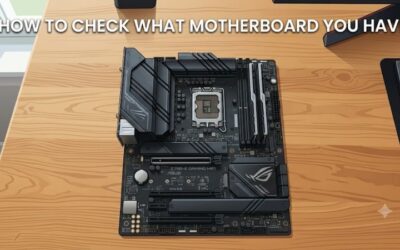
If you already own a PC, identify the motherboard model before considering an upgrade. In Windows, press Windows + R, enter msinfo32, and press Enter. Look for the BaseBoard Manufacturer, BaseBoard Product, and BIOS Version/Date entries. Some prebuilt computers report incomplete motherboard details, so the system manufacturer’s support page may be necessary.
You can also inspect the motherboard model printed on the circuit board or use the system documentation. Once you know the exact model, visit its official support page and find the specifications and manual. Do not assume that a computer’s brand name identifies its chipset, because a manufacturer may sell several different motherboard configurations under a similar product name.
Step 2: Verify the chipset and CPU support
Compare the motherboard’s chipset and socket with the official processor support list. Check whether your intended CPU requires a minimum BIOS version, especially if the board comes from older inventory. A BIOS update may be necessary before the system recognizes a newer processor, and the procedure depends on the motherboard’s available update features.
If the computer already boots, you can also inspect hardware information through Windows or a reputable system-information utility. Confirm the reported details against the manufacturer’s documentation rather than relying on a single application. If you are buying a replacement board, verify memory type and capacity support as well: DDR4 and DDR5 are not interchangeable in ordinary desktop DIMM slots.
Step 3: Compare the board’s real features
Open the official specification sheet and manual for each motherboard under consideration. Compare PCIe slots, M.2 sockets, SATA connectors, USB ports, network features, and memory support. If you use several expansion devices, inspect lane-sharing notes and the connection diagram. This reveals differences that the chipset’s marketing name may not communicate.
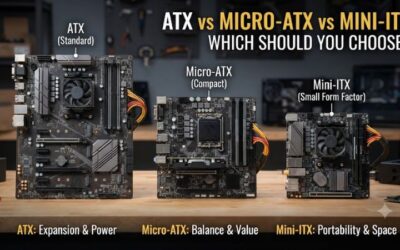
Also check the motherboard’s physical format and case compatibility, CPU cooler clearance, and required power connectors. These are motherboard and system compatibility questions rather than chipset features alone. For a gaming build, make sure the board can accommodate your graphics card, storage plan, and future upgrades before paying for additional connectivity you may never use.
Step 4: Install appropriate chipset drivers
After assembling a compatible PC or reinstalling Windows, obtain the appropriate chipset driver package from the processor platform vendor or the motherboard manufacturer’s support page. Drivers help Windows configure and manage platform devices, but they do not change the physical capabilities of the chipset. Use packages intended for your exact platform and operating system.
Follow the vendor’s installation instructions, restart if requested, and check Device Manager for unresolved device errors. Keep BIOS updates separate from ordinary driver installation: firmware updates can improve compatibility but carry additional risk if interrupted or performed incorrectly. Update the BIOS only when there is a relevant reason, and follow the motherboard maker’s procedure.
FAQ
Does a motherboard chipset affect gaming FPS?
A motherboard chipset usually affects gaming FPS indirectly rather than acting as a direct performance control. CPU performance, graphics hardware, memory configuration, game settings, and cooling have a more direct impact, although motherboard limitations can matter when they restrict a required feature or supported configuration.
Can you upgrade a motherboard chipset without replacing the board?
No, you generally cannot upgrade the chipset independently because it is soldered to the motherboard. Changing to a different chipset normally requires replacing the motherboard, and the replacement must remain compatible with your processor, memory, case, and other components.
Does a more expensive chipset make a PC faster?
No, a more expensive chipset does not automatically make the same CPU and graphics card faster in games. Higher-tier options may offer more connectivity, expansion capacity, or tuning features, but actual performance depends on the complete hardware configuration and the motherboard’s implementation.
How do you find your motherboard chipset in Windows?
You can start by running msinfo32 to identify the motherboard manufacturer and model, then check that model’s official specifications. Windows System Information may not explicitly name the chipset, so confirm the result through the manufacturer’s documentation or a reputable hardware-information utility.
Final Thoughts
Understanding what is a motherboard chipset helps you choose a board with the right connectivity, expansion options, and processor support. Start with the CPU socket and official compatibility list, then compare storage, USB, PCIe, and tuning features. For gaming, a compatible motherboard with the connections you need is often more sensible than paying extra for a chipset tier you will not use.
Ready to decide? Our #1 pick for 2026 is the Chipset consideration.
Live price & availability on Amazon.