🛒 Best Price Today on Amazon
Prime members get fast, free shipping on everything above, plus member-only deals. New members get a 30-day free trial — cancel anytime.
If your AIO is not cooling, the most common cause is a pump that is not spinning at full speed, usually because it is plugged into the wrong motherboard header or its speed is being throttled by a fan curve. Check that first, then work through mounting, air in the loop, and radiator airflow. Most fixes take minutes and need no parts.
Signs Your AIO Is Not Cooling Properly
An all-in-one liquid cooler should keep a modern gaming CPU well below its throttle point under sustained load. Reviewers and cooler makers generally describe the following as warning signs that something is wrong rather than normal behavior:
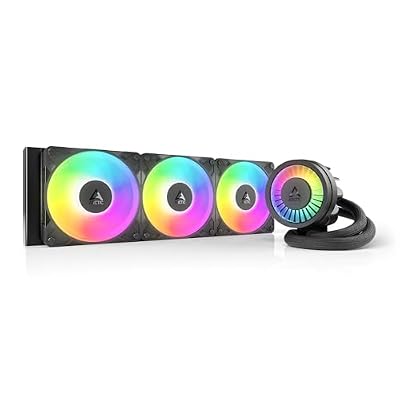
ARCTIC Liquid Freezer III Pro 360 A-RGB - AIO CPU Cooler, Water Cooling | Cooler For LGA1851, LGA1700, AM4, AM5.
Included for 'How to Fix AIO Not Cooling: Step-by-Step Troubleshooting' because the listing specifies AIO CPU Cooler and Water Cooling, details this guide uses to compare options.
View on Amazon
ARCTIC Liquid Freezer III Pro 360 - AIO CPU Cooler,3 x 120 mm Water Cooling | Cooler For LGA1851, LGA1700, AM4, AM5.
Included for 'How to Fix AIO Not Cooling: Step-by-Step Troubleshooting' because the listing specifies AIO CPU Cooler and 3 x 120 mm Water Cooling, details this guide uses to compare options.
View on Amazon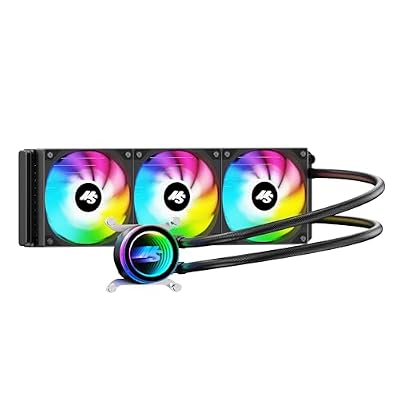
Minorsonic AIO CPU Cooler, 360mm AIO with High-Speed Ceramic Bearing Pump, 3X PWM ARGB Fans, 3-Phase Motor for Better Cooling Performance, Heat Transfer, Low Noise, Intel LGA 1851/1700, AMD AM5/AM4
Included for 'How to Fix AIO Not Cooling: Step-by-Step Troubleshooting' because the listing specifies 360mm AIO with High-Speed Ceramic Bearing Pump and 3X PWM ARGB Fans, details this guide uses to compare options.
View on Amazon
ARCTIC Liquid Freezer III Pro 360 A-RGB - AIO CPU Cooler, Water Cooling | Cooler For LGA1851, LGA1700, AM4, AM5.
Included for 'How to Fix AIO Not Cooling: Step-by-Step Troubleshooting' because the listing specifies AIO CPU Cooler and Water Cooling, details this guide uses to compare options.
View on Amazon- CPU temperature jumps to the high 80s or 90s within seconds of launching a game or benchmark.
- Idle temperatures that are far above what air coolers of the same class reach on the same chip.
- The radiator and tubes stay cool to the touch while the CPU is hot, which suggests liquid is not circulating.
- Gurgling or bubbling sounds, or a pump that is silent, rattling or grinding.
- Clock speeds that fall during gameplay because the processor is thermal throttling.
Modern chips can legitimately run hot. Many Ryzen and Intel processors are designed to boost until they approach a temperature limit, so a high number alone is not proof of a fault. The pattern that matters is a sharp spike, a hot CPU with a cold radiator, or a sudden change compared with how the cooler behaved before.
Likely Causes, Ranked
- Pump header or pump speed problem. The pump is on a header with a fan curve, or on a header that does not supply full power.
- Poor contact on the CPU. Protective film left on the cold plate, too little or too much paste, uneven screw tightening, or the wrong bracket.
- Air trapped in the pump block. Often caused by the radiator mounted so the pump is the highest point.
- Radiator fans wrong way round or too slow. Fans blowing against the intended airflow, or set to a silent curve.
- Dust or restricted airflow. Clogged radiator fins and dust filters.
- Case airflow imbalance. Hot air recirculating inside the case.
- Failing pump or an aged cooler. Pumps wear out, and sealed loops slowly lose coolant through tubing over the years.
Safety First
Shut the PC down and unplug the power cable from the wall before touching anything inside. Hold the power button for a few seconds to discharge the system. Never open the power supply, and never disassemble the pump block or try to refill a sealed AIO unless the maker explicitly documents a refill procedure. If you see a liquid leak, stop using the PC, keep it unplugged, and contact the cooler maker. Also, BIOS changes can affect stability and, depending on the maker, warranty coverage, so keep every setting conservative.
Step-by-Step Fixes, Easiest First
- Confirm the pump is running. Open the case with the PC powered down and unplugged, then power on after reassembly and look at the pump block. Many pumps show their RPM in the BIOS or in monitoring tools such as HWiNFO. A pump reading of 0 RPM, or a reading that jumps around, points to the wrong header or a dead pump.
- Use the correct header. Many motherboards have a dedicated AIO pump header. The motherboard manual explains which headers can supply full power and which are intended for fans. If your cooler’s pump runs from a SATA, Molex or USB cable in addition to a fan lead, make sure every cable the cooler’s manual requires is connected.
- Set the pump to full speed. In the BIOS fan control, set the pump header to a fixed high setting or DC/PWM mode matching the cooler’s manual. Menu names vary by motherboard maker, so consult the board manual. Many AIO makers advise against putting the pump on a slow temperature-based curve.
- Check the orientation of the radiator. The cooler’s manual and most reviewers advise that the pump should not be the highest point in the loop, because air collects at the top and can reach the pump. Top-mounted radiators with tubes at the bottom, or front-mounted ones with tubes on the lower side, are the usual advice. If your radiator puts the pump at the top, consider remounting it.
- Listen for trapped air. Gurgling that fades after a few minutes of running is common on new coolers. If it persists, gently tilting the case as the cooler’s manual allows may help move air to the radiator, but do not shake the PC or stress the tubes.
- Check the fans on the radiator. Make sure they spin, face the intended direction (arrows on the frame show airflow direction), and are on a curve that ramps with CPU temperature rather than only case temperature. A fan connected to a low-power header may barely turn.
- Reseat the cold plate. Remove the block, confirm that any clear plastic film on the cold plate is gone, clean the old paste with isopropyl alcohol, apply a small, even amount of paste as the cooler or paste maker advises, then remount. Tighten the screws in a cross pattern, a little at a time, so pressure is even. Make sure the correct socket bracket is used for AM5, LGA1700 or LGA1851.
- Clean the radiator and filters. Use short bursts of compressed air with the fans held still so they do not over-spin, and clear the dust filters.
- Improve case airflow. If hot GPU exhaust is being pulled through the radiator, change the fan layout. A radiator in the front or top that pulls in warm air from the rest of the case will cool poorly.
- Update BIOS and cooler software cautiously. Fan and pump control bugs are sometimes fixed in updates. Follow the maker’s instructions, and do not interrupt a BIOS update.
Quick-Reference Table
| Symptom | Likely cause | Fix |
|---|---|---|
| Pump shows 0 RPM | Wrong header, loose cable, dead pump | Reseat the pump lead on the pump header; contact the maker if it stays at 0 |
| CPU hot, radiator cold | No coolant flow or air in the pump | Check pump RPM, fix radiator orientation, stop use if the pump is dead |
| Temperature spikes instantly under load | Poor contact on the CPU | Remove film, repaste, retighten evenly |
| Gurgling noise | Trapped air | Move radiator above the pump, let it run, contact the maker if it persists |
| Radiator warm but CPU still hot | Weak radiator airflow or case heat | Fix fan direction, raise fan curve, clean dust |
| Gradual increase over years | Dust, aging pump or coolant loss | Clean it; replace the cooler if the warranty is over |
When to Stop and Contact the Maker or a Technician
Contact the cooler maker if the pump does not spin on the correct header, the tubes feel soft or damaged, there is any visible coolant, or the cooler is within its warranty period. Many AIO makers list multi-year warranties, and opening the pump block usually voids them. A local technician can help if the CPU, motherboard socket or bracket looks damaged, or if temperatures stay extreme with a known-good cooler, since the problem may then be the processor, BIOS settings or the motherboard’s power delivery.
Prevention Tips
- Plug the pump into the header the motherboard manual designates for AIO pumps, and set it to full speed.
- Mount the radiator with the pump lower than the highest point of the loop.
- Clean dust filters and the radiator every few months.
- Use a fan curve based on CPU temperature for the radiator fans.
- Keep an eye on baseline temperatures after each build or repaste so you notice changes early.
- Remember that a 240 mm or 360 mm radiator does not guarantee low temperatures if the chip itself draws high power; the maker’s power limits matter too.
Frequently Asked Questions
How hot is too hot for a CPU on an AIO?
The processor maker lists a maximum operating temperature for each chip, and this varies by model. Sustained temperatures near that limit while gaming suggest the cooler is not keeping up. Brief spikes at the start of a load are normal on many modern chips.
Can an AIO be worse than a good air cooler?
Yes. A small or poorly mounted AIO can perform worse than a high-quality air cooler, and reviewers have shown this repeatedly. Mounting quality, pump speed and radiator airflow matter as much as the cooler type.
Is it normal for the pump to be audible?
A faint hum is normal. A loud whine, grinding or rattling is not, and the cooler’s maker should be contacted. Running the pump at a lower speed can reduce noise, but many makers advise against going too low.
How long do AIO coolers last?
Makers list varying warranty periods, often several years, and real-world lifespan varies. Liquid slowly permeates through tubing and pumps can wear out, so declining performance after many years of use can be a normal sign of age.
Should I replace thermal paste on a new AIO?
Most AIOs ship with paste pre-applied to the cold plate, and the maker’s manual normally says to use it. Replace it only if the contact looks poor or you are remounting the cooler.