🛒 Best Price Today on Amazon
Prime members get fast, free shipping on everything above, plus member-only deals. New members get a 30-day free trial — cancel anytime.
Modern gaming mice offer polling frequencies ranging from 1000Hz up to 8000Hz to send position updates to your operating system. Following a clear polling rate guide allows players to balance ultra-low input latency against hardware system overhead. High refresh rate monitors require fast input data to maintain fluid motion tracking in fast titles.
What Polling Rate Really Comes Down To
Selecting the right frequency for a gaming peripheral depends on your monitor refresh rate and processor capacity. Standard 1000Hz reporting provides input updates every 1.0 millisecond, which satisfies most competitive players. Following a proper polling rate guide helps identify whether your hardware benefits from higher reporting speeds.
Signal Frequency and Report Intervals
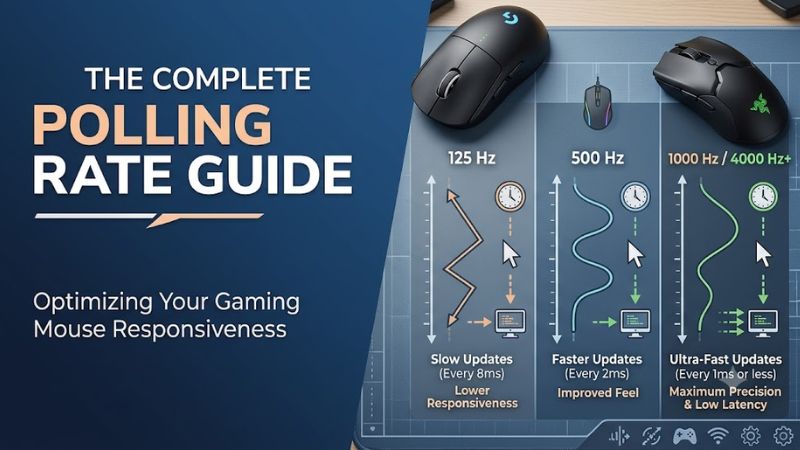
The core metric of peripheral communication is report frequency, measured in hertz to indicate data packets transmitted per second. At 1000Hz, a device sends location updates every 1.0ms, whereas an 8000Hz device reduces that delay to 0.125ms. This math shows how report density increases exponentially as USB polling steps beyond baseline rates.
A comprehensive polling rate guide demonstrates that smaller reporting delays reduce input latency before visual processing begins. Lowering report times ensures your cursor state reflects hand movements with minimal delay. However, human perception limits mean timing gains under 1.0ms feel far less drastic than jumping from 125Hz to 1000Hz.
Processor Overhead and System Interrupts
As detailed in any technical polling rate guide, processing 8000 reports every second creates significant system load on older processors like a Ryzen 5 2600. Every packet received by a motherboard generates a hardware interrupt that forces processor cores to pause current tasks briefly, which can trigger background micro-stutter.
Modern high core count CPUs handle dense USB interrupts easily, but budget configurations may experience frame pacing drops during rapid mouse sweeps. Gamers using processors with limited thread counts often notice higher background utilization in Task Manager. Lowering report steps restores CPU headroom without sacrificing precision.
Display Refresh Rates and Motion Alignment
Display monitors redraw images at fixed intervals, such as 4.17ms on a 240Hz screen or 2.78ms on a 360Hz panel. Higher peripheral report rates ensure fresh coordinate data exists for every rendered frame. Matching fast mouse inputs with high refresh rate panels minimizes visual judder during fast camera sweeps in tactical shooters.
A detailed polling rate guide notes that when gaming on a standard 144Hz panel, several position updates land between individual display refreshes. While the display cannot show intermediate frames, game engines still use dense coordinate points for internal physics calculations. This sub-frame sampling improves tracking feel effectively.
Software Enhancements That Offer No Input Benefit
Many third-party utility tools claim to boost hardware performance by modifying system parameters or applying registry adjustments. Software registry scripts or background memory cleaner utilities do not lower peripheral input latency or improve sensor accuracy. System input processing relies entirely on official hardware microcontrollers.
Disabling core Windows telemetry services also fails to improve peripheral response times or raise in-game frame rates. Relying on unverified system tweaks often introduces stability risks without delivering measurable performance gains. Real latency improvements come from proper USB port selection and native hardware driver configuration.
How to Optimize Polling Rate: Step by Step
Configuring peripheral update intervals requires adjusting official driver software and selecting optimal motherboard USB connections. Utilizing direct rear motherboard ports ensures unshared bandwidth for stable high-frequency data streams. Following a structured setup prevents frame drops while securing maximum input response across your setup.
| Setting | Where | Effect | Risk |
| Frequency Selection | Peripheral Software | Controls data report interval rate | High CPU load if set too high |
| Port Connection | Rear Motherboard I/O | Provides dedicated USB controller bandwidth | Port clutter on busy motherboards |
| Sensor DPI Level | Peripheral Software | Saturation threshold for high polling rates | Cursor sensitivity requires in-game scaling |
| Raw Input API | Game Engine Options | Bypasses operating system cursor acceleration | Incompatible with legacy game engines |
Select Stable Hardware Frequency Steps
Open your peripheral companion software to adjust the device report rate based on processor capabilities and monitor specs. Setting 1000Hz offers full stability for any modern setup, while 4000Hz serves as a high-performance balance. This polling rate guide recommends starting at 1000Hz before testing higher frequencies in competitive titles.
If you notice frame hitching or erratic cursor movements, revert the software setting back to the lower stable value immediately. Reverting changes in peripheral utilities takes seconds and restores consistent system timing. Operating at stable reporting steps ensures your game engine receives steady input data without packet drops.
Connect Peripheral Directly to Rear USB Ports
Plug your high-frequency device directly into a USB 3.0 or USB 3.1 port located on the motherboard rear I/O panel. Avoid external USB hubs or front panel case headers because shared hub bandwidth can cause packet loss. Rear ports connect straight to primary chipset lines to ensure maximum timing integrity for dense data packets.
Consulting a hardware polling rate guide highlights that switching physical ports takes minimal effort and helps isolate potential USB host controller congestion. Moving the cable or wireless receiver to an adjacent rear port takes seconds. Direct connections provide the electrical stability necessary to sustain high report rates continuously.
Adjust Sensor DPI to Saturate High Frequencies
Set your sensor resolution to 1600 DPI or higher to generate enough movement packets to fully saturate 4000Hz or 8000Hz report rates. Operating at low DPI settings like 400 DPI fails to generate sufficient physical data during slow movement. Higher sensor resolution generates frequent position updates necessary for dense report schedules.
To maintain your muscle memory after increasing DPI, lower your in-game sensitivity values proportionally inside video game settings menus. Adjusting sensitivity sliders keeps your overall physical movement distance identical while supplying dense positional data to the OS. You can revert DPI levels anytime in your mouse companion app.
Enable Raw Input in Game Settings
Navigate to the control options in your game and toggle Raw Input to bypass legacy Windows cursor processing queues. Direct input handling allows game engines to process high-frequency USB packets straight from peripheral drivers. This setting prevents input buffering delays and removes unwanted desktop cursor acceleration.
If a game exhibits stuttering after turning on Raw Input, disable the setting in the game menu to restore default cursor handling. Testing toggles directly inside game menus allows safe verification without modifying system files. Modern game engines built on Unreal Engine handle direct raw input streams with optimal stability.
Frequently Asked Questions
Reviewing common user questions helps clarify practical trade-offs regarding energy usage, display hardware requirements, and game engine compatibility. Examining system bottlenecks prevents wasted expenditure on high-rate hardware that your PC cannot support. These answers provide direct guidance for tuning your peripheral setup properly.
Does an 8000Hz polling rate improve aim in competitive games?
Higher report frequencies reduce input latency slightly, but aim improvement depends far more on physical practice and sensor stability. Referencing a reliable polling rate guide helps players understand that 0.875ms latency gains will not compensate for poor positioning habits. Skill gains stem from consistent hardware habits rather than raw specs.
Competitive players on 240Hz or 360Hz monitors may feel subtle motion smoothness during fast sweeping movements across the desk surface. However, inconsistent report rates can introduce micro-stutter if system hardware struggles with CPU overhead. Maintaining a steady 1000Hz baseline often delivers superior consistency for most players.
Why does my frame rate drop when using high polling rates?
Frame drops occur because processing thousands of USB interrupts per second overburdens processor cores during heavy gaming scenes. When CPU usage peaks, interrupt handling steals rendering cycles from the game engine. Dropping peripheral update frequencies back to 1000Hz resolves this frame pacing issue completely.
Running background applications like voice chat or web browsers alongside high report rates increases background processor strain. Closing non-essential background tasks frees system resources for handling USB interrupts smoothly. System monitoring tools can verify whether CPU saturation causes in-game micro-stuttering during play.
How does high polling rate affect wireless battery life?
Operating at high report rates reduces wireless battery runtime by up to seventy percent due to increased power consumption. Transmitting 4000 or 8000 data packets per second forces wireless microcontrollers to run continuously at peak power, draining batteries far faster than standard rates.
Wireless gaming peripherals operating at 1000Hz can run for over one hundred hours on a single internal battery charge. Increasing the frequency to 8000Hz often reduces runtime down to under thirty hours on identical hardware. Choosing lower reporting steps reduces charging frequency while preserving input responsiveness.
Is 1000Hz polling still good enough for modern gaming?
Yes, a 1000Hz report rate provides excellent input timing and remains the optimal baseline for almost every gaming setup today. Delivering a fresh report every 1.0ms ensures extremely low latency without stressing processor hardware. Most professional esports competitors continue using 1000Hz for maximum system stability.
Every comprehensive polling rate guide confirms that 1000Hz delivers excellent performance across competitive and casual titles alike. Upgrading monitor refresh rates or mouse pad surfaces yields far greater gameplay improvements than chasing ultra-high report frequencies. Sticking with 1000Hz prevents unexpected hardware overhead issues.
Final Thoughts
Understanding hardware capabilities allows you to pick peripheral settings that balance speed against system overhead. Consult this polling rate guide whenever you upgrade your monitor, processor, or mouse hardware to maintain optimal configuration. Maintaining a stable setup guarantees consistent input performance across all games.