🛒 Best Price Today on Amazon
Prime members get fast, free shipping on everything above, plus member-only deals. New members get a 30-day free trial — cancel anytime.
Understanding display performance begins with configuring your hardware properly. This monitor refresh rate guide explains how your screen renders frames and why matching output parameters matters for desktop visuals. Modern displays require specific cables and operating system options to show high-speed updates without screen tearing.
What Monitor Refresh Rates Really Come Down To
Refresh rate indicates how many times per second a display updates the image on screen, measured in Hertz. Higher values like 144Hz or 240Hz reduce visible motion blur, provided the graphics card delivers enough frames. Configuring Windows and hardware connections ensures that the panel operates at rated capacity.
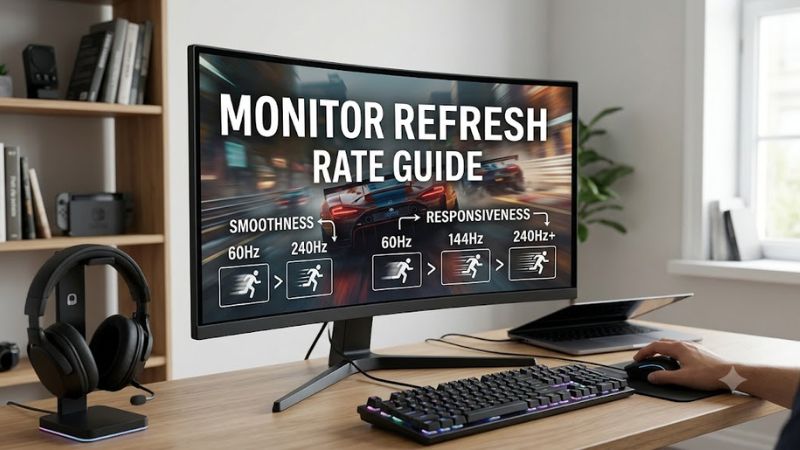
Hardware Bandwidth Limits and Display Cables
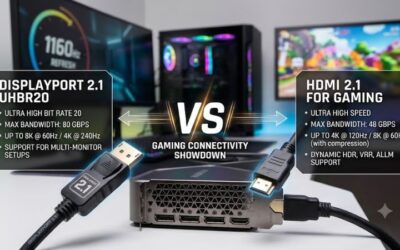
Video bandwidth determines maximum frame throughput over display cables. DisplayPort 1.4 provides up to 32.4 Gbps of raw bandwidth, supporting 1440p at 240Hz or 4K at 120Hz with compression. Older HDMI 2.0 ports cap at 18 Gbps, limiting 4K screens to 60Hz. Consulting a monitor refresh rate guide helps identify cable requirements.
Higher bandwidth connections like HDMI 2.1 supply 48 Gbps to drive 4K panels at 144Hz without sub-sampling. Using incorrect or legacy cables restricts operating system options to 60Hz, regardless of GPU capabilities. Verifying connector specifications on both graphics card and monitor prevents unexpected bottlenecks.
Frame Rate Synchronization and Adaptive Sync
Matching system frame rendering with monitor update intervals prevents visual screen tearing and stuttering. Variable refresh rate technologies like NVIDIA G-Sync and AMD FreeSync synchronize panel redraws with GPU output. Reviewing a monitor refresh rate guide clarifies how adaptive synchronization stabilizes frame delivery.
When frame rates fall below peak panel capabilities, adaptive sync adjusts display intervals dynamically. This process reduces input delay compared to legacy V-Sync without introducing image distortion. Maintaining hardware drivers updated keeps variable refresh rate features functioning correctly across titles.
Motion Clarity and Pixel Response Times
Panel response time measures how fast individual pixels transition from one color shade to another. Fast refresh rates require pixel response times below 4ms to prevent trailing ghost artifacts during rapid camera movement. OLED panels achieve response times below 0.1ms, preserving fine visual detail in motion.
IPS and VA displays utilize overdrive settings within screen menus to accelerate pixel state transitions. Setting overdrive too aggressive introduces inverse ghosting, causing bright halos around moving objects. Balanced overdrive profiles maintain image clarity without adding noticeable motion artifacts.
What Doesn’t Help Refresh Rates
Third-party software utilities promising automatic display optimizations cannot alter physical panel limitations. Operating system registry edits or background service tweaks do not increase signal bandwidth across display cables. Signal transmission relies strictly on hardware specifications and active driver communication.
Disabling operating system telemetry or clearing system memory cache offers no measurable benefit to screen update speeds. Software modifications cannot force a 60Hz physical panel to run at 144Hz without hardware support. Proper configuration through official control panels remains the only valid setup path.
How to Set Up Your Refresh Rate: Step by Step
Configuring high display update speeds involves selecting correct operating system settings and graphics driver options. Following methodical adjustments ensures that high refresh rate monitors operate as intended. The table below outlines necessary adjustments, location paths, expected visual effects, and potential risks.
| Step / Setting | Where | Effect | Risk and Undo |
| Windows Rate Selection | Settings > System > Display > Advanced display | Sets active Hz for desktop and games | Brief blackout; automatically reverts if unconfirmed |
| GPU Driver Profile | NVIDIA Control Panel / AMD Software | Enforces highest available rate globally | Custom resolutions may cause instability; revert to default |
| Monitor OSD Overclock | Monitor Physical Buttons menu | Enables factory high refresh rate | Increased power use; disable feature in OSD to undo |
| Game Video Settings | In-game Graphics or Display menu | Matches render output to panel target | Performance drops if GPU underperforms; lower in-game Hz |
Step 1: Adjust Windows Advanced Display Settings
Opening Windows display properties lets users select maximum refresh speed for attached panels. Navigating to Settings, then System, then Display, and clicking Advanced display reveals the active display parameters. Referencing a monitor refresh rate guide ensures correct menu paths across different operating system builds.
Selecting the dropdown menu under Choose a refresh rate displays all valid frequencies recognized by the system. Choosing 144Hz or 240Hz updates screen timing immediately, requiring user confirmation within 15 seconds. If the display stays black, Windows automatically reverts to previous settings without permanent issue.
Step 2: Configure GPU Driver Software Controls
Graphics driver control panels provide advanced display configuration options alongside Windows controls. Right-clicking the desktop opens NVIDIA Control Panel or AMD Software Adrenalin Edition for direct hardware access. Changing resolution and frequency settings here applies updates across all 3D gaming applications.
Under Change Resolution, verify that the monitor appears under the primary GPU output list. Select highest available refresh rate listed under resolution profiles and apply changes. If targeted high rates do not appear, create a custom resolution profile or check connection bandwidth between graphics card and panel.
Step 3: Enable On-Screen Display Panel Options
Certain high-performance monitors require activating specific settings inside internal firmware menus before high speeds expose to Windows. Using physical monitor buttons accesses the On-Screen Display menu. Following a monitor refresh rate guide helps locate buried toggles like DisplayPort version or panel overclock mode.
Ensure input signal selection matches active physical cables, such as DisplayPort 1.4 or HDMI 2.1. Enabling internal overclock features boosts factory baseline speeds, like raising 144Hz panels to 165Hz operation. Save settings inside OSD and restart system display drivers if new frequency options fail to register.
Step 4: Configure Game Engine Display Parameters
In-game video settings must align with active operating system update speeds for optimal motion smoothness. Launching titles and opening graphics menus reveals display options including resolution, window mode, and target refresh rate. Selecting Exclusive Fullscreen or Borderless Windowed mode maintains panel timing.
Disable internal frame rate caps or set frame rate limits equal to or slightly below maximum panel frequency. Combining frame limiters with G-Sync or FreeSync prevents input latency spikes during intensive gameplay scenes. Reverting in-game display settings restores standard system defaults if stuttering occurs.
Frequently Asked Questions
Addressing common questions helps clarify display behavior, connection standards, and performance adjustments. Resolving configuration issues ensures gaming setups perform at full hardware potential. The answers below cover cable choices, multi-monitor behavior, input lag, and common troubleshooting steps for users.
Why Is My Monitor Stuck at 60Hz?
A monitor stays stuck at 60Hz when connected through insufficient bandwidth cables or unconfigured Windows display options. Opening Windows Advanced display settings allows manually selecting higher refresh speeds like 144Hz. Swapping to DisplayPort 1.4 or HDMI 2.1 cables resolves physical bandwidth limitations instantly.
Consulting a monitor refresh rate guide assists in diagnosing whether integrated motherboard ports cause display bottlenecks. Connecting monitor cables directly into dedicated graphics card ports instead of motherboard display outputs restores full GPU performance. Installing updated graphics drivers completes setup.
Does DisplayPort Support Higher Refresh Rates Than HDMI?
DisplayPort generally supports higher refresh rates than legacy HDMI standards due to wider native bandwidth pipelines and compression support. DisplayPort 1.4 handles 1440p at 240Hz uncompressed, whereas older HDMI 2.0 caps at 1440p at 144Hz. Modern HDMI 2.1 offers 48 Gbps bandwidth to match or exceed older DisplayPort versions.
Selecting DisplayPort cables remains recommended for multi-monitor desktop configurations using Multi-Stream Transport features. High-end PC gaming displays feature DisplayPort connections specifically tailored for adaptive sync technologies. Checking panel input specifications determines the optimal interface choice.
Does Higher Refresh Rate Reduce Input Lag?
Higher refresh rates reduce input lag by decreasing interval time between rendered frame updates on display panels. Running at 240Hz reduces frame display delay to 4.16ms compared to 16.67ms on standard 60Hz screens. A monitor refresh rate guide explains how shorter frame render cycles produce faster controller response times.
Combining high refresh speeds with technologies like NVIDIA Reflex or AMD Anti-Lag optimizes total system latency further. Even if frame rates drop below display frequency, elevated update rates render fresh user input sooner. Competitive players benefit directly from minimized control delay during fast gameplay.
Can You Run Different Refresh Rates on Dual Monitors?
Windows supports running different refresh rates across multiple monitors connected to a single system graphics card. A setup featuring a primary 240Hz gaming display alongside a secondary 60Hz productivity screen operates independently. Windows manages display timing for each output without forcing identical frequencies.
If windowed video playback causes micro-stutter on primary screens, setting secondary refresh rates to fractional multiples like 120Hz resolves timing conflicts. Disabling hardware acceleration inside secondary background web browsers improves rendering consistency. Proper desktop setup prevents performance drops.
Final Thoughts
Optimizing display performance requires aligning cable bandwidth, operating system options, and game engine configurations. Utilizing this monitor refresh rate guide simplifies setting up high-speed screens like 144Hz or 240Hz panels. Verifying display parameters ensures fluid visual motion and responsive gameplay across titles.