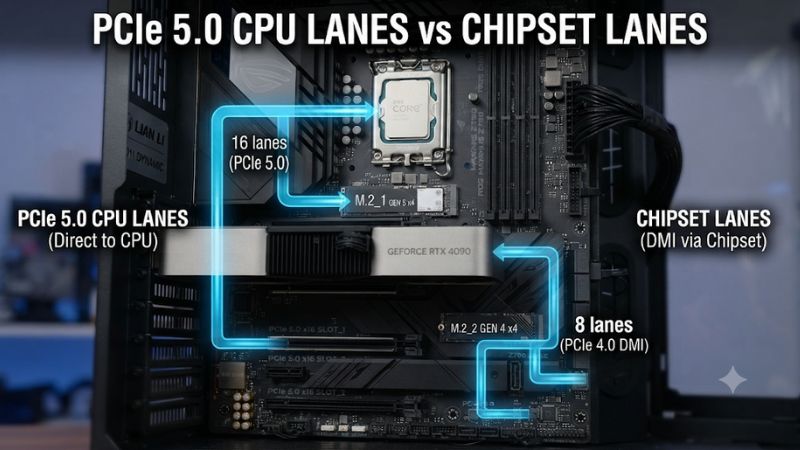
PCIe 5.0 CPU lanes vs chipset lanes describes two different paths that connect hardware to your processor. CPU lanes provide a more direct connection for graphics cards and fast SSDs, while chipset lanes expand motherboard connectivity through a shared upstream link. Understanding this distinction helps you choose M.2 slots, expansion cards, and motherboards without sacrificing useful bandwidth.
1. PCIe 5.0 CPU Lanes vs Chipset Lanes: Core Differences
The main difference is where the connection originates and how connected devices communicate with the processor. CPU-connected devices have a direct PCIe path to the CPU, whereas chipset-connected devices communicate through the motherboard chipset and its upstream connection. Both are useful, but their bandwidth characteristics and sharing behavior differ.
What Are PCIe 5.0 CPU Lanes?
CPU PCIe lanes are high-speed connections provided directly by the processor. They typically serve the primary graphics slot, high-speed NVMe storage, and sometimes other onboard connectivity. Because these connections bypass the chipset, they do not need to share the chipset’s upstream bandwidth with its other devices.
PCIe 5.0 provides a theoretical transfer rate of 32 GT/s per lane. A PCIe 5.0 x16 connection offers approximately 63 GB/s of theoretical bandwidth in each direction, while an x4 connection provides approximately 15.75 GB/s. These figures represent encoded link bandwidth, not guaranteed application performance.
For gaming PCs, the primary GPU slot is particularly important. A graphics card connected directly to CPU PCIe lanes can use its allocated link without competing with chipset-connected USB devices, network controllers, or additional storage. However, the motherboard must actually provide the advertised slot configuration.
What Are Chipset PCIe Lanes?
Chipset PCIe lanes originate from the motherboard’s platform controller hub or equivalent chipset architecture. They provide additional connections for secondary M.2 SSDs, expansion slots, networking hardware, and integrated motherboard controllers.
Their biggest advantage is connectivity. Instead of relying entirely on the processor’s limited direct PCIe resources, motherboard manufacturers can use chipset lanes to support more devices. This is particularly useful for gaming systems with multiple SSDs, capture cards, additional USB controllers, and high-speed networking.
The trade-off is that chipset-connected devices share the bandwidth of the connection between the chipset and CPU. Consequently, several devices can compete for available upstream bandwidth when transferring data simultaneously. This does not mean every chipset device is constantly operating at reduced speed; the limitation becomes relevant when combined traffic approaches the capacity of that connection.
Bandwidth and Latency: Why the Connection Matters
CPU-connected PCIe devices generally have a shorter communication path to the processor. Chipset-connected devices require an additional hop through the chipset and its CPU connection. This introduces additional communication overhead, although the practical difference depends on the device and workload.
Bandwidth is another important consideration. A PCIe 5.0 x4 SSD connected directly to the CPU has a dedicated link to the processor. A chipset-connected PCIe 4.0 x4 SSD has its own device link, but its traffic must also pass through the chipset’s upstream connection alongside other devices.
For ordinary gaming, the difference is often less significant than enthusiasts expect. Loading a game from a secondary SSD does not automatically become noticeably slower simply because that SSD uses chipset lanes. Heavy simultaneous transfers, however, can expose shared-bandwidth limitations.
Why PCIe 5.0 Does Not Automatically Mean Faster
PCIe generation and connection location are separate characteristics. PCIe 5.0 describes the interface’s signaling speed, while CPU-connected and chipset-connected describe where the device obtains its connection.
A chipset-connected PCIe 5.0 device is not necessarily faster in real-world workloads than a CPU-connected PCIe 4.0 device. The result depends on the actual link width, upstream connection, controller, device capabilities, and workload.
For example, a PCIe 5.0 x4 SSD has a higher theoretical device-link bandwidth than a PCIe 4.0 x4 SSD. However, if the chipset’s upstream connection is heavily occupied, the SSD might not achieve its full potential during simultaneous transfers. Always consider the complete connection rather than looking at the generation printed on the motherboard specification sheet.
2. How CPU and Chipset PCIe Lanes Work on Modern Motherboards
Understanding the architecture becomes easier when looking at actual desktop platforms. AMD AM5 and Intel Core Ultra 200S both provide direct CPU PCIe connectivity and additional chipset connectivity, but their lane arrangements and upstream interfaces differ. Motherboard manufacturers also determine how available lanes are distributed between physical slots and onboard devices.
AMD AM5: Direct CPU Lanes and Chipset Expansion
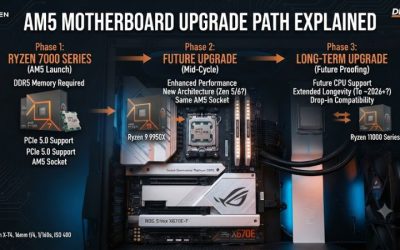
AMD Ryzen 9000 desktop processors provide 28 native PCIe lanes, with 24 usable lanes according to AMD’s specifications. A common allocation includes x16 for graphics, x4 for NVMe storage, and x4 for the chipset connection. The exact motherboard configuration can provide additional options through supported lane allocation.
AM5 chipsets expand the platform’s connectivity. For example, AMD lists up to 44 usable PCIe lanes for X870E and 36 for X870 and B850 platforms. These platform figures should not be confused with the number of direct CPU lanes or the number of independently available CPU connections.
AMD+1
Intel Core Ultra 200S: CPU PCIe and DMI Connectivity
Intel Core Ultra 200S desktop processors provide 20 CPU PCIe 5.0 lanes and four CPU PCIe 4.0 lanes. The 20 PCIe 5.0 lanes can support configurations involving graphics and additional high-speed connectivity, depending on the motherboard design.
The Intel 800 Series chipset adds up to 24 PCIe 4.0 lanes. Devices connected through the chipset communicate with the processor over Direct Media Interface (DMI). Intel specifies an eight-lane PCIe 4.0-based DMI connection for the standard interface on this platform. This upstream connection is shared by chipset-connected traffic rather than providing an independent CPU link for every device.
Intel+1
Practical Comparison: CPU Lanes vs Chipset Lanes
The following comparison summarizes the architectural differences and their implications for gaming hardware.
| Comparison | CPU PCIe Lanes | Chipset PCIe Lanes |
|---|---|---|
| Connection path | Directly to CPU | Through motherboard chipset |
| Bandwidth | Dedicated device link | Device link plus shared upstream connection |
| PCIe generation | Depends on CPU and platform | Depends on chipset and motherboard |
| Latency | Generally lower | Additional chipset communication hop |
| Primary GPU | Commonly used | Less common for primary GPU slots |
| NVMe SSDs | Suitable for primary high-speed drives | Suitable for secondary storage |
| USB controllers | Can be supported through platform design | Commonly connected through chipset |
| Expansion cards | Direct CPU connection when provided | Additional expansion connectivity |
| Shared bandwidth | Depends on CPU lane allocation | Shared upstream bandwidth can become a limitation |
| Gaming relevance | Important for GPU and primary storage | Useful for additional devices and storage |
How to Read a Motherboard’s PCIe Layout
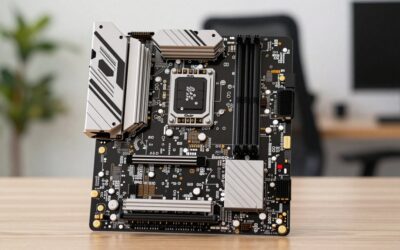
Motherboard specifications should identify whether each expansion slot and M.2 connector connects to the CPU or chipset. Look for descriptions such as CPU PCIe 5.0 x16, CPU PCIe 5.0 x4, and chipset PCIe 4.0 x4.
Also check the footnotes. Some motherboards share lanes between an M.2 connector and a graphics slot. Installing an SSD in one connector might reduce the graphics slot from x16 to x8 or disable another expansion slot.
For example, ASUS documents this behavior on its ROG Strix X870-A Gaming WiFi motherboard: using the CPU-connected M.2_2 slot reduces the primary PCIe 5.0 graphics slot to x8. This is a motherboard-specific configuration, not a universal AM5 limitation.
Asus Download Center+1
Which Connection Should Your Gaming Hardware Use?
For a typical gaming PC, prioritize the primary graphics card’s CPU-connected slot. A primary NVMe SSD can also benefit from a direct CPU connection, particularly when using a high-performance PCIe 5.0 drive for large transfers or demanding storage workloads.
Secondary SSDs generally work well through chipset connections. Game libraries, media storage, backups, and less demanding applications rarely require every drive to have a dedicated CPU connection. Additional USB controllers, networking devices, and expansion cards can also use chipset connectivity.
The important consideration is simultaneous activity. If multiple chipset-connected SSDs are transferring large files while a network adapter and other devices are busy, shared upstream bandwidth may become relevant. For most gaming sessions, this is less important than having sufficient storage capacity and a properly configured GPU connection.
3. How to Choose and Configure PCIe Connections
Choosing the correct connections does not require purchasing the most expensive motherboard. Instead, identify your hardware requirements, understand the available lane allocation, and check whether installing additional devices changes the configuration of existing slots.
Step 1: Identify Your CPU’s Available PCIe Lanes
Start with the processor’s official specifications. Check its supported PCIe generation, native lane count, and usable lane count. Do not assume that every CPU within the same socket provides identical connectivity.
This is especially important when comparing different Ryzen 7000, 8000, and 9000 processors. Although they use the AM5 socket, their PCIe capabilities can differ. Ryzen 8000 desktop APUs, for example, have different lane configurations from mainstream Ryzen 9000 desktop processors. Your motherboard’s supported CPU configuration also matters.
Step 2: Check the Motherboard’s Lane-Sharing Rules
Open the motherboard manual and locate the expansion-slot and storage specifications. Find the connection source, supported PCIe generation, lane width, and any shared-bandwidth restrictions.
Pay particular attention to these details:
-
Whether the primary GPU slot operates at x16 or can switch to x8.
-
Which M.2 slots connect directly to the CPU.
-
Which M.2 slots connect through the chipset.
-
Whether installing an SSD disables another expansion slot.
-
Whether multiple chipset devices share available lanes.
These details can prevent unexpected configuration changes after adding hardware. A motherboard with four M.2 connectors does not necessarily provide four independent CPU connections.
Step 3: Install Devices According to Their Workloads
Place the graphics card in the recommended primary PCIe slot, usually the upper full-length slot. Install your primary SSD in the manufacturer-designated CPU-connected M.2 connector when its performance characteristics justify that choice.
Secondary drives can generally occupy chipset-connected M.2 connectors. If you use a capture card, high-speed network adapter, or additional storage controller, check its lane requirements before selecting an expansion slot.
Step 4: Verify the Actual PCIe Link Configuration
After installation, verify that each device operates at its intended link generation and width. GPU-Z can display the graphics card’s PCIe interface and current link status. HWiNFO can provide additional information about detected hardware and PCIe connections.
Remember that PCIe devices can reduce their link speed while idle to save power. A GPU reporting a lower generation under light load does not necessarily indicate a problem. Check its behavior under an appropriate workload before drawing conclusions.
| Setting or Step | Where | Effect | Risk |
|---|---|---|---|
| Check CPU PCIe specifications | CPU manufacturer’s product page | Identifies available direct lanes and generations | None |
| Review lane allocation | Motherboard manual | Identifies shared slots and bandwidth restrictions | None |
| Install primary GPU and SSD | Recommended PCIe and M.2 connectors | Uses the intended connection paths | Incorrect installation or lane sharing |
| Verify link width and generation | GPU-Z or HWiNFO | Confirms detected PCIe configuration | Misinterpreting idle power-saving behavior |
What Doesn’t Help
Simply purchasing a motherboard with the highest advertised PCIe lane count does not automatically improve gaming performance. More chipset lanes primarily provide additional connectivity; they do not necessarily increase GPU frame rates or reduce game loading times.
Similarly, adding more PCIe 5.0 SSDs does not mean every drive can operate at maximum theoretical bandwidth simultaneously. The motherboard’s topology and chipset uplink remain important.
Avoid changing BIOS lane-bifurcation settings without understanding the supported configuration. If a motherboard supports x8/x8 or x8/x4/x4 bifurcation, those modes redistribute available CPU lanes rather than creating additional ones. Consult the manual before changing the configuration.
4. Frequently Asked Questions
Are CPU PCIe lanes faster than chipset lanes?
CPU PCIe lanes generally provide a more direct connection with less shared upstream traffic. However, actual performance depends on PCIe generation, lane width, device capabilities, and workload. A chipset-connected device can still perform very well when upstream bandwidth is sufficient.
Should a gaming GPU always use CPU PCIe lanes?
Yes, the primary graphics card should generally use the motherboard’s recommended CPU-connected graphics slot. This provides the intended graphics connection and avoids unnecessary chipset traffic. Check the motherboard manual because installing additional devices can change the slot’s operating width.
Can a chipset-connected PCIe 5.0 SSD outperform a CPU-connected PCIe 4.0 SSD?
Not necessarily, because PCIe generation alone does not determine real-world performance. The SSD controller, NAND, link width, chipset uplink, and workload all influence results. A direct PCIe 4.0 connection can be preferable when chipset traffic is heavily shared.
Do chipset PCIe lanes affect gaming FPS?
Usually, chipset lane allocation has little direct impact on average gaming FPS when the GPU and storage devices have sufficient bandwidth. Its importance increases with simultaneous transfers, additional expansion cards, and storage-intensive workloads. Prioritize GPU connectivity and choose chipset storage according to your actual requirements.
Final Thoughts
Understanding PCIe 5.0 CPU lanes vs chipset lanes helps you avoid paying for connectivity you may never use. Prioritize direct CPU connections for your primary GPU and demanding storage, then use chipset lanes for additional devices. Before buying a motherboard, inspect its lane-sharing diagram and confirm that its layout matches your planned hardware configuration.