🛒 Best Price Today on Amazon
Prime members get fast, free shipping on everything above, plus member-only deals. New members get a 30-day free trial — cancel anytime.
Understanding display metrics helps gamers reduce motion blur and ghosting during fast gameplay. This monitor response time guide explains how pixel transitions affect visual clarity across fast panel types. You will learn how gray to gray transitions work alongside refresh rates to create clean moving frames on PC hardware.
What Monitor Response Time Really Comes Down To
Pixel transition speed determines how quickly individual display subpixels change state when rendering consecutive frames. This monitor response time guide breaks down the core physics behind pixel responsiveness and motion blur. Understanding these fundamentals helps PC gamers choose appropriate display settings without introducing unwanted visual artifacts or ghosting.
Gray-to-Gray Transition Speed
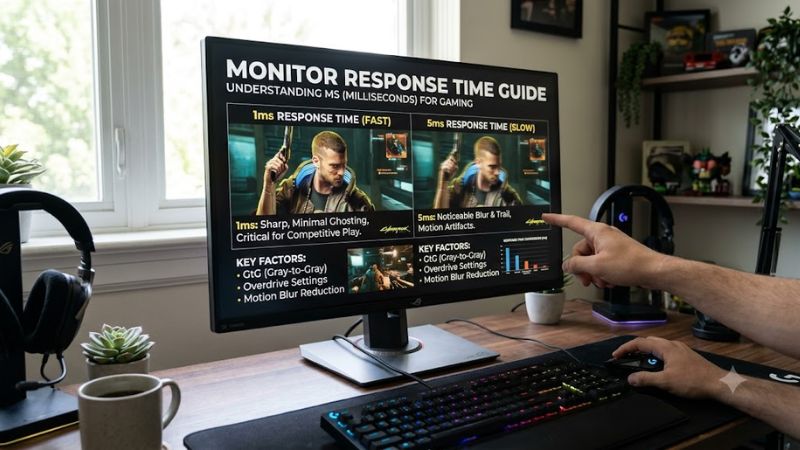
Gray-to-gray transition speed measures the exact duration required for a pixel to shift from one shade of gray to another. As detailed in this monitor response time guide, lower values mean subpixels align faster under changing voltage. Standard IPS panels achieve average gray transitions between three and six milliseconds in manufacturer specifications.
Manufacturers often report only the fastest single gray transition rather than an overall average across all color changes. Dark gray to light gray shifts frequently take longer than black to white shifts due to subtle voltage steps. Independent benchmark data from Blur Busters shows that real transition averages determine actual in-game motion clarity.
Moving Picture Response Time and Refresh Rates
Moving picture response time measures perceived image blur caused by the sample-and-hold nature of flat panel displays. Even if pixel transitions were instantaneous, a panel holding a static image for several milliseconds creates tracking blur for human eyes. Higher refresh rates shorten frame display intervals and reduce perceived motion blur.
A standard 144 Hz gaming display holds each rendered frame for approximately 6.9 milliseconds before refreshing the image. Upgrading to a 240 Hz panel cuts frame persistence down to 4.1 milliseconds, which visibly sharpens moving objects. Combining low transition times with higher refresh rates yields the cleanest image quality during competitive gaming.
Panel Technology Strengths and Limitations
Different panel architectures exhibit distinct pixel response characteristics based on how liquid crystals physically rotate. Fast IPS panels offer rapid gray transitions between one and three milliseconds while maintaining wide viewing angles. Modern QD-OLED displays bypass liquid crystal movement entirely to reach sub-millisecond transition speeds.
Vertical Alignment panels deliver high contrast ratios but traditionally suffer from slow dark state transitions. These slow dark transitions cause noticeable dark smearing behind moving objects in low-contrast game scenes. Knowing your panel architecture helps you set realistic expectations for pixel responsiveness and overall visual performance.
Ineffective Tweaks That Do Not Improve Response Time
Many general system optimization guides falsely claim that software tweaks can accelerate hardware display responsiveness. Following a monitor response time guide helps separate physical panel characteristics from operating system settings. Disabling Windows telemetry or altering system registry keys will never increase pixel switching speeds.
Third-party RAM cleaning tools and background process killers also fail to alter monitor hardware behavior. Pixel response depends entirely on display controller firmware, pixel voltage driving algorithms, and panel subpixel construction. Software background tasks impact CPU frametimes but have zero influence over physical display crystal transitions.
How to Tune Monitor Response Time: Step by Step
Configuring display hardware requires balancing overdrive voltage to eliminate trailing without introducing bright halo artifacts. Following a practical monitor response time guide allows gamers to adjust internal display settings systematically. Correcting these settings ensures crisp motion clarity across variable framerates on modern gaming displays.
| Setting | Where | Effect | Risk |
| Overdrive Mode | Monitor OSD Menu | Speeds up pixel transitions | Inverse ghosting halos |
| Refresh Rate | Windows Display Settings | Shortens frame hold time | Higher GPU workload |
| Variable Refresh | NVIDIA Control Panel / AMD Software | Prevents screen tearing | Strobe backlight disable |
| Motion Blur Strobing | Monitor OSD Advanced Menu | Reduces perceived motion blur | Lower display brightness |
Adjust Monitor Overdrive in the On-Screen Display
Pixel overdrive increases electrical voltage to force liquid crystals into new positions more rapidly than standard voltages allow. As noted in this monitor response time guide, setting overdrive to a balanced middle profile reduces trailing behind moving objects. Higher settings accelerate transitions but often cause severe pixel overshoot halos.
To configure overdrive properly, navigate to the display On-Screen Display menu using hardware buttons on your monitor bezel. Select options named Overdrive, Response Time, or Trace Free, then choose Normal or Fast instead of Extreme. You can revert this setting instantly by returning to the menu and selecting the default profile.
Maximize Refresh Rate Settings in Windows
Operating displays at their highest rated refresh rate reduces the sample-and-hold duration that causes moving picture motion blur. Open Windows Settings, select System, click Display, and open Advanced Display Settings to confirm current refresh rates. Choosing the maximum available Hertz value ensures your panel operates at peak performance.
Hardware benchmark measurements at 2560×1440 resolution show that 180 Hz displays cut frame persistence to 5.5 milliseconds compared to 16.6 milliseconds at 60 Hz. Higher refresh rates demand greater rendering power from your graphics processor during demanding games. You can revert to lower refresh rates inside Windows settings whenever necessary.
Configure Variable Refresh Rate Options
Variable refresh rate technologies match panel refresh speed directly to graphics card output to prevent visual screen tearing. Open NVIDIA Control Panel or AMD Software Adrenalin Edition, navigate to the display menu, and enable G-Sync or FreeSync. This setting keeps frame delivery synchronized without introducing display buffer input lag.
Some monitor models exhibit overdrive tuning variances when operating across wide variable refresh rate ranges during games. Variable overdrive firmware automatically adjusts voltage based on current framerate to maintain clean motion clarity. If visual flickering occurs in menus, disable variable refresh rate through your graphics driver.
Enable Backlight Strobing or Blur Reduction
Backlight strobing flickering turns off display lighting between frame updates to eliminate sample-and-hold motion blur entirely. Features like Ultra Low Motion Blur or Motion Blur Reduction pulse the backlight in sync with refresh cycles. This technique delivers competitive motion clarity that simulates high cathode-ray tube responsiveness.
Enable strobing options inside the display On-Screen Display menu under picture options or gaming features when framerates match refresh rates. Note that strobing reduces peak screen brightness and often disables variable refresh synchronization on standard monitors. You can turn off backlight strobing at any time through the same menu option.
How Display Technologies Impact Motion Performance
Evaluating display hardware performance requires comparing how different panel architectures handle fast motion during intense gameplay. Consulting our monitor response time guide helps players understand trade-offs between contrast ratios, color accuracy, and pixel transition speed. Choosing the right panel type aligns hardware with your gaming needs.
Fast IPS Panels for Balanced Gaming
Fast IPS panels use thinner liquid crystal layers and higher driving voltages to achieve rapid gray-to-gray transition times. Benchmarks at 1080p resolution demonstrate average pixel response times between two and four milliseconds across typical color shifts. These speeds make Fast IPS screens excellent for fast multiplayer action.
In addition to fast pixel response, Fast IPS displays maintain consistent color reproduction and wide viewing angles up to 178 degrees. However, static contrast ratios remain limited to approximately 1000:1, which causes dark room blacks to appear slightly gray. Fast IPS remains a popular choice for gamers seeking balanced performance.
QD-OLED Panels for Sub-Millisecond Speed
Quantum Dot OLED displays eliminate liquid crystal layer rotation by utilizing self-emissive pixels that toggle states near instantaneously. Laboratory measurements record gray transition times under 0.1 milliseconds, virtually removing pixel response ghosting. This technology provides incredible clarity during rapid camera movement in games.
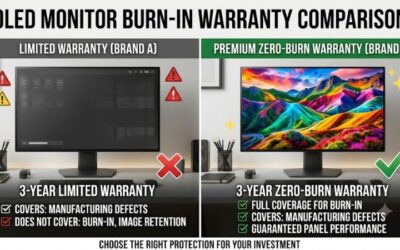
Perceptual motion blur on QD-OLED screens depends almost entirely on total refresh rate rather than slow pixel transitions. A 360 Hz QD-OLED panel produces clear moving edges while maintaining infinite static contrast and vibrant color output. High purchase costs and burn-in management requirements represent the main hardware considerations.
VA Panels and Dark Level Response Times
Vertical Alignment panels align liquid crystals vertically to block backlight leakage, producing deep static contrast ratios up to 4000:1. While bright gray transitions complete quickly, transitions involving dark shades can take upwards of 15 milliseconds. This imbalance leads to visible dark smearing trailing behind moving objects.
Modern Fast VA panels employ aggressive factory overdrive algorithms to control dark transitions and minimize trailing artifacts. However, using high overdrive modes on VA panels can introduce noticeable inverse ghosting around high-contrast edges. Players focusing on atmospheric single-player titles benefit most from VA contrast ratios.
Display Cables and Interface Bandwidth
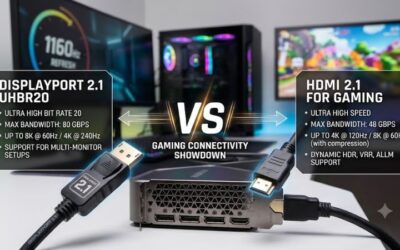
Achieving target refresh rates and response times requires sufficient bandwidth over physical video display cables between PC and screen. DisplayPort 1.4 cables support up to 2560×1440 resolution at 240 Hz without uncompressed color subsampling loss. Ensure your cable connects directly to your dedicated graphics card output port.
Using older HDMI 2.0 cables can limit high-refresh monitors to lower refresh rates or force color compression overhead. HDMI 2.1 or DisplayPort 2.1 connections provide full bandwidth required for high Hz uncompressed 4K gaming displays. Replacing substandard cables restores full display bandwidth and enables peak refresh rate modes.
Frequently Asked Questions
What is the difference between GtG and MPRT response times?
Gray-to-gray measures pixel switching speed, while moving picture response time measures perceived image persistence duration. Fast pixel transitions prevent trailing ghosts, whereas lower persistence reduces motion blur caused by eye tracking. Both metrics work together to determine overall image sharpness on high-refresh gaming displays.
Does lower monitor response time reduce input lag?
Lower monitor response time reduces visual frame delay but does not directly lower signal processing input lag. Signal latency measures time between graphics card signal transmission and pixel activation, whereas response time measures pixel state shift duration. Low response times ensure clearer motion without delaying button presses.
Why does high overdrive cause inverse ghosting halos?
Excessive overdrive voltage causes subpixels to overshoot their target brightness levels before stabilizing at target values. This overshooting creates bright or dark halos behind moving objects, commonly referred to as inverse ghosting or coronas. Lowering overdrive settings in your display menu removes these bright halo artifacts.
Can software updates fix monitor response time issues?
Software updates cannot change physical liquid crystal response times because pixel speed is limited by panel hardware construction. While graphics drivers manage variable refresh rates, pixel transition times rely entirely on monitor display controllers and factory voltage tuning. Adjusting internal hardware settings provides real results.
Final Thoughts
Optimizing display performance requires balancing overdrive settings, refresh rates, and panel technologies for clean motion clarity. Following this monitor response time guide ensures your PC setup delivers sharp visual transitions without inverse ghosting. Configure your display settings properly to enjoy clear visuals in every fast game.