🛒 Best Price Today on Amazon
Prime members get fast, free shipping on everything above, plus member-only deals. New members get a 30-day free trial — cancel anytime.
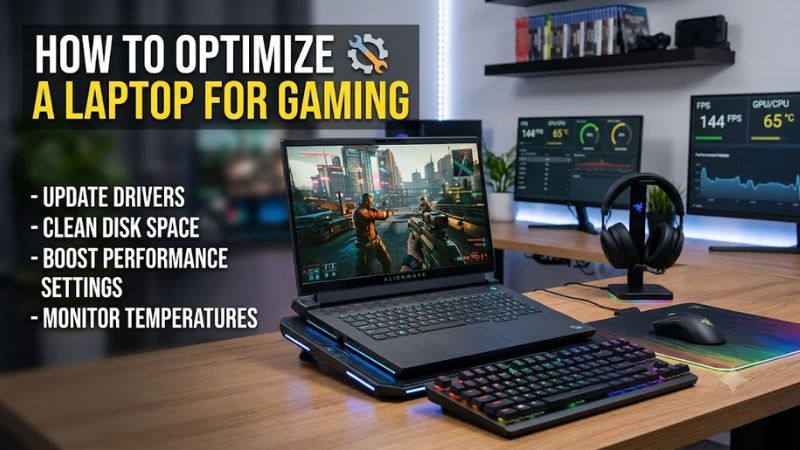
How to optimize a laptop for gaming starts with managing power, graphics selection, background activity, and temperatures rather than installing performance-boosting utilities. A sensible setup can help your laptop deliver more consistent frame rates, but results depend on its processor, graphics hardware, cooling design, and the requirements of each game.
Quick answer: Our top pick in 2026 is the Setting — our #1 rated choice. See the full ranked comparison, alternatives and buying advice below.
What Laptop Gaming Optimization Really Comes Down To
The main goal is to remove avoidable performance limits without making the laptop hotter, noisier, or less reliable than necessary. Start with power delivery, confirm that games use the intended GPU, and check cooling before changing advanced settings. Windows options vary by version, while manufacturer utilities may add controls specific to your laptop model.
Keep the Laptop Connected to Power
For demanding games, use the laptop’s compatible AC adapter and select an appropriate performance profile in the manufacturer’s control software. Battery operation can limit CPU and GPU power to extend runtime, so unplugged performance may differ substantially. If the adapter is damaged or underpowered, check the manufacturer’s specifications rather than assuming any USB-C charger can support gaming loads.
Assign Games to the Correct GPU
Some laptops combine integrated graphics with a discrete NVIDIA or AMD GPU. Windows can assign a graphics preference to individual games, helping supported systems use the higher-performance adapter. Open Settings, select System, Display, then Graphics, choose the game, and select Options. Choose High performance when appropriate, save the change, and restart the game to apply it.
Balance Cooling and Graphics Quality
Laptop cooling systems have limited space, so blocked vents, soft surfaces, dust, and aggressive performance profiles can affect sustained performance. Place the machine on a firm surface with its air intakes unobstructed. In demanding games, reducing shadows, ray tracing, or render resolution can ease GPU load without changing hardware. Keep temperature and fan behavior within manufacturer specifications.
What Doesn’t Help
RAM-cleaning utilities, registry scripts, and disabling Windows telemetry are not reliable ways to increase gaming frame rates. Avoid third-party optimizer packages that promise dramatic gains without explaining their changes. Instead, compare the same game scene before and after a single adjustment, using the same resolution and graphics settings. This makes it easier to identify meaningful improvements and reverse changes that introduce instability.
How to Optimize a Laptop for Gaming: Step by Step
Work from reversible software settings toward more involved troubleshooting. Record your current graphics settings and performance before making changes, then adjust one item at a time. The table summarizes the main options, their expected effects, and the trade-offs to watch for. Windows 11 menus can differ slightly by update, and some options depend on the laptop’s hardware and drivers.
| Setting | Where | Effect | Risk |
| Power mode | Settings → System → Power & battery | Favors performance when plugged in | Higher power use, heat, and fan noise |
| GPU preference | Settings → System → Display → Graphics | Selects a preferred GPU per game | Higher battery drain on discrete graphics |
| Windowed game optimization | Settings → System → Display → Graphics | May reduce presentation latency in supported games | Compatibility can vary by title |
| In-game graphics | Game’s Video or Graphics menu | Balances image quality and frame rate | Reduced visual detail |
Select a Suitable Windows Power Mode
Open Settings, then System and Power & battery. Under Power mode, select Best performance while connected to power if the option is available and temperatures remain controlled. Microsoft notes that available modes depend on the PC configuration. Return to Balanced if fan noise or heat becomes excessive, and remember that the Windows setting may work alongside a separate manufacturer performance profile.
Enable the Appropriate Graphics Preference
Under Settings, System, Display, and Graphics, select a game and open Options. On a laptop with multiple GPUs, choose High performance if the game is using integrated graphics and performance is lower than expected. Windows may identify the preferred adapter by name. If the option is unavailable, the system may have only one GPU or may rely on manufacturer-specific graphics switching.
Review Windowed Game Optimization
Windows 11 includes Optimizations for windowed games, which can improve presentation behavior for supported DirectX 10 and DirectX 11 games running in windowed or borderless modes. Find the switch under Settings, System, Display, and Graphics. Enable it, restart the game, and compare results in the same scene. If a particular title develops display problems, disable the feature for that app and check again.
Adjust Game Settings Before Advanced Tweaks
Begin with the game’s preset, then lower demanding options such as ray tracing, volumetric effects, shadows, or render resolution if performance remains inadequate. Keep resolution and other settings consistent when comparing frame rates. If supported, an in-game upscaling option can render internally at a lower resolution and reconstruct the output. The trade-off is that fine details may look softer or produce artifacts.
Frequently Asked Questions
Does optimizing a laptop for gaming increase FPS?
Yes, optimizing a laptop for gaming can improve FPS when power limits, graphics selection, or unnecessarily demanding settings are restricting performance. The size of the improvement depends on the hardware and game. If the GPU is already operating at its intended limits, software changes may have little effect, so monitor performance before expecting a noticeable difference.
Should I keep my gaming laptop plugged in?
Yes, keeping a gaming laptop plugged into its compatible power adapter generally helps it maintain its intended performance profile during demanding games. Battery power can restrict CPU or GPU power consumption. Use the adapter specified by the manufacturer, and avoid gaming on a soft surface that blocks ventilation. Choose a balanced power mode when battery life matters more than maximum performance.
Does Game Mode help gaming performance on Windows?
Windows Game Mode can help prioritize gaming activity, but its effect on frame rates varies by system and workload. Keep Windows and supported graphics drivers updated, then compare results in the same game. Game Mode is not a substitute for selecting the correct GPU, managing temperatures, or lowering graphics settings when the laptop cannot sustain the desired frame rate.
How can I tell whether my laptop is overheating?
You can check for possible overheating by monitoring CPU and GPU temperatures, clock speeds, and performance during gameplay with a reputable monitoring utility such as HWiNFO. Compare readings with the manufacturer’s thermal specifications rather than applying one temperature limit to every laptop. Persistent clock-speed drops, excessive fan noise, or shutdowns warrant further investigation and possibly professional cleaning or service.
Final Thoughts
Learning how to optimize a laptop for gaming is mostly about making sensible, reversible changes. Start with the correct power mode, GPU assignment, cooling, and in-game graphics settings, then compare performance consistently. If low frame rates persist, investigate temperatures, driver problems, and hardware limits before spending money on upgrades or utilities that promise results without evidence.
Ready to decide? Our #1 pick for 2026 is the Setting.
Live price & availability on Amazon.