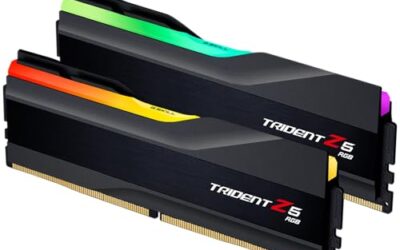
- Top Pick: G.SKILL Trident Z5 Neo RGB Series DDR5 RAM (AMD EXPO) 64GB (2x32GB) 6000MT/s CL30-40-40-96 1.40V Desktop Computer Memory U-DIMM – Matte Black (F5-6000J3040G32GX2-TZ5NR)
- Best Value: Corsair Vengeance RGB RS DDR5 16GB (2 x 8GB) Up to 6000MHz AMD Intel RAM
- Premium Choice: CORSAIR Vengeance DDR5 32GB (2 x 16GB) Up to 6000MHz AMD Intel RAM
If you bought fast memory but your PC is running it at a slow default speed, you are leaving free performance on the table. Out of the box, motherboards run RAM at a conservative JEDEC speed until you enable the kit’s rated profile. XMP on Intel and EXPO on AMD flip your memory to its advertised speed and timings with a single BIOS toggle, and it is one of the easiest upgrades you can make.
This guide shows you exactly how to enable XMP or EXPO, confirm it worked, and troubleshoot the rare cases where it does not post. Whether you have a G.Skill Trident Z5 Neo EXPO kit or a Corsair Vengeance DDR5 set, the steps take just a couple of minutes.
As an Amazon Associate we earn from qualifying purchases at no extra cost to you.


⚡ Save on Your Next PC — Amazon Prime
Prime members get fast free shipping on the systems above, plus early access to Prime Day & Black Friday PC deals. New members get a 30-day free trial.
Watch: How to Enable XMP / EXPO for Faster RAM — Video Review
Understand XMP vs EXPO
XMP (Extreme Memory Profile) is Intel’s standard for storing a kit’s rated speed, timings, and voltage so the motherboard can apply them automatically. EXPO (Extended Profiles for Overclocking) is AMD’s equivalent, tuned for Ryzen platforms. Many DDR5 kits carry both, so a single set of sticks can run its rated 6000MHz on either brand of CPU.
The key point is that these profiles are not risky manual overclocks. They are validated settings the memory maker guarantees, so enabling them is safe and gives you the speed you paid for, such as 6000MHz CL30 instead of a stock 4800MHz.
Enable the Profile in BIOS
Restart and enter BIOS by tapping Delete or F2 during boot. On most gaming boards the profile toggle is on the main or easy-mode screen, labeled XMP, EXPO, DOCP, or A-XMP depending on the brand. Select the profile, usually Profile 1, and the board fills in the rated speed, timings, and voltage automatically.
- Look for the XMP or EXPO switch near the memory frequency readout.
- Choose Profile 1 unless the kit offers a specific tuned second profile.
- Confirm the displayed speed matches your kit’s rating.
- Save and exit, usually with F10, then let the system reboot.
Confirm It Worked
After rebooting, verify the memory is running at its rated speed. Check the memory frequency in BIOS, in Task Manager’s performance tab, or in a monitoring utility. Remember that DDR memory is double data rate, so a 6000MHz kit shows as 3000MHz on the raw clock in some tools; both refer to the same rated speed.
Run a quick stability check and a game or two to make sure everything is solid. A properly applied profile should just work, delivering the full bandwidth your kit advertises.
Troubleshoot a Failed Post
Occasionally a system will not boot after enabling a profile, especially with four DIMMs or a very high-speed kit. If that happens, the board usually reverts to defaults after a few failed attempts, or you can clear CMOS to reset. Then re-enter BIOS and try a slightly lower speed or update to the latest BIOS, which often improves memory compatibility.
Populating the correct slots per your manual and using a two-stick kit rather than four sticks both improve the odds of a clean high-speed profile.
Tips
- Enable XMP or EXPO right after building; it is the single biggest easy memory gain.
- Update to the latest BIOS if a high-speed profile refuses to post.
- Use a matched two-stick kit for the best chance at stable high speeds.
- Verify the speed after enabling, since some boards need the toggle set manually.
Frequently Asked Questions
Is enabling XMP or EXPO safe?
Yes. These are validated profiles from the memory maker, not risky manual overclocks, so applying them is safe for everyday use.
Can I use XMP on an AMD system?
Often yes; many boards read XMP profiles on Ryzen, but EXPO is the native AMD standard and tends to be the most reliable choice when a kit offers it.
Why did my PC fail to boot after enabling it?
High-speed or four-DIMM configurations can struggle. Clear CMOS, update BIOS, and try a slightly lower speed; the profile will usually post after that.
How do I know my RAM is actually running fast?
Check the frequency in BIOS or a monitoring tool. Account for double data rate, so a 6000MHz kit may display as 3000MHz on the base clock.
Conclusion
Enabling XMP or EXPO is the quickest way to make your memory run at the speed you paid for, and it takes one toggle in BIOS. Confirm the profile applied, verify the frequency, and if a high-speed kit hesitates, update BIOS and retry. A couple of minutes of setup unlocks the full bandwidth of your kit and a real boost in memory-sensitive games.