- Top Pick: Build Your Ultimate Gaming PC (2025/2026 Edition): A Beginner-to- Pro Guide to Building a High Performance Custom Rig (Custom Rig Blueprint Series: Designing … Streaming, Editing, and Everyday Use)
- Best Value: How to Build a Gaming PC for Beginners: A Complete Step-by-Step PC Building Guide for Gaming, Streaming, and Performance (Custom Rig Blueprint Series: … Streaming, Editing, and Everyday Use)
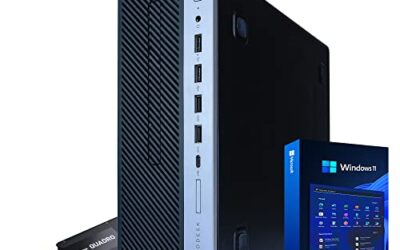
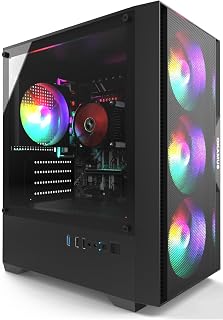
- Premium Choice: Pre-Built PC, i5 CPU Up to 3.6GHz, Integrated Graphics Only, 256 GB M.2, 8 GB RAM Cheap Budget Gaming PC, RGB Fans x 3, Win 11 Home,WiFi 6 + BT 5.3, 400W PSU (i5+No GPU+8GB+256GB)
So, you’ve just finished assembling your dream gaming rig, or perhaps you’re a seasoned builder who’s encountered a frustrating first boot failure. The moment of truth arrives, you hit the power button, and… nothing. No fans whirring, no lights illuminating, just a silent, black screen. It’s a disheartening experience, but don’t despair! This guide is designed to help you systematically troubleshoot why your gaming PC won’t turn on, getting you back to fragging your opponents as quickly as possible.
Before we dive into the nitty-gritty, remember that patience and a methodical approach are your best allies. We’ll cover the most common culprits, from simple connection issues to more complex hardware failures. Think of this as your personal diagnostic playbook.
As an Amazon Associate we earn from qualifying purchases at no extra cost to you.




⚡ Save on Your Next PC — Amazon Prime
Prime members get fast free shipping on the systems above, plus early access to Prime Day & Black Friday PC deals. New members get a 30-day free trial.
Watch: Why Won’t My Gaming PC Turn On? (2026 Fixes) — Video Review
Power Supply Unit (PSU) Problems
The PSU is the heart of your PC, supplying power to all components. A faulty or incorrectly connected PSU is a very common reason for a PC not turning on.
- Check the PSU Switch: Ensure the physical power switch on the back of the PSU is flipped to the ‘I’ (on) position, not the ‘O’ (off) position. It sounds basic, but it’s easily overlooked.
- Verify Wall Outlet and Surge Protector: Plug the PC directly into a known working wall outlet. If you’re using a surge protector or power strip, try bypassing it to rule out a faulty strip.
- Confirm PSU Connections: All modular cables (if applicable) must be firmly seated in both the PSU and the motherboard. The main 24-pin ATX power connector and the 4+4 pin or 8-pin EPS (CPU) power connector are crucial. A loose CPU power cable is a frequent offender.
- PSU Wattage: While less likely to cause a complete no-power situation unless severely underrated, ensure your PSU has sufficient wattage for your components, especially high-end GPUs. A 400W PSU, like the one in the ‘i5+No GPU+8GB+256GB’ model, is extremely limited and might not even power up a modern gaming build with a dedicated GPU.
Motherboard and Front Panel Connections
The motherboard is the central nervous system of your PC, and the front panel connectors are how you interact with it to initiate power-on. Incorrect connections here will prevent your PC from booting.
- Front Panel Header: This is the most critical and often the most fiddly connection. The small pins for the power switch, reset switch, power LED, and HDD LED can be confusing. Consult your motherboard manual religiously for the correct pinout.
- Power Switch Pin: The power switch connector is typically labeled ‘PWR_SW’ or similar. Ensure it’s correctly oriented and firmly seated. Sometimes, a slight misalignment is enough to prevent it from registering.
- Shorting the Power Pins (Advanced): As a diagnostic step, you can carefully use a metal object (like a screwdriver tip) to briefly touch the two power switch pins on the motherboard header. If the PC powers on, the issue is with your case’s power button or its connection. Be extremely careful and only do this if you are comfortable.
RAM Issues
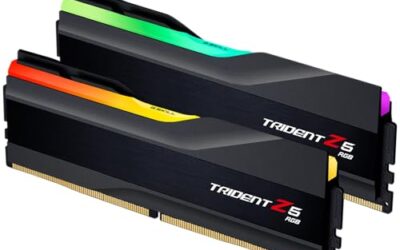
Improperly seated or faulty RAM modules can prevent a system from POSTing (Power-On Self-Test) and thus, from displaying anything on screen. While it might seem like a “no power” issue, it can manifest as a completely dead system.
- Reseat RAM Modules: Remove all RAM sticks, then reinsert them one by one, ensuring they click firmly into place on both ends. Make sure the clips on the motherboard slots engage.
- Test with a Single Stick: If you have multiple RAM sticks, try booting with only one stick installed. Test each stick individually in each RAM slot to identify a potentially faulty module or slot.
- Correct Slot Placement: Consult your motherboard manual for the recommended RAM slot configuration, especially when using fewer than the maximum number of sticks. For dual-channel configurations, slots A2 and B2 are often preferred.
CPU and GPU Seating
While less common for a *complete* no-power scenario, an improperly seated CPU or GPU can sometimes prevent a system from even attempting to power on, especially if it causes a short circuit.
- CPU Installation: Double-check that your CPU is correctly aligned with the socket’s triangle or notch and that the retention arm is fully closed. No bent pins should be visible.
- GPU Installation: Ensure your graphics card is fully seated in its PCIe slot and that the retention clip on the slot has engaged. Also, confirm that any required PCIe power cables from the PSU are securely connected to the GPU.
Troubleshooting Tips
- Disconnect Peripherals: Unplug everything non-essential: USB devices, extra drives, RGB controllers, etc. Sometimes a faulty peripheral can cause power issues.
- Listen for Beep Codes: Some motherboards have small internal speakers that emit beep codes to indicate errors. Consult your motherboard manual for the meaning of these codes.
- Clear CMOS: This process resets your motherboard’s BIOS settings to their default values. It can resolve configuration conflicts that might be preventing boot. Your motherboard manual will detail how to do this, usually by removing a small coin-cell battery for a few minutes or by using a dedicated ‘Clear CMOS’ jumper.
- Inspect for Shorts: Carefully examine your motherboard and case for any stray screws, zip ties, or metal components that might be touching the motherboard in unintended places, potentially causing a short.
Frequently Asked Questions
What is the most common reason a gaming PC won’t turn on?
The most frequent culprits are issues with the power supply unit (PSU), either a faulty unit or incorrect cable connections to the motherboard. Incorrectly connected front panel power switch headers also frequently cause this problem.
Can a bad graphics card prevent a PC from turning on at all?
While a faulty GPU usually results in no display output after the PC powers on, in rare cases, a severe electrical fault within the GPU could prevent the PSU from delivering power to the rest of the system.
How do I know if my PSU is dead?
A PSU might be dead if it shows no signs of life whatsoever (no fan spin, no lights) when the power button is pressed. Some PSUs have a built-in test button or a diagnostic LED. You can also test it using a PSU tester or by swapping it with a known working unit.
Should I try to power on my PC with the case open?
Yes, for troubleshooting, it’s often necessary to have the case open to easily access and check connections. Just be mindful of static electricity and ensure no components come into contact with conductive surfaces.
Conclusion
Encountering a PC that won’t turn on can be frustrating, but by systematically working through these troubleshooting steps, you can isolate the problem and get your gaming rig back online. Most issues are resolved by checking power connections, front panel headers, and RAM seating. If you’ve exhausted these possibilities and are still facing a dead system, it might be time to consider a faulty component requiring replacement or seeking professional help.