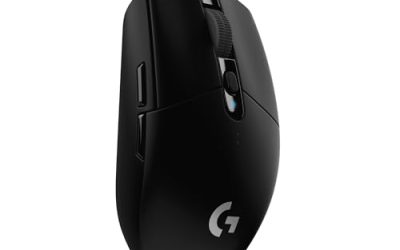
There is no single best mouse sensitivity for gaming that works for everyone, in every game, on every desk. There is, however, a best sensitivity for you: low enough for small, controlled corrections, high enough to turn and track moving targets without running out of mousepad, and stable enough that your hand can learn it through repetition. This guide explains the numbers behind sensitivity, shows sensible starting ranges by genre, and walks through a practical method for finding your own setting instead of copying someone else’s.
- The Three Numbers That Describe Sensitivity
- cm/360: The Universal Language of Sensitivity
- Sensitivity Ranges by Game Genre
- How to Find Your Sensitivity: The PSA Method
- Windows Pointer Settings and Raw Input
- When to Change Your Sensitivity, and When to Keep It
- Reference Mice for Sensitivity Work
- A Simple Setup Checklist
- Conclusion
As an Amazon Associate we earn from qualifying purchases.
The Three Numbers That Describe Sensitivity
Sensitivity discussions get confusing because players use three different numbers as if they were interchangeable. They are not. Each describes a different layer of the chain from the sensor in your hand to the camera turning on screen.
DPI: What the Mouse Reports
DPI, also called CPI in some software, is the hardware setting of the mouse itself. It describes how many counts the sensor reports for each inch of physical movement. At 800 DPI, moving the mouse one inch sends roughly 800 counts to the computer. At 1,600 DPI, the same inch sends roughly twice as many, so the cursor or camera moves twice as far for the same hand movement, all else being equal.
DPI alone tells you almost nothing about how a game will feel. A player on 400 DPI and a player on 1,600 DPI can end up with identical in-game turning speed if their in-game sensitivity values differ. DPI also affects how the cursor feels on the desktop and in menus, which is why many players settle on a comfortable desktop DPI such as 800 or 1,600 and then do most tuning inside the game. Higher is not automatically better. Modern gaming sensors track accurately across a wide DPI range, so choose a DPI for comfort and consistency, keep it fixed, and treat it as the foundation for the calculations below.
In-Game Sensitivity: What the Game Does With Those Counts
In-game sensitivity is a multiplier applied by the game. It takes the counts arriving from the mouse and scales how far your view rotates, or how far a cursor moves, in response. A sensitivity of 2.0 applies twice the rotation of 1.0 at the same DPI. Every game defines this multiplier differently, which is why a value that feels perfect in one shooter can feel wildly fast or slow when typed unchanged into another. The number only has meaning inside that specific game.
Some games add separate multipliers for aiming down sights, for scope magnifications, or for vertical versus horizontal movement. Those are refinements. Get the base sensitivity right first, because every contextual multiplier is normally expressed relative to it.
eDPI: The Number You Can Compare
Effective DPI, or eDPI, combines the two layers into one comparable figure for a specific game:
eDPI = DPI × in-game sensitivity
If you play at 800 DPI with an in-game sensitivity of 0.5, your eDPI is 400. If a friend plays at 1,600 DPI with a sensitivity of 0.25 in the same game, their eDPI is also 400, and their camera will turn at the same speed as yours for the same hand movement. That is the point of eDPI: it lets you compare, share, and transfer a sensitivity meaningfully, at least within the same game.
The limitation matters just as much. eDPI is only comparable within a single title, because each game scales its multiplier differently and uses its own field of view and yaw values. When you move to a new game, do not copy the eDPI and expect an identical feel. Convert using cm/360 instead.
cm/360: The Universal Language of Sensitivity
Centimetres per 360 degrees, usually written cm/360, measures how far you physically move your mouse to turn your character a full circle in game. It is the most useful sensitivity measure of all because it describes real-world movement, independent of DPI, in-game multipliers, and title.
A low sensitivity might require 40, 50, or more centimetres for a full turn. A high sensitivity might need only 15 to 20 centimetres. To measure yours, face a fixed landmark in game, note where your mouse sits, turn exactly one full rotation until you face the same landmark again, and measure the distance travelled. Online calculators can also convert DPI and sensitivity into cm/360 if you enter the game’s yaw value, and most popular shooters are already in their databases.
cm/360 makes two things obvious. First, mousepad space is a hard physical limit. If your usable pad width is about 40 centimetres and your sensitivity needs 50 centimetres for a full turn, you cannot complete a 180-degree turn in one swipe without lifting the mouse. Second, cm/360 is the right way to carry a familiar feel between games. Match the cm/360, not the raw sensitivity number, and the new game will ask the same physical movement from your arm.
As rough orientation, many competitive shooter players land between about 25 and 60 cm/360, with tactical shooters toward the slower end and faster arena-style games toward the quicker end. Treat that as a map of where people commonly end up, not a rule.
Sensitivity Ranges by Game Genre
Genres ask different things from your aim. A tactical shooter rewards holding a precise angle and making tiny corrections. A battle royale asks for looting, fast movement, and turning through wide spaces. A MOBA barely involves camera rotation at all. Use the ranges below as starting brackets, expressed mainly in cm/360 so they transfer across titles.
Tactical FPS
In round-based tactical shooters such as Counter-Strike and VALORANT, engagements are often decided by crosshair placement and small adjustments at head level. Most targets appear within a relatively narrow arc in front of you, and precise micro-corrections matter more than long, fast turns. That pushes good sensitivity toward the lower end.
A common starting bracket is roughly 40 to 60 cm/360. In VALORANT terms, that often corresponds to an eDPI in the region of 200 to 400, for example 800 DPI with an in-game sensitivity between 0.25 and 0.5. In Counter-Strike terms, where the scale differs, many players use an eDPI roughly in the 600 to 1,200 region, for example 800 DPI with a sensitivity between 0.75 and 1.5. Start in the middle, and only go lower if you have the pad space and your close-range fights do not suffer.
Hero Shooters and Battle Royale FPS
Hero shooters and battle royale games such as Overwatch, Apex Legends, and Fortnite demand more turning. Movement abilities, vertical play, close-range tracking, and threats from any direction reward a sensitivity that can swing the camera quickly while still tracking a strafing target smoothly. Tracking aim — holding the cursor on a moving opponent for an extended moment — is usually more important here than in tactical shooters.
A sensible starting bracket is roughly 25 to 45 cm/360. In Overwatch terms, that often means an eDPI around 3,000 to 6,000, for example 800 DPI with an in-game sensitivity between about 3.75 and 7.5, though individual heroes can justify small variations. Hitscan heroes who aim at range tend to sit toward the lower end, while close-range, movement-heavy heroes often feel better toward the higher end. In Apex Legends, many players start around 800 DPI with an in-game sensitivity near 1.0 to 2.0 and adjust from there. If you overshoot while tracking, step down slightly. If you cannot follow fast, close targets without hitting the edge of the pad, step up.
MOBA
In a MOBA such as League of Legends or Dota 2, there is no camera rotation to measure in cm/360. Sensitivity is about cursor speed: how quickly and accurately you can move the pointer between your champion, targets, the minimap, and ability positions, and how comfortably you can move the view. Here DPI itself, combined with any in-game cursor speed setting, is the relevant number.
Many MOBA players use a DPI roughly between 1,000 and 3,200, often with in-game pointer settings near their default midpoint. Precision clicking on clustered targets argues against going extremely high, while constant trips to the minimap argue against going extremely low. If you misclick in team fights, lower the DPI a step; if your hand tires, raise it a step.
RTS and Strategy
Real-time strategy games such as StarCraft II and Age of Empires make similar demands, with added emphasis on rapid screen movement, control-group selection, and repeated trips to the minimap. A DPI roughly between 800 and 2,400 is a common working range, paired with in-game mouse speed near default. Keep the same setting for practice and matches, and resist changing it during a losing streak, when almost any setting will feel wrong.
How to Find Your Sensitivity: The PSA Method
Guessing a number and hoping is the slowest route. The PSA method, short for Perfect Sensitivity Approximation, is a structured way to narrow in on a sensitivity that suits your hand, your pad, and your game. It replaces endless random tweaking with a converging process.
Start with a base sensitivity in the middle of the range for your genre. Enter a practice range, aim trainer, or low-stakes environment where you can aim without pressure, then follow the process:
- Play briefly on the base sensitivity and note two specific errors: overshooting, where your crosshair passes the target and you have to pull back, and undershooting, where you consistently stop short.
- Create two test settings: one noticeably higher than the base, for example multiplied by about 1.5, and one noticeably lower, divided by about the same factor. Spend a short, equal amount of time on each.
- Judge which felt closer to natural, considering both tracking and flicking, not just one impressive moment. The better-feeling side becomes your new direction.
- Set a new base halfway between the original base and the better test setting, and repeat the comparison with a smaller adjustment.
- Continue halving the step size each round. After several rounds, the high and low settings will feel almost indistinguishable, which means you have arrived in a narrow zone that genuinely fits you.
Test with the same routine each round, and write down each round so you do not circle back to settings you already ruled out.
Iterative Refinement After the PSA Method
Finding a zone is not the same as finishing. Once the PSA process lands you in a narrow range, switch to small, patient refinement. Change sensitivity by tiny steps, no more than a few percent at a time, and give each step several sessions before judging it. Your hand needs time to adapt, and a setting judged after five minutes is mostly being judged on unfamiliarity.
During refinement, watch for patterns rather than single games. Undershooting only at long range might point to a scoped multiplier adjustment, while overshooting only when surprised is often a panic movement, not a sensitivity problem.
Windows Pointer Settings and Raw Input
A perfect in-game setting can be undermined by the operating system, so check these basics once and then leave them alone.
In Windows pointer settings, the traditional advice is to set the pointer speed slider to the middle position, the sixth notch, which gives a one-to-one relationship between mouse counts and cursor movement, and to turn off the option labelled to enhance pointer precision. That option is pointer acceleration: it makes the cursor travel further when you move the mouse faster. That is helpful on a small office desk but destructive for gaming muscle memory, because the same physical movement then produces different results depending on speed.
Many modern games offer a raw input option. When raw input is on, the game reads mouse data directly rather than taking cursor movement after Windows has processed it, which bypasses Windows pointer speed and acceleration inside that game. Turning raw input on, where a game provides it, is generally the cleaner choice for consistency. It does not fix your desktop feel, so setting Windows sensibly still matters for games without raw input, for menus, and for strategy games where you use the system cursor directly.
Also check that mouse software is not applying acceleration or angle snapping. One fixed DPI and no hidden acceleration anywhere is the goal.
When to Change Your Sensitivity, and When to Keep It
Sensitivity has a learning cost. Every change asks your hand to recalibrate, and during that recalibration your aim will usually feel worse before it feels better. That cost shapes when a change is worth making.
Change your sensitivity when there is a clear, persistent, physical reason: switching to a much smaller or larger mousepad, moving to a genre with genuinely different demands, consistently overshooting or undershooting in the same way over many sessions despite practice, or discovering that acceleration was enabled and your old setting was built on top of it. A change of mouse weight or shape can also justify a small adjustment, since a lighter mouse is easier to move quickly.
Keep your sensitivity when the urge comes from a bad day, a losing streak, or watching a skilled player use a very different setting. Players succeed across a wide range of sensitivities; the exact number matters less than consistent practice behind it. If your setting sits inside the normal bracket for your genre and your errors vary rather than repeating in one direction, the setting is probably not the problem.
Schedule experiments deliberately in practice time, then lock the result for a few weeks of regular sessions.
Reference Mice for Sensitivity Work
Any accurate, consistent sensor lets you work on sensitivity, but a few features make the process easier: fine DPI adjustment in small steps, reliable tracking with no added acceleration, and either on-the-fly DPI switching or dependable on-board profiles so you can compare settings without fighting your tools. The following mice are worked examples of those features, using specifications taken from their Amazon listings.
Logitech G502 HERO

The G502 HERO is a useful example of a mouse built around adjustment. Its HERO 25K sensor covers an adjustable range up to 25,600 DPI, it offers 11 programmable buttons, and it stores settings with on-board memory, so DPI steps and profiles can travel with the mouse. It also includes an adjustable weight system with five removable 3.6 g weights, which matters for sensitivity work because changing weight changes how a given sensitivity feels in the hand. If you experiment with this mouse, change either weight or DPI at one time, not both, so you know which change caused any difference you feel.
- https://www.amazon.com/dp/B07GBZ4Q68
Logitech G PRO X Superlight 2

The G PRO X Superlight 2 in black weighs 60 g and uses the HERO 2 sensor, listed at 44k DPI with an 8 kHz report rate, five programmable buttons, USB-C charging, and battery life listed at 95 hours. A light mouse is a good reference for low-sensitivity play, because large arm movements and repeated lifts are less tiring. Its relevance is consistency: the cm/360 you practise is the cm/360 you get, session after session.
- https://www.amazon.com/dp/B09NBWL8J5
Razer Viper V3 Pro

The Viper V3 Pro in white is listed at 55 g, with the Focus Pro 35K Optical Sensor Gen-2, support for 1-DPI step adjustments, up to 8K polling, Gen-3 optical switches, and battery life listed at up to 95 hours at 1,000 Hz. The 1-DPI step adjustment matters most here: fine steps let you make the small, few-percent changes described in the refinement stage by adjusting DPI itself, without coarse increments.
- https://www.amazon.com/dp/B0CW25XR5S
A Simple Setup Checklist
Set Windows pointer speed to the middle notch and turn off acceleration. Enable raw input if your game offers it. Choose one DPI and leave it fixed. Calculate your eDPI and cm/360, compare with the genre bracket above, and adjust the in-game sensitivity if needed. Run the PSA method if you are far from comfortable, or make one small refinement step if you are close. Then lock the setting and play.
Conclusion
The best mouse sensitivity for gaming is not a secret number used by someone else. It is a measurable, physical relationship between your hand, your pad, and your game, expressed clearly by eDPI within a title and by cm/360 across titles. Start inside the normal range for your genre, use the PSA method to narrow toward what your own aim is telling you, refine in small steps with real time between changes, and keep your Windows and mouse settings free of acceleration so the result is repeatable. Do that, then stop tuning and start practising. Consistency is what turns a good sensitivity into good aim.