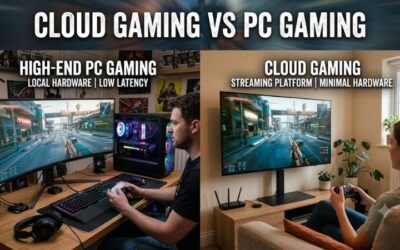
Cloud gaming internet speed requirements start at roughly 15 to 25 Mbps for a smooth 720p to 1080p stream. NVIDIA lists 15 Mbps for 720p and 25 Mbps for 1080p at 60 FPS on GeForce NOW, and Microsoft recommends at least 20 Mbps for Xbox Cloud Gaming. Speed is only half the story: NVIDIA also asks for under 80 ms of latency to its data center, and both companies prefer wired Ethernet or 5 GHz Wi-Fi.
- How many Mbps do you need for cloud gaming?
- What does each cloud gaming service ask for?
- Worked example: how much data does a cloud gaming session use?
- Ping, jitter and packet loss: the latency budget
- Wi-Fi or Ethernet: which connection should you use?
- Step by step: check whether your connection is ready
- Troubleshooting table: symptom, cause, fix
- Decision matrix: which setup fits your connection?
- Cloud gaming free on PC: what speed do you actually need?
- What is cloud space for games, and is it different from cloud gaming?
- Is there a free cloud gaming website?
- What is a gaming cloud?
- Frequently Asked Questions
- Sources we checked
This guide turns those published numbers into something you can act on: a bandwidth table by resolution, a worked example of how much data a session uses, a latency budget, a Wi-Fi versus Ethernet decision matrix, and a symptom-to-fix troubleshooting table. If you have not picked a service yet, start with our roundup of free cloud gaming services, then come back here to check whether your connection can carry it.
How many Mbps do you need for cloud gaming?
Plan on 25 Mbps of steady download speed per player for 1080p at 60 FPS, and 15 Mbps if you accept 720p. Higher resolutions and frame rates need more, and the numbers below are the ones NVIDIA publishes on its GeForce NOW system requirements page.
| Stream quality | Resolution | Frame rate NVIDIA lists | Minimum bandwidth NVIDIA lists |
|---|---|---|---|
| HD | 1280×720 | up to 60 FPS | 15 Mbps |
| Full HD | 1920×1080 | 60 FPS | 25 Mbps |
| QHD | 2560×1440 | 120 FPS | 35 Mbps |
| 4K | 3840×2160 | 120 FPS | 45 Mbps |
| 5K | 5120×2180 | 120 FPS | 65 Mbps |
These are download speeds. Your upload speed matters far less because the service only receives your controller or keyboard inputs, which are tiny. If a speed test shows a decent download figure but a very weak upload figure, the more likely problem is a congested line or Wi-Fi, not the plan you pay for.
What does each cloud gaming service ask for?
Each provider publishes a different headline number, and some publish none at all. Use the table as a starting point and confirm on the service’s own page, because requirements are updated as streaming quality improves.
| Service | Stated connection guidance | Network advice | Where it runs |
|---|---|---|---|
| GeForce NOW | 15 to 65 Mbps depending on resolution and frame rate (see table above) | Under 80 ms to the NVIDIA data center; wired Ethernet or a 5 GHz Wi-Fi router | Windows, macOS, ChromeOS, Linux, supported browsers, Android, iOS, TVs, handhelds |
| Xbox Cloud Gaming | At least 20 Mbps recommended | Wired Ethernet preferred; 5 GHz Wi-Fi or 5G can work; make sure a dual-band router is using its 5 GHz network | Xbox app, xbox.com/play in a browser, phones, tablets, smart TVs, handhelds, Meta Quest |
| Shadow (full cloud PC) | A stable 10 Mbps or more is the stated minimum | Needs a steady connection; confirm details on Shadow’s page | Windows, Mac, Linux, phones, Android TV, Apple TV, browsers |
| Luna | Support pages list a modest minimum; check the Luna help pages for the current figure | Check the Luna help pages for current network advice | Fire TV, supported browsers, some smart TVs and phones |
| Boosteroid | No Mbps figure on its home page; check its support pages | Nearest server location matters | Browser, desktop apps, Android, smart TVs, Chromebook web app |
Notice the gap between the lowest stated minimum (10 Mbps) and the one for 4K (45 Mbps). A service that streams 1080p comfortably on a modest line can still choke when you ask for 4K at 120 FPS. That is why choosing a lower stream setting is the first fix to try, long before buying anything.
Worked example: how much data does a cloud gaming session use?
A stream running at a constant bitrate uses megabits per second, so the conversion to data per hour is: Mbps x 3,600 seconds, divided by 8 to get megabytes, then divided by 1,000 for gigabytes. The figures below are ceilings, because real streams fluctuate with how much is happening on screen.
| Stream | Mbps | Calculation | Data per hour (upper estimate) |
|---|---|---|---|
| 720p | 15 | 15 x 3,600 / 8 / 1,000 | about 6.8 GB |
| Xbox recommended floor | 20 | 20 x 3,600 / 8 / 1,000 | about 9 GB |
| 1080p60 | 25 | 25 x 3,600 / 8 / 1,000 | about 11.3 GB |
| 1440p120 | 35 | 35 x 3,600 / 8 / 1,000 | about 15.8 GB |
| 4K120 | 45 | 45 x 3,600 / 8 / 1,000 | about 20.3 GB |
Now apply it to a real household. Suppose your plan delivers 100 Mbps and you want a 1080p60 stream at 25 Mbps. That leaves 75 Mbps on paper, but a practical rule of thumb is to keep at least 30 to 50 percent of the line free for everything else in the house. On a 100 Mbps line that means one 1080p cloud stream plus a few phones and a video call is comfortable, while two simultaneous 1440p120 streams (70 Mbps) are not.
The second takeaway is the data volume. A four-hour weekend session at 1080p60 can approach 45 GB. If your internet provider applies a monthly data cap, check it before you commit to daily cloud play. Most home plans have no cap, but mobile hotspots and some rural plans do.
Ping, jitter and packet loss: the latency budget
Ping is the time a signal takes to travel to the server and back, and cloud gaming adds it to every button press. NVIDIA asks for less than 80 ms between you and its data center, which is a ceiling, not a target. Lower is better, and what you feel is the total delay including video encoding, decoding on your device, and your display.
To see why frame rate changes the picture, look at how long a single frame lasts: at 60 FPS each frame is about 16.7 ms, and at 120 FPS about 8.3 ms. A 60 ms round trip therefore equals roughly four frames of delay at 60 FPS and seven at 120 FPS. This is why slow-paced strategy and turn-based games feel fine on a modest connection, while competitive shooters and fighting games punish an unstable one.
- Ping: the average round-trip time. Aim for as low as your region allows and stay well under 80 ms for NVIDIA’s service.
- Jitter: how much ping bounces around. A steady 50 ms feels better than a ping that swings between 20 and 90 ms.
- Packet loss: missing data. Even a small amount shows up as pixelation, freezes or sudden quality drops because a video stream cannot wait for resends.
If a speed test shows high ping, our guide on how to fix high ping in online games is the next stop.
Wi-Fi or Ethernet: which connection should you use?
Use Ethernet whenever you can; use 5 GHz Wi-Fi when you cannot. Both NVIDIA and Microsoft say so in their requirements, and the reason is consistency: a cable does not suffer from interference, walls or neighbors sharing the same channel.
| Your situation | Best connection | Why |
|---|---|---|
| Desktop or console near the router | Ethernet cable | Lowest and steadiest ping, no setup beyond plugging in |
| Laptop in the same room as the router | 5 GHz Wi-Fi | Clear line of sight keeps jitter low |
| Laptop or Chromebook one or two rooms away | 5 GHz Wi-Fi, or a USB Ethernet adapter and a long cable | Walls cut 5 GHz range; a cable avoids the problem |
| Phone or tablet | 5 GHz Wi-Fi close to the router | No cable option; the 2.4 GHz band is crowded |
| Home with weak coverage upstairs | Mesh system with a wired backhaul, or powerline as a fallback | Wireless-only mesh hops add delay |
| Mobile 5G hotspot | Only for casual, slower games | Variable ping and possible data caps |
Many thin laptops and Chromebooks have no Ethernet port, so a small USB-C adapter is the usual route to a wired connection. Look for a gigabit (1 Gbps) model, which is far more than any cloud stream needs, and make sure it matches your port type.

TP-Link USB C to Ethernet Adapter (UE300C), Compact, Plug & Play | Portable 1Gbps RJ45 to USB-C 3.0 Network Adapter, Thunderbolt 3/4 Compatible, For MacBook Pro/Air, iPad Pro, Galaxy, & More
Included for 'Cloud Gaming Internet Speed Requirements: Mbps, Ping and Wi-Fi' because the listing specifies Compact and Plug & Play, details this guide uses to compare options.
View on AmazonThe TP-Link UE300C above is a compact USB-C to gigabit Ethernet adapter that fits this exact job. It plugs into a laptop’s USB-C port and gives you an RJ45 jack for a cable to the router, so you can move a cloud gaming session from Wi-Fi to a wired link without buying a new computer. Our own list of the best USB to Ethernet adapters covers other port types, and our note on which Ethernet cable is best for gaming explains why a standard Cat 5e or Cat 6 cable is plenty for a stream.
Step by step: check whether your connection is ready
- Run a speed test on the exact device you will play on. Do it on the same Wi-Fi band, in the same room. Results from a phone in the hallway do not describe a laptop in the bedroom.
- Compare download speed with the table above. Pick the row that matches the resolution you want, then add headroom for other devices in the house.
- Check ping and jitter. Many speed test sites show both. If ping is above 60 to 80 ms to a nearby server, expect noticeable input delay.
- Switch to 5 GHz or Ethernet. On a dual-band router, connect to the 5 GHz network name. If both bands share one name, temporarily rename the 5 GHz band in the router settings so the device cannot silently fall back to 2.4 GHz.
- Close bandwidth hogs. Pause cloud backups, game downloads, 4K video and large updates on every device.
- Use the service’s own network test. Several services include a connection test in their settings or startup flow. Run it before blaming the game.
- Start at 1080p60 and adjust. Raise the stream resolution only after a full session runs clean.
Troubleshooting table: symptom, cause, fix
| Symptom | Likely cause | Fix |
|---|---|---|
| Picture turns blocky, then recovers | Bandwidth dips; another device is using the line | Lower the stream resolution or bitrate; pause downloads; move to Ethernet |
| Button presses feel late but the picture is sharp | High ping or a distant server region | Pick the closest server; use Ethernet; avoid VPNs |
| Short freezes every few seconds | Wi-Fi interference or packet loss | Switch to 5 GHz, change the Wi-Fi channel, move closer to the router |
| Service warns about a slow connection on a fast plan | Device is on 2.4 GHz, or the router is far away | Reconnect to the 5 GHz network or use a cable |
| Quality is fine at first, then drops after 20 to 30 minutes | Router overheating, or a scheduled backup starting | Reboot the router; check backup schedules on all devices |
| Audio crackles or drifts out of sync | Bluetooth headphones adding delay, or network jitter | Try wired headphones; test with Ethernet to separate the causes |
| Only one game is bad | Game-specific server load or an update | Try another title, then check the service’s status page |
If Wi-Fi is the weak link and your home has dead spots, a better router or mesh system often fixes more than a faster internet plan. Our comparison of mesh Wi-Fi versus a single router for gaming latency explains when each makes sense, and our guide to the best Wi-Fi setup for gaming covers router features worth paying attention to.
Decision matrix: which setup fits your connection?
| Your connection | Realistic target | Good starting point |
|---|---|---|
| Under 15 Mbps, or high and unstable ping | Not reliable for action games | Fix the line first; try slow-paced titles at the lowest setting |
| 15 to 25 Mbps, Wi-Fi only | 720p, casual games | Xbox Cloud Gaming or GeForce NOW at a reduced stream setting |
| 25 to 50 Mbps, steady 5 GHz or wired | 1080p60 | See our GeForce NOW free tier guide and Xbox Cloud Gaming free guide |
| 50 to 100 Mbps, wired | 1440p, high frame rates | Paid tiers that advertise higher resolution and frame rates |
| 100 Mbps or more, wired, low ping | 4K or 120 FPS, multiple screens | Pick based on library and device, not bandwidth |
If you are playing from a laptop that only has Wi-Fi, our guide to cloud gaming on a Chromebook shows which services and browser settings suit a low-power machine, and our browser cloud gaming guide explains how to start without installing anything.
Cloud gaming free on PC: what speed do you actually need?
Free cloud gaming on a PC needs the same connection as paid tiers: 15 to 25 Mbps with a stable ping is the realistic floor. The free tiers add other limits, such as queues and session time, that no internet upgrade will remove, which our how the free and entry tiers compare explains in detail.
What is cloud space for games, and is it different from cloud gaming?
Cloud space and cloud gaming are different things. Cloud space usually means online storage for save files or game downloads, while cloud gaming runs the game on a remote computer and streams the video to you. Some services let you install games into storage on their servers, which is a feature of certain paid tiers; check the service’s page for the current details.
Is there a free cloud gaming website?
Yes, a few services offer free access with limits, but the offers change, so check each service’s current page. Treat unknown sites that promise unlimited free play with caution: real cloud gaming needs powerful servers, which cost money, so free offers are normally time-limited, queued or ad-supported. Sticking to services run by established companies is the safest approach, and our overview of free cloud gaming options lists the ones worth looking at.
What is a gaming cloud?
A gaming cloud is the set of remote servers that run games and stream the picture to your screen. Your device decodes the video and sends back your inputs, which is why a modest laptop, phone or Chromebook can play demanding games as long as the connection is good.
Frequently Asked Questions
What is the minimum internet speed for cloud gaming?
Published minimums range from about 10 Mbps for Shadow, 15 Mbps for a 720p GeForce NOW stream and 20 Mbps recommended for Xbox Cloud Gaming. Treat 25 Mbps as a comfortable target for 1080p.
Is 50 Mbps enough for cloud gaming?
Yes, for one stream up to 1440p in most cases. NVIDIA lists 35 Mbps for 1440p at 120 FPS, so 50 Mbps leaves some headroom, provided your Wi-Fi is stable and nobody else is saturating the line.
Does upload speed matter for cloud gaming?
Very little. Your inputs are small, so even a slow upload is usually adequate. Persistent problems with a high download figure point to latency, jitter or Wi-Fi quality instead.
Can I play cloud games on Wi-Fi?
Yes, if it is 5 GHz and the signal is strong. Both NVIDIA and Microsoft recommend a wired connection or 5 GHz Wi-Fi, and the 2.4 GHz band is generally more crowded and prone to interference.
What ping is good for cloud gaming?
NVIDIA requires under 80 ms to its data center, but lower is noticeably better for fast games. Slower-paced titles tolerate more delay than shooters or fighting games.
How much data does one hour of cloud gaming use?
At 25 Mbps it can reach about 11 GB per hour, and at 4K120 around 20 GB per hour, based on the bandwidth NVIDIA lists. Actual use varies with the scene, so treat these as upper estimates.
Will a faster internet plan fix lag?
Not always. Lag is mostly latency and instability, not raw speed. Moving to Ethernet, picking a nearer server and reducing Wi-Fi interference usually helps more than upgrading the plan.
Does a VPN affect cloud gaming?
It can, by adding hops and raising ping, and some services restrict VPN use. Turn it off while you play unless you have a specific reason to keep it on.
Sources we checked
- NVIDIA GeForce NOW system requirements page
- NVIDIA GeForce NOW membership and FAQ pages
- Xbox Wire: Getting Started with Xbox Cloud Gaming
- Shadow official site
- Boosteroid official site
Last updated: November 2026