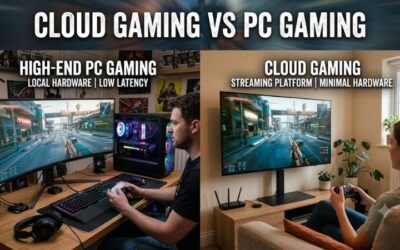
Cloud gaming on a Chromebook works on every model, because the game runs on a remote server and your laptop only decodes a video stream and sends back your button presses. What decides the experience is your Wi-Fi, a supported browser and a controller, not the Chromebook’s processor. Some access is free, but it comes with session limits, queues or a small library. See our rundown of free cloud gaming services for the wider picture.
- Quick answer: which service fits a Chromebook?
- Is there a cloud gaming app for PC for free?
- What a Chromebook actually needs for cloud gaming
- Worked example: how much bandwidth does one Chromebook session use?
- How to set up cloud gaming on a Chromebook, step by step
- Service by service on a Chromebook
- Are cloud gaming Chromebooks worth it?
- Hardware worth adding
- Troubleshooting table: symptom, cause, fix
- Limits to expect on a Chromebook
- Frequently asked questions
- Sources we checked
Quick answer: which service fits a Chromebook?
Google’s own Chromebook gaming page names four cloud services for ChromeOS: NVIDIA GeForce NOW, Xbox Cloud Gaming, Luna and Boosteroid. Pick by what you already own, not by the logo.
| Your situation | Start with | Why | Main catch |
|---|---|---|---|
| You own PC games on Steam, Epic or GOG | GeForce NOW | Streams games you already own; has a free membership level | Free level is limited by session length and queue; only supported titles stream |
| You already pay for Game Pass | Xbox Cloud Gaming | Plays in the browser at xbox.com/play; catalog included in your plan | Monthly cloud hours now apply per plan tier |
| You have a Prime membership and want casual games | Luna | Included tier needs no extra subscription | Library is a rotating catalog; third-party stores were removed in 2026 |
| You own PC games and want no session timer | Boosteroid | Its site advertises no session time limits and ChromeOS support | Paid plans only on the page we read; library depends on your accounts |
| You only want to try it for nothing | GeForce NOW free level or free-to-play titles on Xbox | No subscription needed to try the setup | Expect waits and time caps |
Is there a cloud gaming app for PC for free?
Yes, but “free” always means limited. GeForce NOW offers a free membership level, Xbox lists an ad-supported free option with session limits, and Luna’s standard tier comes with a Prime membership.
On a Chromebook you rarely need an app at all. Most of these run in the Chrome browser, and the services themselves say so. NVIDIA lists Chromebooks with at least 4 GB of RAM running Chrome 77 or later. Xbox Cloud Gaming is played at xbox.com/play in Chrome or Edge, and Chromebook setup guides describe no separate Xbox app for ChromeOS.
Is cloud PC gaming free on a Chromebook?
Only partly. Streaming your own PC library on GeForce NOW can cost nothing at the free level, but you still need to own the games, and queues and time caps apply. Check NVIDIA’s membership page for the current limits.
Is “cloud gaming free PC” the same thing on ChromeOS?
Mostly. The services do not care whether a Windows laptop or a Chromebook is on the other end. The same plan, the same limits and the same catalog apply; the only differences are browser support and controller handling.
What a Chromebook actually needs for cloud gaming
A Chromebook needs a current browser, a stable connection and an input device. Everything else happens on the server.
- Memory and browser. NVIDIA’s requirements page asks for a Chromebook with at least 4 GB of RAM and Chrome 77 or newer. Current Chromebooks update the browser automatically, so the RAM line is the one to check on an older model.
- Internet speed. NVIDIA’s stated bandwidth for a Chromebook is 15 Mbps for 720p up to 60 FPS, 25 Mbps for 1080p at 60 FPS and 35 Mbps for 1440p-class output at 120 FPS. NVIDIA also asks for under 80 ms of latency to its data center.
- Wi-Fi band. NVIDIA recommends wired Ethernet or a router with 5 GHz Wi-Fi. That advice carries over to every other service, because they all stream video in real time.
- A controller. Many cloud games expect a gamepad. Bluetooth and USB controllers both work with ChromeOS; keyboard and mouse support varies by game and service.
For Xbox Cloud Gaming, Chromebook guides citing Microsoft’s requirements mention ChromeOS 85 or later and roughly 10 Mbps as a minimum with about 20 Mbps preferred. We could not open Microsoft’s own requirements page, so treat those two numbers as a starting point and confirm them in Xbox support.
Worked example: how much bandwidth does one Chromebook session use?
Take NVIDIA’s three Chromebook tiers and convert megabits per second into data per hour. Divide by 8 to get megabytes per second, then multiply by 3,600 seconds. These are ceilings if the stream ran at the full recommended rate the whole time; real streams often run below that.
| Stream target | Stated bandwidth | Megabytes per second | Approx. data per hour |
|---|---|---|---|
| 720p, up to 60 FPS | 15 Mbps | 1.9 MB/s | about 6.75 GB |
| 1080p, 60 FPS | 25 Mbps | 3.1 MB/s | about 11.25 GB |
| 1440p-class, 120 FPS | 35 Mbps | 4.4 MB/s | about 15.75 GB |
Now the household check. A home plan with 100 Mbps down and a family member on a video call (a few Mbps) leaves plenty of room for a 25 Mbps 1080p stream. A 30 Mbps plan shared by three people does not. A sensible rule of thumb is to leave about half your plan free for other devices, which means a 25 Mbps stream wants a plan of roughly 50 Mbps. If you have a data cap, a few hours of play a week can use a large chunk of it. Our longer guide on cloud gaming internet speed requirements covers ping and Wi-Fi in more depth.
How to set up cloud gaming on a Chromebook, step by step
- Update ChromeOS. Open Settings, choose About ChromeOS and check for updates. A current browser avoids most streaming glitches.
- Join the 5 GHz network. If your router shows separate names for 2.4 GHz and 5 GHz, pick the 5 GHz one. Sit in the same room as the router for the first test.
- Pair the controller. Open Quick Settings, turn Bluetooth on and put the controller in pairing mode, or plug in a USB controller. Our guide to controllers for PC applies here too, because a Chromebook sees a standard gamepad.
- Open the service in Chrome. Go to the service’s official site: nvidia.com/geforce-now for GeForce NOW, xbox.com/play for Xbox, the Luna sign-in page linked from Luna’s support pages, or boosteroid.com. Sign in with your own account.
- Link your library if the service asks. GeForce NOW and Boosteroid stream games you own, so you connect the store account that holds them. Use the service’s own sign-in screens only.
- Launch a light game first. Pick something that is not graphics-heavy and check the stream stats if the service shows them.
- Go fullscreen. The fullscreen key on a Chromebook keyboard hides browser chrome and leaves more room for the picture.
- Close other tabs. Press Search and Escape to open the ChromeOS Task Manager and end heavy tabs if the picture stutters.
For a deeper look at running games inside a tab, see how to play cloud games in your browser.
Service by service on a Chromebook
GeForce NOW on a Chromebook
GeForce NOW streams supported games from libraries you already own. NVIDIA’s requirements page lists Chromebook as a supported device. The paid levels add priority access and longer sessions, and the free level is limited; the precise limits are on NVIDIA’s membership pages, so check there before you plan an evening around it. Our guide to whether GeForce NOW is free covers the free level in detail.
Xbox Cloud Gaming on a Chromebook
Xbox Cloud Gaming runs in the browser at xbox.com/play. Xbox’s cloud gaming page lists monthly cloud hours of 5, 10 and 15 for Essential, Premium and Ultimate, and describes an ad-supported free option with session limits. Availability can differ by region and by rollout stage, so confirm what your account sees. See whether Xbox Cloud Gaming is free for the details.
Luna on a Chromebook
Luna was reshaped in 2026. According to 9to5Google’s report, the retailer removed bring-your-own-library support, individual game purchases and third-party channels from April 10, with previously bought games playable until June 10. What remains is a Luna Standard tier included with Prime and a Luna Premium tier with a bigger catalog. Google still lists Luna among its Chromebook cloud options.
Boosteroid on a Chromebook
Boosteroid’s own site lists ChromeOS among supported platforms, advertises no session time limits and presents paid plans. It uses a bring-your-own-library model, so you need to own the games on a supported store.
Are cloud gaming Chromebooks worth it?
Google says all Chromebooks can access cloud gaming and that dedicated “cloud gaming” Chromebooks take it further. In practice that means a better screen with a higher refresh rate, stronger Wi-Fi hardware and often an RGB keyboard. You do not need one to start. If you are shopping, our roundup of the best Chromebook for gaming compares current models, and the screen refresh rate and Wi-Fi standard matter more than the processor.
Hardware worth adding
Two small additions fix the most common Chromebook cloud-gaming complaints: input handling and wireless dropouts.
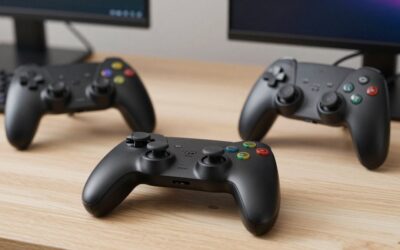
A gamepad you can pair over Bluetooth or plug in makes most cloud libraries playable without touch controls. The standard Xbox wireless controller is the one most services are built around, and it pairs over Bluetooth or USB.

XBOX Wireless Gaming Controller | Carbon Black | Textured triggers and bumpers, Hybrid D-pad, XBOX Wireless, Bluetooth, USB-C, Play across Console & PC & Cloud Devices
Included for 'Cloud Gaming on a Chromebook: Services, Setup and Limits' because the listing specifies Carbon Black and Textured triggers and bumpers, details this guide uses to compare options.
View on AmazonIt is a safe default because every service in this guide recognises it without extra setup, and it uses AA batteries or a rechargeable pack, so there is no dock to lose. If you play a lot on the couch, a wired cable keeps latency steady and saves battery.
The second addition is a wired connection. Many Chromebooks have no Ethernet port, but a USB-C to Ethernet adapter removes Wi-Fi from the equation.

TP-Link USB C to Ethernet Adapter (UE300C), Compact, Plug & Play | Portable 1Gbps RJ45 to USB-C 3.0 Network Adapter, Thunderbolt 3/4 Compatible, For MacBook Pro/Air, iPad Pro, Galaxy, & More
Included for 'Cloud Gaming on a Chromebook: Services, Setup and Limits' because the listing specifies Compact and Plug & Play, details this guide uses to compare options.
View on AmazonA compact gigabit adapter like this suits a desk setup with a cable run to the router. Before buying any adapter, check the listing or the maker’s page for ChromeOS or Linux support, since driver-free operation is the part that matters on a Chromebook. Our guide to the best USB to Ethernet adapter lists more options.
Troubleshooting table: symptom, cause, fix
| Symptom | Likely cause | Fix |
|---|---|---|
| Picture blurry or blocky | Bandwidth below the tier you asked for | Lower the stream quality in the service’s settings; move to 5 GHz or Ethernet |
| Input feels delayed | High latency or Wi-Fi interference | Move closer to the router; pick the nearest server region if offered; see our high-ping fixes |
| Stream freezes every few minutes | 2.4 GHz congestion or too many open tabs | Switch bands, close tabs, restart the router |
| Controller not detected | Not paired, or the page needs a button press first | Re-pair in Bluetooth settings; press any button after the page loads |
| Service says the browser is unsupported | You are using a non-supported browser | Use Chrome (or Edge where the service allows it) and update ChromeOS |
| Site will not load at all | Managed Chromebook with blocked sites | Ask the administrator; do not try to bypass school or work restrictions |
| Queue before play starts | Free level during busy hours | Try off-peak times or upgrade the membership level |
If lag is your main problem, our walkthrough on how to fix high ping in online games covers the router and Wi-Fi steps.
Limits to expect on a Chromebook
- Not every game streams. GeForce NOW and Boosteroid only stream supported titles from the stores they work with.
- Time caps. Free levels and Xbox plans now carry session or monthly limits.
- Visual ceilings. NVIDIA’s numbers go up to 1440p-class at 120 FPS on a Chromebook, but the free level is described as lower in third-party reviews; check what your level includes.
- Managed devices. School or work Chromebooks may block gaming sites, Bluetooth or full-screen modes.
- Data use. The worked example above shows how fast a data cap can disappear.
If you are still choosing between two services, our head-to-head on GeForce NOW vs Xbox Cloud Gaming explains where each one wins.
Frequently asked questions
Can any Chromebook play cloud games?
Google says you can access cloud gaming platforms on all Chromebooks. NVIDIA lists a 4 GB RAM minimum for GeForce NOW, so very old or low-memory models may not qualify.
Do I need to install an app?
Usually no. GeForce NOW, Xbox, Luna and Boosteroid all offer browser access, and browser access is the simplest route on ChromeOS. Check each service’s page if you prefer an app.
What internet speed do I need?
NVIDIA states 15 Mbps for 720p, 25 Mbps for 1080p at 60 FPS and 35 Mbps for 1440p-class at 120 FPS on a Chromebook. Xbox guidance cited by Chromebook guides is lower, around 10 Mbps minimum, so confirm it on Xbox support.
Is Wi-Fi good enough, or do I need Ethernet?
5 GHz Wi-Fi is acceptable if the signal is strong; NVIDIA recommends wired Ethernet or a 5 GHz router. A USB-C Ethernet adapter helps if your Chromebook sits far from the router.
Can I use a PS5 or Xbox controller?
Generally yes. Both pair over Bluetooth or plug in over USB and show up as gamepads. Whether the game accepts the layout depends on the service, so check its controller notes.
Which service is best if I do not want to pay?
Try the GeForce NOW free level if you already own supported PC games, or free-to-play titles on Xbox with a free Microsoft account. Both come with limits; check the service pages before relying on either.
Why does my school Chromebook block cloud gaming?
Administrators control which sites and settings are allowed on managed devices. Ask them for permission rather than looking for workarounds, which usually violate school or work policy.
Will cloud gaming drain my battery?
Streaming video keeps the screen and Wi-Fi radio busy, so expect shorter battery life than light browsing. Plug in for long sessions.
Sources we checked
- NVIDIA GeForce NOW system requirements page
- Xbox Cloud Gaming page on xbox.com
- Google Chromebook gaming FAQ
- Boosteroid homepage
- 9to5Google report on the Luna changes
Last updated: November 2026