🛒 Best Price Today on Amazon
Prime members get fast, free shipping on everything above, plus member-only deals. New members get a 30-day free trial — cancel anytime.

Alienware AW2725Q 27" 4K QD-OLED Gaming Monitor – 240Hz, 0.03ms GTG, HDR
Included for 'RGB stripe OLED vs QD OLED text clarity: Essential Guide' because the listing specifies 240Hz and 0.03ms GTG, details this guide uses to compare options.
View on Amazon
Alienware AW3423DWF Curved QD-OLED Gaming Monitor - 34-inch Quantum Dot, 0.1Ms 165Hz 21:9, 99.3% DCI-P3 Color Gamut, VESA DisplayHDR, 400, AMD FreeSync Premium Pro - Black
Included for 'RGB stripe OLED vs QD OLED text clarity: Essential Guide' because the listing specifies 34-inch Quantum Dot and 0.1Ms 165Hz 21:9, details this guide uses to compare options.
View on AmazonWhen comparing rgb stripe oled vs qd oled text clarity, RGB stripe OLED has a structural advantage for desktop text because its red, green, and blue subpixels follow the conventional arrangement expected by Windows. Traditional QD-OLED uses a triangular layout that can produce colored edges. Resolution, scaling, and screen coating also matter.
1. What RGB Stripe OLED vs QD-OLED Really Comes Down To
The key difference is how each panel arranges its subpixels, not simply whether it uses OLED technology. RGB stripe OLED aligns red, green, and blue subpixels in conventional vertical stripes, while traditional QD-OLED arranges them differently. Understanding that distinction helps you judge text readability, gaming image quality, and whether an upgrade makes sense.
Why subpixel layout affects text
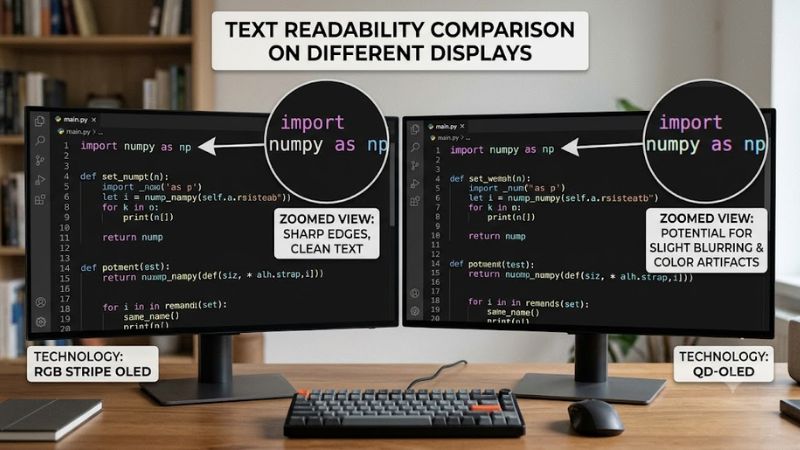
A monitor builds each image from pixels containing smaller red, green, and blue subpixels. Windows uses font-rendering techniques, including ClearType, to improve the appearance of text by accounting for subpixel positions. When the physical arrangement differs from the expected layout, thin letters and curved edges can develop colored outlines.
Traditional QD-OLED panels use three RGB subpixels in a triangular arrangement. This differs from the conventional RGB stripe layout found on many LCD monitors. The result can be green, purple, or other colored fringes around small text, particularly at lower pixel densities. The effect varies by panel generation and viewing conditions.
What makes RGB stripe OLED different?
RGB stripe OLED uses the familiar red-green-blue stripe arrangement, allowing text-rendering systems designed around conventional RGB layouts to work more naturally with the panel. This can reduce a major source of color fringing while preserving OLED characteristics such as deep blacks, per-pixel illumination, and fast pixel response.
LG Display announced mass production of a 240Hz RGB Stripe OLED panel on May 28, 2026. That announcement demonstrates that the layout is moving into premium gaming displays. However, a panel manufacturer’s announcement does not establish that every finished monitor has identical text quality, coating, brightness, or performance.
Why resolution matters as much as panel type
Pixel density determines how tightly pixels are packed across a screen. A higher pixel density generally makes individual subpixel boundaries less noticeable, which can reduce the visible impact of unusual OLED layouts. Consequently, a high-density QD-OLED monitor may render text more cleanly than a lower-density RGB stripe display.
For example, a 27-inch 4K monitor has approximately 163 pixels per inch, compared with roughly 109 PPI for a 27-inch 1440p monitor. These figures describe pixel density, not measured text-quality scores. They illustrate why comparing two panels at the same resolution and screen size is more informative than comparing their technologies alone.
What doesn’t help
Choosing a monitor solely because its specifications say OLED, QD-OLED, or 240Hz does not establish its text clarity. Refresh rate describes how frequently the display can update, not how accurately small characters are rendered. Likewise, a higher advertised contrast ratio does not correct an incompatible subpixel arrangement.
Changing Windows ClearType settings can improve some text-rendering problems, but it cannot physically rearrange a panel’s subpixels. Before spending money on a new monitor, inspect the exact model’s pixel layout, resolution, coating, and close-up text examples. If possible, read ordinary documents at your intended viewing distance.
2. How to Compare Text Clarity: Step by Step
Use the following checks to compare RGB stripe OLED and traditional QD-OLED fairly. Keep the screen size, resolution, Windows scaling, font size, and viewing distance consistent whenever possible. This separates the effects of pixel layout from those of density and image processing, helping you decide whether the difference matters for your daily work and gaming setup.
Step 1: Check the exact panel layout
Look up the manufacturer’s specification sheet and reputable monitor reviews for the precise model number. Confirm whether the display actually uses an RGB stripe, triangular RGB, or another subpixel arrangement. Do not assume every OLED product from one manufacturer shares the same layout, even when the monitors have similar names.
For new-generation models, verify the finished monitor’s specifications rather than relying on an announcement about a panel that may be used in several products. The term tandem OLED describes a panel’s emissive-layer structure; it does not, by itself, establish that the subpixels use an RGB stripe arrangement.
Step 2: Compare resolution and pixel density
Compare monitors with the same diagonal size and resolution first. A 27-inch 4K panel packs substantially more pixels into each inch than a 27-inch 1440p panel, which can make small fonts appear more refined. If the displays have different sizes or resolutions, account for those differences before attributing a visual improvement to the panel layout.
Also consider Windows display scaling. A 4K monitor at 150% scaling provides a different effective desktop workspace from the same monitor at 100%. Scaling can make text easier to read, but it does not change the underlying physical pixel density or subpixel geometry.
Step 3: Tune Windows text rendering
In Windows 11, search for Adjust ClearType text from the Start menu and follow the wizard. Select the samples that look clearest on your actual monitor. Compare small black text on a white background, as well as white text on a dark background, because colored edges may appear differently depending on the content.
ClearType adjustments are optional and reversible. If the result looks worse, rerun the wizard and select different samples. Some applications use their own text-rendering methods, and ClearType adjustments will not fix text embedded in images or videos. Treat this as a practical refinement rather than a substitute for suitable hardware.
Step 4: Evaluate the complete desktop experience
Open a document, a code editor, a browser page, and a game interface. Look at thin vertical strokes, diagonal lines, small numbers, and colored edges around white text. Judge the monitor from your normal seated position, not just from an enlarged photograph that exaggerates tiny pixel-level differences.
| Setting or Step | Where | Effect | Risk |
| Confirm subpixel layout | Manufacturer specifications and independent reviews | Identifies the panel’s text-rendering characteristics | Product naming may not reveal the actual layout |
| Compare pixel density | Screen size and native resolution specifications | Helps explain differences in apparent sharpness | Comparing different resolutions can mislead |
| Tune ClearType | Windows Start menu search | May improve the appearance of system-rendered text | Poor selections may make text look less natural; rerun to reverse |
| Check normal-distance readability | Documents, browser, code editor, and games | Shows whether fringing affects real use | Lighting, scaling, and eyesight can affect subjective results |
The practical conclusion is that RGB stripe OLED is the more promising choice when clean desktop text is a priority, while a high-density QD-OLED may still look sufficiently sharp for mixed gaming and productivity. The exact monitor matters more than the panel label alone.
3. Which Display Should You Choose for Gaming and Work?
The best choice depends on how much time you spend reading, coding, browsing, and playing games. RGB stripe OLED is particularly attractive for mixed-use desktops because it addresses a known limitation of conventional OLED subpixel layouts. Traditional QD-OLED remains worth considering when its overall picture quality and gaming features suit your priorities.
Choose RGB stripe OLED for text-heavy work
If you spend hours reading documentation, editing code, managing spreadsheets, or writing articles, RGB stripe OLED deserves priority. Its conventional subpixel arrangement is better aligned with typical Windows text rendering, potentially reducing distracting colored outlines without requiring you to compromise on OLED contrast or refresh rate.
For buyers researching rgb stripe oled vs qd oled text clarity, the important distinction is that the stripe layout addresses a structural cause of fringing. Still, inspect the finished monitor’s resolution, coating, and text examples before buying. A layout advantage alone cannot establish which complete display will be more comfortable.
Choose QD-OLED when its overall features fit
Traditional QD-OLED remains appealing for gaming, movies, and other visually rich content. Its quantum-dot-based color reproduction and OLED contrast can create an immersive image, while its pixel response characteristics suit fast-moving games. Text fringing is often less noticeable at higher pixel densities, making some 4K models reasonable options for mixed desktop use.
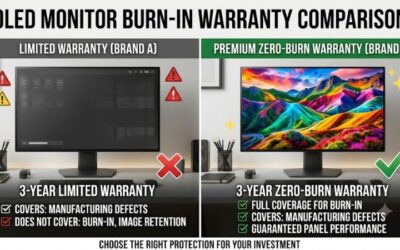
The rgb stripe oled vs qd oled text clarity difference may matter less if you mainly play games and only occasionally read small text. Consider the exact model’s resolution, refresh rate, connectivity, warranty, and room lighting alongside text quality. QD-OLED panels can also show raised blacks or a purple tint in bright ambient conditions.
Consider the screen coating and viewing environment
Panel layout is only one part of perceived clarity. A glossy coating may preserve a cleaner-looking image but reflect windows and room lights, whereas a matte finish can diffuse reflections while affecting the appearance of fine details. Neither coating type automatically produces the best result for every desk.
Check the monitor under lighting similar to your room. If you work beside a bright window, reflections and ambient light may influence comfort more than subtle differences between subpixel layouts. For QD-OLED, bright surroundings can also make blacks appear less deep. Choose a display that performs well in your actual environment.
Balance text quality against gaming priorities
For a gaming-focused PC, consider the games you play, the GPU powering your system, your target resolution, and the refresh rate you can realistically use. Higher refresh rates can improve motion clarity and responsiveness, but they do not inherently sharpen static text. A monitor should suit your workload rather than maximize one specification.
If your daily routine includes both competitive gaming and long coding sessions, RGB stripe OLED is a compelling direction. If you find a high-density QD-OLED monitor that looks clear to your eyes, there is no need to reject it automatically. Compare real examples and weigh the complete feature set before deciding.
FAQ
Is RGB stripe OLED sharper than QD-OLED?
RGB stripe OLED has a structural advantage for conventional text rendering because its subpixel arrangement matches the layout expected by many desktop font-rendering systems. Traditional QD-OLED can exhibit more visible color fringing, although high pixel density can make this difference less noticeable.
Can Windows ClearType fix QD-OLED text fringing?
Windows ClearType can improve text appearance, but it cannot fully correct the physical effects of a triangular subpixel arrangement. Run the ClearType tuning wizard, compare its results with your usual applications, and retain the settings that look most natural.
Is 4K QD-OLED good for coding and office work?
Yes, 4K QD-OLED can work well for coding and office tasks, particularly at higher pixel densities where subpixel artifacts are less apparent. However, text clarity remains model-dependent, so inspect small fonts and consider your preferred scaling before purchasing.
Should I wait for an RGB stripe OLED gaming monitor?
Waiting may make sense if you are particularly sensitive to text fringing and want OLED gaming performance alongside clearer desktop typography. Check the finished monitor’s availability, specifications, warranty, and independent reviews before deciding whether to wait or buy an existing model.
Final Thoughts
For rgb stripe oled vs qd oled text clarity, RGB stripe OLED is the more natural choice for people who prioritize readable text alongside gaming performance. Traditional QD-OLED remains a strong alternative, especially at higher pixel densities. Compare the exact models at your normal viewing distance before making your purchase.