🛒 Best Price Today on Amazon
Prime members get fast, free shipping on everything above, plus member-only deals. New members get a 30-day free trial — cancel anytime.

CableMod Pro ModFlex 12V-2x6 PCIe Cable for Corsair T4 (Blk, 2x8p, 90° A) | Paracord C-Series. 16-pin to Dual 8-pin, 60cm. 12V-2x6 StealthSense connector. Fits Corsair Type 3 and Type 4 PSUs.
Included for 'Gpu power connector overheating prevention: Smart, Reliable Guide' because the listing specifies 2x8p and 90° A), details this guide uses to compare options.
View on Amazon
Corsair PCIe 5.0 12VHPWR GPU Power Bridge - for NVIDIA GeForce RTX 40 Series - 180° Bend - Right-Angle Adapter - Clean Cabling - Only for Use with PCIe 5.0 12VHPWR GPUs - Black
Included for 'Gpu power connector overheating prevention: Smart, Reliable Guide' because the listing specifies for NVIDIA GeForce RTX 40 Series and 180° Bend, details this guide uses to compare options.
View on AmazonGPU power connector overheating prevention starts with a fully seated power plug, compatible cables, and careful cable routing. High-power graphics cards can suffer connector damage when electrical contact is poor or cables are under mechanical stress. This guide explains how to reduce risk, inspect your hardware, and respond safely to warning signs.
What GPU Power Connector Overheating Prevention Really Comes Down To
The most important precautions are mechanical and electrical: use the correct power cable, seat every connector completely, avoid stressing the plug, and inspect it for damage. These steps matter particularly for graphics cards with 16-pin 12VHPWR or 12V-2×6 connectors, although conventional 6-pin and 8-pin PCIe connectors also require proper installation.
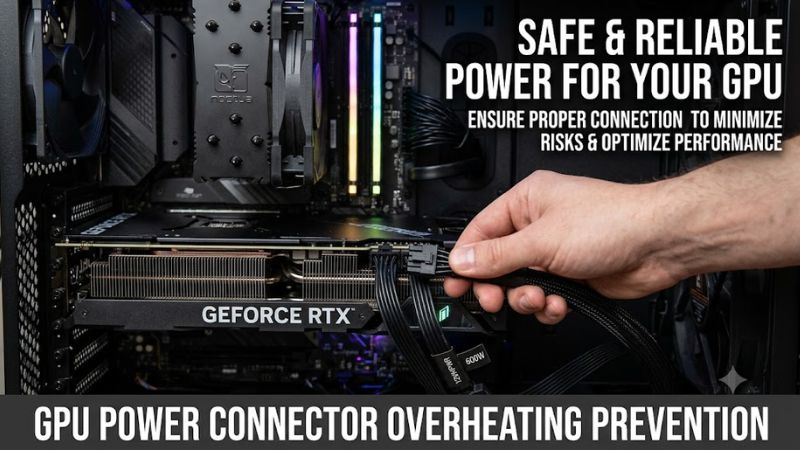
1. Understand Why GPU Power Connectors Overheat
A power connector can generate excessive heat when electrical resistance rises at a contact point carrying substantial current. An incompletely inserted plug, damaged terminal, loose connection, or uneven contact can concentrate heat in a small area. Continued operation may damage the connector housing, cable, or graphics card.
The risk is not limited to one graphics card model or a particular game. High-power GPUs place significant demands on their power-delivery connections, making correct installation essential. A connector that looks nearly seated is not necessarily making reliable contact across all its terminals.
2. Know Which Connector Your Graphics Card Uses
Modern high-power graphics cards may use a 16-pin 12VHPWR or 12V-2×6 connector, while other models use traditional 6-pin or 8-pin PCIe power plugs. Identify the connector specified in your graphics card manual before changing cables or buying replacement hardware. Similar-looking plugs are not automatically interchangeable.
The 12V-2×6 design improves insertion-detection behavior compared with the original 12VHPWR design, but it does not remove the need for careful installation. Both connector families can support high power levels when implemented correctly. Follow the requirements of your exact GPU and power supply rather than relying on connector appearance alone.
3. Separate Normal Warmth From Warning Signs
A connector may become somewhat warm during demanding gaming, but warmth alone cannot establish whether the connection is safe. There is no single external temperature reading that reliably rules out a developing contact problem across every cable, GPU, and operating condition.
Stop using the PC if you notice a burning smell, discoloration, melted plastic, visible deformation, smoke, or a connector that appears damaged. Shut the system down immediately; if smoke or fire is present, prioritize personal safety and disconnect power only if you can do so safely. Never touch a hot or damaged connector while the system is running.
4. What Doesn’t Help
Do not assume that better case airflow will fix a poor electrical connection. Additional fans can help manage overall system temperatures, but they cannot restore damaged terminals or correct incomplete insertion. Similarly, monitoring GPU core temperature alone will not tell you whether the power connector is developing a localized hot spot.
Avoid repeatedly unplugging and reconnecting a connector simply to check whether it feels secure. Connector contacts have finite mating-cycle ratings, and repeated handling can introduce additional wear or mechanical stress. Inspect the connection when the PC is powered down, follow the manufacturer’s instructions, and replace damaged parts rather than attempting improvised repairs.
How to Prevent GPU Power Connector Overheating: Step by Step
A consistent installation routine is the most practical way to reduce connector risk. Before touching power cables, shut down the PC, switch off the PSU, disconnect it from wall power, and allow hot components to cool. Check the GPU and PSU manuals for the correct cable type and installation procedure. The following steps apply to most desktop gaming PCs, with particular attention to 16-pin connections.
Step 1: Verify the Cable and Power Supply
Use the power cable supplied with your PSU or an explicitly compatible replacement approved for that exact PSU model. Modular PSU cables are not universally interchangeable, even when the connectors fit. Incorrect pin assignments can damage components, so never choose a cable based solely on its connector shape or branding.
If your GPU uses a supplied multi-8-pin adapter, connect every required 8-pin input according to the GPU manufacturer’s instructions. If you use a native 16-pin PSU cable, confirm that both ends are compatible with their respective sockets. Do not mix modular cables from different PSU models unless the manufacturer explicitly confirms compatibility.
Step 2: Fully Seat the GPU Power Connector
With the system disconnected from power and the components cool, inspect the connector and socket for visible damage or debris. Align the plug correctly, then insert it straight into the GPU socket until it is fully seated and the retention latch engages. Follow the instructions for your specific cable rather than relying on force or sound alone.
Check the interface from the side where the plug meets the socket. The connector should sit evenly, without a visible gap suggesting incomplete insertion. Do not force a plug that resists insertion, and do not continue using a connector with bent, recessed, burnt, or damaged contacts. Seek manufacturer support if correct seating is uncertain.
Step 3: Route the Cable Without Straining the Plug
After seating the connector, arrange the cable so it exits the socket without an abrupt bend, twisting force, or sideways pull. CableMod and Seasonic recommend keeping bends at least 35 mm from the connector for the relevant 12VHPWR cables. Treat this as a practical reference for compatible cables, not a universal specification for every design.
Check the clearance between the plug and the case’s side panel before closing the chassis. A panel that presses against the cable can apply sustained force and disturb the connection. If space is insufficient, reconsider the cable route or case arrangement rather than forcing the panel closed or adding an unapproved angled adapter.
Step 4: Inspect the Connection Before Gaming
Before restoring power, verify that the GPU connector is seated, the cable is not under tension, and all required PSU-side connections are secure. Check that the side panel does not push against the cable and that no wire is pinched between the chassis and another component. Follow the PSU manufacturer’s instructions for any final installation checks.
Afterward, pay attention to warning signs during normal use without touching the powered connector. If you smell burning, hear unusual electrical crackling, or observe smoke, shut down immediately and stop using the PC. A visual check cannot certify internal contact quality, so suspected connector damage requires professional inspection or manufacturer support.
| Setting or Step | Where | Effect | Risk |
| Verify cable compatibility | PSU and GPU manuals | Prevents incompatible cable use | Incorrect modular cables can damage hardware |
| Seat the connector | GPU power socket | Improves contact across terminals | Forcing a damaged plug can worsen damage |
| Route the cable gently | Inside the PC case | Reduces mechanical stress | Tight bends or panel pressure can disturb the plug |
| Inspect for damage | Plug, socket, and cable | Helps identify visible warning signs | Visual inspection cannot rule out hidden damage |
| Replace damaged hardware | GPU or PSU service process | Removes the defective connection from use | DIY repair can void warranties or create further hazards |
FAQ: GPU Power Connector Overheating Prevention
Can a 16-pin GPU power connector melt even when it looks plugged in?
Yes, a connector can suffer heat damage even when it appears installed. A plug may not be fully seated, or a contact may be damaged in a way that is difficult to see externally. Correct insertion, compatible cables, and careful routing reduce risk but cannot guarantee that a connection will never fail.
Is it safe to keep gaming if the GPU connector feels hot?
Stop gaming if the connector seems abnormally hot or shows other warning signs. Shut down the PC, disconnect power when safe, and let the components cool before inspection. Do not touch the connector while powered, repeatedly test it under load, or continue gaming to see whether the problem gets worse.
Does undervolting a GPU prevent power connector overheating?
No, undervolting is not a substitute for proper connector installation. Reducing GPU power consumption may reduce electrical load under some conditions, but it cannot correct a loose plug, damaged terminal, or incompatible cable. Prioritize safe installation and repair any suspected damage before considering power tuning.
Should I replace my GPU or PSU if the connector overheats?
Not necessarily; the correct replacement depends on which parts are damaged. Stop using the system and contact the GPU or PSU manufacturer for guidance. A damaged cable may require replacement, while damage to the GPU socket or PSU connection can require professional service or component replacement. Do not reuse visibly melted parts.
Final Thoughts
Effective GPU power connector overheating prevention begins with compatible power cables, complete connector insertion, gentle cable routing, and careful inspections. No installation routine can remove every risk, so take burning smells, discoloration, and deformation seriously. Check your GPU and PSU manuals before your next gaming session, and seek professional help if you suspect damage.