🛒 Best Price Today on Amazon
Prime members get fast, free shipping on everything above, plus member-only deals. New members get a 30-day free trial — cancel anytime.
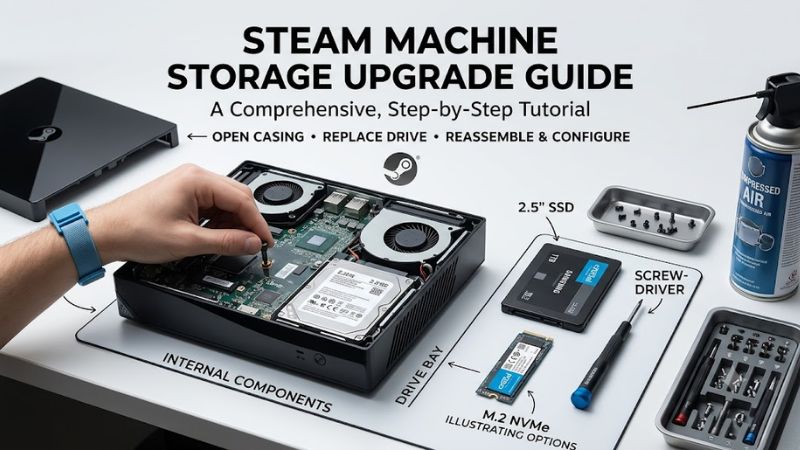
Running out of room for your Steam library does not always mean replacing the internal drive. This steam machine storage upgrade guide explains how to add microSD storage, replace the internal NVMe SSD, prepare for SteamOS recovery, and avoid data loss. Choose the right approach based on your needs and repair experience.
What a Steam Machine Storage Upgrade Really Comes Down To
The right upgrade depends on whether you need extra space quickly or want to replace your existing system drive. Valve’s 2026 Steam Machine supports built-in NVMe storage and microSD expansion, while iFixit’s manufacturer-collaborative repair guide documents internal SSD replacement. Start with external storage if you want the simplest route; choose an internal upgrade when capacity or drive condition justifies opening the case.
1. Choose Between microSD and an Internal SSD
A microSD card is the easiest way to expand your game library without opening the console-sized PC. Insert a compatible card, format it through SteamOS, and use Steam’s storage controls to manage installations. This approach preserves your existing internal drive and avoids the physical risks associated with disassembly.
An internal SSD replacement is more appropriate when the original drive is too small, needs replacing, or you want a larger primary installation. The Steam Machine has one M.2 NVMe slot, and iFixit’s 2026 repair guide identifies support for 2230 and 2280 drive lengths. Replacing the drive requires a separate plan for restoring the operating system and recovering files.
2. Understand SSD Size and Compatibility
M.2 describes the drive’s physical connector and module format, while NVMe describes the storage protocol used by the SSD. A compatible replacement must be an NVMe drive in a supported physical size; an M.2 SATA drive should not be assumed to work just because its connector looks similar.
The 2230 format measures 22 mm wide and 30 mm long, while 2280 measures 22 mm wide and 80 mm long. Before buying, verify the exact drive type and mounting arrangement against the repair documentation for your model. Do not assume every SSD advertised for laptops or handheld gaming devices is suitable.
3. Decide Whether You Need More Capacity or a Fresh Start
If your drive works properly and your main problem is a growing game library, adding a microSD card may be sufficient. You can leave the operating system on the internal SSD and move suitable game installations to the additional storage, avoiding the work of reinstalling SteamOS.
If the existing SSD is failing or you need substantially more internal space, replacement may make more sense. However, a new drive does not automatically contain your operating system, installed games, or local saves. Cloud saves can help with supported games, but they should not be treated as a complete backup of every file.
4. Understand Warranty, Data, and Repair Risks
Before opening the machine, read the current Steam Machine warranty terms and Valve’s support guidance. Valve advises against opening the device, and damage resulting from opening it may not be covered. That distinction matters: a component being physically replaceable does not automatically make every self-repair risk-free or manufacturer-supported.
Back up important files, confirm your account credentials, and prepare recovery media before removing the original drive. Keep the original SSD intact until the new installation boots and your important data is accounted for. If you are uncomfortable with small connectors, security screws, or delicate internal parts, external storage is the more conservative option.
How to Upgrade Steam Machine Storage: Step by Step
Before changing hardware, check how much space your installed games actually use and whether external storage meets your needs. The safest sequence is to inspect available capacity, choose a compatible expansion method, prepare your files, and only then consider replacing the internal drive. The table below compares the practical options, risks, and verification steps.
| Setting or Step | Where | Effect | Risk |
| Check storage | Steam Menu > Settings > Storage | Shows available space and installed games | Low |
| Add microSD | Front microSD card slot | Expands storage without opening the case | Low; card removal can interrupt access to stored games |
| Replace internal SSD | Inside the Steam Machine | Replaces the primary storage drive | Moderate; disassembly and data loss risks |
| Restore SteamOS | Official SteamOS installation and recovery instructions | Makes the replacement drive usable as a system drive | Moderate; incorrect preparation can cause installation problems |
Step 1. Check Existing Storage and Back Up Your Data
Open the Steam menu, navigate to Settings, and select Storage. Review the available space and installed games before purchasing anything. If only a few large games are consuming capacity, moving or uninstalling titles you no longer play may solve the problem without buying additional hardware.
Back up important personal files and confirm that cloud saves are synchronized for games that support them. Some games store saves locally, while mods, screenshots, configuration files, and non-Steam applications may require separate backups. If you plan to replace the system drive, prepare for a fresh SteamOS installation rather than assuming your current setup will transfer automatically.
Step 2. Expand Storage with a microSD Card
Power down the machine if necessary before inserting or removing the card, and follow the device’s handling guidance. Insert a compatible microSD card into the front slot, then open Settings > Storage to configure it. If SteamOS requests formatting, confirm that you have selected the correct card because formatting erases its existing contents.
Once configured, use the Storage screen to manage game installations and available space. A microSD card is convenient for expanding a library without disassembly, but loading times and installation performance depend on the card and workload. Do not assume that every game will perform identically on removable storage and an internal NVMe SSD.
Step 3. Replace the Internal NVMe SSD
An internal replacement requires more preparation than adding removable storage. The manufacturer-collaborative iFixit guide identifies a T8 Torx security screwdriver as a required tool and describes removing the feet, opening the back panel, lifting the inner assembly, and releasing the SSD. Follow the guide for your exact model rather than improvising around clips or connectors.
Shut down the Steam Machine, unplug its power cable and peripherals, and remove any installed microSD card before beginning. Work on a clean, stable surface and keep track of screws and parts. Handle the SSD carefully and withdraw it at the angle specified in the repair guide. If anything resists, stop and recheck the instructions instead of forcing it.
Step 4. Install SteamOS and Verify the New Drive
After fitting the replacement SSD and reassembling the machine, use Valve’s official SteamOS installation instructions to prepare the operating system. Read the recovery requirements beforehand and obtain the necessary recovery files and USB media before removing your original drive. A physical replacement alone does not make the new SSD a bootable, configured system.
After installation, complete the initial setup and open Settings > Storage to confirm that SteamOS recognizes the new capacity. Install a small game or another suitable download to check that storage works correctly. Then restore backed-up files and verify cloud saves in your games. If the drive is missing or installation fails, shut down and investigate the connection and recovery procedure rather than repeatedly formatting drives.
FAQ
Can you upgrade the Steam Machine’s storage?
Yes, the 2026 Steam Machine supports microSD expansion and internal NVMe SSD replacement. A microSD card is the simpler option because it avoids opening the case. An internal upgrade requires compatible hardware, disassembly, and a plan to reinstall SteamOS. Check Valve’s current support guidance before starting either procedure.
What SSD size is compatible with the Steam Machine?
The iFixit repair guide documents a single M.2 NVMe slot compatible with 2230 and 2280 form factors. Verify that a replacement uses NVMe rather than assuming every M.2 drive will work. Also confirm the mounting position and exact model requirements before buying, since connector appearance alone does not establish compatibility.
Will upgrading storage improve gaming performance?
A larger SSD primarily provides more room for games and other files; it does not directly upgrade the CPU or GPU. A faster drive may affect some storage-related tasks, but actual gains depend on the workload. If a game is limited by graphics performance or system memory, additional storage will not address that limitation.
Do you need to reinstall SteamOS after replacing the SSD?
Yes, plan to install or restore SteamOS unless you have a suitable migration method prepared. A replacement drive normally does not contain the original operating system and configuration. Follow Valve’s official installation instructions, back up important files beforehand, and verify the new drive before restoring your library and personal data.
Final Thoughts
The best approach in this steam machine storage upgrade guide depends on how much space you need and how comfortable you are with repairs. Start by checking Settings > Storage, then consider microSD expansion before replacing the internal SSD. If you choose an internal upgrade, verify compatibility, protect your data, and prepare SteamOS recovery before opening the machine.