🛒 Best Price Today on Amazon
Prime members get fast, free shipping on everything above, plus member-only deals. New members get a 30-day free trial — cancel anytime.
A proper green screen setup allows PC gamers and streamers to remove background distractions while keeping hardware overhead low in broadcast tools. Achieving a sharp chroma key relies on uniform lighting and fabric tension rather than costly camera gear. You can isolate your video feed cleanly without sacrificing gaming performance.
What Green Screen Setup Really Comes Down To
Understanding the mechanics of background extraction ensures your stream looks professional without overloading your system. A functional green screen setup depends on controlling light exposure, maintaining fabric consistency, and creating physical distance. Prioritizing these physical factors reduces software processing demands.
Balanced Lighting Control
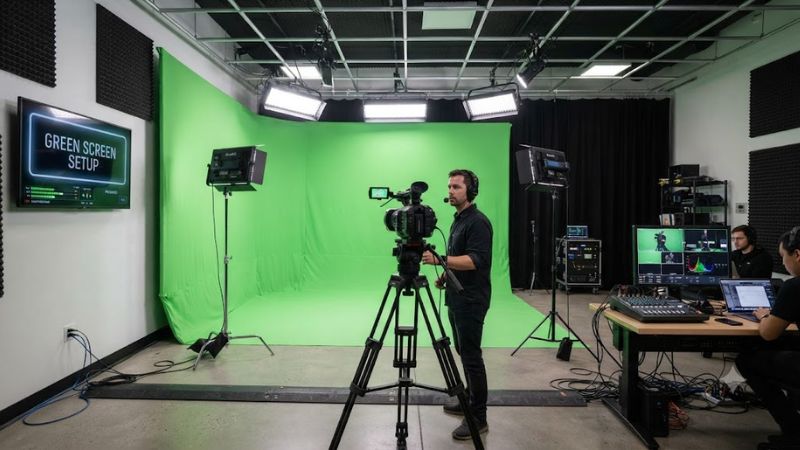
Illuminating the backdrop evenly is the single most important factor when configuring a green screen setup for streaming. Shadows or bright hot spots create multiple shades of green that confuse software keying algorithms. Dual light sources placed at 45-degree angles deliver consistent luminance across the surface.
Diffused LED panels offer consistent illumination while preventing harsh glare on synthetic materials like polyester or vinyl. Keeping the background lights on a separate power circuit or dimmer switch allows precise adjustments without affecting subject lighting. Consistent luminance lets OBS Studio isolate key colors cleanly.
Surface Tension and Material Density
Selecting an opaque material for a green screen setup prevents background light bleed when ambient room light changes during extended gaming sessions. Muslin cotton and collapsible polyester panels absorb excess light effectively while minimizing reflective sheen. Wrinkles in loose fabric create subtle shadows on camera.
Securing fabric using tension clamps or framed roller mechanisms preserves a uniform surface plane throughout your broadcast. Fixed frame panels eliminate micro-movements caused by room air circulation or fan breezes. Maintaining flat material ensures keying filters in software process color values uniformly.
Distance and Subject Separation
Positioning your chair at least four feet away from the fabric prevents green light spill from reflecting onto your hair or clothes. Reflected green hues cause edge erosion, making parts of your shoulders or headset appear invisible. Adequate spacing creates a clear boundary for software algorithms to analyze.
Separate foreground lighting isolates the streamer from the backdrop to maintain clear edge definition in video capture. Using a dedicated key light focused on your face ensures proper exposure without brightening the background screen. Correct separation prevents edge artifacts in high motion gameplay streams.
What Does Not Help
Increasing camera digital gain in low-light environments introduces severe image noise that breaks chroma key filters. Adding excessive sharpening in capture software exacerbates edge pixelation instead of smoothing key boundaries. Increasing software similarity thresholds too high cuts into natural skin tones.
Relying on artificial intelligence background removal tools increases CPU usage and adds frame latency during high refresh rate gaming. Physical backdrops with dedicated lighting consume virtually zero graphics processing resources. Hardware setups preserve system frame rates far better than automated neural filters.
How to Configure a Green Screen Setup: Step by Step
Executing a structured configuration process ensures stable video keying across various lighting environments and camera angles. Preparing a green screen setup systematically prevents edge bleeding while minimizing software CPU load. The following table outlines primary adjustments required for optimal stream visual quality.
| Setting | Where | Effect | Risk |
| Fabric Tension | Mounting Frame | Prevents shadows and creases | Over-stretching tears material (Undo: loosen clamps) |
| Key Light Angle | Light Stand at 45 deg | Reduces hot spots | Direct glare onto lens (Undo: reposition stand) |
| Chroma Key Filter | OBS Studio Filters | Removes green pixels | Erases matching shirt colors (Undo: reset slider) |
| Camera White Balance | Camera Software | Locks color temperature | Unnatural skin tones (Undo: enable auto mode) |
Mount Screen and Eliminate Wrinkles
Position the backdrop mounting stand directly behind your gaming seat to cover the full field of view of your camera. Securing the fabric with spring clamps around the frame pulls out remaining creases during a green screen setup assembly. A flat surface provides predictable color values across the camera frame.
Using a collapsible pop-up frame or steam-treated muslin cloth prevents subtle shadows from ruining your color keying filter. Verify the backdrop extends past your shoulder movement range during active gaming to avoid boundary clipping. Proper physical alignment reduces manual cropping requirements in software.
Position Off-Axis Soft Key Lights
Place two softbox or LED light panels on either side of the backdrop at equal distances to ensure uniform brightness. Angling lights inward at 45 degrees fills dark corners without casting bright reflections back into the camera lens. Balanced light levels allow broadcast software to apply clean background removal.
Set foreground key lights above eye level pointing down toward your face to separate subject lighting from backdrop lighting. Neutral color temperatures near 5600K match daylight balance and prevent yellow or blue color casts. Proper light placement prevents unwanted light spill on your shoulders and head.
Configure Chroma Key in Broadcast Software
Open OBS Studio, right-click your camera source, select Filters, and add a Chroma Key effect to finalize your green screen setup configuration. Select Key Color Type as Green, then use the Pick Screen Color tool to select a representative backdrop area. Sampling near your shoulders provides a reliable baseline.
Adjust the Similarity slider gradually until the background disappears without eroding your hair edges or clothing details. Fine-tune Smoothness and Key Color Spill Reduction sliders to reduce green reflections on your skin. Restricting filter intensity preserves natural foreground detail during streaming.
Adjust Camera Sensor Exposure
Disable automatic exposure and automatic white balance inside your webcam utility software to lock manual capture settings. Automatic exposure adjustments cause color shifting when room brightness changes, which destabilizes software keying. Fixed sensor controls keep your chroma key stable across hours of play.
Set camera gain to minimum and adjust lens aperture or light brightness to achieve clear subject brightness without sensor noise. Low ISO settings reduce visual grain that frequently causes flickering artifacts around key boundaries. Stable camera settings preserve sharp image quality during fast twitch gaming.
Frequently Asked Questions
Resolving common installation and software configuration queries helps streamers maintain crisp video feeds during broadcasts. Troubleshooting a green screen setup prevents edge artifacts and visual glitches during live streams. The answers below clarify essential operational standards for desktop environments.
How far should you sit from a backdrop?
You should sit four to six feet away from the backdrop to prevent green light from bouncing onto your hair and body. Maintaining this gap allows separate key lights to illuminate you without casting heavy shadows on the fabric behind. Distance is essential for achieving sharp edge separation in software.
Placing too little space between yourself and the screen forces color keying filters to cut into your clothing edges. Increased distance also permits using a slightly wider lens angle without revealing uncluttered room space. Proper physical clearance improves visual stability during active broadcast sessions.
Do you need dedicated lighting for background keying?
Dedicated background lighting is necessary to ensure uniform screen brightness without creating dark corners or harsh shadows. Relying on ceiling fixtures creates top-down shadows that confuse software keying algorithms in OBS Studio. Balanced LED panels illuminate the material evenly for consistent pixel removal.
Separate foreground lighting isolates your face from the screen color, preserving natural skin tones during live broadcasts. Dimmable softbox fixtures give you complete control over room light balance without increasing ambient temperature. Proper illumination removes the need for aggressive software filtering.
Can software filters replace physical backdrops?
Software background removal filters can process video without physical screens, but they consume noticeable graphics processing power. Neural algorithms frequently struggle with fine details like hair or glasses, producing fuzzy edge artifacts. Physical backdrops deliver far cleaner keying with lower system overhead.
Hardware screens maintain consistent performance during intensive PC gaming sessions where GPU resources are fully utilized. Running AI keying alongside high resolution games can cause dropped frames or stream encoding delay. Dedicated fabric setups remain the most reliable solution for high refresh gaming.
What color clothing should be avoided?
You must avoid wearing green clothing or bright yellow-green accessories because chroma key filters erase matching colors. Wearing green shirts causes your torso to become transparent, showing stream gameplay through your body. Neutral colors like blue, black, or red provide maximum contrast for sharp isolation.
Reflective jewelry or glossy headphone bands can also pick up green reflections and disappear from the broadcast feed. Selecting matte fabric attire prevents unwanted light bounce that compromises edge detection algorithms. Matching clothing contrast ensures your camera overlay remains intact during broadcasts.
Final Thoughts
Optimizing a green screen setup requires balancing fabric tension, dedicated lighting, and manual camera exposure settings in OBS Studio. Focusing on physical separation reduces software edge noise while lowering PC hardware resource consumption. A properly configured backdrop delivers clean video overlays for streaming.