🛒 Best Price Today on Amazon
Prime members get fast, free shipping on everything above, plus member-only deals. New members get a 30-day free trial — cancel anytime.
Selecting the best capture card is essential for streaming high-frame-rate gameplay without compromising visual fidelity. Modern external USB and internal PCIe interfaces record raw video feeds while passing through uncompressed 4K visuals. Choosing the right hardware keeps video production crisp and lag free on Windows setups.
How to Choose a Capture Card
Evaluating audio-video ingest hardware requires analyzing passthrough rates, internal bus bandwidth, and hardware encoder options. A streamer must balance output clarity with host system overhead across dual-PC or console configurations. Identifying key features ensures your best capture card selection aligns with your display output.
Bandwidth and Passthrough Capabilities
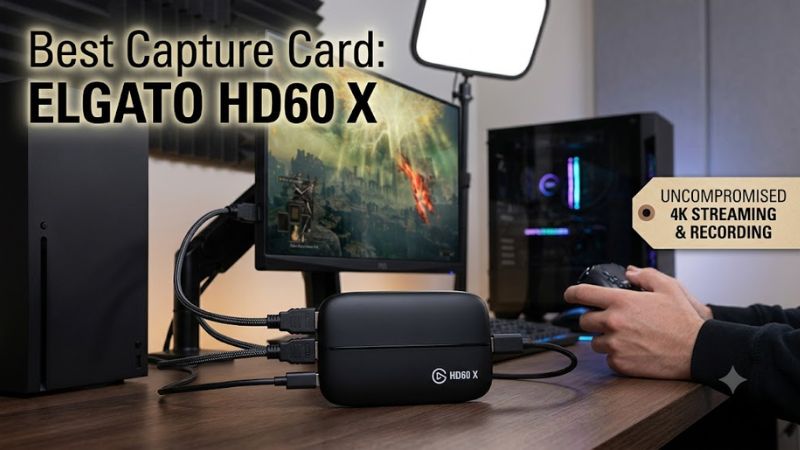
High-resolution gaming requires an ingest unit with sufficient HDMI bandwidth to prevent monitor downgrades. Modern HDMI 2.1 ports allow 4K displays to maintain 144 Hz refresh rates during active recording sessions. Gamers seeking the best capture card for high-refresh monitors should select a high-bandwidth device like the Elgato 4K X.
Passthrough latency must remain below one millisecond to prevent control lag on competitive gaming monitors. Cards that support variable refresh rates prevent screen tearing on high-end displays while recording at fixed frame rates. Verifying input passthrough specs protects competitive gameplay while encoding high quality video streams.
Budget and Basic Resolution Needs
Entry-level streaming setups rarely require expensive 4K capture pipelines when broadcasting to standard platforms. Finding the best capture card for beginners involves prioritizing reliable 1080p recording and stable drivers. Choosing a budget model allows new creators to allocate funds toward audio gear and secondary monitors.
Affordable USB capture devices like the Elgato Game Capture Neo deliver clean 1080p video while passing through 4K HDR signals. These compact units reduce setup complexity by drawing power directly over the USB connection. Streamers focusing on 1080p output benefit from lower bandwidth demands and lower CPU encoding workloads.
Bus Interface and System Compatibility
Selecting between external USB boxes and internal PCIe expansion cards dictates installation requirements and mobility. Deciding on the best capture card interface depends on whether you stream from a desktop PC or portable laptop setup. Internal PCIe units sit directly on motherboard slots, offering minimal host CPU overhead.
Motherboard compatibility must be verified before purchasing internal expansion cards for dedicated streaming systems. An internal unit like the Elgato Game Capture 4K Pro requires a open PCIe 2.0 x4 slot and a 64-bit Windows operating system. Checking available motherboard lane distribution prevents bandwidth bottlenecks with your GPU.
Console Compatibility and Cable Standards
Connecting modern game consoles to a PC setup requires strict adherence to HDMI specifications and software settings. Current generation consoles utilize HDMI 2.1 bandwidth to output 4K visuals at 120 Hz with High Dynamic Range enabled. Ingest cards must support HDCP toggling to capture gameplay without encountering black screens or audio dropouts.
High-refresh passthrough devices like the AVerMedia Live Gamer ULTRA 2.1 maintain high frame rates for console players. Standardizing on Ultra High Speed HDMI cables prevents sync errors between the console, capture card, and gaming display. Disabling content protection settings on console hardware enables instant signal detection in OBS.
Top Picks for PC Gaming Capture Cards
Choosing the best capture card involves matching technical specifications with specific broadcast objectives and system configurations. The following comparisons examine market options across interface types, passthrough frame rates, and hardware limitations. Reviewing these verified specifications simplifies finding the right model for your rig.
| Product | Best For | Key Spec | Compatibility | Watch Out For |
| Elgato 4K X | Best Overall | USB 3.2 Gen 2×2, 4K144 passthrough, 4K60 capture | Windows 10/11, macOS, USB 10Gbps port | Requires USB 3.2 10Gbps host controller |
| Elgato Game Capture Neo | Best Value | USB 3.0 Type-C, 4K60 HDR passthrough, 1080p60 capture | Windows 10/11, macOS, iPadOS, USB 3.0 | Capture resolution capped at 1080p60 |
| Elgato Game Capture 4K Pro | Best PCIe Card | PCIe 2.0 x4 slot, 8K60 passthrough, 4K60 capture | Windows 10/11 64-bit, PCIe x4 slot | Requires desktop installation and free PCIe slot |
| AVerMedia Live Gamer ULTRA 2.1 | Best High Refresh Card | USB 3.2 Gen 2, 4K144 HDR passthrough, 4K60 capture | Windows 11/10, macOS, USB 3.2 Gen 2 | Requires firmware update for optimal VRR support |
Elgato 4K X
The Elgato 4K X represents the best capture card option for creators needing high resolution video passthrough over USB connections. It features HDMI 2.1 inputs that pass through 4K visuals at 144 Hz or 1080p visuals at 240 Hz with variable refresh rate support. Streamers can record uncompressed 4K video at 60 fps using OBS Studio.
Host systems require a USB 3.2 Gen 2 port operating at 10Gbps or faster to handle the full uncompressed video stream. High-bandwidth operation requires modern motherboard USB controllers to avoid frame drops during long streaming sessions. Buyers with older USB 3.0 ports should consider alternative cards or upgrade their host USB hardware.
Elgato Game Capture Neo
The Elgato Game Capture Neo targets budget-conscious streamers who want simple plug-and-play operation for standard broadcasts. This compact external card passes through 4K HDR signals at 60 Hz to your main display without introducing latency. Audio and video signal processing run smoothly over standard USB 3.0 Type-C connections.
Selecting this entry-level capture device limits recorded streams to 1080p resolution at 60 frames per second. High refresh rate passthrough above 60 Hz is not supported, making it unsuitable for competitive esports players using 144 Hz monitors. Creators seeking 4K recording or ultra-high refresh passthrough should look toward premium models.
Elgato Game Capture 4K Pro
The Elgato Game Capture 4K Pro provides maximum bus bandwidth by utilizing an internal PCIe 2.0 x4 expansion slot interface. It supports 8K passthrough at 60 Hz and 4K passthrough at 144 Hz while capturing 4K gameplay at 60 frames per second in HDR10. Internal motherboard integration ensures ultra-low latency and consistent signal capture.
Installation requires a desktop PC chassis with a spare PCIe slot and a 64-bit Windows operating system. Apple macOS computers and compact gaming laptops cannot use this internal card, limiting its flexibility across portable rigs. System builders must verify motherboard slot spacing to prevent blocking airflow to the graphics card.
AVerMedia Live Gamer ULTRA 2.1
The AVerMedia Live Gamer ULTRA 2.1 delivers HDMI 2.1 passthrough capability in an external USB desktop enclosure design. It supports 4K passthrough at 144 Hz with HDR and variable refresh rate capabilities while recording 4K video at 60 frames per second. Integrated RGB lighting elements offer visual status indicators during active streaming.
Utilizing this external box requires a dedicated USB 3.2 Gen 2 connection and recent firmware installation for optimal stability. Early firmware releases exhibited occasional refresh rate sync issues on specific high-end gaming monitors. Console players must update the device firmware via AVerMedia software to maintain stable VRR links.
Frequently Asked Questions
Understanding video capture technology helps streamers choose hardware that integrates cleanly into existing gaming environments. Addressing common technical queries clarifies latency expectations, software configuration, and system hardware requirements. The following answers detail essential operational concepts for prospective buyers.
Do you need a capture card for a single PC streaming setup?
A dedicated capture card is not required for a single PC streaming setup because software like OBS can capture game windows directly using GPU encoding. Internal software capture hooks into graphics drivers without routing video through external hardware. Adding the best capture card hardware primarily serves dual PC or console rigs.
Single PC streamers often utilize NVIDIA NVENC or AMD AMF hardware encoders built into their primary graphics cards. Routing video internally avoids additional USB or PCIe hardware costs while keeping stream management within a single OS environment. External capture hardware remains unnecessary unless offloading display capture from host systems.
Does a capture card reduce gaming PC frame rates?
A capture card does not reduce gaming PC frame rates when configured correctly in a dual PC streaming configuration. The gaming desktop outputs a standard HDMI display signal directly to the capture card without processing stream encoding locally. Secondary streaming computers handle all encoding workloads to keep gaming PC performance high.
When using a single PC, running capture software still requires GPU processing resources to format raw video frames for streaming. Gamers duplicating displays in Windows settings may experience slight frame latency depending on GPU driver overhead. Separating gaming and encoding machines ensures completely untouched gaming frame rates.
What is the difference between USB and PCIe capture cards?
USB capture cards connect externally via cables, whereas PCIe capture cards install directly into desktop motherboard expansion slots. External USB cards offer portability across laptops and consoles with easy cable setup. Internal PCIe cards provide higher data transfer bandwidth and zero risk of accidental USB cable disconnects.
PCIe capture units tap into PCI Express motherboard lanes to handle high-bitrate video feeds with ultra-low latency. USB devices depend on host USB controller bandwidth, which can cause frame stutter if shared across multiple USB peripherals. Choosing PCIe guarantees dedicated bus speed for stationary desktop streaming stations.
Why is passthrough resolution important for capture cards?
Passthrough resolution determines the maximum video quality and refresh rate your gaming monitor can display while recording. A capture card sits between your PC or console and your monitor, passing video through to your display. High passthrough limits prevent the capture card from forcing your monitor into lower refresh rates.
If an ingest card only supports 60 Hz passthrough, a 144 Hz gaming display will be locked to 60 Hz during active sessions. Modern capture hardware with HDMI 2.1 passthrough preserves 4K 144 Hz output on premium displays while encoding video at standard broadcast resolutions. Checking passthrough ratings protects your gameplay speed.
Final Thoughts
Selecting the best capture card requires aligning hardware specifications with display refresh rates and host PC connectivity. Modern USB and PCIe units deliver high passthrough frame rates without adding latency to competitive gaming setups. Matching capture capabilities with your stream budget ensures smooth broadcasts on Windows systems.