🛒 Best Price Today on Amazon
Prime members get fast, free shipping on everything above, plus member-only deals. New members get a 30-day free trial — cancel anytime.
When upgrading your gaming display, evaluating 144hz vs 240hz monitors requires looking at how motion clarity and frame timing affect gameplay performance. A higher refresh rate reduces the visual delay between system updates, making fast motion appear smoother during competitive sessions. Knowing how these panels work ensures smart choices.
What Display Refresh Rates Really Come Down To
Understanding how display panels update images helps clarify what to expect when comparing 144hz vs 240hz monitors. Refresh rate represents the total number of new frames a screen displays each second. Higher values mean shorter gaps between image updates, but actual visual benefits depend on system capability and panel response speeds.
Frame Time Differences and Render Gaps
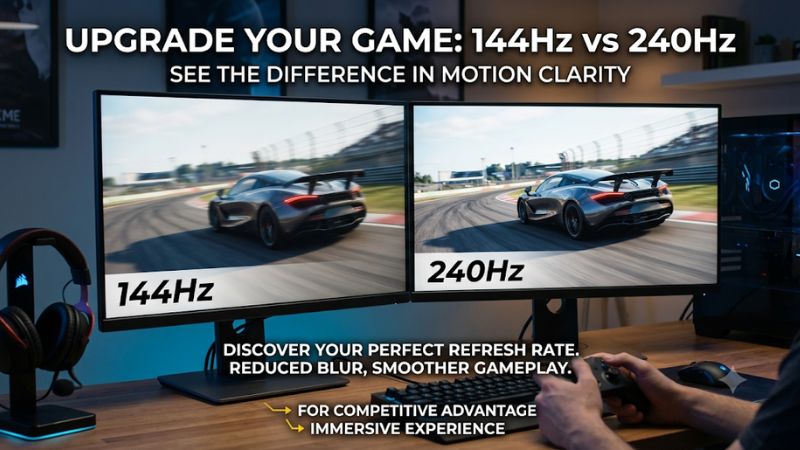
A 144Hz panel updates every 6.94 milliseconds, whereas a 240Hz screen refreshes every 4.17 milliseconds. This creates a theoretical gap of 2.77 milliseconds per frame transition. While moving from 60Hz to 144Hz saves 9.72 milliseconds, moving to 240Hz yields a smaller refinement that demands careful system evaluation when choosing 144hz vs 240hz setups.
Because frame time savings decrease at higher frequencies, the perceived benefit depends heavily on player sensitivity. Games running at high frame rates look smoother when screen refreshes match render output. If your graphics processor cannot deliver matching rates, the physical benefit of faster frame display intervals remains largely unseen.
Motion Clarity and Pixel Response Time
Motion clarity relies on pixel response times just as much as screen refresh rates. If pixel state transitions take 5 milliseconds on a panel refreshing every 4.17 milliseconds, dark trails and ghosting degrade image sharpness. High-refresh panels require rapid pixel transitions so fast motion remains clean without blurring target borders.
Modern fast IPS and OLED displays handle fast transitions effectively, minimizing pixel persistence during rapid movements. When pixel response times keep pace with screen refresh intervals, tracking moving targets becomes far easier. Without adequate pixel speed, higher refresh rates fail to deliver expected improvements in image sharpness.
System Latency and Render Pipeline Limits
Display refresh rates form only one link in the complete system input latency chain. Input processing, game engine simulation, GPU render queues, and display scanning all contribute to overall delay. Reducing screen scan time by 2.77 milliseconds helps, but optimizing game engine settings and mouse polling rates yields greater gains.
When system latency remains high elsewhere in the pipeline, total gain from a panel swap shrinks. Pairing competitive displays with NVIDIA Reflex or AMD Anti-Lag helps maintain tight render queues. Comparing 144hz vs 240hz panels shows that total system responsiveness requires balanced hardware and low-level software tuning across all components.
What Does Not Help Refresh Performance
Running background RAM cleaners or modifying Windows registry keys does not increase frame rates or improve monitor refresh consistency. These utilities often consume processor cycles or disrupt background scheduling rather than clearing bottlenecks. True frame rate stability comes from proper power plans and reasonable in-game graphics options.
Disabling telemetry services in Windows also fails to improve frame times or display smoothness. Diagnostic services sit idle during gaming and do not limit graphics hardware performance. Upgrading hardware drivers, verifying display port bandwidth, and managing thermal headroom provide actual stability improvements without risking system stability.
How to Optimize Display Settings: Step by Step
Configuring software settings correctly ensures your system delivers full performance to high refresh monitors. Selecting proper cable standards, enabling variable refresh rate technologies, and capping frame rates correctly prevents screen tearing while minimizing input delay when evaluating 144hz vs 240hz configurations for daily play.
| Setting | Where | Effect | Risk |
| Display Refresh Rate | Windows Display Settings | Unlocks maximum panel refresh rate | None; revert via Display Settings |
| Variable Refresh Rate | NVIDIA Control Panel or AMD Software | Syncs refresh rate with frame rate | Minor flicker; disable in control panel |
| Frame Rate Cap | In-Game Menu or RTSS | Prevents GPU saturation and lag spikes | None; remove cap in menu |
| Low Latency Mode | GPU Driver Settings | Reduces pre-rendered frames queue | Stutter on weak CPUs; set to Default |
Verify Windows Display Refresh Rate
Windows often defaults new monitors to 60Hz until manually configured in display properties. Open Windows Display Settings, select Advanced Display, and choose the maximum refresh rate supported by your monitor connection. Verifying this step ensures your operating system sends signals matching your panel physical specifications without frame skips.
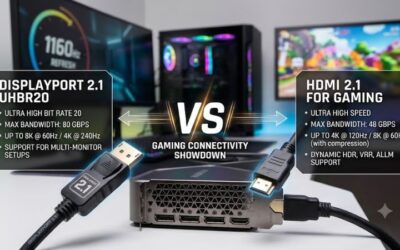
Check that your DisplayPort or HDMI cable supports required bandwidth for high refresh outputs. Using older HDMI 1.4 cables limits resolution and refresh options on newer panels, while DisplayPort 1.4 handles high throughput effortlessly. If refresh rate choices remain locked, replace the video cable with a certified high-speed alternative immediately.
Enable Variable Refresh Rate
Enabling G-Sync or FreeSync aligns display updates directly with graphics card frame output. Open your GPU control panel, navigate to display settings, and toggle variable refresh rate for full screen mode. This setting prevents screen tearing without introducing traditional vertical sync input lag across 144hz vs 240hz display configurations.
Test variable refresh rate stability in fast titles using monitor overlay diagnostics or HWiNFO logs. If screen flickering occurs during dark scene transitions, adjust overdrive settings or narrow the refresh range in display settings. Disabling variable sync returns control to standard fixed refresh intervals if compatibility issues arise.
Cap Frame Rates Below Maximum Refresh
Setting frame rate caps slightly below your monitor maximum refresh rate keeps variable sync active continuously. Limit frame output to 141 FPS on 144Hz panels or 235 FPS on 240Hz panels using in-game settings or RivaTuner Statistics Server. This technique prevents GPU render buffer buildup and reduces overall input lag during intense action.
Monitor frame time consistency using MSI Afterburner overlays during gameplay sessions. Stable frame times prevent stutter, whereas uncapped frame rates cause GPU utilization to hit 99 percent, causing unexpected input delay spikes. Removing frame caps in game settings immediately restores uncapped rendering whenever maximum frame throughput is preferred.
Enable Low Latency Modes
Activating NVIDIA Ultra Low Latency or AMD Anti-Lag reduces internal render queue depth. Navigate to 3D Settings in your graphics control panel and enable low latency processing globally or per game title. This setting minimizes the delay between user mouse inputs and visible frame updates without lowering graphical fidelity options.
Verify stability by testing frame pacing in demanding multiplayer titles after changing latency options. If CPU performance limits cause frame stuttering, return low latency modes to standard settings within the graphics driver panel. Balancing render queue depth prevents micro-stutter while keeping control responsiveness as sharp as possible.
Frequently Asked Questions About Refresh Rates
Choosing between high refresh rate monitors requires evaluating hardware capabilities, game choices, and budget limits. These questions address real concerns regarding motion clarity, target tracking, system requirements, and practical upgrade value when deciding between 144hz vs 240hz gaming displays for competitive and casual gaming setups.
Is 240Hz Worth It Over 144Hz for Casual Gaming?
A 240Hz monitor is generally not worth the extra cost over 144Hz for casual gaming, as the 2.77 millisecond frame time reduction is difficult to perceive outside competitive shooters. Most single-player titles prioritize graphical detail over extreme frame rates, making mid-range displays a more cost-effective choice for general entertainment.
Casual players gain greater visual satisfaction from higher resolution panels or enhanced contrast technologies like OLED and mini-LED. When choosing between 144hz vs 240hz displays for mixed workloads, allocating budget toward graphics card performance or panel color accuracy offers a better overall experience than maximum refresh rates.
Can You Feel the Difference Between 144Hz and 240Hz?
Most competitive players can feel a subtle improvement in motion smoothness when transitioning from 144Hz to 240Hz during fast camera movements. The visual jump is much smaller than moving from 60Hz to 144Hz, but faster pixel refresh cycles reduce motion blur when tracking fast targets in titles like Valorant or Counter-Strike 2.
Perception depends on player reaction speeds, panel pixel response times, and system frame rate output. If frame rates drop below 200 FPS, visual differences between these refresh tiers disappear almost completely. Testing motion clarity using TestUFO checks helps determine if your eyes notice higher refresh benefits in dynamic scenarios.
What PC Specs Are Needed for 240Hz Gaming?
Sustaining 240Hz gaming requires a fast modern processor like the AMD Ryzen 7 7800X3D paired with an NVIDIA GeForce RTX 4070 or AMD Radeon RX 7800 XT graphics card. Competitive titles at 1080p resolution demand high single-core CPU throughput and low-latency DDR5 memory to prevent frame drops during crowded battle sequences.
Resolution choice directly impacts system hardware requirements for high refresh rates. Achieving stable 240 FPS at 1440p resolution requires top-tier GPUs like the RTX 4080 Super or RX 7900 XTX along with PCIe 4.0 storage. Without balanced hardware, system bottlenecks prevent games from reaching target frame rates, wasting monitor potential.
Does 240Hz Reduce Input Lag Even at Lower Frame Rates?
A 240Hz screen reduces display scanout latency even when rendering at 144 FPS, because individual frame scan cycles complete in 4.17 milliseconds rather than 6.94 milliseconds. The display updates pixels faster once render data arrives, providing a slight latency reduction compared to lower refresh displays running identical frame rates.
While scanout time drops slightly, total system input lag remains constrained by GPU rendering speed and game engine processing timing. Running 144 FPS on a 240Hz screen does not create true 240Hz motion clarity, as frames repeat across cycles. Upgrading graphics hardware remains necessary to obtain both motion smoothness and low latency.
Final Thoughts
Deciding between 144hz vs 240hz displays comes down to your primary game choices and hardware capability. Competitive players with high-end systems benefit from lower scanout times and smoother tracking, while mixed-use gamers often find better value in higher resolutions or superior panel contrast. Aligning display refresh rate with actual system frame output ensures the best overall gaming experience.