
GPU overheating fix strategies can save your graphics card from thermal throttling and hardware damage. Excessive heat degrades gaming performance, causing annoying frame drops and unexpected crashes. By addressing bad airflow, applying top thermal paste, and tuning fan curves, you can instantly restore cool operating temperatures.
Identifying the Primary Causes of High GPU Temperatures
Understanding why your graphics processing unit runs hot is the first step toward implementing an effective gpu overheating fix. Heavy workloads, clogged dust filters, dried thermal paste, and inadequate case ventilation all contribute to rising thermal levels during demanding gaming sessions or rendering tasks.
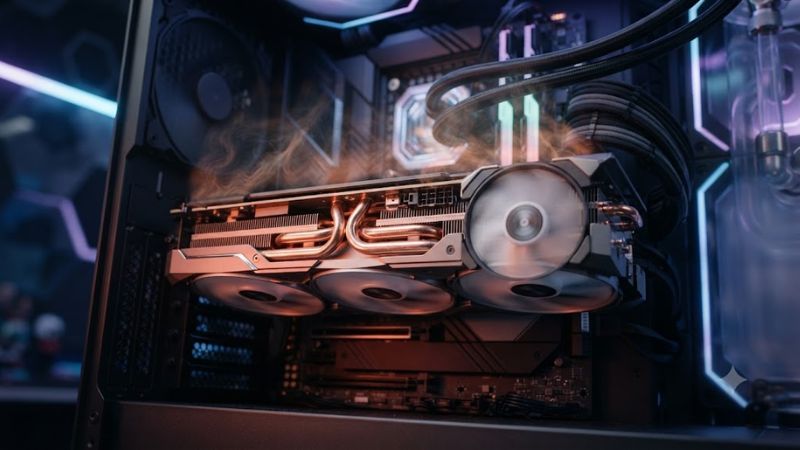
Dust Accumulation and Restricted Airflow
Dust acts as an insulating blanket that prevents heat from escaping your computer components. Over time, microscopic particles collect on heat sink fins, fan blades, and ventilation grilles. When air cannot move freely across these metal radiator fins, thermal energy remains trapped inside the shroud, causing quick spikes in heat.
Inspecting your desktop interior regularly helps identify dust buildup before it impairs cooling performance. Utilizing compressed air canisters to blow out trapped debris restores baseline ventilation quickly. Keeping your system clean ensures fans do not need to work at maximum speeds to maintain safe operating temperatures.
Degraded Thermal Compound and Thermal Pads
Thermal compound fills microscopic gaps between the graphics processor die and the metal heat sink. As years pass, cheap factory paste dries out, hardens, and loses its ability to transfer heat efficiently. When thermal conductivity drops, the graphics core rapidly overheats even when fans run at maximum speed.
Similarly, thermal pads resting on memory chips and voltage regulator modules can dry out over long periods. Replacing old factory interface materials with high-grade aftermarket options creates a smooth pathway for heat dissipation. Fresh paste dramatically improves thermal transfer from core to heat sink.
Poor PC Case Air Pressure and Cable Clutter
Proper intake and exhaust airflow balance is crucial for maintaining cool internal temperatures. A modern GPU requires a steady stream of fresh ambient air to cool its heatsink effectively. If your chassis lacks sufficient intake fans or exhibits negative air pressure, hot air recirculates endlessly around the card.
Excessive cable clutter in front of chassis fans restricts incoming air currents significantly. Routing cables behind motherboard trays clears pathways, allowing direct airflow toward graphics card fans. Selecting a targeted gpu overheating fix like proper cable management ensures cool air enters front vents smoothly.
Outdated Drivers and Software Conflicts
Graphics card driver bugs can occasionally cause cooling fan control loops to malfunction or stall. Corrupted display drivers might lock fan speeds at low percentages despite heavy graphical processing demands. When fan speeds fail to ramp up under load, internal heat accumulates rapidly and leads to performance throttling.
Performing a clean reinstallation of GPU drivers resolves persistent background software glitches. Utilizing tools like Display Driver Uninstaller removes leftover configuration files that interfere with proper hardware control. Keeping your graphics software updated ensures proper thermal management and fan behavior.
Essential Software and Settings Adjustments
Before disassembling your hardware, software configuration tweaks offer a fast gpu overheating fix without opening your case. Adjusting fan profiles, lowering power targets, and setting up intelligent voltage curves can reduce thermal output significantly while preserving smooth framerates in your favorite games.
| Optimization Strategy | Primary Benefit | Ease of Implementation | Estimated Temperature Drop | | Method 1: Custom Fan Curve Adjustment | Increases fan speeds proactively before high temperatures occur | Easy software configuration | 5 – 8 degrees Celsius | | Method 2: GPU Core Voltage Undervolting | Reduces electrical power consumption and waste heat generation | Moderate software tuning | 5 – 12 degrees Celsius | | Method 3: In-Game Frame Rate Capping | Limits unnecessary graphics card rendering work | Easy game setting change | 4 – 10 degrees Celsius | | Method 4: Thermal Paste Replacement | Restores maximum heat conduction to copper heat sink base | Moderate hardware project | 8 – 15 degrees Celsius | | Method 5: High Airflow Mesh Case Upgrade | Improves fresh intake air supply to cooling fans | Advanced system rebuild | 6 – 12 degrees Celsius |
Custom Fan Curves with MSI Afterburner
Stock fan profiles prioritize quiet operation over aggressive thermal management, leading to high heat levels. Installing utility programs like MSI Afterburner allows you to customize custom fan curves tailored to your gaming habits. Setting fans to spin faster at lower thresholds keeps temperatures from climbing out of control.
A reliable custom fan profile ramps fan speeds smoothly as temperatures approach dangerous zones. For example, programming fans to reach eighty percent speed at seventy degrees Celsius prevents thermal spikes. Consistent fan speeds protect internal components from rapid expansion and contraction caused by thermal cycling.
Undervolting for Lower Heat Output
Undervolting reduces the amount of electrical voltage supplied to your graphics processor die. Modern graphics cards often receive excess voltage from factory settings to guarantee stability across every chip. Lowering voltage slightly reduces power consumption and heat output without decreasing core clock frequencies.
Implementing a targeted undervolt serves as a software-based gpu overheating fix for power-hungry graphics cards. Testing stability using benchmarking tools ensures your customized voltage profile remains rock solid. Achieving lower temperatures through undervolting also reduces fan noise for a quieter gaming environment.
Frame Rate Caps and Resolution Adjustments
Rendering unlimited frame rates forces your graphics card to operate continuously at full capacity. Enabling vertical synchronization or setting targeted frame rate caps prevents unnecessary rendering workload. Matching frame rates to your monitor refresh rate lowers power draw and generates substantially less waste heat.
Lowering in-game graphics settings like shadow quality or ray tracing reduces overall GPU load. Utilizing modern upscaling technologies like DLSS or FSR allows high resolution output with reduced rendering effort. These simple setting adjustments keep hardware temperatures well within safe operating limits during long sessions.
Hardware Modifications and Upgrades
When software adjustments are not enough, physical modifications provide a permanent gpu overheating fix for demanding hardware. Upgrading thermal interface materials, installing extra intake fans, or replacing restrictive PC cases resolves stubborn thermal issues and ensures peak performance for years to come.
Replacing Thermal Paste and Pads
Repasting your graphics card requires removing the heat sink assembly to expose the core. Cleaning away old dried compound using isopropyl alcohol prepares the copper base for fresh application. Applying non-conductive high-performance thermal paste creates seamless metal-to-metal heat conduction across the die surface.
Replacing worn thermal pads on video RAM chips prevents localized memory overheating. Choosing correct pad thickness ensures proper contact pressure between components and the heat sink. Performing this maintenance every few years preserves heat transfer efficiency and extends the lifespan of your valuable graphics card.
Installing High Static Pressure Case Fans
Not all cooling fans deliver equal airflow when pushing air through restrictive mesh panels. High static pressure fans are engineered specifically to force fresh air through tight spaces and dust filters. Installing dedicated intake fans directly below the graphics card supplies cool air straight into cooler intake fans.
Adding strategic exhaust fans helps evacuate hot air before it warms surrounding components. Ensuring balanced intake and exhaust configuration prevents hot pockets inside your chassis. Quality fan upgrades provide a lasting gpu overheating fix that protects your motherboard and power supply simultaneously.
Case Upgrades for Superior Ventilation
Enclosed glass front panels restrict air intake and trap thermal energy inside desktop cases. Upgrading to a computer chassis with a ventilated mesh front panel increases overall airflow dramatically. Unobstructed air movement keeps internal ambient temperatures low, allowing graphics card coolers to function effectively.
Spacious desktop cases offer improved clearance for larger graphics cards and complex cooling solutions. Adequate space around the graphics card prevents heat accumulation near expansion slots. Selecting a high-airflow case serves as an ultimate hardware solution for persistent thermal throttling problems.
Utilizing Graphics Card Sag Brackets and Liquid Coolers
Heavy modern graphics cards often sag over time, causing uneven pressure on the heat sink base. Misaligned cooler contact reduces heat transfer efficiency from the core, resulting in hot spots. Installing a sturdy GPU sag bracket supports heavy coolers and maintains solid pressure across the entire silicon surface.
For extreme thermal challenges, installing aftermarket GPU coolers or liquid cooling blocks yields remarkable results. Universal graphics card cooling brackets allow attachment of all-in-one liquid coolers directly to the GPU core. Adopting liquid cooling delivers a permanent gpu overheating fix for high-end gaming rigs.
Final Thoughts on GPU Temperature Management
Implementing a comprehensive gpu overheating fix protects your investment and ensures smooth gaming performance. Combining regular dust cleaning, custom fan profiles, fresh thermal paste, and optimized case airflow eliminates dangerous thermal throttling. Take control of system temperatures today to enjoy a quiet, high-performing rig.


