
🛒 Best Price Today on Amazon
Prime members get fast, free shipping on everything above, plus member-only deals. New members get a 30-day free trial — cancel anytime.
- Likely Causes
- Fix 1: Enable or correct variable refresh rate
- Fix 2: Disable overlapping overlays and Game Mode interference
- Fix 3: Let the game finish its shader cache warm-up
- Fix 4: Set a manual power ceiling to prevent driver re-clocking
- Fix 5: Change the present mode from default to Fast Sync or equivalent
- Fix 6: Eliminate background disk activity from asset streaming
- Fix 7: Reset RAM overclocking to validated JEDEC speed
- If nothing works
- FAQ
Averages lie. When your benchmark tool reports 120 fps but the world still stutters, your frame times are irregular — the renderer is occasionally taking 30 or 40 milliseconds to produce a single frame instead of the expected 8 or 9. This is a frame-time problem, not a throughput problem, and it demands a different diagnostic approach than chasing higher average FPS. Most games shipping in 2026, particularly Unreal Engine 5 and Unity HDRP titles, expose this symptom through shader compilation hitches, background I/O stalls, or display-pipeline mismatches rather than raw GPU or CPU bottlenecks.
Likely Causes
| Cause | How to confirm | Fix difficulty |
|---|---|---|
| Shader compilation stutter (PSO / DX12 pipeline cache) | Stutters align with new effects, locations, or first-play sessions. RivaTuner overlay shows frame time spikes to 25-60 ms. | Medium |
| Variable refresh rate disabled or misconfigured | Frame times are uneven but the display refreshes at a fixed 60 or 120 Hz regardless of output timing. | Easy |
| Windows Game Mode or overlay interference | Disabling the overlay in Settings or Steam/Epic options removes the stutter immediately. | Easy |
| Background disk I/O thrashing (shader or texture streaming) | Task Manager shows sustained disk activity above 50% during stutters. Often paired with an HDD or a nearly full SSD. | Medium |
| CPU or GPU driver-level power state transitions | Stutter correlates with frame rate dipping to its floor, not with new content. CapFrameX shows latency spikes during idle-to-load transitions. | Medium |
| In-engine vsync or frame limiter misconfiguration | Removing the internal limiter or toggling vsync changes the stutter profile noticeably. | Easy |
| RAM clock instability (XMP/EXPO running above validated speed) | System-wide stutter in games, possibly accompanied by DPC Watchdog warnings in Event Viewer. | Advanced |
Fix 1: Enable or correct variable refresh rate
How to check
Open your monitor’s OSD and confirm it supports Adaptive-Sync, FreeSync, or G-Sync Compatible. On NVIDIA cards, right-click the desktop, choose NVIDIA Control Panel, navigate to Display, then Change Resolution. Look for “Enable G-SYNC, G-SYNC Compatible” and verify it reads “Enable for fullscreen and windowed mode.” On the monitor side, set the mode to “DisplayPort Adaptive-Sync” or the equivalent. If you use FreeSync on an AMD card, open Radeon Software, go to Display, and confirm FreeSync is listed as Active.

Thermalright Peerless Assassin 120 SE CPU Cooler, 6 Heat Pipes AGHP Technology, Dual 120mm PWM Fans, 1550RPM Speed, for AMD:AM4 AM5/Intel LGA 1700/1150/1151/1200/1851,PC Cooler
Included for 'High FPS But Game Feels Choppy: Causes, Checks and Fixes' because the listing specifies 6 Heat Pipes AGHP Technology and Dual 120mm PWM Fans, details this guide uses to compare options.
View on Amazon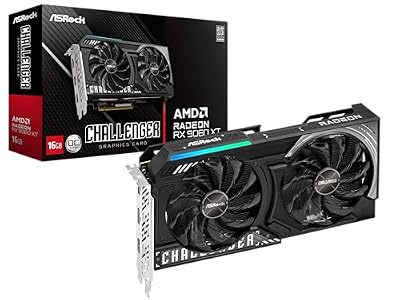
ASRock Radeon RX 9060 XT Challenger 16GB OC, RDNA 4, 3290MHz Boost, 16GB GDDR6 128-bit, PCIe 5.0, Dual Fans, 0dB Silent, LED Indicator, DisplayPort 2.1a, HDMI 2.1b
Included for 'High FPS But Game Feels Choppy: Causes, Checks and Fixes' because the listing specifies RDNA 4 and 3290MHz Boost, details this guide uses to compare options.
View on AmazonWhat to do
Turn off in-game vsync entirely when VRR is active. Frame lock to at least three frames below your monitor’s refresh rate (for a 144 Hz panel, cap at 141 fps) using the in-engine limiter or NVIDIA’s Max Frame Rate option under Manage 3D Settings. This keeps the display inside its VRR window and prevents tearing from exceeding the upper bound.
How to undo it
Re-enable vsync in the game settings and remove the frame cap. No permanent system change is required.
Fix 2: Disable overlapping overlays and Game Mode interference
How to check
Run the game with no overlays active. Close the Steam in-game overlay by right-clicking the game in your library, choosing Properties, then General, and toggling off “Enable the Steam Overlay while in-game.” For Epic, go to the launcher’s Settings and disable “Epic Online Services” if you do not need it for that title.
What to do
Windows Game Mode (Settings, Gaming, Game Mode) generally helps but has been linked to stutter on specific driver versions. If stuttering is gone with Game Mode off, leave it off. Otherwise, the more likely culprit is an overlay injecting a present hook — Discord’s in-game overlay, MSI Afterburner’s RivaTuner, or NVIDIA’s Freestyle filters. Disable them one at a time.
How to undo it
Re-enable each setting individually in the same menus.
Fix 3: Let the game finish its shader cache warm-up
How to check
In UE5-based titles, open the log file at AppData\Local\[GameName]\Saved\Logs\[GameName].log (Epic titles may use a different name; check the Saved folder under My Documents if the game does not install into AppData). Search for “Shader Pipeline Cache” or “PSOPrecache” lines. If you see entries like “r.PSOPrecache” disabled or “shader compilation” timestamps clustered in the first few minutes, the game is building its cache on the fly.
What to do
On the Epic Games Launcher, go to Settings, scroll to the game’s entry, and enable “Disable Shader Cache Optimization” if it is currently off (the label is confusing — toggling it off re-enables the cache). For Steam, launch options that force a cache path can help: add -ps4_path="D:\ShaderCache\%AppName%" to the Launch Options field so compiled shaders write to a fast, always-available drive rather than a scratch location that may get cleared.
How to undo it
Revert the Epic toggle and remove the launch option from the Properties dialog.
Fix 4: Set a manual power ceiling to prevent driver re-clocking
How to check
Open CapFrameX or the built-in NVIDIA Frame View (enable “Show frame rate target and status” in GeForce Experience settings). Watch for periodic dips of two to four frames below your target every 30 to 60 seconds. This indicates the driver is cycling power states because it believes the load is low.
What to do
Cap your frame rate roughly 5 to 10 frames below the game’s natural ceiling so the GPU stays in its high-power P-state and never has to decide to downclock. If the game offers an adaptive frame limiter (UE5’s r.AdaptiveFrameRate console variable), tune it so the target floor and ceiling are within a 3 fps window rather than the default 10 fps gap.
How to undo it
Remove the frame cap or re-enable “Unlimited” in settings.
Fix 5: Change the present mode from default to Fast Sync or equivalent
How to check
If you are capped by vsync and running above the refresh rate, you are in a classic double-buffer latency spiral that reads as micro-stutter even when the average frame number is high.
What to do
In NVIDIA Control Panel under Manage 3D Settings, set “Low Latency Mode” to “Ultra” or set “Vertical Sync” to “Fast” (which maps to NVIDIA’s Fast Sync / adaptive sync behavior). On AMD, Radeon Anti-Lag plus Frame Rate Target Control achieves a similar result. In engine-level terms for UE5, set the console variable r.VSync=2 (triple buffering) via the debug console, or edit DefaultEngine.ini and change the DefaultGraphicsRHI_DXVersion line if your title allows it.
How to undo it
Revert the control panel setting to “Use the 3D application setting” and restore the ini line.
Fix 6: Eliminate background disk activity from asset streaming
How to check
Open Task Manager, click the Processes tab, sort by Disk, and keep it visible while playing. If your game or “System” is hitting 10% or more disk use during a stutter, you have a streaming bottleneck.
What to do
If you are on a mechanical hard drive, migrate the game to an NVMe SSD — there is no in-game setting that fixes random I/O seek latency on a platter drive. If you are already on an SSD, check that it is not above 90% full; consumer SSDs throttle aggressively near capacity. Also disable Windows Search Indexing and Superfetch (SysMain) for the drive containing the game: open services.msc, locate “SysMain,” set Startup type to Disabled, and stop it.
How to undo it
Set SysMain back to “Automatic” in services.msc.
Fix 7: Reset RAM overclocking to validated JEDEC speed
How to check
Run MemTest86 for at least one full pass. If you see any errors, or if DPC Latency Checker shows spikes exceeding 1000 µs while the system is otherwise idle, your memory timing is likely at fault. Check Event Viewer under Windows Logs, System for “WHEA-Logger” or “Kernel-Power” events with ID 41.
What to do
Enter BIOS, disable XMP (Intel) or EXPO/DOCP (AMD), reboot, and re-test. If stuttering disappears, the RAM profile was unstable. If you want to keep the overclock, tighten it in small increments: first raise voltage slightly (1.35 to 1.40 V for DDR4, up to 1.45 V for DDR5), then lower the frequency by 200 MT/s, and re-test with both MemTest86 and a sustained Prime95 Small FFTs run for at least 30 minutes.
How to undo it
Re-enable XMP or EXPO in the BIOS memory settings.
If nothing works
At this point, capture a 60-second CapFrameX trace (hit F9 by default), upload it to the CapFrameX Discord or forum, and cross-reference the spikes with the game’s log files. A clean GPU driver reinstall using DDU in safe mode at the Display Driver Uninstaller download page can resolve present-mode conflicts that survive normal updates. If the game is in early access or uses a poorly-optimized engine fork, the cause may be the title’s own render thread design and no user-side setting will eliminate it.
FAQ
Does a higher frame cap always help with stutter?
No. Capping below your display refresh rate with VRR enabled is usually more effective than uncapping, because it keeps the GPU in a steady P-state and leaves headroom for occasional spikes without dropping below the display window.
Why does stutter happen more in the first few minutes of play?
The shader pipeline cache is being populated at runtime. Once the cache is written to disk, subsequent sessions typically run smoother. If you delete the cache folder, you reset this warm-up.
Can a bad Windows power plan cause micro-stutter?
Yes, particularly “Power Saver” or plans that aggressively park CPU cores. Switch to “High Performance” or “Ultimate Performance” (available via the command powercfg -duplicatescheme e9a49b32-d533-4d1a-87a9-9a6ddc3b4dd9 in an admin prompt) and test.
Is HDR mode related to stuttering?
Windows Auto HDR and native HDR pipelines can add a few milliseconds of present latency that, under certain timing conditions, manifests as perceptible unevenness rather than a clean delay. Try running in SDR briefly to isolate the variable.








