🛒 Best Price Today on Amazon
Prime members get fast, free shipping on everything above, plus member-only deals. New members get a 30-day free trial — cancel anytime.
- Top Pick: Skytech Gaming Archangel 5 Gaming PC, Intel i5 14400F 2.5GHz, NVIDIA RTX 5060, 1TB NVMe SSD, 16GB DDR5 RAM 6000, 750W Gold PSU, Wi-Fi, Win 11, Desktop
- Best Value: CyberPowerPC Gaming PC, Intel Core i5-14400F, GeForce RTX 5060 8GB
- Premium Choice: Skytech Gaming Archangel 5 Gaming PC, AMD Ryzen 7 7700X 4.5GHz, NVIDIA RTX 5070 12GB, 1TB Gen4 NVMe SSD, 32GB DDR5 RAM 6000, 750W Gold PSU, 360 ARGB AIO, Wi-Fi, Win 11, Desktop
PC Freezes While Gaming: Find the Fault
A gaming freeze is not one symptom. The game may stop while audio continues, the entire desktop may lock, the display driver may reset, or the PC may reboot after a black screen. Classifying that behavior is more valuable than immediately reinstalling Windows. Use the workflow below to collect evidence, establish a factory-default baseline, and test one subsystem at a time.
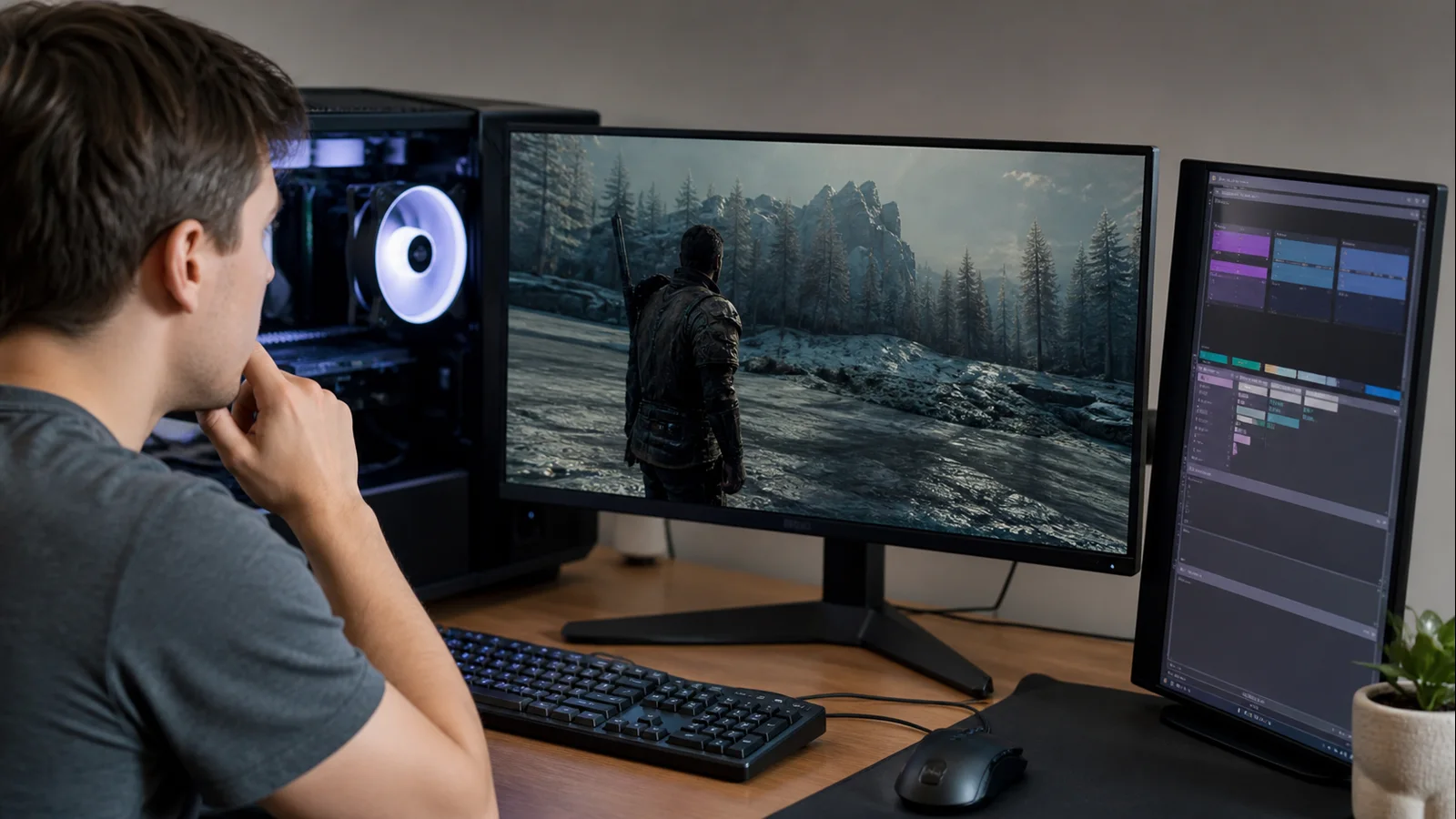
AI-created editorial illustration; not product photography or benchmark evidence.
As an Amazon Associate we earn from qualifying purchases at no extra cost to you.


Create a freeze fingerprint
For the next occurrence, note the time, game, scene, session length, and what still responds. Try Caps Lock and listen for the keyboard indicator. Try Ctrl + Alt + Delete once. Note whether audio loops, continues normally, or stops. If the system recovers, record any driver notification. If it reboots, note whether Windows shows a stop code.
Do not repeatedly hard-power a frozen PC. Wait a minute for Windows to recover or create a crash dump. If nothing responds, hold the power button only as a last resort. Repeated forced shutdowns can corrupt open files and complicate diagnosis.
After restarting, open Reliability Monitor by searching Windows for “reliability history.” Match the freeze time with application failures, Windows failures, hardware errors, or unexpected shutdowns. Then open Event Viewer and inspect System events around the same minute. Kernel-Power after a forced shutdown records the consequence, not necessarily the cause. Display-driver resets, WHEA hardware errors, disk errors, or an application crash provide more direction.
Back up irreplaceable files before stress testing or changing firmware. Stop troubleshooting immediately for smoke, burning smell, liquid exposure, electrical crackling, melted connectors, or a storage device making new mechanical noises.
Establish a stock baseline
Return CPU, GPU, and VRAM tuning to default. Disable undervolts, curve optimizers, raised power limits, and GPU profiles. If XMP or EXPO is enabled, first test GPU and CPU defaults while leaving memory unchanged; then disable the memory profile as a separate experiment. This preserves the value of each result.
Close overlays and monitoring integrations one at a time. Start with any utility installed or updated just before the freezes. Keep the same game, save point, graphics preset, resolution, and frame cap for each run. “It did not freeze tonight” is weak evidence; a repeatable scene that normally fails within ten minutes is much stronger.
AMD’s official system stability guidance also begins with stock settings, current software, correct card seating and power, and systematic isolation. Factory defaults are not an admission that tuning is bad; they are the shared reference point vendors use for support.
Divide game-specific failure from system failure
If only one game freezes, verify its files, remove mods, reset its configuration, and test without overlays. Change the rendering API alone if the game offers that option. Check the publisher’s current known-issues page. A single title failing in one reproducible location suggests game data, shader compilation, anti-cheat, a mod, or a renderer interaction before it suggests broken hardware.
If the complaint is momentary pauses but controls return, compare the symptom with our game stuttering fixes. Stutter is a frame-time interruption; a freeze is a sustained loss of response. Treating them as identical leads to irrelevant tweaks.
If several unrelated games freeze, use a lightweight controlled load for each subsystem rather than one all-in stress test. A GPU-only load, CPU-only load, and memory test produce more useful boundaries. Stop any test when errors appear; continuing does not make the evidence stronger.
Test the graphics path
Record the graphics driver version and whether the freeze began after it changed. Restore the GPU control panel to defaults. Install the correct stable driver for the exact card, then run the same reproduction. If the newest driver introduced the issue, test one prior known-good version. Do not change the game patch, GPU clock, and driver together.
During a black screen that may be a display-driver stall, press Windows + Ctrl + Shift + B once. Microsoft lists that shortcut in its blank-screen troubleshooting guidance. Recovery after the shortcut points toward the graphics path but does not prove the GPU hardware is defective.
Log GPU temperature, hotspot if available, fan RPM, clock, and power. If the freeze appears only after heat builds, clean accessible filters and confirm fans work before another identical test. Do not remove the cooler or replace thermal pads on an in-warranty card.
Test CPU temperature and cooling
Observe CPU package temperature and clock during the same game sequence. Compare the reading with the processor or system maker’s specification; sensor names and limits differ. Our guide to normal CPU temperatures while gaming explains how to interpret a sustained reading without treating one spike as failure.
If temperatures rise continuously while clocks fall, power down and inspect accessible dust filters, fan operation, and cooler mounting from the outside. A recently moved PC may have a loosened cooler. Do not run repeated hot tests. On a liquid cooler, new grinding, gurgling with no flow, or rapidly rising temperature is a stop condition.
Changing thermal paste or removing a cooler can affect warranty and risks socket or motherboard damage. For a prebuilt, laptop, or sealed device, send the temperature log to the manufacturer first.
Isolate memory instability
Memory instability often appears only under mixed gaming load. Run Windows Memory Diagnostic from the Start search, save your work, and let it restart the PC. Microsoft explains the tool and other crash investigation steps in its Windows restart and stop-code guidance.
Any reported memory error matters. Return XMP or EXPO to default as one change and retest. If errors persist, test modules according to the motherboard manual, one at a time only if warranty and your experience allow. Power off, unplug, discharge static, and never handle contacts. Mixing kits with the same marketing specification is not guaranteed to be stable.
Do not increase DRAM, memory-controller, or SoC voltage as a first fix. Excess voltage can damage hardware and may breach supported limits. A new system that cannot pass memory diagnostics at its advertised supported configuration belongs with the builder or component vendor.
Check storage and Windows integrity
Low free space, a failing drive, or damaged system files can freeze asset streaming. Check the system and game drive’s health using the drive manufacturer’s diagnostic utility. Review Event Viewer for disk, NTFS, or controller errors. Back up immediately if a drive reports a critical health warning, disappears, becomes read-only, or makes mechanical clicking sounds.
Run Windows Update, then use Microsoft’s documented System File Checker process: open an administrator terminal, run DISM.exe /Online /Cleanup-image /Restorehealth, and after it completes run sfc /scannow. The official System File Checker instructions explain the order and possible results.
Do not reinstall Windows before saving logs and checking hardware errors. A clean installation can erase the pattern while leaving faulty memory, cooling, or power untouched.
Treat BIOS updates as a targeted step
Load optimized BIOS defaults before considering an update. Update only when the motherboard or system release notes mention relevant stability, memory compatibility, CPU microcode, or device fixes, or when support requests it. Use our BIOS update guide to verify the exact model and safe method.
Stop if the model or board revision is uncertain, power is unreliable, BitLocker recovery information is unavailable, or the vendor instructions do not match the interface. Never interrupt a firmware update. On a functioning system with no relevant release note, BIOS flashing is not a generic freeze remedy.
Escalate with evidence
Use warranty or professional service when freezes occur at factory settings across unrelated workloads, diagnostics report memory or storage errors, WHEA events repeat, temperature exceeds published limits despite working cooling, or the GPU disappears or produces artifacts. Escalate immediately for physical damage or electrical symptoms.
Provide support with the freeze fingerprint, Reliability Monitor screenshot, relevant event exports, stop codes, component list, temperatures, driver and BIOS versions, and a table of tests with one change per row. Do not delid a CPU, open a PSU, disassemble a GPU, flash unofficial firmware, or raise voltage to make a warranty claim “more certain.”
A freeze becomes manageable when it has boundaries. Establish whether it belongs to one game, the graphics path, heat, memory, storage, firmware, or the stock system. Then either keep the single verified fix or hand the vendor evidence it can act on.
Top picks from this guide
 OKAMUSOKAMUS Pre-Built PC, i5 CPU Up to 3.6GHz, Integrated Graphics…$246 \xc2\xb7 99/100
 Skytech GamingSkytech Gaming PC Desktop, Intel i5 14400F, RTX 5060, 16GB…$1,250 \xc2\xb7 98/100
 CyberpowerPCCyberPowerPC Gaming PC, Intel Core i5-14400F, GeForce RTX 5060 8GB…$1,250 \xc2\xb7 95/100
 CyberpowerPCCyberPowerPC Gamer Xtreme VR Gaming PC, Intel Core i5-13400F 2.5GHz,…$1,272 \xc2\xb7 95/100