- Top Pick: ASRock B860M Pro A DDR5 8666 MHz 256GB M.2 LGA1851 B860 Micro ATX Motherboard Intel Core Ultra BIOS Flashback SATA3 6.0 Gb/s PCIe 5.0
- Best Value: ASUS TUF Gaming B550-PLUS WiFi II AMD AM4 (3rd Gen Ryzen™) ATX Gaming Motherboard (PCIe 4.0, WiFi 6, 2.5Gb LAN, BIOS Flashback, USB 3.2 Gen 2, Addressable Gen 2 RGB Header and Aura Sync)
- Premium Choice: ASRock B860 Pro A WiFi 6E Intel Core Ultra DDR5 8666 MHz 256GB M.2 LGA1851 ATX Motherboard BIOS Flashback SATA3 6.0 Gb/s PCIe 5.0
Updating your motherboard BIOS unlocks support for new CPUs, fixes stability bugs, and often improves memory compatibility, but it has a reputation for being risky. In 2026 the process is far safer than it used to be thanks to features like BIOS Flashback that let you update without a working CPU or RAM installed. Done correctly, a BIOS update is routine.
This guide explains when to update, how to do it safely on modern boards, and what to check before and after. Whether you run an ASUS TUF Gaming board, an ASRock B860, or another brand, the core steps are the same.
As an Amazon Associate we earn from qualifying purchases at no extra cost to you.




⚡ Save on Your Next PC — Amazon Prime
Prime members get fast free shipping on the systems above, plus early access to Prime Day & Black Friday PC deals. New members get a 30-day free trial.
Watch: How to Update Your Motherboard BIOS — Video Review
Decide Whether You Need to Update
Do not update BIOS just because a newer version exists. Flash it when you have a concrete reason: installing a CPU newer than your board originally supported, fixing a documented bug, improving memory compatibility, or applying a security or microcode fix. If your system is stable and does everything you need, leaving BIOS alone is perfectly valid.
Check your current version in BIOS or a system info tool, then compare it against the release notes on the manufacturer’s support page to see whether the update addresses something you actually care about.
Prepare the Update File
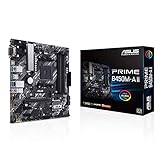
Download the exact BIOS file for your specific board model, matching the revision if the maker lists multiple. A file for a similar-sounding board can brick your motherboard, so confirm the model number precisely, whether it is an ASUS Prime B450M-A II or an ASRock B860M Pro A.
- Format a USB drive as FAT32 and copy the BIOS file to it.
- Rename the file if the manufacturer’s Flashback tool requires a specific name.
- Read the release notes for any special instructions or required intermediate versions.
- Ensure stable power; on a desktop, avoid updating during a storm or on a failing outlet.
Flash the BIOS
Modern boards offer several methods. The safest is the built-in updater in BIOS, often called EZ Flash, Instant Flash, or M-Flash, which reads the file from your USB drive and applies it. Confirm the version it detects matches what you downloaded before proceeding.
Many gaming boards also include BIOS Flashback, a rear-panel button that flashes firmware with only the PSU connected, no CPU or RAM needed. This is a lifesaver when a new CPU will not post on old firmware. Never cut power or restart during the flash; let it finish and reboot on its own.
Verify and Reconfigure After Updating
A BIOS update usually resets settings to default, so after it reboots, re-enter BIOS and reapply your configuration. Re-enable XMP or EXPO for your memory, set your boot order and boot mode, and re-check fan curves. Confirm the new version number is showing to verify the flash succeeded.
If the system behaves oddly, load optimized defaults once more and reapply settings cleanly. A fresh configuration after a flash avoids carrying over a stale value that no longer matches the new firmware.
Tips
- Only download BIOS files from the official product support page for your exact model.
- Use BIOS Flashback when installing a CPU newer than your board’s shipping firmware.
- Never interrupt power during a flash; a half-written BIOS can brick the board.
- Re-enable XMP or EXPO and reset boot options after the update.
Frequently Asked Questions
Can a BIOS update brick my motherboard?
Only if power is lost mid-flash or you use the wrong file. Match the exact model, keep power stable, and let the process finish, and the risk is very low.
Do I need a CPU installed to update BIOS?
Not if your board has BIOS Flashback, which flashes with only the PSU connected. Otherwise you need a supported CPU to enter the in-BIOS updater.
Will updating BIOS delete my files?
No. BIOS lives on the motherboard and does not touch your drives. It only resets firmware settings, which you reapply afterward.
How often should I update BIOS?
Rarely. Update for a specific need such as a new CPU or a documented fix, not as routine maintenance on a stable system.
Conclusion
A BIOS update is a targeted fix, not a chore to do for its own sake. Confirm you have a real reason, download the exact file for your board, flash it with the built-in updater or Flashback, and never interrupt power. Reapply XMP, boot order, and fan settings afterward, and your board will be running the latest firmware with none of the drama the process is unfairly known for.