🛒 Best Price Today on Amazon
Prime members get fast, free shipping on everything above, plus member-only deals. New members get a 30-day free trial — cancel anytime.
Adding a second screen is straightforward when the laptop output, monitor input, and cable or adapter match. how to connect an external monitor to a laptop mainly comes down to identifying the video ports, making the physical connection, selecting the monitor input, then choosing the correct Windows display mode and resolution.
Quick answer: Our top pick in 2026 is the Setting — our #1 rated choice. See the full ranked comparison, alternatives and buying advice below.
What Connecting an External Monitor Really Comes Down To
The quick answer is that you need a compatible video output on the laptop, a matching input on the monitor, and a cable or adapter that supports the required signal. Windows 11 normally detects the display after connection, while Windows + P provides the quickest way to choose whether the screens duplicate or extend the desktop.
Match the Laptop and Monitor Ports
Start by checking both devices before buying a cable. HDMI, DisplayPort, and USB-C are common on current hardware, while older laptops or monitors may use VGA or DVI. A direct connection is generally the simplest choice, but an adapter can bridge different connector types when the adapter supports the required direction and display signal.
Check Whether USB-C Carries Video
A USB-C connector does not automatically mean the laptop can send video through it. The specific port must support a display function such as DisplayPort output or a compatible Thunderbolt implementation. Check the laptop’s manual or manufacturer specifications rather than assuming every USB-C port has identical capabilities.
Match Resolution and Refresh Requirements
The connection also needs enough capability for the monitor mode you want to use. A basic office setup may work with a straightforward HDMI connection, while a high-resolution gaming display at a high refresh rate can require a more capable port, cable, or adapter. Check the laptop and monitor specifications together before choosing hardware.
What Does Not Help
A USB-C hub, splitter, or adapter does not automatically add independent displays beyond what the laptop and graphics hardware support. Microsoft notes that a simple display splitter duplicates the same signal rather than creating two independent extended displays. For multiple monitors, check the laptop, graphics hardware, and dock specifications first.
How to Connect an External Monitor to a Laptop: Step by Step
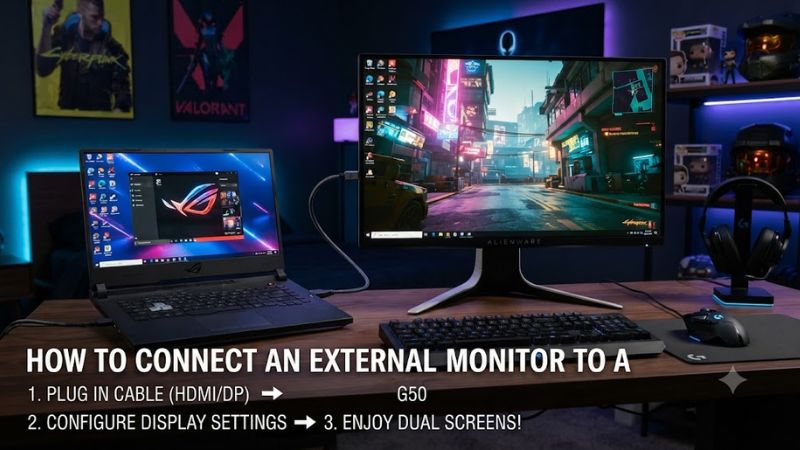
The physical setup is usually simple: connect the monitor to power, connect the appropriate video cable to the laptop, select the matching input on the monitor, and configure Windows. Microsoft recommends checking that cables are properly connected before changing display settings, which also makes connection problems easier to isolate.
| Setting | Where | Effect | Risk |
| Cable connection | Laptop and monitor ports | Sends the display signal | Wrong port or adapter can prevent a signal |
| Monitor input | Monitor on-screen menu | Selects HDMI, DisplayPort or USB-C input | Wrong source produces a blank display |
| Display mode | Windows + P | Chooses Extend, Duplicate or another mode | Incorrect mode may hide the expected desktop |
| Resolution and refresh rate | Settings > System > Display | Sets image size and motion characteristics | Unsupported values can cause display issues |
Step 1: Connect the Correct Video Cable
For the first step, connect one end of the appropriate cable to the laptop’s video output and the other to the monitor’s corresponding input. Then connect the monitor to power and turn it on. If the connectors differ, use a compatible adapter rather than assuming any physically fitting USB-C or HDMI accessory will carry the needed signal.
Step 2: Select the Monitor’s Input
If the monitor has multiple inputs, open its on-screen menu and choose the port being used. For example, an HDMI connection requires the monitor to listen to the corresponding HDMI input. Microsoft also recommends checking the selected video input when an external display does not show an image.
Step 3: Choose Extend in Windows
Press Windows + P after the monitor is connected, then select Extend when you want separate desktop space across both screens. Duplicate shows the same content on each display, while Second screen only sends the desktop to the external display. These options are built into Windows 11.
Step 4: Set Resolution and Refresh Rate
Open Settings > System > Display and select the external monitor. From there, Windows provides controls for resolution, scale, layout, and refresh rate when supported by the connected hardware. Use the monitor’s recommended or native resolution first, then choose an available refresh rate appropriate for the display.
How to Connect an External Monitor to a Laptop for Gaming
For gaming, the connection should be chosen around the laptop’s actual graphics output and the monitor’s target resolution and refresh rate. A laptop can have a capable GPU but still offer different display capabilities through different ports, so the specific output used for the monitor matters more than the connector’s shape alone.
Use the Direct Video Output When Possible
A direct HDMI or DisplayPort connection avoids adding an unnecessary conversion stage between the laptop and monitor. However, the connector alone does not define performance; its supported specification and the laptop’s implementation determine available display modes. Check the laptop manufacturer’s specifications for the exact output capabilities.
Set the External Screen as the Gaming Display
After Windows detects the monitor, select it in Settings > System > Display and arrange the screens according to their physical positions. For a single-screen gaming setup, Windows + P can select Second screen only, while Extend keeps both displays active for multitasking.
Check the Available Refresh Rate
Open the selected display’s settings and review the available refresh rates. Windows only presents options supported by the detected display configuration, so a lower-than-expected rate can indicate a cable, adapter, port, or display-mode limitation. Compare the laptop port and monitor specifications before replacing hardware.
Keep Gaming Expectations Realistic
Connecting a larger or faster monitor does not increase the laptop GPU’s rendering capability by itself. Higher resolution can increase the graphics workload, while a high-refresh display only shows higher frame rates when the game and laptop can produce them. Adjust game resolution and graphics settings separately from Windows display settings.
Final Thoughts
The simplest approach is to identify compatible video outputs, connect the appropriate cable, select the monitor input, and configure Windows. how to connect an external monitor to a laptop becomes more important to gaming when resolution, refresh rate, USB-C video support, or multiple displays introduce additional compatibility requirements.
FAQ
Can I connect a monitor to a laptop with HDMI?
Yes, you can connect a monitor through HDMI when the laptop provides HDMI video output and the monitor has a compatible HDMI input. Connect the cable, select the correct monitor input, then use Windows + P to choose Extend, Duplicate, or another display mode.
Can every USB-C laptop connect to an external monitor?
No, not every USB-C port supports video output. USB-C describes the connector shape rather than one universal feature set, so the laptop’s specifications must confirm display output through that port before you buy a USB-C monitor cable or adapter.
How do I connect an external monitor to a laptop and use both screens?
Select Extend with Windows + P to use the laptop and external monitor as separate screens. Windows 11 then lets you identify and rearrange the displays under Settings > System > Display, allowing the cursor and windows to move between them.
What should I do if Windows does not detect the monitor?
First check the cable, monitor input, and Windows + P display mode, then open Settings > System > Display > Multiple displays and select Detect. Microsoft also recommends trying another cable or video output and, when necessary, checking the display driver.
Final Thoughts
How to connect an external monitor to a laptop starts with matching the laptop’s video output to the monitor’s input, then selecting the correct source and Windows display mode. For gaming, also check resolution, refresh rate, cable capability, and the laptop’s graphics output before changing hardware.
Ready to decide? Our #1 pick for 2026 is the Setting.
Live price & availability on Amazon.