🛒 Best Price Today on Amazon
Prime members get fast, free shipping on everything above, plus member-only deals. New members get a 30-day free trial — cancel anytime.
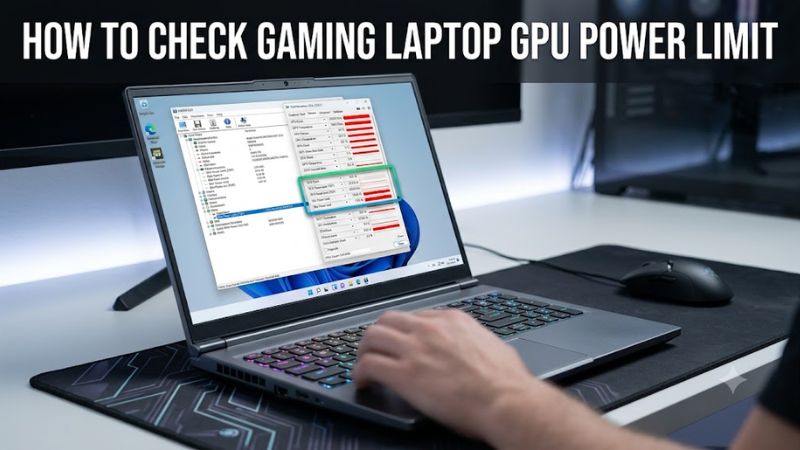
A gaming laptop’s GPU name does not tell you how much power it can use. How to check gaming laptop GPU power limit is a common question because identical NVIDIA GPU models can have different wattage configurations. This guide explains how to find your GPU’s TGP, check its configured maximum, and monitor actual power consumption in Windows.
What Gaming Laptop GPU Power Limits Really Mean
A GPU power limit determines how much electrical power the laptop allows its dedicated graphics processor to use under specified operating conditions. Manufacturers describe this using terms such as TGP, GPU power, or Maximum Graphics Power. Understanding these specifications helps you distinguish the laptop’s configured power ceiling from its actual consumption during gaming.
1. Understand TGP and GPU Power Limits
TGP stands for Total Graphics Power. It describes the graphics subsystem’s power budget, expressed in watts (W). For gaming laptops, this specification matters because manufacturers can configure different power limits for the same mobile GPU model.
For example, two laptops equipped with an NVIDIA GeForce RTX 5070 Laptop GPU might have different power configurations. Their performance can consequently differ even though their GPU names match. Cooling capacity, processor configuration, firmware, and operating modes also influence sustained performance.
2. Understand Maximum Graphics Power and Dynamic Boost
Maximum Graphics Power describes the maximum graphics power configuration reported for a supported laptop GPU. NVIDIA’s Dynamic Boost technology can dynamically shift available power between the CPU and GPU depending on workload conditions. This means the GPU may receive additional power when the system has available power headroom.
However, do not assume that every advertised maximum includes an independently additive boost allowance. Manufacturers may already include the boost contribution in their published maximum. Always check the exact wording and technical notes accompanying the specification.
NVIDIA+1
3. Separate Maximum Power from Actual Power Consumption
Your GPU’s configured power limit and its current power consumption are two different measurements. A laptop configured for a particular maximum does not necessarily draw that amount continuously while playing games.
Actual consumption changes according to GPU workload, temperature, CPU activity, power mode, and available system power. A lightweight game may use considerably less power than a demanding AAA title. Therefore, checking the maximum specification and monitoring live wattage serve different purposes.
4. What Doesn’t Help
Several common Windows tools cannot independently confirm your laptop’s maximum GPU power limit. Device Manager identifies installed graphics hardware, while Task Manager provides general GPU utilization and other performance information. Neither should be treated as a definitive TGP specification.
Similarly, GPU clock speed, VRAM capacity, and advertised boost frequency cannot establish the GPU’s maximum power limit. A higher clock speed does not automatically mean a higher TGP. You need a manufacturer specification or an appropriate hardware-information readout to establish the configured power ceiling.
How to Check Gaming Laptop GPU Power Limit: Step by Step
You can identify your laptop’s GPU power configuration through manufacturer documentation or NVIDIA Control Panel. If you already own the laptop, monitoring software such as HWiNFO can provide additional information about its power limits and actual consumption. The following methods help you verify the specification without changing BIOS settings or modifying GPU voltage.
1. Check Maximum Graphics Power in NVIDIA Control Panel
Solved: Victus 15 TDP on RTX 4060 – HP Support Community – 8921817
For supported NVIDIA gaming laptops, NVIDIA Control Panel provides a convenient way to inspect graphics information, including the Maximum Graphics Power field when available.
Follow these steps:
- Right-click an empty area of your Windows desktop.
- Select NVIDIA Control Panel.
- Open the Help menu.
- Select System Information.
- Find the graphics information for your dedicated NVIDIA GPU.
- Look for Maximum Graphics Power and record the displayed wattage.
ASUS also documents NVIDIA system information as a method of checking laptop graphics power specifications. However, the field may not appear on every laptop or driver configuration. If it is missing, use the manufacturer’s technical specification page instead.
@ROG+1
2. Find the GPU TGP on the Manufacturer’s Website
ASUS ROG Strix G16 G614PR 16″ WUXGA 165 Hz – Gaming laptop | KomplettBedrift.no
The manufacturer’s official specification is particularly useful when buying a gaming laptop or checking a machine that you cannot access physically. Start by identifying the complete laptop model number rather than searching only for its GPU name.
Open the manufacturer’s product or support page and locate the technical specifications section. Search for these terms:
- TGP (Total Graphics Power)
- GPU Power
- Maximum Graphics Power
- GPU Subsystem Power
- Graphics Power
Check the processor, screen size, GPU, and regional model identifier against your actual configuration. A laptop family may include several hardware combinations with different graphics power limits.
If the specification says “up to” a particular wattage, understand that it describes a maximum under the manufacturer’s stated conditions rather than a guaranteed sustained power draw.
3. Use HWiNFO to Inspect GPU Power Information
How To Check Graphics Card Power Consumption – Softwareg.com.au
HWiNFO is a hardware-information utility that can provide more detailed information about your laptop’s GPU. Its NVIDIA monitoring support includes maximum and rated GPU power-limit sensor information in supported configurations.
To inspect your GPU:
- Download HWiNFO from its official website.
- Open the application and select Sensors.
- Locate the NVIDIA GPU sensor group.
- Look for available GPU power-limit readings.
- Check GPU Power or an equivalent power-consumption sensor if available.
- Record the available values before and during a gaming workload.
HWiNFO distinguishes power-limit information from live sensor readings. The exact available fields depend on the GPU, laptop firmware, and monitoring support. Do not interpret a missing sensor as evidence that your GPU has no power limit.
HWiNFO+1
4. Compare GPU Power Limit with Actual Gaming Consumption
Once you know the configured maximum, you can monitor your laptop while running a demanding game. This helps determine whether the GPU approaches its available power budget under a particular workload.
Open HWiNFO Sensors and locate the GPU power-consumption reading. Reset the minimum and maximum values if available, launch a game, and monitor the GPU during gameplay rather than relying on the menu screen.
Compare the observed wattage with the reported power limit. If consumption stays below the maximum, that does not automatically indicate a problem. The game may not need additional GPU power, or another system limitation may be affecting performance.
GPU Power Limit Checking Methods Compared
The following table summarizes what each method can tell you and its limitations.
| Setting or Step | Where | Effect | Risk |
| Check TGP | Manufacturer’s official website | Identifies the advertised GPU power specification | Low; incorrect SKU selection can produce misleading information |
| Maximum Graphics Power | NVIDIA Control Panel > Help > System Information | Shows the reported maximum when supported | Low; field may be unavailable |
| GPU Power Limit | HWiNFO Sensors | Provides supported GPU power-limit readings | Low; sensor availability varies |
| Actual GPU Power | HWiNFO Sensors during gaming | Shows current or recorded power consumption | Low; workload affects readings |
Important: These methods are complementary. Manufacturer specifications establish the intended configuration, NVIDIA Control Panel provides a convenient system-level reference, and HWiNFO helps investigate available power-limit and consumption readings.
FAQ
1. Why Do Two Gaming Laptops with the Same GPU Have Different Power Limits?
Two gaming laptops can have different GPU power limits because manufacturers configure their graphics hardware around different cooling systems, chassis designs, and power budgets.
For example, a thin gaming laptop may prioritize portability and thermal management, while a thicker gaming laptop may accommodate a higher graphics power configuration. Consequently, the same mobile GPU name does not guarantee identical gaming performance.
Always compare the exact GPU configuration, TGP, cooling design, and independent benchmarks before choosing between laptops.
2. Can I Check GPU TGP Without NVIDIA Control Panel?
Yes, you can check GPU TGP through your laptop manufacturer’s official specifications or compatible monitoring software such as HWiNFO.
If NVIDIA Control Panel does not display Maximum Graphics Power, search for your complete laptop model number on the manufacturer’s website. You can also check its official technical specification document.
For AMD gaming laptops, manufacturer documentation is a useful starting point because NVIDIA-specific Control Panel instructions do not apply to Radeon GPUs.
3. Does Higher GPU TGP Always Mean Better Gaming Performance?
No, a higher GPU TGP does not automatically guarantee better gaming performance.
Power availability is only one factor. GPU architecture, cooling, processor performance, memory configuration, and operating modes also influence frame rates. Additionally, some mobile GPUs may deliver diminishing performance gains when operating at higher power levels.
Compare independent gaming benchmarks using the same resolution, graphics settings, and laptop configuration instead of selecting a machine based on wattage alone.
4. Can I Increase My Gaming Laptop GPU Power Limit?
You generally cannot freely increase a laptop GPU’s maximum power limit beyond the manufacturer’s supported configuration.
Some manufacturers provide performance modes through their own control applications, but these modes operate within hardware, firmware, and thermal restrictions. NVIDIA Dynamic Boost can also adjust available GPU power automatically on supported systems.
Avoid unofficial BIOS modifications or unsupported power-limit tools. They can introduce instability, excessive heat, or hardware damage. If you want to change performance behavior, start with the manufacturer’s supported performance modes and retain the default settings if temperatures or stability become concerning.
Final Thoughts
Knowing how to check gaming laptop GPU power limit helps you understand your graphics hardware and make better purchasing decisions. Start with NVIDIA Control Panel or the manufacturer’s specifications, then use HWiNFO to inspect available power readings. Compare actual gaming consumption before assuming your laptop has a performance problem.