🛒 Best Price Today on Amazon
Prime members get fast, free shipping on everything above, plus member-only deals. New members get a 30-day free trial — cancel anytime.
Gaming laptops often reduce CPU and GPU power when unplugged, so lower frame rates can be normal. If how to fix gaming laptop stuttering on battery is your goal, first separate expected battery limits from a hardware or software fault, then check Windows, your laptop’s control app, graphics settings, and battery condition.
Why Gaming Laptop Stuttering on Battery Happens
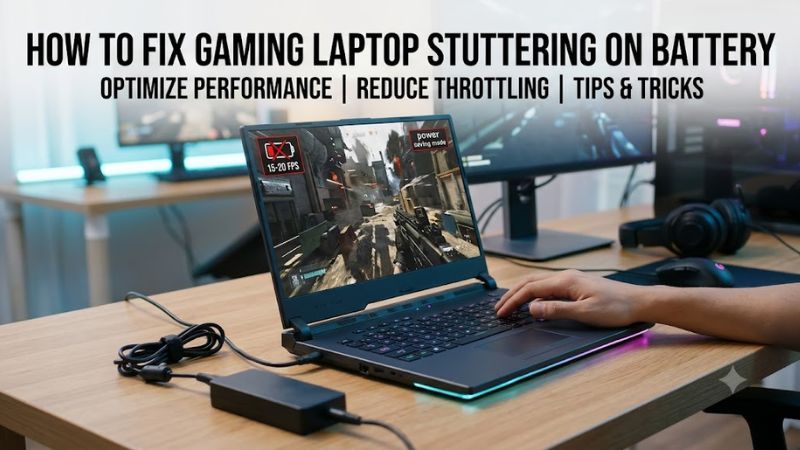
A gaming laptop can perform significantly differently depending on whether its charger is connected. Manufacturers often restrict processor and graphics power on battery to extend runtime and protect the battery. However, severe stuttering, sudden freezes, or inconsistent frame pacing may indicate additional problems worth investigating.
1. CPU and GPU Power Limits
The most common explanation is reduced power allocation. Gaming laptop processors and dedicated graphics cards consume substantial electricity, so manufacturers configure different power limits for plugged-in and battery operation. Consequently, your GPU may run at lower clock speeds, while the CPU receives less available power.
This behavior is not necessarily a hardware defect. Some laptops deliberately switch to quieter or more efficient operating profiles when disconnected from their charger. If performance drops consistently whenever you unplug the laptop, compare the behavior using the same game, graphics settings, and background applications.
2. Windows Battery and Power Settings
Windows includes power-management features that prioritize battery life over performance. Energy Saver can reduce background activity, while the selected Power Mode influences how the system balances responsiveness and energy consumption.
These settings can contribute to inconsistent gameplay, particularly when combined with manufacturer-specific battery profiles. If your laptop switches to a more restrictive power mode automatically, you may notice frame-rate drops after disconnecting the charger or when the battery reaches a configured threshold.
Microsoft Support+1
3. Graphics Switching and Manufacturer Profiles
Gaming laptops frequently use hybrid graphics, allowing Windows to switch between integrated graphics and a dedicated NVIDIA or AMD GPU. This arrangement saves energy during everyday tasks but can create problems when a game launches with an unexpected graphics preference.
Manufacturer applications introduce another variable. ASUS Armoury Crate, Lenovo Vantage, MSI Center, and similar utilities can manage performance profiles, GPU operating modes, and fan behavior. An aggressive battery-saving profile may restrict performance more than expected.
4. What Doesn’t Help
Randomly installing FPS booster applications, modifying registry values, or disabling Windows services is unlikely to solve a laptop’s built-in power restrictions. These changes can introduce instability without increasing the power available to the CPU or GPU.
Similarly, increasing graphics settings or forcing the dedicated GPU to maximum performance does not remove battery-related hardware limits. Avoid BIOS modifications, unofficial firmware, and aggressive overclocking as first-line solutions. Start with reversible Windows and manufacturer settings instead.
How to Fix Gaming Laptop Stuttering on Battery: Step by Step
The following troubleshooting process starts with free checks and moves toward more involved diagnostics. Change one setting at a time and compare the same game under similar conditions. This makes it easier to identify whether the problem comes from normal power restrictions, graphics switching, software configuration, or battery deterioration.
Step 1: Check Windows Power Mode
Start by checking whether Windows is using an unnecessarily restrictive power profile.
- Open Settings > System > Power & battery.
- Find the Power mode section.
- Check the current operating mode.
- If available, select Balanced or Best performance for your comparison.
- Launch your game and observe whether frame pacing improves.
Best performance can increase power consumption and operating temperatures. More importantly, it cannot override restrictions imposed by your laptop manufacturer or physical battery capabilities.
If you do not see the expected improvement, restore your preferred power mode and continue troubleshooting. Microsoft notes that available power modes depend on the computer’s hardware and manufacturer configuration.
Microsoft Support+1
Step 2: Check Your Laptop’s Performance Profile
Your manufacturer’s control application may have separate settings for AC power and battery operation. These profiles can influence processor behavior, graphics performance, cooling, and fan speeds.
Open the appropriate utility for your laptop:
- ASUS: Armoury Crate or MyASUS.
- Lenovo: Lenovo Vantage.
- MSI: MSI Center.
- Acer: NitroSense or PredatorSense.
- HP: OMEN Gaming Hub.
Look for Performance, Silent, Balanced, Eco, or Battery modes. If a restrictive profile is active, switch to a less restrictive option when available and supported.
Do not assume every manufacturer provides a maximum-performance profile on battery. Some models intentionally disable high-performance operating modes when disconnected from their power adapter. If the setting is unavailable, consult your laptop’s official documentation rather than attempting to bypass its restrictions.
Step 3: Verify Which GPU Runs Your Game
An incorrectly selected graphics processor can cause unexpected performance differences.
In Windows 11:
- Open Settings > System > Display > Graphics.
- Find your game in the application list.
- Select the game and open Options.
- Review the available graphics preferences.
- Select the appropriate GPU option if your hardware supports it.
Windows may offer Power saving and High performance options. The latter generally selects the preferred high-performance graphics processor when available.
After changing the setting, restart the game and check its GPU utilization using Task Manager or your graphics manufacturer’s monitoring utility.
If the game already uses the dedicated GPU, changing this preference probably will not solve battery-related stuttering. Restore the previous option if the change produces no improvement.
Microsoft Support
Step 4: Diagnose Battery Health and Performance
An aging battery may have difficulty delivering power under demanding workloads. If your laptop experiences sudden shutdowns, unexpected percentage drops, or inconsistent performance beyond ordinary battery limitations, inspect its condition.
Windows provides a built-in battery report:
- Right-click Start and open Terminal (Admin).
- Enter the following command:
powercfg /batteryreport
- Press Enter.
- Open the generated HTML report using its displayed file location.
- Compare Design Capacity with Full Charge Capacity.
A substantial difference indicates reduced battery capacity, although it does not independently establish that the battery causes gaming stuttering.
You can also monitor CPU and GPU temperatures, clock speeds, and power consumption using HWiNFO. Look for unusual clock fluctuations or thermal throttling rather than assuming every low clock speed indicates a fault.
If the battery is swollen, unusually hot, or physically damaged, stop using the laptop and seek professional service.
Diagnostic Comparison Table
Use this table to narrow down the likely cause before making additional changes.
| Step | Where | How to Verify | Cost |
| Check power mode | Windows Power & battery | Compare gameplay across available modes | Free |
| Check performance profile | Manufacturer utility | Review battery and performance profiles | Free |
| Verify GPU selection | Windows Graphics settings | Confirm which GPU runs the game | Free |
| Check battery condition | Windows battery report | Compare design and full charge capacity | Free |
| Monitor CPU/GPU behavior | HWiNFO | Observe clocks, temperatures, and power | Free |
| Inspect battery or charging hardware | Authorized repair service | Professional battery and power-system diagnosis | Varies |
Step 5: Update Graphics Drivers and Manufacturer Software
If the laptop previously performed normally on battery but recently started stuttering, investigate recent driver or software changes.
Check Windows Update and the official NVIDIA or AMD driver support page for an appropriate graphics driver. Also check your laptop manufacturer’s support page for model-specific chipset drivers and system utilities.
Avoid automatically installing every available driver update. If the problem began immediately after a graphics driver update, consider rolling back through Device Manager:
- Right-click Start and select Device Manager.
- Expand Display adapters.
- Right-click your graphics device and select Properties.
- Open the Driver tab.
- Select Roll Back Driver if the option is available.
Restart the laptop and compare gameplay again. If rollback is unavailable, use the manufacturer’s supported driver installation process rather than downloading unofficial driver packages.
FAQ
1. Why Does My Gaming Laptop Lag Only When Unplugged?
Your gaming laptop may reduce CPU and GPU power when operating on battery. This is a normal power-management behavior designed to extend battery runtime. Manufacturer performance profiles and graphics switching can also contribute to the difference.
If the performance drop is unusually severe or accompanied by freezing, inspect the power profile, GPU selection, battery condition, and system temperatures before assuming the laptop is defective.
2. Can I Get the Same Gaming Performance on Battery as When Plugged In?
Usually, no. Many gaming laptops have power and performance restrictions when disconnected from their AC adapters. Even a high-end dedicated GPU may operate with substantially reduced available power.
Some models offer more flexible battery performance profiles, but their capabilities depend on the hardware and manufacturer configuration. For demanding AAA games, using the original compatible charger is generally the better option.
3. Does Battery Saver Cause FPS Drops?
Yes, Battery Saver or Energy Saver can contribute to reduced responsiveness by prioritizing energy efficiency. However, it is not necessarily the only reason for gaming stuttering.
You can check Settings > System > Power & battery > Energy saver in Windows 11. Temporarily disable Energy Saver for a comparison, then restore your preferred battery-saving configuration afterward.
Microsoft Support+1
4. When Should I Replace My Gaming Laptop Battery?
Consider professional battery replacement when diagnostics indicate significant battery deterioration, unexpected shutdowns, or an inability to maintain stable operation.
Do not replace the battery simply because gaming performance decreases when unplugged. That behavior may be intentional. If the laptop also stutters while connected to its original charger, investigate thermal throttling, drivers, and other hardware problems before purchasing replacement components.
Final Thoughts
To fix gaming laptop stuttering on battery, start by confirming the laptop recognizes its battery and power adapter, then adjust only the settings relevant to your symptoms. If performance remains dramatically worse than expected, compare temperatures, clock speeds, and battery health before paying for repairs. Use the original charger for demanding gaming sessions whenever possible.