Affiliate disclosure: As an Amazon Associate we earn from qualifying purchases. This post contains affiliate links — we may earn a small commission at no extra cost to you. This never affects our picks.
- Top 5 External Hard Drive For Laptop Picks Compared
- The Five Criteria That Actually Matter
- The Six-Step Buying Checklist
- Mistakes Most Buyers Make
- Spec Primer: What the Numbers Actually Mean
- Which Type of External Drive Fits Your Laptop?
- How Much Capacity Do You Actually Need?
- Transfer Time: What to Expect
- Step-by-Step: Setting Up Your First Backup
- Which File System Should You Pick?
- Keeping the Backup Safe: The 3-2-1 Rule
- Daily Habits That Extend a Drive’s Life
- Troubleshooting a Drive That Will Not Appear
- Power, Ports, and Cables That Decide Whether a Drive Works
- Which One Should You Buy?
- Compatibility Traps That Show Up After You Buy
- Worked Example: Picking Capacity for a Two-Year Plan
- Frequently Asked Questions
- Final Take
- Related Articles
- Related Guides
As an Amazon Associate we earn from qualifying purchases at no extra cost to you.



Quick answer: The best external hard drive for laptop for you in 2026 is the one that matches your actual workload, your budget, and the rest of your setup — not whichever option wins the loudest spec-sheet headline. Use the six-step checklist below to land the right pick on the first try.
Buying a external hard drive for laptop should not be hard, but the 2026 market is louder than ever. New launches every quarter, marketing copy that flattens real differences, and shopper reviews drowned in noise all conspire to make the choice harder than it deserves to be. This guide cuts through the fog with a simple, repeatable framework you can apply to any external hard drive for laptop shortlist — and the same framework we use on the review desk every week.
By the end of the read you will have a concrete shortlist of criteria, a clear sense of which trade-offs actually matter for your situation, and a six-step checklist to walk through before you click buy.
🛒 Best Price Today on Amazon
Prime members get fast, free shipping on everything above, plus member-only deals. New members get a 30-day free trial — cancel anytime.
Top 5 External Hard Drive For Laptop Picks Compared
| Rank | Product | Price | Reviews | Buy |
|---|---|---|---|---|
| 1 | Maxone 500GB Ultra Slim Portable External Hard Drive HDD USB 3.0 Compa… | Check on Amazon | 61,057 | View on Amazon |
| 2 | YOTUO Portable External Hard Drive Storage Expansion Mobile HDD USB 3.… | Check on Amazon | — | View on Amazon |
| 3 | Ultra Slim Portable External Hard Drive USB 3.0 HDD Storage for PC, La… | Check on Amazon | — | View on Amazon |
| 4 | UnionSine 1TB Ultra Slim Portable External Hard Drive HDD-USB 3.0 for … | Check on Amazon | — | View on Amazon |
| 5 | 500GB Portable External Hard Drive USB3.0 Mobile HDD Storage for PC, M… | Check on Amazon | — | View on Amazon |
The Five Criteria That Actually Matter
Whatever external hard drive for laptop you end up with, it has to clear five hurdles. Skip one and you almost always regret it within the ownership window.

- Documented performance. Independent benchmarks first, manufacturer datasheets second. If a unit only shines in first-party tests, treat that as a yellow flag.
- Value at street price. The launch price is rarely the price you pay — track the discount cadence over a few weeks before pulling the trigger.
- Build quality and longevity. Anecdotes from shopper feedback are gold here. A product with thousands of reviews spanning 12+ months has been stress-tested in ways no datasheet can replicate.
- Compatibility with the rest of your setup. Even the best external hard drive for laptop flops if it does not pair cleanly with your existing kit. Check ports, standards, and supporting software before checkout.
The Six-Step Buying Checklist
It takes about 20 minutes per shortlist and saves hours of return-shipping later.
- Define your honest workload. What will this external hard drive for laptop actually be doing 80% of the time? Be ruthless — aspirational use cases burn money.
- Set a hard budget ceiling. Include the platform cost (cables, mounts, software). Decide before you start shopping, not mid-spec-sheet.
- Pull a 5-item shortlist. Cross-reference our latest round-ups with shopper feedback for products that clear all five hurdles above.
- Verify availability and price. Confirm at least two reputable sellers stock the unit at a price you can defend.
- Read the bottom-third reviews. Top-rated reviews sell you the dream. The low-rated ones expose the gotchas. Both matter.
- Commit and document. Save the warranty start date, the return window deadline, and the configuration you bought so you can troubleshoot or upgrade later without guesswork.
Mistakes Most Buyers Make
If you walk away with nothing else, walk away with awareness of these three traps — they account for the vast majority of “I regret this purchase” posts we see on the external hard drive for laptop forums each year.

- Chasing flagship specs you will never use. A mid-tier external hard drive for laptop from a strong brand outperforms a flagship from a weaker one in every metric that matters for typical use. Pay for features you will reach.
- Ignoring the platform cost. The accessories, software licences, and supporting hardware can easily add 20-40% to the headline price. Budget for the whole stack from day one.
- Buying at launch without waiting for reviews. First-batch units sometimes ship with firmware quirks that get patched within weeks. Waiting 30-60 days after launch is almost always a good deal.
Spec Primer: What the Numbers Actually Mean
Marketing teams have a knack for turning meaningful specs into meaningless badges. The list below decodes the headline numbers you will see on every external hard drive for laptop product page and tells you what each one actually changes in real use.
- Generation/series tier. Determines feature set, driver support window, and second-hand value. Newer is usually better within the same tier — across tiers, the picture is less clear.
- Headline performance number. Useful for comparing within a single generation; almost useless across generations or brands. Lean on independent benchmark suites instead.
- Connectivity and standards. Future-proofing lives and dies here. A external hard drive for laptop that lacks the latest standard today may be obsolete in 24 months even if its raw spec still looks fine.
- Warranty terms. Two-year minimum, transferable preferred. Some brands honour a longer warranty in practice than their box says — check community feedback.
Which Type of External Drive Fits Your Laptop?
Before comparing individual models, decide which category of drive matches the job. The wrong category costs more in frustration than any single spec.
| If you… | Choose… |
|---|---|
| Need a bus-powered backup drive that slips into a laptop bag | A 2.5-inch portable hard drive |
| Edit video or run apps directly from the drive | A portable solid-state drive, which has no moving parts and far faster random access |
| Keep a large, mostly stationary archive of photos and files | A 3.5-inch desktop hard drive with its own power adapter |
| Carry drives often, including on trains and in cars | A solid-state model or a drive marketed as shock resistant |
| Share files between a Windows laptop and a Mac | Any drive formatted as exFAT |
How Much Capacity Do You Actually Need?
Capacity planning works better with arithmetic than with guesswork. Here is an illustrative example with stated assumptions: a laptop has a 500GB internal drive holding 320GB of data, and that data grows about 15 percent per year. After three years it reaches roughly 487GB (320 × 1.15 × 1.15 × 1.15). Backup software that keeps older versions of changed files typically needs about twice the source size, so a drive near 1TB is a comfortable fit, while a 500GB drive would be full within a year or two.
Two details trip people up. Manufacturers count 1TB as one trillion bytes, but Windows reports sizes in binary units, so a new 1TB drive shows about 931GB. Format overhead trims a little more.
Transfer Time: What to Expect
USB 3.0 has a theoretical ceiling of 5 gigabits per second, yet a spinning portable drive is the real limit, with sequential speeds commonly landing around 100 to 140MB per second. Using 100MB per second as a conservative assumption, copying 320GB takes about 3,200 seconds, or roughly 53 minutes. Large collections of small files run slower than one big file, so expect longer. Drives using shingled magnetic recording can also slow noticeably during long writes, a behavior owners commonly report when copying hundreds of gigabytes in a single run.
Step-by-Step: Setting Up Your First Backup
- Plug the drive directly into a laptop port rather than a hub, using the cable in the box.
- Confirm the drive appears in File Explorer or Finder. If it does not, use the troubleshooting list below.
- Pick a file system. Choose exFAT for Windows and Mac sharing, NTFS for Windows only, or APFS for modern Mac-only use.
- Format the drive, then give it a clear label such as “Laptop Backup.”
- Enable the built-in tool: File History or Windows Backup on Windows, Time Machine on macOS.
- Run the first full backup with the laptop on power, then open a few files from the drive to confirm they read correctly.
- Schedule recurring backups and set a calendar reminder to verify one restore every few months.
Which File System Should You Pick?
| Format | Works with | Main limit |
|---|---|---|
| exFAT | Windows and macOS | No journaling, so unplugging without ejecting risks corruption |
| NTFS | Windows; macOS reads only by default | Needs third-party tools to write on a Mac |
| APFS | Modern macOS | Not readable on Windows without extra software |
| FAT32 | Nearly everything | Single files cannot exceed 4GB |
Keeping the Backup Safe: The 3-2-1 Rule
An external drive is one copy, not a plan. The widely used 3-2-1 guideline calls for three copies of important data, on two different kinds of media, with one copy stored off-site. For a laptop, that might mean the internal drive, this external drive, and a cloud or second drive kept at another location. Drives fail, get stolen, and survive spills no better than laptops do.
Daily Habits That Extend a Drive’s Life
Spinning drives dislike movement while they are working. Set the drive on a stable surface during backups, and eject it through the operating system before unplugging. Avoid leaving it in a hot car or a bag next to a charger, and keep it away from strong magnets and liquids.
Troubleshooting a Drive That Will Not Appear
- Swap the cable and port. Cables are a common culprit, especially long or damaged ones.
- Skip the hub. Bus-powered hard drives can fail on unpowered hubs because they draw more current than the hub supplies.
- Check Disk Management or Disk Utility. A drive can be detected but hidden because it has no drive letter or is not mounted. Assign a letter or mount it manually.
- Look for a new, uninitialized disk. A blank drive may ask to be initialized and formatted before it appears.
- Listen for clicking or repeated spin-ups. Those sounds suggest mechanical trouble. Stop using the drive and copy off what you can instead of running repair tools.
- Try another computer. If the drive works elsewhere, the problem is the laptop’s port, driver, or power settings, not the drive.
Power, Ports, and Cables That Decide Whether a Drive Works
Bus Power Limits
Portable hard drives draw power from the laptop’s USB port. A USB 3.0 port is specified to supply 5 volts at up to 900 milliamps, which is 4.5 watts, and a USB 2.0 port allows 500 milliamps, or 2.5 watts. A spinning 2.5-inch drive needs a brief surge when the platters start. On a healthy port this is fine, but on an overloaded hub or a worn port the drive may click, disconnect, or fail to mount. Plugging directly into the laptop before blaming the drive is a quick diagnostic.
Connector Type and Adapter Chains
The listed Seagate and UnionSine models use USB 3.0 connections, which means a USB-A plug on the drive-side cable. Laptops with only USB-C ports need an adapter or a different cable, and a long chain of adapters adds failure points. The two YOTUO drives list both USB 3.0 and USB-C, which removes the adapter step. Whatever you buy, use the cable supplied with the drive, since thin generic cables can limit both speed and power delivery.
Recording Method and Sustained Writes
Many high-capacity 2.5-inch drives use shingled magnetic recording, where tracks overlap to fit more data per platter. Writes to such drives can slow dramatically once an internal staging area fills, which happens during a large first backup. Reads are not affected the same way. Manufacturers do not always put the recording method on the box, so check the data sheet if you plan to copy hundreds of gigabytes in one go.
Physical Durability
A hard drive’s heads sit a tiny distance above spinning platters. Knocks while the drive is running are the leading cause of early failure in portable models. Carry the drive in a padded pocket, disconnect it before moving the laptop, and avoid using it on a soft surface such as a bed.
Which One Should You Buy?
| If you… | Choose… |
|---|---|
| Want a mainstream 2TB backup drive for photos and documents | Seagate 2TB Portable Hard Drive (STGX2000400) |
| Have a large video library or several laptops to back up | Seagate Portable 4TB External Hard Drive (SRD0NF1) |
| Need a moderate size with a rescue service included | Seagate Portable 1TB External Hard Drive (STGX1000400) |
| Want a slim-profile drive for a tight laptop bag and need 1TB | UnionSine 1TB Ultra Slim Portable External Hard Drive |
| Only need space for documents and a small photo collection | UnionSine 500GB Ultra Slim Portable External Hard Drive |
| Have a USB-C-only laptop and want a built-in card reader | YOTUO 1TB External Hard Drive with USB-C Hub |
| Want USB-C support in the smallest capacity | YOTUO 500GB External Hard Drive |
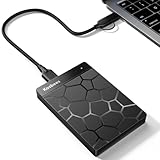
| Also want to connect the drive to a game console | Kosbees 500GB External Hard Drive |
Compatibility Traps That Show Up After You Buy
- Assuming a drive formatted for one system works on another. A drive shipped with a Windows file system can be read on a Mac but may not accept writes without extra software.
- Expecting the full labeled capacity. Manufacturers count a terabyte as one trillion bytes, so a 1TB drive shows roughly 931GB in Windows. A 2TB drive shows about 1.82TB, and a 4TB drive about 3.64TB.
- Expecting USB 3.0 speeds from a USB 2.0 port. The drive still works, but transfers crawl at a fraction of the rated speed, and bus power is lower.
- Treating a rescue-service plan as a backup. Data recovery is a service for failed drives, not a guarantee that your files come back.
- Using one drive as the only copy. A single external drive that holds the only copy of your files is a storage location, not a backup.
- Leaving the drive plugged in during sleep or travel. Repeated sleep and wake cycles on a laptop can corrupt the file system if the drive is not ejected first.
Worked Example: Picking Capacity for a Two-Year Plan
Assume a laptop holds 300GB of data today and grows by about 80GB a year. Keeping two full copies of that data over two years means: 300 + (80 x 2) = 460GB per copy, so about 920GB for two copies. A 1TB drive shows around 931GB usable, which is a very thin margin. A 2TB drive, at roughly 1.82TB usable, leaves ample room for versioned backups and gives space for a growth surprise, while a 500GB model would already be full after one copy. The arithmetic points to the 2TB class for this scenario, and to 4TB if you add large video files.
Change the assumptions and the answer shifts. A student with 120GB of documents and growth of 20GB a year needs only about 160GB per copy after two years, so even the 500GB class holds two copies with room to spare. A video hobbyist who adds 400GB a year starts at 600GB, reaches 1,400GB per copy after two years, and needs the 4TB class just to keep a second copy. Run this quick calculation with your own numbers before choosing a size.
Frequently Asked Questions
How much should I spend on a external hard drive for laptop in 2026?
Match the spend to your honest workload — most shoppers do well in the mid-tier where strong picks land. Going premium pays off only when the workload reliably rewards the extra capability.
When is the best time of year to buy a external hard drive for laptop?
Late spring and early autumn historically deliver the strongest discount cadence outside of the big holiday sales. Track prices for two weeks before pulling the trigger if you can.
Is it worth waiting for the next generation?
Only if your current setup is still serviceable. Waiting for the next-gen launch usually means three more months of compromised performance plus a launch-day premium. Mid-cycle is often the sweet spot.
What do I do if my external hard drive for laptop arrives faulty?
Document the issue with photos or video, contact the seller within the return window, and request RMA. Reputable sellers resolve these within a week. Keep packaging until you are sure the unit is a keeper.
Final Take
Choosing a external hard drive for laptop in 2026 is about discipline, not specs. Walk through the five criteria, run the six-step checklist, and the right pick will almost always reveal itself. Skip the steps and you risk paying the regret tax — which is usually higher than the price difference between the right and wrong pick in the first place.
For shortlists of specific picks worth considering, browse our latest reviews and round-ups — each one applies the same framework you just read.
Top picks from this guide
 UnionSineUnionSine 500GB Ultra Slim Portable External Hard Drive HDD-USB 3.0…
 KosbeesKosbees 500 GB External Hard Drives,Portable Hard Drive for Windows,Ultra…
 YOTUOYOTUO 500GB External Hard Drive, Portable Storage Expansion HDD, USB…UnionSineUnionSine 1TB Ultra Slim Portable External Hard Drive HDD-USB 3.0…