🛒 Best Price Today on Amazon
Prime members get fast, free shipping on everything above, plus member-only deals. New members get a 30-day free trial — cancel anytime.
An overheating SSD can cause slower game loading, inconsistent asset streaming, and temporary performance drops. Learning how to check ssd thermal throttling while gaming helps distinguish storage-related slowdowns from CPU or GPU limitations. This guide explains how to monitor temperatures, inspect drive health, and identify performance changes during actual gameplay.
What SSD Thermal Throttling Really Comes Down To
SSD thermal throttling happens when a drive reduces its operating performance to manage excessive heat. It is more relevant during sustained storage activity than ordinary gameplay, but open-world games, large asset transfers, shader caches, and background downloads can create demanding workloads. The important task is to correlate temperature changes with storage performance rather than assume every slowdown comes from overheating.
1. Understand How SSD Thermal Throttling Works
Modern NVMe SSDs contain controllers that manage data transfers, flash memory operations, and power consumption. These controllers generate heat, particularly during sustained reads and writes. When temperatures approach the drive’s configured thermal thresholds, its firmware can reduce performance to control operating temperature.
This behavior does not necessarily indicate a damaged SSD. Thermal management is a protective mechanism, and different models have different operating limits. Some drives also expose multiple temperature sensors, meaning the controller, NAND flash, and composite temperature readings may not match.
2. Recognize the Symptoms During Gaming
One possible symptom is inconsistent loading when entering a new game area. For example, a game may initially load normally but experience longer asset-loading pauses after extended gameplay. However, this behavior can also result from CPU limitations, insufficient RAM, shader compilation, or game-engine issues.
Other warning signs include unusually slow game updates, delayed file transfers, and storage activity accompanied by declining transfer speeds. A single loading pause is insufficient evidence. Look for repeated slowdowns that occur alongside rising SSD temperatures and changes in drive performance.
3. Know Which Temperature Readings Matter
NVMe monitoring software may display Composite Temperature, Temperature 1, Temperature 2, Controller Temperature, or NAND Temperature. Composite Temperature represents a controller-reported overall reading, while additional sensors can provide information about specific components. Not every SSD exposes every sensor.
Check the manufacturer’s specifications for your exact drive model before deciding whether a reading is excessive. There is no universal temperature that confirms throttling across every NVMe SSD. Warning thresholds, critical thresholds, and normal operating ranges vary by model and firmware.
4. What Doesn’t Help
Checking the SSD temperature only after closing a game can produce misleading results. The drive may cool down quickly after storage activity decreases, hiding the temperature reached during gameplay. Similarly, checking Windows Task Manager alone will not establish whether the SSD has entered thermal protection.
Running repeated synthetic benchmarks without monitoring temperatures is another poor diagnostic approach. A benchmark can generate unnecessary heat without reproducing the workload that causes the original problem. Start with live monitoring during normal gameplay and use additional storage measurements only when the evidence suggests a problem.
How to Check SSD Thermal Throttling While Gaming: Step by Step
The most useful approach combines temperature monitoring, storage activity, and performance observations. You do not need to remove your SSD or modify BIOS settings to begin. Use monitoring software to collect information before and during gameplay, then compare the readings with the manufacturer’s thermal specifications and available SMART information.
Step 1: Monitor SSD Temperature With HWiNFO
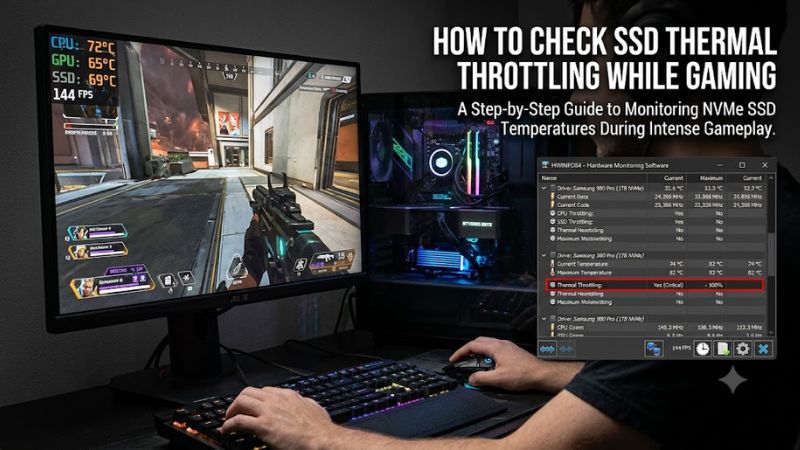
Download HWiNFO from its official website and launch it in Sensors-only mode. Find the storage device section and locate the available temperature readings for your NVMe SSD. Depending on the model, you may see Composite Temperature, Drive Temperature, or individual controller and NAND sensors.
Keep the sensor window or monitoring display available while launching your game. Observe the idle temperature first, then record the highest reading during gameplay. Pay attention to whether the temperature increases during loading screens, large asset transfers, or extended sessions rather than relying on one isolated measurement.
Step 2: Check SMART Information and Thermal Indicators
SMART information provides additional insight into an SSD’s operating condition. Depending on the drive and monitoring software, available NVMe information can include temperature warnings, critical warnings, and thermal management transition counters. These counters can help establish whether thermal management has been activated.
Some monitoring applications display thermal transition counts or accumulated thermal-management time, while others expose only basic temperature and health information. Not every drive reports these attributes. If available, record the counters before and after a gaming session to determine whether additional thermal-management events occurred.
Step 3: Compare Storage Performance During Gameplay
Temperature alone cannot establish whether the SSD is reducing performance. You also need to examine storage activity and response times while the problem occurs. Open Task Manager with Ctrl + Shift + Esc and select Performance, then Disk, to identify the relevant drive and monitor its activity.
For additional information, open Resource Monitor by searching for it in the Windows Start menu. Select the Disk tab and observe read and write activity, response times, and processes accessing the drive. A slowdown accompanied by high storage latency deserves further investigation, especially when it coincides with elevated SSD temperatures.
Step 4: Repeat the Same Workload and Compare Results
A useful comparison involves observing the same game and similar loading conditions at different drive temperatures. Record the temperature, storage activity, and any noticeable loading delays. Avoid changing multiple settings between sessions because doing so makes the results harder to interpret.
If the SSD becomes cooler after the PC has been idle, repeat the same loading sequence and compare the observations. Consistently better storage behavior at lower temperatures, combined with thermal-management indicators, provides stronger evidence of throttling. Remember that background applications and game updates can affect the comparison.
Diagnostic Tools and Settings Comparison
The following table explains what each monitoring option can establish and its limitations. Use multiple indicators together rather than treating one temperature or activity reading as a definitive diagnosis.
| Setting or Step | Where | Effect | Risk |
| SSD temperature | HWiNFO Sensors | Identifies temperature changes during gaming | Low; monitoring only |
| SMART information | SSD utility or SMART reader | Shows supported thermal warnings and counters | Low; avoid changing drive settings |
| Disk activity | Task Manager | Shows drive utilization and activity | Low |
| Storage response time | Resource Monitor | Helps identify storage delays and busy processes | Low |
| Manufacturer specifications | Official SSD documentation | Establishes model-specific temperature limits | None |
How to Interpret Results and Improve SSD Cooling
Once you have collected temperature and performance information, the next step is determining whether the drive is actually limiting performance. High temperatures, slow transfers, and game stuttering can have several overlapping causes. Compare your observations with the manufacturer’s thermal thresholds and look for evidence that thermal management has occurred before considering physical changes to your PC.
1. Identify Whether the SSD Is Actually Throttling
A strong indication of thermal throttling is a combination of increasing SSD temperature, declining storage performance, and evidence of thermal-management activation. If your SSD exposes thermal transition counters, compare their values before and after the affected gaming session.
However, declining transfer speeds alone do not confirm overheating. An SSD can slow down because its SLC cache is exhausted, background writes are occurring, or the workload has changed. The strongest diagnosis comes from multiple indicators that change together under comparable conditions.
2. Check the SSD Manufacturer’s Temperature Limits
Find the exact SSD model through HWiNFO, Device Manager, or your manufacturer’s management utility. Visit the manufacturer’s official documentation and locate the operating temperature range, warning threshold, and thermal-management information for that model.
For example, Samsung Magician provides drive information and health monitoring for supported Samsung storage products. Its documentation also explains that Dynamic Thermal Guard can temporarily reduce SSD performance when system temperatures become excessive. Other manufacturers provide their own utilities and model-specific specifications.
3. Inspect the M.2 Heatsink and Airflow
If monitoring indicates repeated thermal-management activity, inspect the SSD’s physical cooling arrangement. Many desktop motherboards include an M.2 heatsink, while some SSDs have their own heatsink. Check that the thermal pad makes proper contact with the drive and that any protective film was removed during installation.
Also consider airflow around the M.2 slot. A drive installed directly beneath a graphics card may receive additional heat during demanding games. Check your motherboard manual before removing an M.2 heatsink because its mounting arrangement and thermal-pad placement differ between models.
4. Separate SSD Problems From CPU and GPU Bottlenecks
Game stuttering does not automatically indicate a storage problem. Monitor CPU and GPU utilization alongside SSD temperature and disk activity. If GPU utilization drops while CPU usage is heavily concentrated on one or more demanding threads, investigate CPU limitations instead.
Memory pressure can also cause storage-related activity through Windows virtual memory. If RAM usage approaches capacity and disk activity increases, paging may contribute to slowdowns without SSD thermal throttling. Compare these indicators before purchasing additional cooling hardware or replacing a working drive.
FAQ
1. What Temperature Is Too High for an NVMe SSD While Gaming?
The acceptable temperature depends on the SSD model and its manufacturer-defined operating limits. Check the product specifications for its composite temperature range and thermal warning threshold. A high reading alone does not establish throttling, so compare it with available thermal-management indicators and performance changes.
2. Can SSD Thermal Throttling Cause Game Stuttering?
Yes, SSD thermal throttling can contribute to game stuttering when a game needs data from the affected drive. However, shader compilation, insufficient RAM, CPU bottlenecks, and game-engine problems can produce similar symptoms. Check storage activity and temperature together before identifying the SSD as the cause.
3. Can Windows Check SSD Thermal Throttling Without Third-Party Software?
Windows 11 provides supported NVMe drive-health information through Settings > System > Storage > Advanced storage settings > Disks & volumes > Properties. Available information includes temperature and other health attributes, but it does not provide comprehensive live thermal-throttling diagnostics for every SSD. A monitoring utility may be necessary for deeper investigation.
4. Should I Replace My SSD If It Keeps Thermal Throttling?
No, replacing the SSD should not be your first response to thermal throttling. Check the heatsink, thermal-pad contact, motherboard airflow, and manufacturer specifications first. If the drive continues reporting thermal warnings, reliability problems, or abnormal behavior after cooling issues are addressed, back up important files and contact the manufacturer’s support team.
Final Thoughts
Learning how to check ssd thermal throttling while gaming starts with monitoring live temperatures and comparing them against storage performance. Use HWiNFO, SMART information, and Windows disk monitoring to identify patterns before changing hardware. If thermal management is confirmed, inspect M.2 cooling and airflow before considering an SSD replacement.