The best Stadia alternatives for cloud gaming are GeForce NOW if you already own games on Steam or Epic, Xbox Cloud Gaming if you want a catalog included in a subscription, and Shadow if you want a full Windows PC in the cloud. Luna, Boosteroid and PlayStation Plus Premium fill narrower roles. Google shut Stadia down on January 18, 2023, and no service offers the same free, no-strings experience, so the right pick depends on what you already own.
- What happened to Stadia, and what are you replacing?
- Quick comparison: Stadia alternatives side by side
- Best overall Stadia alternative: GeForce NOW
- Best for a big catalog: Xbox Cloud Gaming
- Best for a full PC in the cloud: Shadow
- Best for browser and Chromebook play with your own games: Boosteroid
- Best for casual Fire TV players: Luna
- Best for PlayStation fans: PlayStation Plus Premium
- Is there something similar to Stadia that lets me play for free?
- What about Google? Is there a Google gaming service now?
- What about cloudgaming.com and other cloud gaming sites?
- Decision matrix: which Stadia alternative fits your situation?
- Step by step: set up your first Stadia replacement
- Cloud gaming versus buying a PC: should you replace Stadia at all?
- Frequently Asked Questions
- Sources we checked
Below you will find a head-to-head table, a section on each pick with who it suits and its main trade-off, a decision matrix by situation, a setup checklist for your first week, and a short answer to the question people keep typing into Bing: is there something similar to Stadia that lets me play for free? If you only want the free options, jump to our dedicated guide to free cloud gaming services.
What happened to Stadia, and what are you replacing?
Stadia was Google’s cloud gaming service. It sold individual games and offered a subscription tier, streaming them from Google’s servers to a browser, phone or TV. Google announced the shutdown in September 2022 and the service closed on January 18, 2023, with automatic refunds for hardware and game purchases. The games were not portable, so nothing you bought on Stadia can be played elsewhere.
That history explains the three business models you will meet today, and it is the most useful way to compare replacements:
- Bring your own games: the service streams games you already own on Steam, Epic or similar stores. GeForce NOW and Boosteroid work this way.
- Subscription catalog: you pay for a library and stream whatever is in it. Xbox Cloud Gaming, Luna and PlayStation Plus Premium work this way.
- Cloud PC: you rent a remote Windows computer and install your own launchers. Shadow works this way.
The biggest lesson from Stadia is to avoid putting all your money into purchases that live on one service. Bring-your-own-games and cloud PC models reduce that risk, because your library stays on stores you already use.
Quick comparison: Stadia alternatives side by side
| Service | Model | Best for | Notable limits | Where you can play |
|---|---|---|---|---|
| GeForce NOW | Bring your own games | People with a Steam, Epic or Ubisoft library | Free tier has queues and limited sessions; you must own the game unless it is free to play | Windows, macOS, ChromeOS, Linux, browsers, Android, iOS, TVs, handhelds |
| Xbox Cloud Gaming | Subscription catalog | Players who want a big library without buying games | Needs a Game Pass tier that includes cloud play; check the current cloud-hour allowances | Xbox app, xbox.com/play, phones, tablets, TVs, handhelds, Meta Quest |
| Shadow | Cloud PC | Players who want a full Windows desktop and any launcher | Most expensive style of service; it is a rented PC, not a catalog | Windows, Mac, Linux, phones, Android TV, Apple TV, browsers |
| Boosteroid | Bring your own games | Browser and Chromebook players who own their games | No free tier mentioned on its home page; supported-game list varies | Browser, desktop apps, Android, smart TVs, Chromebook web app |
| Luna | Subscription catalog | Casual players on Fire TV or a browser | Library rotates, and some features have been scaled back | Fire TV, supported browsers, some smart TVs and phones |
| PlayStation Plus Premium | Subscription catalog | PlayStation fans who want classics on PC or console | Cloud streaming sits in the top subscription tier only | PS5, PS4, PC |
Best overall Stadia alternative: GeForce NOW
GeForce NOW is the closest spiritual successor if you own games already. NVIDIA runs the servers, you link your Steam, Epic Games Store, Ubisoft Connect or similar accounts, and you stream supported titles to almost any device. According to NVIDIA’s pages, it works in Chrome, Edge, Safari and other browsers, on Windows, macOS, ChromeOS and Linux, on Android and iOS, on several TV platforms and on handhelds including the Steam Deck.
The membership structure has a free tier, a Performance tier, an Ultimate tier and a 24-hour day pass. NVIDIA’s FAQ says free members use standard rigs, wait in a queue that depends on server traffic, see sponsorship messages before free sessions, and cannot use Install-to-Play, which is reserved for paid tiers. NVIDIA also says you need to own a game on a supported store before playing it, except for free-to-play titles. Session length for the free tier is commonly reported as about an hour, but confirm the current limit on NVIDIA’s page.
Main trade-off: not every game you own is supported, because publishers decide what appears. Check the supported-games list before you commit. Our guide to the GeForce NOW free tier explains what you really get without paying.
Best for a big catalog: Xbox Cloud Gaming
Xbox Cloud Gaming is the closest to Stadia’s subscription-style convenience. You open the Xbox app or xbox.com/play, sign in with a Game Pass account, and pick a cloud-enabled game. Microsoft’s own getting-started guide lists Xbox consoles, Windows and Mac computers, Chromebooks, handhelds, phones, tablets, several smart TVs and Meta Quest as supported places to play, and it recommends at least 20 Mbps with wired Ethernet or 5 GHz Wi-Fi.
Cloud play is included in several Game Pass tiers (Essential, Premium and Ultimate) with different catalog sizes, and the highest tier is described as the best all-around experience. Be aware that coverage reports from the last few weeks mention monthly cloud-hour allowances and an ad-supported free test for Xbox Insiders; these details were still shifting, so check Microsoft’s current plan page before you pay. Our explainer on whether Xbox Cloud Gaming is free covers what is and is not available without a subscription.
Main trade-off: you rent access to a catalog, so games can leave. It also only covers games published to the Xbox ecosystem, so your Steam library will not appear.
Best for a full PC in the cloud: Shadow
Shadow is a different idea: instead of streaming individual games, it gives you a Windows PC in a data center. According to the Shadow site, you can install games from Steam, Epic, Battle.net, GOG and other platforms, use mods and gaming tools, and stream to computers, phones, TVs and browsers. It states that a stable connection of 10 Mb/s or more is needed.
That makes Shadow the best replacement for people who disliked Stadia’s limited catalog and the way it locked purchases to one store. You can also use it for non-gaming tasks, because it is a full computer.
Main trade-off: a cloud PC is generally the costliest approach, you are responsible for installing and updating games, and you pay for the machine even while you are not playing.
Best for browser and Chromebook play with your own games: Boosteroid
Boosteroid’s home page says you can launch games you already own and that they run on remote hardware streamed to you. It lists support for Windows and Mac apps and browsers, Linux, Android, Samsung and LG TVs and a ChromeOS web app, which makes it a natural fit for low-powered laptops. The page does not mention a free tier or give a bandwidth figure, so check its support pages for both.
Main trade-off: the library is narrower than GeForce NOW’s according to comparison coverage, and distance to the nearest server affects latency. If your main device is a Chromebook, read our guide to cloud gaming on a Chromebook before you decide.
Best for casual Fire TV players: Luna
Luna remains available, and it has changed a lot recently. Reports from the past months describe a rotating library, the removal of some previously purchased titles and the ending of its link-your-own-library feature for some publishers, and a move toward an included library plus a larger paid tier. Because those details come from news coverage and not from a single official source we could open, treat the specifics as something to check on Luna’s help pages.
Main trade-off: a rotating library means a game can disappear while you are playing it. It is better as a casual add-on than as your main service.
Best for PlayStation fans: PlayStation Plus Premium
PlayStation Plus Premium is the only tier that includes cloud streaming, according to Tom’s Guide. It streams to PS5, PS4 and PC, and includes older PlayStation 3 and PlayStation 2 titles. Android Police has noted that the classics library is relatively small and that few newer titles are the main draw.
Main trade-off: it is built around PlayStation’s own catalog and a console-style experience, so it is a poor substitute if you used Stadia to play PC releases.
Is there something similar to Stadia that lets me play for free?
Nothing matches Stadia exactly, but GeForce NOW’s free tier is the closest: you stream games you already own at no cost, with queues and session limits. Free-to-play games such as battle royales and MOBAs work without a purchase. Expect waits during busy hours and limits that change, so confirm the current rules on NVIDIA’s page.
A few other routes exist. Xbox’s own cloud gaming page now lists an ad-supported free option with session limits, covered in our guide to Xbox Cloud Gaming free access; it streams eligible games you already own plus select free-to-play titles. Some game publishers also host their own free demos or streaming trials, and these vary by region. If a site promises unlimited free cloud play with no account, treat it with suspicion, since streaming needs expensive servers.
What about Google? Is there a Google gaming service now?
Google no longer runs a cloud gaming service of its own, so the people searching for Google games gaming are usually looking for the browser-based experience Stadia popularised. That experience survives: several of the services above run directly in Chrome, Edge or Safari, which means you can start playing without installing anything. See our walkthrough on how to play cloud games in your browser for the steps.
What about cloudgaming.com and other cloud gaming sites?
We did not verify any free service at an address such as cloudgaming.com, so we do not recommend it. The generic “cloud gaming sites” results include many sites that only list services, resell access or advertise “free” offers with restrictions. A safe rule is to use services run by companies you can look up, read the free tier’s actual limits before signing up, and never enter payment details on a site you cannot identify.
Decision matrix: which Stadia alternative fits your situation?
| Your situation | Best pick | Why |
|---|---|---|
| Own many Steam or Epic games, want to try for free | GeForce NOW | Free tier plus your existing library |
| Want a large library without buying games | Xbox Cloud Gaming | Catalog included in a Game Pass tier |
| Want any game and any launcher, mods included | Shadow | It is a full Windows PC |
| Play on a Chromebook or locked-down laptop | GeForce NOW or Boosteroid in a browser | No installation needed |
| Play on a Fire TV or living-room device | Luna or Xbox Cloud Gaming | Built for TV apps |
| PlayStation fan who wants classics | PlayStation Plus Premium | Cloud streaming with the PlayStation catalog |
| Handheld such as Steam Deck | GeForce NOW or Xbox Cloud Gaming | Both list handheld support; see our guide on placeholder |
| Weak or unstable connection | Fix the network first | See the speed guide below |
Not sure whether to choose between the two biggest names? Our head-to-head, GeForce NOW vs Xbox Cloud Gaming, compares them by library, devices and limits. If you own a Steam Deck, our guide to Xbox Cloud Gaming on Steam Deck explains the setup.
Step by step: set up your first Stadia replacement
- List what you already own. Count your Steam, Epic and Ubisoft games. If you own plenty, start with a bring-your-own-games service.
- Check your connection. Run a speed test on the device you will use. Aim for at least 25 Mbps for 1080p and a steady ping; our guide to cloud gaming internet speed requirements has the numbers and a troubleshooting table.
- Pick one service, not three. Start with the free tier or a trial of a single service to avoid paying for overlapping subscriptions.
- Create the account and link your stores. For GeForce NOW, link Steam or Epic. For Xbox, sign in with the account that holds your Game Pass.
- Use a controller or keyboard and mouse that the service supports. Microsoft says most modern gamepads work, including Xbox, PlayStation and third-party controllers.
- Play one full session before upgrading. If sessions are smooth and the games you care about are available, only then consider a paid tier.
- Keep a local backup of your wish list. Do not buy new games solely for one streaming service unless you are comfortable losing access.
A wired or Bluetooth controller improves the experience on a TV or laptop, since most cloud games are designed for gamepads.

XBOX Wireless Gaming Controller | Carbon Black | Textured triggers and bumpers, Hybrid D-pad, XBOX Wireless, Bluetooth, USB-C, Play across Console & PC & Cloud Devices
Included for 'Best Stadia Alternatives for Cloud Gaming in 2026' because the listing specifies Carbon Black and Textured triggers and bumpers, details this guide uses to compare options.
View on AmazonThe Xbox Wireless Controller above is a safe, widely supported choice for cloud play. It connects over Bluetooth or USB and works with Windows, Android, iOS, Chromebooks and many TVs, and Microsoft’s cloud gaming guide says Xbox pads are among the controllers supported across the service. Because several of the Stadia alternatives in this guide accept standard gamepads, one controller can follow you from a laptop to a phone to a TV.
Cloud gaming versus buying a PC: should you replace Stadia at all?
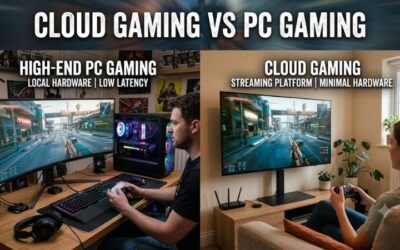
If you only want to try cloud gaming, a service is cheaper than buying hardware. If you play every day for years, a gaming PC can pay off, and it does not depend on a company staying in business. Our comparison of cloud gaming versus PC gaming walks through the cost and latency trade-offs.
Frequently Asked Questions
What replaced Google Stadia?
Nothing from Google. Stadia closed on January 18, 2023. People moved to services such as GeForce NOW, Xbox Cloud Gaming, Luna, Shadow and Boosteroid, depending on whether they wanted to bring their own games or rent a catalog.
Is there a free Stadia alternative?
GeForce NOW has a free tier with queues and time-limited sessions, and it works with games you own plus many free-to-play titles. Confirm current limits on NVIDIA’s site.
Can I play my old Stadia games anywhere else?
No. Stadia purchases were tied to Stadia and cannot be transferred. If a title is on Steam or Epic, you would need to buy it again on that store before streaming it on GeForce NOW or Boosteroid.
Which Stadia alternative has the best graphics?
It depends on the tier you pay for. NVIDIA lists up to 5K at 120 FPS for GeForce NOW at the highest tier, while Xbox Cloud Gaming’s top tier is described as the best all-round experience. Your own internet speed will limit quality before the service does.
Do I need a powerful PC for these services?
No. The games run on remote hardware, so a basic laptop, Chromebook, phone or TV is enough, as long as it can decode the video stream and has a stable connection.
Which service works best on a Chromebook?
GeForce NOW, Xbox Cloud Gaming and Boosteroid all list Chromebook or ChromeOS support. Pick based on whether you own games or want a catalog.
Are cloud gaming services safe to use?
Established services from large companies are generally safe. Avoid unknown sites that ask for payment details or promise unlimited free play, and never share your account login with anyone.
Is Luna still available?
Luna is still operating according to recent reports, but its library and features have been changing. Check its help pages for what is currently included on your device.
Sources we checked
- NVIDIA GeForce NOW system requirements, membership and FAQ pages
- Xbox Wire: Getting Started with Xbox Cloud Gaming
- Shadow official site
- Boosteroid official site
- Tom’s Guide and 9to5Google coverage of the Stadia shutdown
Last updated: November 2026