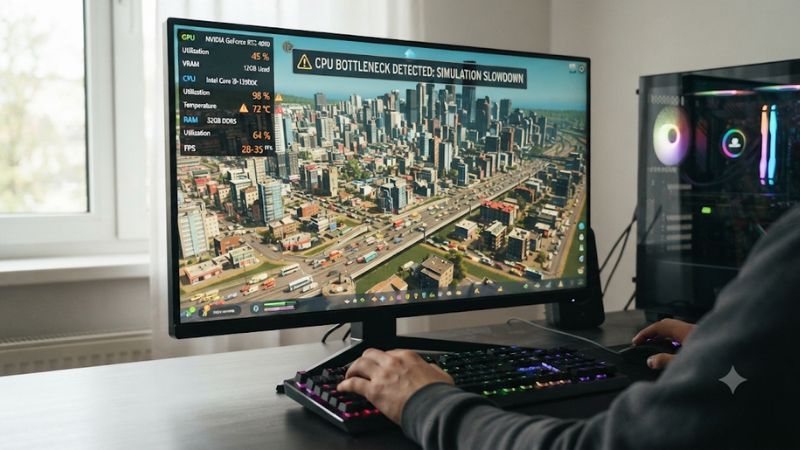
CPU bottleneck in simulation games happens when the processor cannot complete game calculations quickly enough to keep the GPU supplied with work. This is common in city builders, flight simulators, factory games, and management titles. Understanding CPU workload, frame times, and simulation settings helps identify the real limitation.
What CPU Bottlenecks in Simulation Games Really Come Down To
Simulation games can demand substantial CPU resources because they calculate more than the images displayed on screen. Population behavior, traffic, physics, economic systems, AI decisions, and object interactions all require processing. A powerful graphics card cannot independently speed up calculations that the game must finish on the CPU before rendering a frame.
1. Why Simulation Games Depend on CPU Performance
Unlike games that primarily emphasize visual effects, simulation titles frequently maintain complex systems running in the background. A city builder might calculate traffic routes, citizen schedules, production chains, and resource distribution while the player watches the city grow. These workloads can increase as a save becomes more complex.
The CPU does not necessarily distribute every calculation evenly across all its cores. Some games rely heavily on a main thread that coordinates important operations, while other tasks run on additional threads. Consequently, a processor can become a limiting factor even when overall CPU utilization looks relatively low.
2. How to Recognize a CPU Bottleneck
A common warning sign is low or moderate GPU utilization while frame rates remain below expectations. For example, a graphics card might have unused processing capacity because the CPU cannot submit rendering work quickly enough. However, GPU utilization alone cannot establish the cause; frame limits, power settings, and background workloads can produce similar readings.
Pay attention to frame-time consistency as well as average FPS. A game might maintain a reasonable average while experiencing noticeable pauses when a large city loads, traffic increases, or many simulation events happen simultaneously. These moments can indicate CPU-side limitations, although memory pressure and storage activity should also be considered.
3. Why More CPU Cores Do Not Always Solve the Problem
A CPU with more cores can improve workloads that the game successfully distributes across multiple threads. However, additional cores cannot automatically accelerate a task that depends on one busy thread completing its work before another operation can continue. Single-thread performance, architecture, cache behavior, and memory latency can all influence the result.
This explains why two processors with similar core counts can perform differently in the same simulation. It also explains why replacing a CPU with a model offering substantially more cores does not guarantee better performance. The important question is whether the game benefits from the additional parallel processing capacity.
4. What Doesn’t Help
Increasing graphics quality is not a reliable way to solve a CPU limitation. Higher resolution and demanding visual effects generally increase GPU workload, potentially lowering frame rates further without making the simulation calculations faster. Upscaling can also leave a CPU bottleneck largely unchanged because it reduces the GPU’s rendering workload.
Likewise, RAM-cleaning utilities, registry optimization scripts, and disabling Windows telemetry are not reliable solutions to simulation-related CPU limitations. Avoid changing BIOS voltage, disabling processor cores, or applying random optimization scripts before identifying the actual cause. Start with repeatable measurements and settings that can easily be restored.
How to Diagnose and Improve CPU Performance: Step by Step
Before changing hardware or Windows settings, establish whether the processor is actually limiting performance. Compare the same save, location, camera position, and simulation speed under repeatable conditions. This matters because a city builder, factory simulator, and flight simulator can place very different demands on the CPU depending on what is happening inside the game.
Step 1: Monitor CPU, GPU, and Frame Times
Start with Windows Task Manager by pressing Ctrl + Shift + Esc and opening the Performance tab. Check CPU utilization, individual logical processor activity, memory usage, and GPU utilization while playing. Switch to the Details tab to see whether the game process is consuming substantial CPU resources.
For more detailed measurements, use HWiNFO or MSI Afterburner with an on-screen monitoring overlay. Observe CPU clock speeds, temperatures, GPU utilization, and frame times during the same demanding section. Avoid interpreting one utilization percentage as a final diagnosis; several measurements should support the conclusion.
Step 2: Identify Main-Thread Limitations
Microsoft Flight Simulator provides a particularly useful example of CPU-side diagnosis. Its Developer Mode performance display can distinguish a main-thread limitation from a GPU limitation. When the display reports Limited by MainThread, the CPU’s main-thread workload is holding back frame production.
This is useful because total CPU utilization can conceal a heavily occupied thread. A processor with many logical processors may show relatively modest overall utilization even when one important thread is close to its processing limit. Other simulation games may not provide an equally detailed built-in diagnostic, so external monitoring becomes more important.
Microsoft Flight Simulator Forums+1
Step 3: Reduce CPU-Heavy Simulation Settings
Look for settings that increase the number or complexity of simulated objects. Depending on the game, these can include population density, traffic volume, AI aircraft, background vehicles, object density, simulation detail, and view distance. Reduce one setting at a time and compare the same gameplay scenario.
In Microsoft Flight Simulator, Object Level of Detail and Terrain Level of Detail are relevant settings to investigate when the main thread is limiting performance. Reducing AI traffic can also lower CPU workload. In city builders, reducing traffic and population-related simulation demands may help, although the exact available controls depend on the title and its version.
Microsoft Flight Simulator Forums+1
Step 4: Check Hardware and Background Workloads
If the limitation remains, inspect processor temperatures, clock speeds, memory pressure, and background applications. High temperatures can cause a CPU to reduce its operating frequency, while insufficient memory can increase paging activity and contribute to stuttering. These problems can resemble a processor that simply lacks enough computing capacity.
Close unnecessary applications, recording software, and overlays temporarily to see whether performance changes. Check that the game uses the dedicated graphics card when the PC has both integrated and discrete graphics. Do not immediately change BIOS settings or reinstall drivers; make those changes only when a specific problem justifies the additional risk.
Microsoft Flight Simulator Support
Diagnostic Comparison Table
| Setting or Step | Where | Effect | Risk |
|---|---|---|---|
| Monitor CPU and GPU | Task Manager, HWiNFO, MSI Afterburner | Identifies workload patterns and possible limitations | Low; monitoring only |
| Check main-thread status | Microsoft Flight Simulator Developer Mode | Distinguishes main-thread and GPU limitations | Low; optional diagnostic |
| Reduce simulation density | Individual game’s settings | Can reduce AI, traffic, and object-processing workload | Low; may reduce simulation detail |
| Close background applications | Windows Task Manager and application settings | Frees resources used by unrelated processes | Low; save work before closing applications |
| Check CPU temperature and clock | HWiNFO or manufacturer monitoring software | Identifies possible thermal or frequency restrictions | Low; avoid changing voltage |
| Review memory usage | Task Manager > Performance > Memory | Helps identify memory pressure and paging | Low; observation only |
FAQ: CPU Bottlenecks in Simulation Games
1. Why Does My Simulation Game Have Low FPS With Low GPU Usage?
Low GPU usage can indicate that the CPU is not supplying rendering work quickly enough. However, it can also result from an FPS cap, V-Sync, power restrictions, or background activity. Check frame times, CPU clock speeds, and individual thread activity before deciding that the processor is responsible.
2. Do Simulation Games Benefit More From CPU Cores or Clock Speed?
It depends on how the game distributes its workload. Games with substantial parallel simulation tasks can benefit from additional cores, while main-thread-heavy titles often respond more strongly to single-thread performance. Architecture, cache, and memory latency also matter, so core count and advertised clock speed should not determine a purchase alone.
3. Can Increasing RAM Fix a CPU Bottleneck in Simulation Games?
Increasing RAM helps when insufficient memory causes paging or prevents a game from handling larger simulations comfortably. However, additional capacity does not directly increase CPU processing speed. Check memory consumption during gameplay and compare it with available physical memory before purchasing an upgrade. Also distinguish system RAM limitations from GPU VRAM limitations.
4. Should I Upgrade My CPU or GPU for Simulation Games?
Upgrade the CPU when repeatable measurements show that processor performance limits the game and the GPU has sufficient unused capacity. Choose a GPU upgrade when graphics processing is consistently the limiting factor. Check motherboard socket support, BIOS compatibility, cooling, and memory requirements before replacing the processor.
Final Thoughts
Understanding CPU bottleneck in simulation games requires looking beyond overall utilization and average FPS. Monitor individual threads, frame times, temperatures, and simulation workloads before changing settings or buying hardware. Start by identifying the busiest part of your game, then optimize the settings that directly affect it.