PCIe lane count CPU explained is an important topic when choosing a gaming processor or motherboard, especially if your PC uses multiple NVMe SSDs, a dedicated GPU, or expansion cards. CPU lanes determine how devices connect and share bandwidth. Understanding the differences helps you avoid unnecessary motherboard limitations and plan a more capable gaming PC.
What PCIe CPU Lane Count Really Means
PCIe lanes are independent data pathways that connect a processor to devices such as graphics cards, NVMe SSDs, capture cards, and network adapters. Each lane carries data in both directions. The number available on a CPU determines how much direct PCIe connectivity the platform can provide, but the motherboard also influences how those connections are distributed.
1. What Is a PCIe Lane?
Think of a PCIe lane as a dedicated communication pathway between hardware components. A connection can use one lane (x1), four lanes (x4), eight lanes (x8), or sixteen lanes (x16). More lanes provide greater potential bandwidth when the connected device can use them.
For example, a typical desktop graphics card uses an x16 connection, while many NVMe SSDs use x4. A Wi-Fi adapter or smaller expansion card may need only x1. The physical size of a PCIe slot does not always indicate its actual electrical lane count, so check the motherboard specifications.
2. CPU Lanes vs. Chipset Lanes
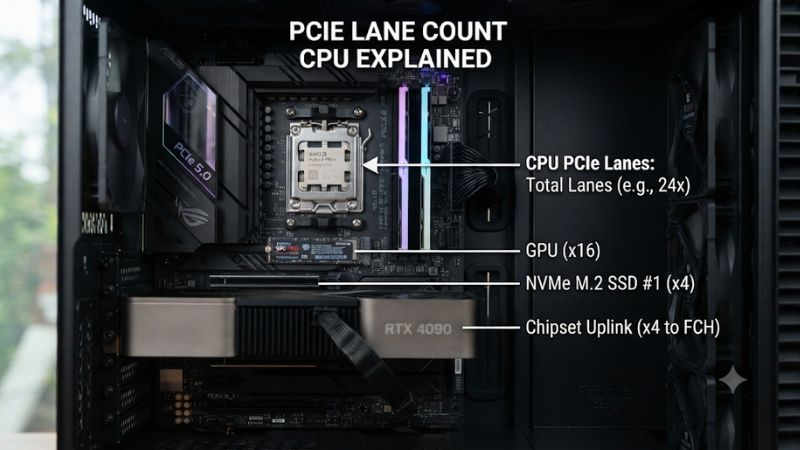
Modern desktop platforms generally provide PCIe connectivity through two sources: the CPU and the motherboard chipset. CPU lanes connect devices directly to the processor, making them particularly useful for graphics cards and high-speed storage. These connections avoid sharing the chipset’s upstream connection.
Chipset lanes provide additional connectivity for motherboard features, including extra M.2 slots, USB controllers, networking, and expansion cards. However, chipset-connected devices ultimately share the bandwidth of the connection between the chipset and CPU. This does not mean they are automatically slow; it means their combined traffic has a shared limit.
3. Why PCIe Generation Matters
Lane count is only one part of the bandwidth equation. PCIe generation also determines how much data each lane can transfer. PCIe 4.0 provides twice the per-lane transfer rate of PCIe 3.0, while PCIe 5.0 doubles it again.
Consequently, an x8 PCIe 5.0 connection has more theoretical bandwidth than an x16 PCIe 3.0 connection. This is why comparing processors based only on their advertised lane counts can be misleading. Always consider both the number of lanes and their supported generation when planning a gaming system.
4. How Many PCIe Lanes Does a Gaming PC Need?
A typical gaming PC does not need an unusually high lane count. A dedicated GPU, one or two NVMe SSDs, and ordinary motherboard peripherals can work comfortably on mainstream desktop platforms, depending on their connection layout.
The situation changes when you add several high-speed SSDs, capture cards, additional expansion cards, or multiple GPUs. These configurations benefit from greater connectivity and more flexible lane allocation. For most gamers, however, having enough properly connected lanes matters more than buying a processor with the highest advertised total.
How to Understand and Check CPU PCIe Lanes
Knowing the definition is only the first step. You also need to understand how manufacturers divide available lanes between graphics, storage, and chipset communication. The following examples illustrate why the motherboard manual and processor specifications should be considered together rather than treating the advertised total as the number of lanes available to every device.
1. Understand Typical PCIe Lane Allocations
A common desktop arrangement reserves a group of CPU lanes for the primary graphics connection, another group for NVMe storage, and a separate connection for the motherboard chipset. The exact allocation depends on the processor architecture and platform.
For example, AMD’s mainstream AM5 Ryzen 9000 desktop processors include 28 native PCIe lanes, with 24 usable lanes. The allocation commonly includes graphics connectivity, NVMe connectivity, and the chipset connection. This is a useful example of why total and usable lane counts are not interchangeable.
2. Compare CPU and Chipset Connectivity
The following table illustrates the practical differences between common connection configurations. These are typical arrangements, not guaranteed specifications for every motherboard or processor.
| Connection | Typical Lane Configuration | Main Purpose | Important Consideration |
|---|---|---|---|
| Primary GPU | x16 or x8 | Gaming graphics | Check CPU and slot support |
| NVMe SSD | x4 | High-speed storage | Check M.2 wiring |
| Secondary GPU slot | x8 or x4 | Expansion or additional GPU | May share CPU lanes |
| Network adapter | x1 or x4 | Ethernet or networking | Often chipset-connected |
| Capture card | x1, x4, or higher | Video capture | Check bandwidth requirements |
| Chipset connection | Platform-dependent | Additional motherboard devices | Shared upstream bandwidth |
The important distinction is that a motherboard can have several physical PCIe slots without providing enough independent CPU lanes to operate every slot at its maximum electrical configuration simultaneously.
3. Check CPU Specifications Before Buying
When comparing processors, open the manufacturer’s official specification page and locate the PCIe connectivity section. Look for the supported PCIe generation and native lane count. AMD and Intel may describe lane availability differently, so avoid comparing total figures without understanding their definitions.
For an example, AMD lists 28 native PCIe lanes, 24 usable lanes, and PCIe 5.0 support for the Ryzen 9 9950X3D. Its AM5 platform also provides additional chipset connectivity depending on the motherboard. This information is more useful than simply seeing a large lane count in a retailer’s product description.
4. Understand Lane Sharing and Bifurcation
Lane sharing occurs when multiple motherboard connections depend on overlapping PCIe resources. Installing an SSD in a particular M.2 socket might reduce the bandwidth available to an expansion slot or disable another connector, depending on the board’s wiring.
Bifurcation is different: it divides a larger PCIe connection into smaller links, such as x16 into x8/x8 or x4/x4/x4/x4, when the processor and motherboard support that configuration. It is useful for compatible multi-device expansion cards, but it does not create additional physical bandwidth.
How to Check and Optimize PCIe Lane Usage: Step by Step
You do not need to change BIOS settings simply because your motherboard has several PCIe devices. Start by identifying the actual connections, then compare them against the motherboard’s supported configurations. These steps help determine whether your GPU and SSDs are receiving the expected PCIe generation and link width.
1. Identify Your Processor’s PCIe Specifications
Visit the official AMD or Intel processor specification page and find the PCIe version and lane information. Record the supported generation and the distinction between total, native, and usable lanes where provided.
Do not assume every processor in the same product family has identical connectivity. Different CPU models can have different PCIe capabilities even when they use the same socket. Confirm the exact model before selecting a motherboard or planning multiple expansion devices.
2. Check the Motherboard Manual
Open the motherboard manufacturer’s official manual and locate the Expansion Slots, Storage, or PCIe Configuration section. These sections explain which slots connect directly to the CPU and which use chipset connectivity.
Pay particular attention to footnotes describing shared bandwidth. A manual might specify that installing an SSD in one M.2 socket disables particular SATA ports or changes the operating mode of another expansion slot. These restrictions are motherboard-specific, not universal PCIe rules.
3. Verify the Active PCIe Link
After installing your hardware, check the active connection rather than relying exclusively on the slot’s printed specifications. GPU-Z can display the graphics card’s current PCIe link width and generation. Its render test can help trigger a higher power state when the GPU is idle.
For NVMe storage, consult the SSD manufacturer’s utility or an appropriate hardware information tool to inspect the reported PCIe connection. Remember that idle power-saving behavior can affect displayed link speed. Compare the result against the processor, motherboard, and device specifications before concluding that something is wrong.
4. Adjust Hardware Placement or BIOS Settings
If a device is operating with fewer lanes than expected, first consult the motherboard manual and check whether another installed component shares its connection. Moving an SSD to a different supported M.2 socket may resolve a lane-allocation conflict without requiring any BIOS modification.
Only change PCIe bifurcation or slot configuration when your hardware specifically requires it. BIOS terminology and available options vary between manufacturers. Record the original setting before making changes, and restore it if the expansion card or storage devices stop being detected. Avoid changing unrelated PCIe settings to chase theoretical bandwidth improvements.
The following table summarizes the recommended checking process:
| Setting or Step | Where | Effect | Risk |
|---|---|---|---|
| Check CPU lanes | Official CPU specifications | Identifies native connectivity | None |
| Review slot allocation | Motherboard manual | Reveals shared connections | None |
| Verify active link | GPU-Z or hardware utility | Confirms negotiated GPU link | Low |
| Check M.2 allocation | Motherboard manual and system | Identifies storage conflicts | Low |
| Adjust bifurcation | BIOS/UEFI, if supported | Changes lane distribution | Incorrect settings may prevent device detection |
PCIe Lane Count CPU Explained: Frequently Asked Questions
1. Does a Higher CPU PCIe Lane Count Improve Gaming FPS?
No, a higher CPU PCIe lane count does not automatically increase gaming FPS. Performance depends on the GPU, CPU, PCIe generation, active connection width, game workload, and other system components.
Most conventional gaming configurations already have sufficient PCIe connectivity. Additional lanes become more useful when running multiple expansion devices or high-speed storage rather than when playing games with a single graphics card.
2. Is PCIe x8 Enough for a Modern Gaming GPU?
Yes, PCIe x8 can provide sufficient bandwidth for many modern gaming GPUs, particularly when operating at PCIe 4.0 or newer. However, the actual impact depends on the GPU and PCIe generation.
An x8 connection should not automatically be considered equivalent to x16. If you are using a graphics card that has an x8 electrical interface, check its specifications and the motherboard’s active connection before drawing conclusions about performance.
3. Can I Install More NVMe SSDs Than My CPU Has Dedicated PCIe Lanes?
Yes, provided the motherboard supports the required storage configuration. Additional M.2 sockets can use chipset-provided connectivity rather than requiring every SSD to connect directly to the CPU.
However, multiple chipset-connected devices share the available upstream bandwidth. Some motherboard configurations also disable particular SATA ports or expansion slots when additional M.2 sockets are occupied. Always consult the motherboard storage allocation table before installing more drives.
4. How Do I Know If My GPU Is Running at PCIe x16?
You can use GPU-Z to inspect the active PCIe connection under its Graphics Card information. Check the reported link width and generation while the GPU is under an appropriate workload.
A GPU may report a lower PCIe speed while idle because of power management. Run the built-in render test, then check the connection again. If the link remains narrower than expected, inspect the motherboard slot configuration, CPU specifications, and any installed M.2 devices before considering hardware changes.
Final Thoughts
Understanding PCIe lane count CPU explained makes choosing a processor and motherboard much easier, especially when planning GPU and NVMe upgrades. Focus on usable lanes, PCIe generation, and motherboard sharing rules rather than headline numbers alone. Before purchasing components, compare the CPU specifications with the motherboard manual to confirm your intended configuration.