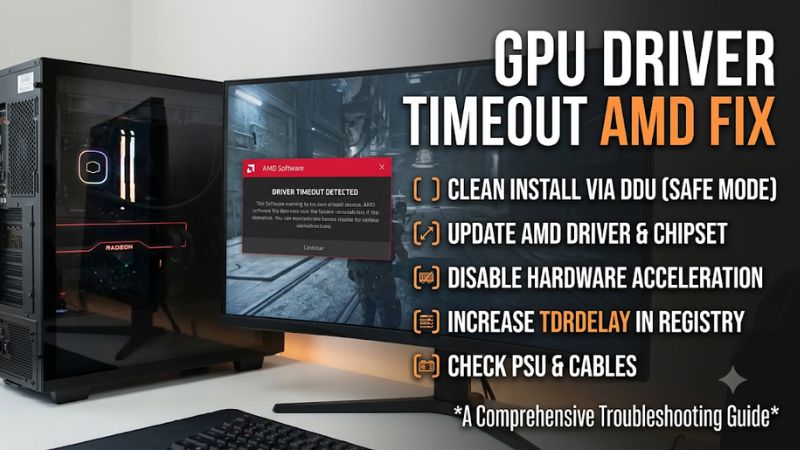
An AMD graphics driver timeout can interrupt games, cause a black screen, or trigger a driver recovery message in Windows. A reliable gpu driver timeout amd fix starts with identifying whether the problem comes from the Radeon driver, unstable settings, overheating, or another system component before changing hardware or reinstalling Windows.
Why AMD GPU Driver Timeouts Happen
A Radeon driver timeout occurs when Windows detects that the GPU has stopped responding within the expected time and attempts to reset the graphics driver. The quickest diagnostic approach is to check whether the problem started after a driver update, happens in one particular game, or occurs across multiple applications. These patterns help narrow down the cause.
1. Corrupted or Incompatible AMD Graphics Drivers
A damaged driver installation can cause Radeon Software crashes, black screens, game freezes, and repeated recovery messages. Problems may appear after updating Adrenalin, switching between driver versions, or allowing Windows Update to install a different graphics driver.
Driver compatibility also matters. A newer release may contain a game-specific regression even when it installs correctly. Check the release notes for your Radeon model and the affected game before assuming that the newest available version is necessarily the right choice.
2. GPU Overclocking, Undervolting, and Memory Instability
An unstable GPU clock, undervolt, or VRAM overclock can cause a timeout when the graphics card cannot complete a workload reliably. The problem may appear only during demanding games, shader compilation, ray tracing, or transitions between different performance states.
System memory instability can produce similar symptoms. An aggressive EXPO or XMP profile, unstable CPU overclock, or incorrect memory configuration may affect overall system stability. If crashes began after changing performance settings, return the affected components to their default configurations before reinstalling drivers.
3. Overheating, Power Delivery, and Background Conflicts
Insufficient cooling or unstable power delivery can contribute to GPU hangs, particularly under sustained gaming loads. Check GPU temperature, hotspot temperature, fan behavior, and power consumption using an appropriate monitoring utility. Compare readings with the graphics card manufacturer’s specifications rather than relying on a universal temperature threshold.
Background applications can also interfere with graphics workloads. AMD performance overlays, Xbox Game Bar, recording software, third-party monitoring utilities, and other overlays deserve attention when timeouts occur during application switching or video playback.
What Doesn’t Help
Increasing the Windows TDR timeout through registry edits is not a general solution. Windows uses Timeout Detection and Recovery (TDR) to identify GPU operations that take too long and attempt to restore the graphics stack. Changing the timeout may delay detection without fixing the underlying instability. Microsoft documents these settings primarily for driver development and debugging.
Microsoft Learn+1
Avoid downloading unofficial driver packages, running registry-cleaning scripts, or repeatedly reinstalling Windows without evidence. These actions can introduce additional problems while making the original cause harder to identify.
How to Fix AMD GPU Driver Timeouts: Step by Step
The safest troubleshooting sequence starts with recording the current driver version and checking Windows logs. Then restore default GPU settings, investigate software conflicts, and reinstall the appropriate AMD driver if necessary. Change one variable at a time so you can identify which adjustment actually improves stability.
| Step | Where | How to Verify | Cost |
|---|---|---|---|
| 1. Check crash records | Windows Event Viewer | Match error timestamps with game crashes | Free |
| 2. Restore default GPU settings | AMD Software: Adrenalin Edition | Check whether timeouts stop at stock settings | Free |
| 3. Disable conflicting overlays | AMD Software and Windows settings | Repeat the previously affected workload | Free |
| 4. Reinstall or roll back driver | AMD Software or AMD Cleanup Utility | Confirm driver version and retest | Free |
1. Check Windows Errors Before Changing Drivers
Start by identifying when the timeout occurs. Press Win + X, select Event Viewer, and navigate to Windows Logs > System. Look for warnings or errors around the time of the crash, including display-driver recovery messages and relevant hardware error records.
Also check Windows Logs > Application for game or AMD Software crashes. Record the event time, source, and error details. A display recovery event supports the possibility of a GPU timeout, but it does not independently establish whether the driver, graphics card, memory, or power delivery is responsible.
2. Restore Radeon GPU Settings to Default
Open AMD Software: Adrenalin Edition and navigate to Performance > Tuning. If you previously enabled manual tuning, GPU overclocking, undervolting, or VRAM adjustments, restore the default configuration using the available reset option.
Restart the game and repeat the workload that previously triggered the error. If stability improves, reintroduce optional performance adjustments individually rather than restoring every modification at once. This makes it easier to identify an unstable clock or voltage setting.
3. Disable Overlays and Test Background Features
Temporarily disable the AMD performance metrics overlay and other monitoring or recording overlays. Also close third-party GPU monitoring tools, game launchers with overlay features, and unnecessary recording applications.
Test the affected game with only the essential background software running. If the problem occurs during application switching, test that specific behavior as well. AMD’s October 2026 release notes documented timeout issues involving its performance overlay and other overlays on Radeon systems, making this a particularly relevant diagnostic step.
AMD+1
Hardware-accelerated GPU scheduling (HAGS) is another optional setting worth investigating when the timeout occurs during video playback or application switching. In Windows 11, check Settings > System > Display > Graphics > Change default graphics settings. If the option is available, record its original state, temporarily switch it, restart Windows, and repeat the same test. Restore the original setting if there is no improvement.
4. Reinstall or Roll Back the AMD Graphics Driver
If the timeout continues, reinstall the correct driver for your specific Radeon graphics card. First, identify the GPU model and installed driver version in AMD Software or Windows Device Manager. Then check AMD’s official driver support information for a compatible Recommended release.
For a standard reinstall, download the correct package and follow the AMD Software installer instructions. If the installation remains problematic, AMD Cleanup Utility can remove previously installed AMD graphics and audio drivers before a fresh installation. AMD states that this utility does not remove AMD chipset drivers.
AMD+1
Use the cleanup utility carefully:
-
Save important work and download the replacement driver before removing the existing installation.
-
Run AMD Cleanup Utility and follow its prompts.
-
Allow the computer to restart when requested.
-
Install the downloaded compatible Radeon driver.
-
Restart Windows and test the affected game again.
If the timeout began immediately after a driver update, consider returning to an earlier compatible release instead. AMD’s installer provides a Factory Reset option in supported installation workflows, but AMD warns that this prevents rolling back to the previously installed driver through that process. Keep the older installer available before choosing it.
5. Check Current AMD Driver Release Notes
A driver timeout limited to one game may reflect a known software issue rather than a defective GPU. Check AMD’s release notes for your graphics generation, game title, and driver version before making more invasive changes.
As of November 16, 2026, AMD Software: Adrenalin Edition 26.11.1 is a recent Optional release dated November 12, 2026. Its known issues include intermittent driver timeouts in War Thunder on Radeon RX 5000 series graphics products, for which AMD recommends using version 26.9.1. This illustrates why blindly installing the newest driver is not always the best troubleshooting decision.
AMD
If a particular game is listed under known issues, follow AMD’s stated workaround where applicable. Otherwise, compare the Recommended and Optional releases and choose a version appropriate for your GPU and software environment.
6. Investigate Cooling, Power, and System Memory
If driver changes do not resolve the problem, inspect the hardware. Use HWiNFO or AMD Software monitoring to observe GPU temperature, hotspot temperature, clock behavior, and power consumption while reproducing the issue. Look for unusual temperature increases, sudden clock drops, or repeated crashes under sustained load.
Check that the graphics card’s power connectors are fully seated and that the PSU meets the manufacturer’s requirements. On desktop systems, inspect GPU seating and cooling after shutting down and disconnecting power. If the computer also experiences memory errors or unrelated crashes, temporarily return CPU and RAM overclocks or EXPO/XMP settings to default for diagnosis.
Do not replace the GPU based on a single timeout message. Repeated failures across different games and clean driver installations, especially when accompanied by hardware errors, justify further component-level diagnosis.
FAQ: AMD GPU Driver Timeout Fix
1. Why Does My AMD GPU Keep Timing Out While Gaming?
AMD GPU timeouts can result from incompatible drivers, unstable GPU settings, overheating, insufficient power delivery, or software conflicts. If the error happens in only one game, investigate that game’s updates and known driver issues first. If multiple games crash, examine system-wide stability.
2. Should I Use DDU to Fix AMD Driver Timeouts?
Not necessarily. AMD Cleanup Utility is an official option for removing existing AMD graphics software before reinstalling a driver. A third-party Display Driver Uninstaller (DDU) may be useful in more complicated driver conflicts, but it should not be the first step when a normal reinstall can resolve the problem.
3. Can Undervolting Cause AMD Driver Timeouts?
Yes, an unstable undervolt can cause GPU instability and driver recovery events. Restore default tuning settings and repeat the workload. If the timeout disappears, the previous voltage or clock configuration may have been too aggressive.
4. When Should I Replace My AMD Graphics Card?
Consider hardware repair or replacement only after software and system-level causes have been investigated. Persistent crashes across multiple applications, abnormal hardware behavior, or diagnostic errors that remain after driver troubleshooting warrant professional inspection before purchasing another GPU.
Final Thoughts
A reliable gpu driver timeout amd fix requires more than reinstalling Adrenalin. Start with Windows error records, restore default Radeon settings, investigate overlay conflicts, and install an appropriate driver version. If crashes continue, examine cooling, power, and memory stability before deciding whether the graphics card needs repair.