🛒 Best Price Today on Amazon
Prime members get fast, free shipping on everything above, plus member-only deals. New members get a 30-day free trial — cancel anytime.
A gaming PC can consume more electricity than necessary even when no game is running. How to reduce gaming PC idle power consumption comes down to identifying background activity, allowing CPU and GPU power-saving states, adjusting display settings, and configuring Windows correctly without sacrificing gaming performance.
What Reducing Gaming PC Idle Power Really Comes Down To
Reducing idle power consumption starts with understanding which components remain active when the computer is doing very little. The CPU, graphics card, monitors, fans, storage devices, and motherboard all contribute to total system demand. The goal is to reduce unnecessary activity while preserving normal performance when a game launches.
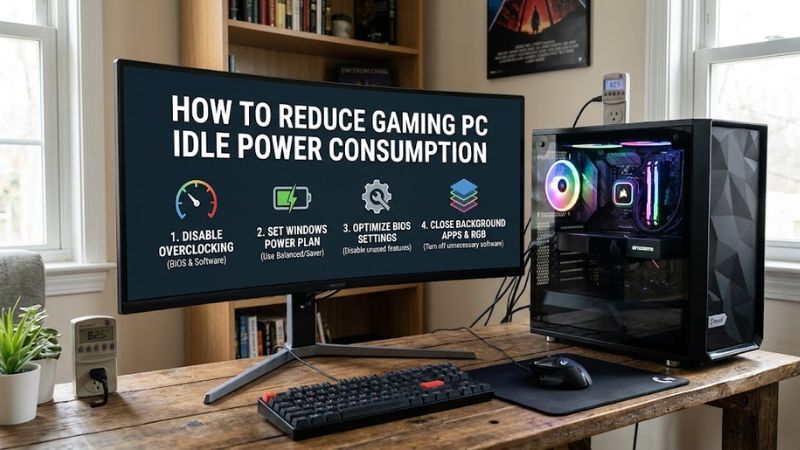
1. Understand What Uses Electricity at Idle
A gaming PC does not become electrically inactive when you close a game. The CPU continues handling Windows services, background applications, and scheduled tasks. The GPU maintains display output, while memory, storage, motherboard controllers, and cooling components continue drawing power.
A discrete graphics card can contribute substantially to idle consumption, particularly when multiple displays or demanding display configurations prevent lower-power states. Monitor consumption separately from the tower because external displays use electricity independently of the PC.
2. Check Whether Your PC Is Actually Idle
Before changing settings, establish a baseline. Close games, launchers, browsers, video players, and unnecessary applications. Allow Windows to settle, then check Task Manager by pressing Ctrl + Shift + Esc. Sort the Processes tab by CPU and GPU usage to identify persistent activity.
For a more accurate measurement, use a plug-in electricity meter between the wall outlet and the PC. Measure the tower alone, without including monitors or other connected equipment. Record the reading after the system has settled, then compare it under the same conditions after each adjustment.
3. Understand CPU and GPU Power-Saving States
Modern processors support idle states that allow individual cores and, when conditions permit, the processor package to consume less power. Intel describes these as C-states, with deeper idle states generally allowing more hardware to power down. AMD processors also use power-management states to reduce consumption when workloads are light.
Graphics cards have their own power-management mechanisms. They can reduce clock speeds and operating power when gaming workloads disappear, but display configurations, background GPU activity, and driver behavior can affect how deeply they idle. Avoid forcing maximum performance settings globally when the computer is primarily idle.
4. What Doesn’t Help
Disabling Windows security features, removing random system services, installing RAM cleaners, or applying registry optimization scripts is not a sensible way to reduce idle electricity consumption. These changes can introduce instability without addressing the components responsible for unnecessary power demand.
Likewise, lowering CPU voltage or applying aggressive GPU undervolting is not a necessary first step. Start with built-in power management and measurable changes. Keep overclocking, firmware modifications, and advanced voltage adjustments out of the initial optimization process.
How to Reduce Gaming PC Idle Power: Step by Step
The most effective approach is to change one setting at a time and measure the result. Start with Windows power management, then inspect GPU behavior, display configuration, and BIOS options. This makes it easier to identify which adjustment actually reduces electricity use instead of changing several settings without knowing their effects.
1. Choose a More Efficient Windows Power Mode
Windows 11 includes power modes that influence background activity and system performance. Open Settings > System > Power & battery > Power mode and select Best power efficiency if the option is available. Balanced is another sensible choice for a desktop that needs to remain responsive during everyday use.
Compare idle consumption before and after changing the mode. Launch a demanding game to confirm that performance remains acceptable. If you notice unwanted performance limitations, return to Balanced. Avoid assuming that Best power efficiency is automatically the right choice for every gaming desktop because motherboard and hardware configurations affect how power policies operate.
Microsoft Support+1
2. Configure NVIDIA or AMD GPU Power Management
Graphics cards can remain at unnecessarily high operating states when applications request continuous GPU activity. On NVIDIA systems, open NVIDIA Control Panel > Manage 3D settings > Global Settings and inspect Power management mode. Avoid selecting Prefer maximum performance globally unless a particular application requires it.
NVIDIA documents Adaptive as an option that allows the driver to reduce GPU performance according to application requirements. For gaming, individual application profiles can preserve performance settings where needed. Restore the original global setting if a game develops unusual clock behavior or performance problems.
NVIDIA+1
For AMD Radeon graphics, open AMD Software: Adrenalin Edition and inspect available performance and tuning settings. Avoid applying aggressive manual power limits just to lower desktop consumption. Driver behavior and display configuration can influence idle power independently of the GPU’s gaming workload.
3. Adjust Monitor Refresh Rates and Multiple Displays
A high-refresh-rate monitor can influence graphics-card idle behavior, particularly when combined with additional displays operating at different resolutions or refresh rates. AMD has documented elevated idle power in certain Radeon RX 7000 multi-display configurations, including combinations of high-resolution and high-refresh-rate screens.
AMD+1
Open Settings > System > Display > Advanced display in Windows 11. Check the refresh rate assigned to each monitor and consider a lower setting when maximum refresh is unnecessary during everyday desktop use. For example, you can use a lower refresh rate for browsing and restore the monitor’s preferred gaming refresh rate before playing.
Do not assume that disconnecting every secondary monitor is necessary. Change one display variable at a time and measure the tower’s wall power. If the GPU returns to a lower-power state after adjusting the display configuration, keep the arrangement that provides the best balance between convenience and electricity consumption.
4. Review BIOS CPU Power-Saving Options
The motherboard BIOS controls several processor power-management features. Depending on the platform, these can include CPU C-states, package C-states, and related automatic power-management options. These features allow supported processors to enter lower-power states when workloads are inactive.
Restart the PC and enter BIOS or UEFI using the motherboard manufacturer’s designated key. Look under Advanced, CPU Configuration, AMD CBS, or Power Management for relevant settings. Menu names vary by motherboard and processor generation, so consult the manufacturer’s manual before changing anything.
| Setting or Step | Where | Effect | Risk |
| Best power efficiency | Windows Settings > System > Power & battery | Reduces unnecessary background power demand | May affect responsiveness |
| GPU power management | NVIDIA Control Panel or AMD Software | Allows GPU power behavior to match workload | Incorrect global settings may affect games |
| Display refresh rate | Windows > Display > Advanced display | May reduce display-related GPU power demand | Lower desktop refresh rate |
| CPU C-states | Motherboard BIOS/UEFI | Allows deeper processor idle states | Platform-specific compatibility or latency considerations |
Keep CPU C-states enabled or on Auto unless troubleshooting establishes a specific reason to change them. Disabling these features can increase idle consumption. Record the original BIOS configuration and avoid changing unrelated voltage, memory, or overclocking settings. Intel’s documentation explains how deeper processor idle states support lower power consumption.
Intel+1
FAQ
1. How Much Power Should a Gaming PC Use at Idle?
There is no universal idle-power target for a gaming PC because CPU generation, GPU model, display configuration, cooling, and connected devices all affect consumption. A system with a powerful discrete GPU may draw more than a basic desktop even when both are doing very little.
Measure your own baseline rather than comparing your PC against an unrelated configuration. Use a wall power meter, keep the monitors outside the measurement if you want to isolate the tower, and compare readings under consistent conditions.
2. Does Balanced Mode Reduce Gaming PC Idle Power?
Yes, Balanced mode can reduce unnecessary power consumption while maintaining normal desktop responsiveness. Windows adjusts power behavior according to workload rather than permanently prioritizing maximum performance.
For most gaming desktops, Balanced is a sensible starting point. You can compare it with Best power efficiency and choose the setting that offers the best balance between electricity use and responsiveness.
3. Does Lowering GPU Clock Speed Reduce Idle Power?
It can reduce consumption in certain situations, but manually lowering GPU clocks is not necessary for normal idle power management. Modern graphics cards already adjust their operating frequencies according to workload, temperature, and driver behavior.
Check whether a background application or display configuration prevents the GPU from entering a lower-power state before considering manual tuning. Avoid aggressive voltage or frequency adjustments without understanding stability risks.
4. Should I Turn Off My Gaming PC Instead of Leaving It Idle?
Yes, shutting down or putting your PC into sleep mode generally uses less electricity than leaving it running continuously. Sleep is convenient for shorter breaks, while shutdown is appropriate when you will not need the computer for an extended period.
In Windows 11, configure these options under Settings > System > Power & battery > Screen, sleep & hibernate timeouts. Set reasonable screen-off and sleep intervals, accounting for downloads, remote access, and other tasks that require the PC to remain active.
Microsoft Support+1
Final Thoughts
Learning how to reduce gaming PC idle power consumption does not require replacing components or sacrificing gaming performance. Start by measuring wall power, adjusting Windows and GPU settings, checking monitor configurations, and preserving CPU power-saving states. Compare each change individually and keep the settings that deliver measurable savings without compromising everyday use.