🛒 Best Price Today on Amazon
Prime members get fast, free shipping on everything above, plus member-only deals. New members get a 30-day free trial — cancel anytime.
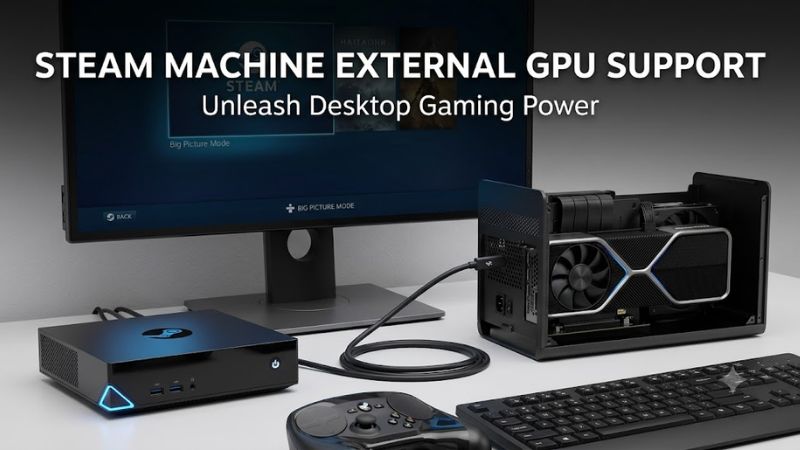
The steam machine external gpu support question comes down to connectivity, SteamOS compatibility, and hardware limitations. Valve’s Steam Machine does not have documented plug-and-play eGPU support through its rear USB-C port, but an enthusiast modification using the internal M.2 slot has been reported. This guide explains what works, what remains experimental, and which alternatives make sense.
What Steam Machine External GPU Support Really Comes Down To
Steam Machine external GPU support depends on more than connecting a graphics card to a port. Valve’s current Steam Machine combines a semi-custom AMD Zen 4 processor with integrated-in-the-system discrete AMD RDNA 3 graphics, and its rear USB-C port is specified as USB 3.2 Gen 2. Understanding the connection and operating-system limitations is essential before buying hardware.
1. Why the USB-C Port Does Not Guarantee eGPU Support
USB-C describes the connector, not the complete data interface. Valve specifies a rear USB-C 3.2 Gen 2 connection, rated at up to 10 Gbps, rather than a documented Thunderbolt or USB4 connection with the PCIe tunneling required by many conventional external GPU enclosures.
Consequently, plugging a typical Thunderbolt or USB4 graphics enclosure into this port is not an established upgrade path. A compatible-looking cable or enclosure cannot supply missing host-interface capabilities. Valve’s published specifications and troubleshooting documentation do not provide a standard USB-C eGPU installation procedure.
2. How the M.2-to-OCuLink Modification Works
An alternative reported in August 2026 uses the Steam Machine’s internal M.2 storage connection, an M.2-to-OCuLink adapter, and an external GPU dock. Tom’s Hardware reported a modder connecting an AMD Radeon RX 9070 XT through this arrangement, demonstrating that an experimental route is possible on a particular system.
The trade-off is substantial: the M.2 slot used for the graphics connection also serves the machine’s storage needs. The reported configuration moved the boot drive into an external USB-C storage enclosure. This requires additional hardware, external cabling, careful configuration, and a willingness to troubleshoot problems outside Valve’s documented support path.
3. What SteamOS Compatibility Means in Practice
Recognizing an external graphics card is only one part of making an eGPU usable. The operating system, graphics drivers, display routing, and SteamOS Gaming Mode must also work together. A GPU that appears in system information does not necessarily mean games will render on it correctly.
SteamOS has also had community-reported eGPU issues involving Gaming Mode and its Gamescope session, including configurations where an external GPU is detected but games do not use it as expected. These reports concern particular configurations, not proof that every eGPU setup fails. They do show why hardware detection alone is insufficient evidence of full compatibility.
4. What Doesn’t Help
Buying a larger graphics card or a more expensive enclosure does not solve a host-interface incompatibility. Likewise, a USB-C adapter that changes the connector’s shape cannot turn an ordinary USB 3.2 port into a Thunderbolt or USB4 PCIe connection. Check the machine’s actual interface before spending money on an enclosure.
It is also unwise to assume that a successful community modification is a supported consumer feature. Valve has not documented the M.2-to-OCuLink method as an official upgrade. If you need a straightforward gaming system with predictable maintenance, consider streaming games from a more powerful PC or choosing hardware designed for external GPU expansion instead.
How to Explore an External GPU: Step by Step
Before attempting Steam Machine external GPU support, establish which hardware and software configuration you have and whether you can recover the original system. The following steps move from free compatibility checks to experimental hardware changes. The M.2 modification is optional, technically demanding, and not recommended for anyone who needs an uncomplicated, officially supported gaming setup.
| Setting or Step | Where | Effect | Risk |
| 1. Verify ports and specifications | Valve’s official Steam Machine specifications | Confirms the actual USB-C interface and available display outputs | None beyond misinterpreting specifications |
| 2. Check SteamOS and GPU detection | SteamOS desktop environment and system information | Establishes whether the operating system recognizes the external GPU | Low; avoid changing drivers unnecessarily |
| 3. Investigate the M.2 connection | Internal storage slot and motherboard documentation | Determines whether the experimental adapter arrangement is physically feasible | Moderate to high; disassembly and storage changes |
| 4. Configure the external GPU | Compatible M.2 adapter, OCuLink dock, GPU, and separate power supply as required | Attempts to route graphics through the external card | High; hardware, boot, driver, and stability problems |
Step 1: Verify the Exact Steam Machine Hardware
Start with Valve’s official Steam Machine specifications and feature troubleshooting guide. Confirm the rear USB-C interface, available display outputs, and internal storage arrangement. Do not treat the USB-C connector as evidence of Thunderbolt or USB4 support, and do not assume that another device marketed as a Steam Machine has the same motherboard.
Also check whether your goal is additional gaming performance, higher-resolution output, or more storage. These are different requirements. If your main problem is limited space for installed games, microSD expansion or a compatible replacement SSD is a simpler direction to investigate than an external graphics card.
Step 2: Check GPU Detection Before Changing Anything
If you already own compatible external GPU hardware, first establish a baseline in SteamOS. Record the system’s current behavior, the games you play, and the display connection you use. In the desktop environment, available system-information utilities can help identify detected graphics devices, although the exact commands and tools depend on the installed SteamOS version.
A successful detection is only an initial checkpoint. Confirm that the intended GPU is used for rendering and that the display output behaves correctly. If Gaming Mode fails while desktop mode works, the problem may involve the graphics session or driver configuration rather than a defective GPU. Do not start by reinstalling drivers or changing boot settings without a recovery plan.
Step 3: Assess the M.2 Modification and Storage Trade-Off
The experimental approach reported by Tom’s Hardware takes over the internal M.2 connection for an external graphics link. Before opening the machine, verify the specific adapter, physical clearance, storage arrangement, and motherboard compatibility. The published report is evidence of a particular modification, not a complete compatibility list for every adapter, GPU, or SteamOS release.
Plan how the system will boot if its internal SSD is relocated. An external USB-C storage enclosure must support the drive and connection involved, and the operating system must be able to boot from the resulting arrangement. Back up important data before altering storage, follow appropriate electrostatic-discharge precautions, and avoid proceeding if you cannot confidently restore the original configuration.
Step 4: Configure and Verify the External Graphics Setup
An M.2-to-OCuLink setup requires the adapter, an appropriate external dock, a compatible graphics card, and sufficient external power for that card. Check the GPU’s power connectors and requirements against the dock or power supply documentation. Keep the card securely supported, ensure adequate cooling, and avoid connecting or disconnecting exposed hardware while powered unless the equipment explicitly supports that procedure.
Once assembled, check for GPU detection, driver errors, stable display output, and successful game launches. Compare performance using the same game, resolution, graphics settings, and display arrangement as your baseline. If the external card is not used, produces crashes, or prevents booting, power down and return to the original configuration rather than repeatedly changing unrelated system settings.
FAQ
Does the Steam Machine support external GPUs through USB-C?
No documented plug-and-play eGPU support exists for the Steam Machine’s rear USB-C port. Valve specifies USB 3.2 Gen 2, not a documented Thunderbolt or USB4 graphics interface. A conventional enclosure should not be purchased on the assumption that this port supports external graphics.
Can you use an RTX or Radeon graphics card with the Steam Machine?
A Radeon graphics card has been connected through an experimental M.2-to-OCuLink modification, but this does not establish universal compatibility. An NVIDIA GeForce card may introduce additional driver and SteamOS compatibility considerations. Check the exact GPU, driver support, adapter, and operating-system configuration before attempting either setup.
Will an external GPU improve Steam Machine gaming performance?
It may improve performance in a compatible configuration, but the results depend on the game, GPU, connection bandwidth, processor limitations, and software support. There is no reliable universal performance estimate for these modifications. The reported RX 9070 XT configuration demonstrates technical feasibility, not a guaranteed improvement across games or systems.
Is an external GPU worth buying for the Steam Machine?
For most users, an eGPU is difficult to justify unless they specifically want an experimental hardware project. The adapter, dock, graphics card, power supply, and storage changes add complexity and cost. If you need predictable upgrades, compare the total expense with a gaming PC that supports a conventional graphics-card installation.
Final Thoughts
Steam Machine external gpu support remains an enthusiast-level possibility rather than a documented plug-and-play feature. The reported M.2-to-OCuLink modification shows that external graphics can work in a particular configuration, but storage changes and SteamOS compatibility remain important concerns. Verify your hardware first, and choose a conventional gaming PC if straightforward GPU upgrades are a priority.