🛒 Best Price Today on Amazon
Prime members get fast, free shipping on everything above, plus member-only deals. New members get a 30-day free trial — cancel anytime.
Connecting a wireless keyboard is usually straightforward once you identify its connection type. How to connect a wireless keyboard depends on whether it uses Bluetooth or a dedicated USB receiver. This guide explains both methods for Windows PCs, shows how to verify the connection, and covers common problems that can prevent typing.
What Connecting a Wireless Keyboard Really Comes Down To
Most wireless keyboards connect through Bluetooth or a dedicated USB receiver. The correct method depends on the keyboard’s hardware, not simply whether your computer has USB ports. Check the packaging, manual, or symbols on the keyboard before you begin. You may need batteries, a charged battery, or a compatible receiver.
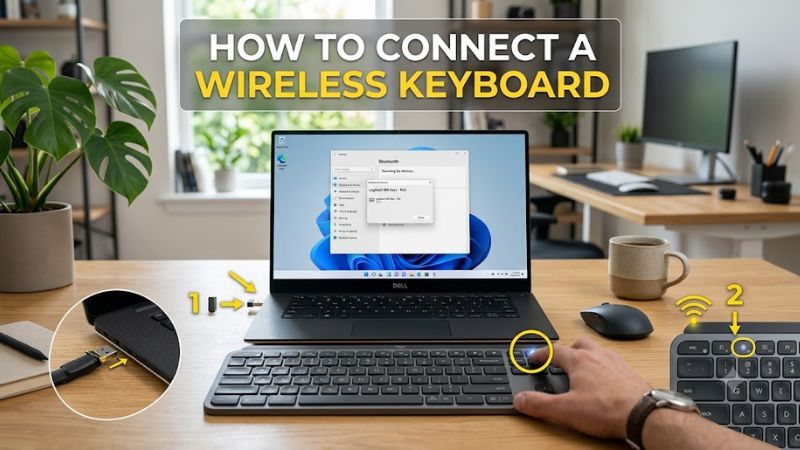
1. Identify the connection type
A Bluetooth keyboard pairs directly with your computer without needing a dedicated receiver. Your PC must support Bluetooth, either through built-in hardware or a compatible USB Bluetooth adapter. This option is useful if you want to keep USB ports available for a gaming mouse, headset, or other peripherals.
A 2.4 GHz wireless keyboard typically communicates through a matching USB receiver supplied with the device. Plugging in the receiver usually establishes the connection once the keyboard is powered on. Some keyboards support both Bluetooth and a proprietary receiver, so check the manufacturer’s instructions to select the correct mode.
2. Check power and compatibility
Before pairing, install the required batteries or charge the keyboard. Find its power switch, which is often on the underside or along an edge. If the keyboard has a connection-mode button, select Bluetooth or the appropriate receiver mode. A flashing indicator commonly signals pairing mode, although the exact behavior varies by model.
Confirm that your keyboard supports your computer’s operating system and connection method. Windows 11 and Windows 10 support Bluetooth keyboards when compatible Bluetooth hardware is present. A USB-receiver keyboard instead needs an appropriate port and a receiver designed to work with that keyboard. A USB-C adapter may be necessary if the receiver’s plug does not match an available port.
- Understand what you need before starting
You generally do not need to install special software just to use a standard keyboard. Windows can handle many Bluetooth and USB keyboards automatically, while manufacturer software may be necessary for certain receiver-based models, custom functions, or additional configuration. Start with the standard connection procedure before installing utilities.
For a gaming PC, prioritize a stable connection and confirm that the keyboard responds inside a text field before launching a game. Some keyboards have multiple device profiles or operating-system modes, and choosing the wrong one can change key behavior. If a keyboard includes a mode switch, consult its manual rather than assuming every model uses the same shortcut.
How to Connect a Wireless Keyboard: Step by Step
The correct setup procedure depends on whether your keyboard uses Bluetooth or a USB receiver. Follow the matching instructions below for a Windows PC, then verify that the keyboard can enter text. The comparison table summarizes the differences so you can choose the correct procedure without installing unnecessary software or changing unrelated system settings.
1. Connect a keyboard with a USB receiver
Best for keyboards supplied with a dedicated wireless dongle.
- Locate the USB receiver that came with the keyboard. It may be stored in a compartment underneath the keyboard or inside its packaging.
- Insert the receiver into an available USB port on your computer. Use a compatible adapter if the receiver and port have different connectors.
- Turn on the keyboard and select its receiver connection mode if it has one.
- Wait for the connection indicator to settle, if your model has one, then open Notepad or another text field and type a few characters.
Many receiver-based keyboards connect automatically once the receiver is plugged in and the keyboard is switched on. Some models require a manufacturer-specific pairing procedure or utility, so consult the product manual if the keyboard remains unresponsive.
2. Connect a Bluetooth keyboard in Windows 11
Use this method when your keyboard supports Bluetooth.
- Select Start > Settings > Bluetooth & devices.
- Turn Bluetooth on. If the option is missing, check whether your PC has Bluetooth hardware and whether its driver is functioning.
- Switch on the keyboard and activate pairing mode using the button or key combination specified in its manual. Look for a flashing indicator if the model provides one.
- In Windows, select Add device > Bluetooth.
- Select your keyboard when its name appears and follow any on-screen instructions. If Windows displays a PIN, follow the prompt and enter it using the keyboard when instructed.
- Open a text editor and confirm that the keys work.
Keep the keyboard near the PC during pairing. If it does not appear in the device list, make sure it is discoverable and not already connected to another computer or device. Microsoft documents this procedure for Windows 11 Bluetooth accessories.
3. Pair a Bluetooth keyboard in Windows 10
Windows 10 uses a different Settings layout, but the overall process is similar. Before beginning, confirm that Bluetooth is available and switched on. If you use an older desktop without built-in Bluetooth, a compatible USB Bluetooth adapter can add the necessary hardware.
- Select Start > Settings > Devices > Bluetooth & other devices.
- Turn on Bluetooth and select Add Bluetooth or other device.
- Choose Bluetooth from the device-type options.
- Put the keyboard into pairing mode and select its name when it appears.
- Follow any PIN or confirmation prompts, then select Done if prompted.
If you cannot find the keyboard, repeat the pairing-mode procedure using the manufacturer’s instructions. Windows 10 support ended on October 14, 2025, so consider moving to a supported operating system for ongoing security updates.
4. Compare connection methods and confirm success
Use this table to identify the most appropriate connection method and understand what to check if setup fails.
| Setting or Step | Where | Effect | Risk |
| USB receiver | Computer USB port | Connects through the keyboard’s matching dongle | Receiver may be missing or incompatible |
| Bluetooth pairing | Windows Bluetooth settings | Pairs without a dedicated keyboard receiver | Requires Bluetooth support and pairing mode |
| USB Bluetooth adapter | Computer USB port | Adds Bluetooth to a PC without built-in support | Adapter and driver compatibility may vary |
| Remove and re-pair | Windows Bluetooth settings | Refreshes a failed or stale pairing | Temporarily disconnects the keyboard |
After connecting, type in a text editor and check ordinary keys, modifier keys, and any number pad you regularly use. If the keyboard has a dedicated operating-system mode, confirm that it matches your computer. You can then open a game or application and verify that its expected controls respond.
For a gaming setup, test the keyboard in the game menu before entering a match. If only certain keys behave incorrectly, investigate the keyboard’s layout, function-lock setting, or game-specific key bindings rather than immediately repeating the entire pairing process.
Common Wireless Keyboard Problems and How to Fix Them
If the keyboard does not connect, work through the simplest checks first. A failed connection may result from low battery power, an inactive receiver, incorrect pairing mode, or a Bluetooth issue on the PC. Identify which connection method your keyboard uses before changing drivers or removing saved devices.
1. The keyboard does not appear in Bluetooth settings
First, make sure the keyboard is powered on and actively in pairing mode. A keyboard that is merely switched on may not be discoverable. Consult its manual for the pairing button or shortcut, then return to Settings > Bluetooth & devices > Add device > Bluetooth and look again.
If Bluetooth itself is missing or disabled, check your PC’s Bluetooth hardware and driver status. On Windows 11, Microsoft’s Get Help app includes a Bluetooth troubleshooter. Avoid buying a new keyboard until you have confirmed that the PC’s Bluetooth hardware works with another compatible device.
2. The USB receiver is connected, but typing does not work
Check that the keyboard is switched on, has sufficient battery power, and is set to the receiver mode rather than Bluetooth. Remove the receiver, wait about 10 seconds, and plug it back in. If possible, try another USB port directly on the computer rather than a hub.
Some receivers are designed for specific products or product families and cannot pair with every keyboard from the same manufacturer. If the keyboard requires a special pairing utility, use the manufacturer’s official support page for that exact model. Do not assume that an unrelated receiver will work simply because its connector fits.
3. The keyboard connects but types intermittently
Replace or recharge the batteries before changing software settings. Move the keyboard closer to the computer, remove obstructions where practical, and check whether another wireless device or a USB hub is contributing to the problem. Test the keyboard in a simple text editor to determine whether the issue affects all applications.
For Bluetooth keyboards, remove the saved device from Windows and pair it again if basic checks do not help. Go to Settings > Bluetooth & devices, locate the keyboard, choose its removal option, and then add it again. This temporarily disconnects the device, so make sure you have another way to control the PC if needed.
4. What Doesn’t Help
Installing random driver-updater programs, changing registry settings, or buying a replacement keyboard before identifying the cause can create unnecessary work. Most ordinary wireless keyboards need only power and the correct connection method; manufacturer software is necessary only for particular setup, configuration, or feature requirements.
If the keyboard fails on multiple compatible computers after you have checked its power and connection method, the keyboard or receiver may be faulty. If other Bluetooth accessories also fail to connect, investigate the PC’s Bluetooth adapter or driver instead. Test one component at a time to avoid replacing working hardware.
FAQ
1. Can I connect a wireless keyboard without a USB receiver?
Yes, you can connect a wireless keyboard without a dedicated receiver if the keyboard supports Bluetooth and your PC has compatible Bluetooth hardware. Enable Bluetooth in Windows, put the keyboard into pairing mode, and select it from the device list. A receiver-only keyboard generally cannot connect this way.
2. How do I connect a wireless keyboard to a PC without Bluetooth?
Use its supplied USB wireless receiver if the keyboard supports one. If the keyboard supports Bluetooth only, add a compatible USB Bluetooth adapter to your PC, then pair the keyboard through Windows Settings. Check the keyboard’s specifications before purchasing an adapter.
3. Why is my wireless keyboard not typing after pairing?
A paired keyboard may still be disconnected, out of battery power, in the wrong connection mode, or affected by a temporary wireless issue. Check its power and mode, reconnect it, and test it in a text editor. If necessary, remove and re-pair the device through Windows Bluetooth settings.
4. Do I need to install drivers to use a wireless keyboard?
Usually, no additional manual driver installation is required for a standard keyboard supported by Windows. Some models need manufacturer software for receiver pairing, programmable keys, or other special functions. Check the official support page for your exact model if basic setup does not work.
Final Thoughts
Learning how to connect a wireless keyboard starts with identifying whether it uses Bluetooth or a USB receiver. Follow the matching Windows setup steps, verify typing in a text editor, and troubleshoot power or pairing issues before changing software. If the keyboard still fails, check its official manual and test it on another compatible computer.