🛒 Best Price Today on Amazon
Prime members get fast, free shipping on everything above, plus member-only deals. New members get a 30-day free trial — cancel anytime.
A smooth, rounded typing sound comes from the right combination of switches, stabilizers, keycaps, and case acoustics. Learning how to make a keyboard sound creamy starts with identifying harsh clicks, metallic ping, or hollow echoes before spending money on modifications. These practical steps help you improve your mechanical keyboard’s sound while preserving its typing feel.
What a Creamy Keyboard Sound Really Comes Down To
A creamy keyboard produces a smooth, rounded, relatively controlled sound rather than sharp clacks, scratchy keystrokes, or hollow echoes. The term is subjective, so there is no single switch, material, or modification that guarantees the desired result. Start by identifying the noise you dislike, then adjust the component responsible for it.
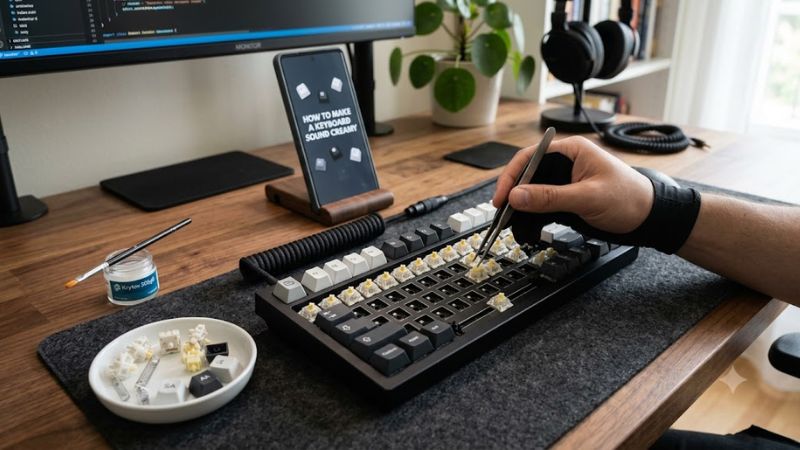
1. Understand What Makes a Keyboard Sound Creamy
Mechanical keyboard sound comes from several interacting components. Switch stems move inside their housings, springs return the keys, stabilizers support larger keycaps, and the plate and case influence how vibrations resonate. Each component contributes to the sound you hear while typing or gaming.
A creamy profile typically combines smooth switch movement with controlled bottom-out noise and minimal unwanted rattling. It can overlap with a deeper, thockier sound, but the terms are not identical. You can achieve a creamy sound without making your keyboard extremely quiet or excessively bass-heavy.
2. Choose the Right Switch Type
Linear switches are a popular starting point because they move straight down without the tactile bump or deliberate click found in other mechanical switch designs. Smooth linear switches can produce a consistent sound, especially when their springs and moving surfaces have minimal unwanted friction.
Tactile switches can also sound creamy when properly tuned, although their tactile mechanism may produce a more noticeable change in sound during each press. Clicky switches are harder to adapt because their click mechanism intentionally creates sharp acoustic feedback. If you prefer clicky switches, focus on reducing unwanted case resonance rather than trying to remove their defining sound.
3. Identify the Noise Before Changing Parts
Listen to individual keys before making modifications. Scratchy sounds during movement may indicate switch friction, while a metallic ring after releasing a key can point to spring resonance. A loose ticking sound on the spacebar often comes from its stabilizer rather than the switch itself.
A hollow sound that seems to come from the entire keyboard may indicate case resonance or vibration transferred to the desk. Record a short typing sample from the same position before making changes. Comparing recordings afterward helps you distinguish genuine improvements from differences in typing force, microphone placement, or room acoustics.
4. What Doesn’t Help
Adding foam everywhere is not a reliable shortcut to a creamy sound. Excessive dampening can make a keyboard sound muted or lifeless, and certain foam materials can alter switch feel or interfere with the internal components. More material does not automatically produce a better acoustic result.
Likewise, replacing every switch before checking the stabilizers can waste money. A rattling spacebar may remain the loudest part of the keyboard even after an expensive switch upgrade. Begin with reversible, low-cost adjustments, then consider internal modifications only when the original problem remains.
How to Make a Keyboard Sound Creamy: Step by Step
The most effective approach is to work from the outside inward. Start with the desk surface and keycap fit, move to stabilizers and switches, and then consider internal dampening. The table below summarizes the main adjustments, where to make them, their expected effects, and the risks worth checking before proceeding.
| Setting or Step | Where | Effect | Risk |
| 1. Add a desk mat | Under the keyboard | Reduces desk vibration and reflected noise | Minimal; mat thickness may affect positioning |
| 2. Tune stabilizers | Spacebar, Enter, Shift, Backspace | Reduces ticking and wire rattle | Incorrect disassembly or excess lubricant |
| 3. Lubricate or replace switches | Inside compatible mechanical switches | Reduces scratchiness and some spring noise | Damage, inconsistent feel, or warranty concerns |
| 4. Add suitable foam | Inside the keyboard case | Reduces hollow resonance | Poor fit, electrical interference, or excessive dampening |
1. Start With the Desk, Keycaps, and Typing Technique
Place the keyboard on a desk mat with a stable, nonslip surface. Hard desks can reflect keystroke sounds and amplify vibrations, making the same keyboard seem sharper than it does on another surface. A desk mat is inexpensive, easy to remove, and requires no keyboard disassembly.
Next, inspect the keycaps for loose fits, damaged stems, and inconsistent seating. Remove and reseat any loose caps using the appropriate keycap puller. Type at a consistent pace and avoid striking the keys harder than necessary. These changes help establish whether the sound comes from the keyboard itself or from how it interacts with your desk and typing style.
2. Tune the Stabilizers on Larger Keys
Stabilizers support longer keys such as the spacebar, Enter, Backspace, and Shift. Poorly fitted wires, loose components, or insufficient lubrication can create ticking and rattling that stand out against otherwise smooth keystrokes. Because these keys are large and frequently used, stabilizer noise can dominate the overall sound profile.
Start by checking whether the keycap is seated correctly and whether the key moves evenly from both ends. If the problem persists, consult the keyboard manufacturer’s disassembly instructions before removing any components. Compatible stabilizers can often be improved with careful wire balancing and appropriate lubricant, but avoid applying lubricant indiscriminately to switches or electrical contacts.
3. Lubricate Switches or Choose Smoother Alternatives
If the letter keys sound scratchy during movement, lubricating compatible mechanical switches may help. Switch lubrication reduces friction between selected moving surfaces when applied correctly. It can also reduce some spring noise, depending on the switch design and the source of the sound.
This modification requires more care than fitting a desk mat or reseating keycaps. Use lubricant specifically intended for mechanical keyboard switches, follow the switch manufacturer’s guidance, and apply a thin, controlled amount to the appropriate surfaces. Excess lubricant can make a switch feel sluggish or alter its acoustic character. If the keyboard uses soldered switches or does not support safe disassembly, consider factory-lubricated replacement switches only if the board’s construction permits replacement.
4. Add Internal Foam Only When Needed
Case foam helps reduce hollow resonance by changing how vibrations travel through the keyboard housing. Plate foam can also influence the sound produced around the switch plate and PCB. The result depends on the case, plate, mounting structure, switch design, and type of material used.
Before opening the keyboard, check the manufacturer’s instructions and warranty conditions. Disconnect wired keyboards from the computer and switch off wireless models before servicing them. Use foam designed for keyboard modification, cut it to fit without pressure on cables or components, and avoid conductive materials near exposed electronics. Reassemble the keyboard and compare the sound before deciding whether further dampening is necessary.
Fine-Tuning Your Creamy Keyboard Sound
Once the largest unwanted noises are under control, small changes to switch characteristics, keycaps, and mounting can help you refine the sound. These adjustments are optional rather than mandatory. Your preferred result may be a soft, rounded sound for everyday typing or a slightly deeper profile for gaming and recording.
1. Select Keycaps for a Fuller Sound
Keycaps affect both the sound and feel of a keyboard. Thick PBT keycaps are a common choice for a fuller, more controlled sound, although ABS keycaps can also work well depending on their thickness, profile, and the rest of the build. Neither material guarantees a specific sound on its own.
Check the keyboard layout and keycap compatibility before purchasing a replacement set. Compact layouts may require unusual bottom-row sizes, and nonstandard spacebars or modifier keys can make some sets incompatible. If the existing keycaps fit properly, compare the sound after other adjustments before spending money on a new set.
2. Consider the Plate and Mounting Style
The plate supports the switches and influences how vibration travels through the keyboard. Aluminum, steel, polycarbonate, and other plate materials can produce different acoustic and typing characteristics, but the result also depends on plate thickness, mounting points, and the case design.
Gasket-mounted keyboards use cushioning between parts of the plate assembly and case, which can produce a different typing feel from more rigid mounting designs. However, replacing a plate or changing the mounting structure is a more involved modification than adding a desk mat. Consider it only if you are building a custom keyboard or already planning a compatible internal upgrade.
3. Make One Change at a Time
Changing several components simultaneously makes it difficult to identify what improved the sound. If you install new switches, replace keycaps, add foam, and modify stabilizers in one session, you may not know which change helped or which made the result worse.
Instead, record a baseline and make one adjustment at a time. Use the same typing passage, keyboard position, recording device, and approximate typing force for each comparison. Keep notes on sound, key feel, and any new rattles. This approach is particularly useful when a small modification produces an unexpected result.
4. What If Your Keyboard Still Sounds Sharp?
If your keyboard remains sharp after basic tuning, consider whether the switches themselves use a click mechanism or produce a pronounced bottom-out sound. Some designs naturally have a brighter acoustic character, and dampening alone may not change that characteristic enough to match your preference.
For a hot-swappable keyboard, compatible linear switches may be a practical next step if you want a smoother sound. Confirm the switch socket type and physical compatibility before buying replacements. If the switches are soldered, replacing them requires additional equipment and skill, so it may be more practical to keep the existing board or plan a future keyboard build.
Frequently Asked Questions
How long does it take to make a keyboard sound creamy?
You can make simple acoustic adjustments in a few minutes, while internal modifications may take considerably longer. Adding a desk mat or reseating keycaps is straightforward, but disassembling switches and tuning stabilizers requires more care. Start with the easiest changes and stop when the sound meets your preference.
Do you need to lubricate switches for a creamy sound?
No, switch lubrication is optional rather than a requirement for every keyboard. Factory-lubricated switches may already offer smooth movement, and some boards sound good without further modification. Lubrication is most useful when scratchiness or spring noise is an identifiable problem and the switches can be serviced safely.
Can a membrane keyboard sound creamy?
Yes, a membrane keyboard can produce a softer, more muted sound, although it has a different mechanism from a mechanical keyboard. Its sound depends on the key structure, housing, and desk surface. Mechanical-switch lubrication and stabilizer modifications generally do not apply to conventional membrane keyboards.
Does adding foam make a keyboard quieter?
Foam can reduce certain hollow resonances, but it does not guarantee a quieter keyboard. The effect depends on the material, placement, case design, and sound source. If the main problem is a clicky switch or a rattling stabilizer, address that component first instead of assuming that more foam will solve everything.
Final Thoughts
Learning how to make a keyboard sound creamy is about controlling unwanted noise rather than copying one particular build. Begin with the desk surface, keycap fit, and stabilizers before considering lubrication or foam. Make one change at a time, compare the results, and choose the adjustments that improve your keyboard’s sound without compromising its typing feel.