🛒 Best Price Today on Amazon
Prime members get fast, free shipping on everything above, plus member-only deals. New members get a 30-day free trial — cancel anytime.
A keyboard test: how to check every key works is a practical way to find unresponsive buttons before they interrupt gaming, typing, or everyday PC use. You can start with a free browser-based keyboard tester, then check suspicious keys in Windows and on another device. The goal is to separate input problems from software or hardware faults.
Quick answer: Our top pick in 2026 is the Setting — our #1 rated choice. See the full ranked comparison, alternatives and buying advice below.
What a Keyboard Test Really Comes Down To
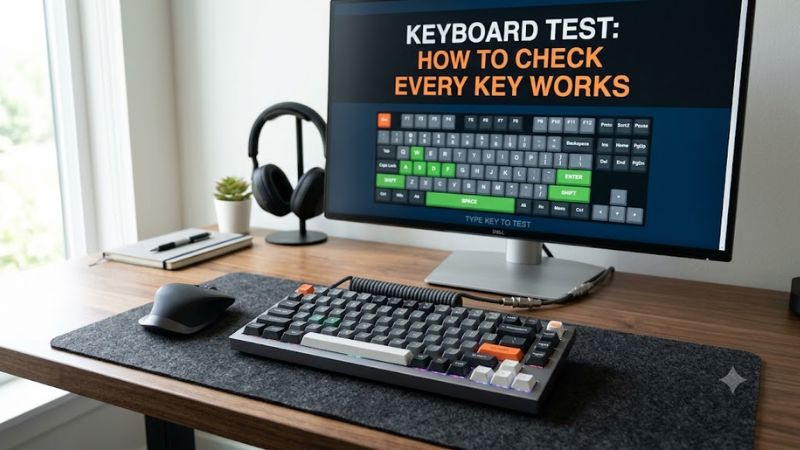
A keyboard test checks whether physical key presses reach your computer and produce the expected input. The simplest method is to open an online keyboard tester, select a layout that matches your keyboard, and press each key while watching the on-screen layout. Missing responses, repeated characters, and keys that remain active after release deserve further investigation.
Browser-Based Key Detection
An online keyboard tester provides a visual map of the keys your browser receives. Open a tool such as KeyboardTest.org, select the appropriate layout, and press each physical key once. Responsive keys should highlight on the screen, helping you identify keys that need another check without installing diagnostic software.
This method is useful for desktop keyboards, gaming keyboards, and most laptop keyboards connected to a browser. However, a highlighted key only confirms that an input event reached the page. It does not certify the switch’s physical condition, confirm every special function, or guarantee that the same key will behave correctly inside a game.
Physical Layout and Keyboard Language
Before starting a keyboard test, compare the tester’s displayed layout with the keyboard in front of you. Full-size, tenkeyless, and compact models have different arrangements, while ANSI and ISO layouts differ in key shapes and positions. Choosing a matching layout makes it easier to identify missing responses without confusing a layout difference with a fault.
Windows also separates physical key positions from the characters produced by the active input language. For example, a key may produce a different character under another keyboard layout even when its switch and electrical connection work correctly. Check the selected language and input layout if the displayed character does not match the legend printed on the keycap.
Key Presses Versus Key Releases
A reliable keyboard check should examine both pressing and releasing a key. A key that registers when pressed but appears to remain held afterward may indicate a stuck switch, a connection problem, or an input-handling issue. Repeated characters from one deliberate press can also point to key chatter, which is different from a key that never registers.
Browser tools cannot identify every underlying cause from the visual result alone. Repeat the suspicious input in a basic text editor, then compare the behavior in another application. If the issue appears in several programs, investigate the keyboard and its connection before assuming a particular game or Windows setting is responsible.
Special Keys and Browser Limitations
Some keyboard inputs never reach an ordinary browser page. The Fn key is commonly handled inside a laptop or keyboard controller, while system shortcuts, brightness controls, media buttons, and some function-key combinations may be intercepted by Windows or the browser. A missing highlight for one of these keys does not automatically mean the physical key has failed.
For special keys, check the function they are designed to perform. Try the appropriate Fn combination, adjust volume with a dedicated media button, or use the relevant system shortcut when practical. Treat the browser result as one diagnostic signal rather than a complete assessment of every keyboard feature.
How to Check Every Keyboard Key: Step by Step
The easiest way to check a keyboard is to work systematically from one section to the next, then repeat any suspicious inputs in a second application. Start with a browser-based checker, confirm special keys separately, review Windows settings if characters are wrong, and only consider repair or replacement when the evidence points to a physical fault.
| Setting | Where | Effect | Risk |
| Key-by-key check | Online keyboard tester | Shows which browser-visible keys respond | Browser shortcuts can be intercepted; close or leave the page to restore normal shortcuts |
| Character check | Windows Notepad | Confirms whether letters, numbers, and punctuation appear as expected | Unsaved text can be lost; save anything important before clearing it |
| Input layout | Windows Settings → Time & language → Language & region | Helps correct unexpected characters caused by a layout mismatch | Changing layouts alters typing behavior; switch back to the original layout if needed |
| Connection check | USB port, wireless receiver, Bluetooth settings, or another computer | Helps isolate connection and keyboard-specific faults | Disconnecting a wireless device may interrupt input; keep another input method available |
Step 1: Open an Online Keyboard Tester
Start the keyboard test in a browser and click the testing area if the page requires focus. Choose the closest available layout, then press each physical key individually. Work from the function row through the letter and number rows, followed by modifiers, navigation keys, arrows, and the numeric keypad if your keyboard has one.
Watch for keys that never highlight, appear under the wrong position, or register more than once. Repeat any suspicious press several times without striking the key unusually hard. Keep a note of the results so you can compare them with the next diagnostic step rather than immediately assuming that every missing response indicates broken hardware.
Step 2: Confirm Results in Windows
Open Notepad and type a short sample containing letters, numbers, punctuation, and spaces. Check Backspace, Enter, Tab where applicable, Caps Lock, and both Shift keys. This complements the browser check because it confirms whether normal text input works in a Windows application, although it cannot independently verify every function key or hardware feature.
For a keyboard test involving suspected double typing, press each questionable key separately and inspect the resulting text. A single deliberate press should normally produce the expected character once. If one key repeatedly produces extra characters in multiple applications, note whether the behavior changes with a different USB port, wireless connection, or computer.
Step 3: Check Windows Input Settings
If keys register but produce unexpected characters, review the active keyboard language and layout. In Windows 11, open Settings, select Time & language, and then Language & region. Review the installed language options and keyboard layouts. Menu labels can vary slightly by Windows version, so use the settings search field if the relevant option is difficult to locate.
Switch to the intended layout and repeat the character check. If the change makes typing less predictable, select the previous layout again. Do not remove a language pack or alter advanced system settings simply because one character differs from its keycap; first confirm which layout your keyboard is designed to use and which layout Windows currently selects.
Step 4: Isolate Connection or Hardware Faults
If the same keys fail in both a browser and Notepad, reconnect the keyboard where practical. For a wired model, try another working USB port and inspect the cable for visible damage. For a wireless model, check its battery, receiver, Bluetooth connection, and power switch. Follow the manufacturer’s instructions before removing keycaps or opening the device.
Repeat the keyboard test on another computer if one is available. If the same physical keys fail there, a keyboard-side problem becomes more likely; if they work elsewhere, investigate the original computer’s configuration, software, or connection. Avoid opening a laptop keyboard or disassembling a device under warranty before checking the manufacturer’s repair guidance.
Keyboard Test FAQ
How do I check if every key on my keyboard works?
Use an online keyboard tester to check each physical key and watch for its matching on-screen response. Work through the entire layout, including the function row, modifiers, arrows, and numeric keypad where available. Repeat any key that fails to register before drawing a conclusion.
Then open Notepad and confirm ordinary typing. Remember that Fn and some system-controlled keys may not appear in a browser, so check their actual functions separately. A browser result alone cannot establish whether every internal keyboard component is healthy.
Can I check my keyboard without downloading software?
Yes, you can check most standard keyboard inputs using a browser-based keyboard tester without downloading a diagnostic application. Select the matching layout, press the physical keys, and inspect which inputs reach the page. This approach works for many USB, Bluetooth, mechanical, and laptop keyboards.
Use a reputable site and avoid entering passwords or other sensitive information during diagnosis. Some tools process keystrokes locally, but privacy practices differ between websites, so check the site’s privacy information before using it. Windows Notepad is another useful option for checking ordinary text entry.
Why does a key work in a browser but not in a game?
A key can work in a browser but fail in a game because of different keybindings, game settings, overlays, macros, or application-specific input handling. First check the game’s controls menu and restore the intended binding if necessary. Also verify whether the game expects a particular input mode or modifier combination.
Try the same key in another application and, where possible, another game. If it fails only in one title, investigate that software before replacing the keyboard. If several keys stop responding together, check for simultaneous-input limitations, wireless interruptions, and background utilities that may change keyboard behavior.
When should I repair or replace a keyboard?
Consider repair or replacement when the same physical keys repeatedly fail across applications and another computer, especially after connection problems and layout mismatches have been ruled out. Sticky switches, liquid damage, worn components, and persistent double inputs can require physical attention rather than a Windows configuration change.
Before spending money, check the manufacturer’s warranty and support options. For a mechanical keyboard, confirm whether the manufacturer permits switch replacement and whether the design supports it. Laptop keyboards may require model-specific service, and the cost of repair should be weighed against the price of a compatible replacement.
Final Thoughts
A keyboard test: how to check every key works starts with a browser-based checker and continues with Windows text input, layout verification, and connection troubleshooting. Check special keys separately, repeat suspicious inputs, and compare results on another computer before deciding whether repair or replacement is necessary.
Ready to decide? Our #1 pick for 2026 is the Setting.
Live price & availability on Amazon.