🛒 Best Price Today on Amazon
Prime members get fast, free shipping on everything above, plus member-only deals. New members get a 30-day free trial — cancel anytime.
- Start With the Signal: How Much Data Your Card Has to Move
- Internal vs External Capture Card: Which Belongs in Your Setup
- Decision Matrix: Match Your Situation to a Card Class
- What Separates a Good Streaming Capture Card From a Frustrating One
- Capture Card for PS5: The Settings That Matter
- Single PC vs Dual PC
- Common Problems and Quick Fixes
- Bottom Line
The best capture cards for streaming in 2026 are the ones whose connection bandwidth matches your source: a 1080p60 console stream runs fine on almost any modern USB card, while 4K60 HDR or 1440p at 120 Hz needs either a USB 3.2 Gen 2 external card or an internal PCIe card. Pick by signal first and brand second, and most buying mistakes disappear.
This guide works through the bandwidth math, maps common setups to a card class, and covers the PS5-specific settings that trip people up on day one.

Elgato 4K S Capture Card for PS5, Xbox Series X/S, Switch 2
Included for 'Capture Cards for Streaming in 2026: Matching Bandwidth, Passthrough and Platform' because the listing specifies Xbox Series X/S and Switch 2, details this guide uses to compare options.
View on Amazon
Elgato Game Capture Neo Black Portable USB Capture Card, 4K60 HDR
Included for 'Capture Cards for Streaming in 2026: Matching Bandwidth, Passthrough and Platform' because the listing specifies 4K60 HDR, details this guide uses to compare options.
View on Amazon
Elgato 4K Pro Internal Capture Card, 8K60 Passthrough
Included for 'Capture Cards for Streaming in 2026: Matching Bandwidth, Passthrough and Platform' because the listing specifies 8K60 Passthrough, details this guide uses to compare options.
View on Amazon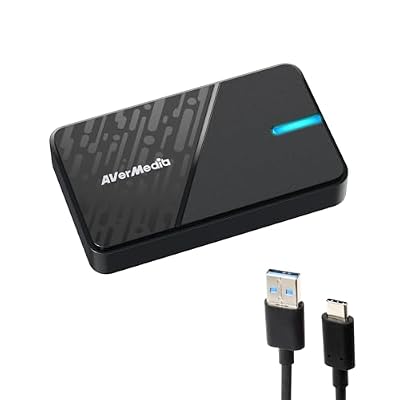
AVerMedia GC311G2 USB-C Game Capture Card, 1080p60, 4K60 HDR Pass-Through
Included for 'Capture Cards for Streaming in 2026: Matching Bandwidth, Passthrough and Platform' because the listing specifies 1080p60 and 4K60 HDR Pass-Through, details this guide uses to compare options.
View on AmazonStart With the Signal: How Much Data Your Card Has to Move
A capture card receives an uncompressed HDMI signal and has to deliver it to your PC. Most current cards send raw or lightly packed video over USB or PCIe so OBS can encode it. That means the link between card and PC has to carry the full frame stream. Here is the worked calculation for common formats, using bits per pixel for the color formats cards typically output (16 bits for YUV 4:2:2, 12 bits for NV12 4:2:0):
| Capture format | Pixels per second | YUY2 4:2:2 (16 bpp) | NV12 4:2:0 (12 bpp) | Fits on USB 3.0 (5 Gbps)? |
|---|---|---|---|---|
| 1080p at 60 fps | 124 million | 1.99 Gbps | 1.49 Gbps | Yes, easily |
| 1080p at 120 fps | 249 million | 3.98 Gbps | 2.99 Gbps | Yes |
| 1440p at 120 fps | 442 million | 7.08 Gbps | 5.31 Gbps | No, needs 10 Gbps or PCIe |
| 4K at 30 fps | 249 million | 3.98 Gbps | 2.99 Gbps | Yes |
| 4K at 60 fps | 498 million | 7.96 Gbps | 5.97 Gbps | No, needs 10 Gbps or PCIe |
Real-world USB 3.0 throughput lands closer to 3.2–4 Gbps after protocol overhead, so even NV12 1080p120 is near the comfortable limit on a shared hub. The practical takeaway: a 4k capture card that records 4K60 over USB must use a USB 3.2 Gen 2 (10 Gbps) port, and it must be plugged directly into the motherboard or a dedicated controller rather than a front-panel hub shared with your webcam and audio interface.
Internal vs External Capture Card: Which Belongs in Your Setup
The internal vs external capture card question comes down to how many PCs you run and how much you value portability.
Internal (PCIe) cards
- Use a PCIe x4 slot with far more bandwidth than any USB link, so 4K60 HDR is not a constraint.
- No cable or port contention with other USB devices, which reduces random dropped frames.
- Require a free slot that is not blocked by a thick graphics card; three- and four-slot GPUs often cover the slot below them.
- Do not work with laptops or handheld PCs.
External (USB) cards
- Move between a desktop, a laptop and a second streaming PC in seconds.
- Many models can record to an SD card or USB drive without a PC, which suits capture for later editing.
- Depend on port quality; a weak USB controller causes the stutters people blame on the card.
Decision Matrix: Match Your Situation to a Card Class
| Your situation | Card class | Example models | Typical price range |
|---|---|---|---|
| Console at 1080p60, first stream setup | Entry USB 3.0 external | Elgato HD60 X, AVerMedia Live Gamer Mini class | Usually $100–$180 |
| PS5 or Xbox Series X at 4K60 HDR passthrough, stream at 1080p | Mid USB with 4K passthrough | Elgato HD60 X, AVerMedia Live Gamer Ultra 2.1 | Usually $150–$230 |
| Capture at true 4K60 or 1440p120 on a laptop or dual PC | USB 3.2 Gen 2 external | Elgato 4K X, AVerMedia Live Gamer Ultra 2.1 | Usually $200–$300 |
| Desktop with a free PCIe slot, 4K60 HDR recording | Internal PCIe | Elgato 4K Pro, AVerMedia Live Gamer 4K 2.1 | Usually $230–$330 |
| Two consoles or a console plus a camera | Dual-input internal | AVerMedia Live Gamer Duo | Usually $200–$280 |
| Simple plug-and-play 1080p for a Switch or handheld | Compact USB-C stick class | Elgato Game Capture Neo | Usually $100–$140 |
What Separates a Good Streaming Capture Card From a Frustrating One
Passthrough that matches your display
Passthrough is the HDMI output that sends the game to your monitor or TV with near-zero latency. If you play on a 4K 120 Hz TV, a card that only passes through 4K60 forces your console down to 60 Hz while capturing. Check that the passthrough spec matches the refresh rate you actually play at, and remember that VRR passthrough is still not universal, even on 2026 cards.
HDR handling
Capturing HDR and streaming SDR requires tone mapping. Some cards do this in hardware so your stream does not look washed out; others pass the HDR signal and leave conversion to OBS, which needs correct color settings. If you stream HDR games but your viewers watch SDR, hardware tone mapping saves real setup time.
Driver and software support
UVC (USB Video Class) cards work in OBS without proprietary drivers, which matters on Linux and keeps things stable after Windows updates. Proprietary utilities add features like instant replay buffers and audio mixing, but they are not required for streaming.
Capture Card for PS5: The Settings That Matter
A capture card for PS5 setup has one non-obvious step: the console enables HDCP by default, and capture cards cannot record an HDCP-protected signal. Follow this order:
- Go to Settings, then System, then HDMI, and turn off Enable HDCP. Games are unaffected; only streaming video apps will refuse to play while it is off.
- Connect PS5 HDMI out to the card’s HDMI in, and the card’s HDMI out to your TV or monitor.
- If you want 120 Hz gameplay, confirm the card supports 120 Hz passthrough; otherwise set the PS5 video output to 60 Hz to avoid a black screen.
- For HDR games on an SDR stream, either use a card with HDR-to-SDR tone mapping or switch HDR to “On When Supported” off during streams.
- In OBS, add a Video Capture Device source, set resolution to match the input, and set color format to NV12 for the lowest bandwidth.
Single PC vs Dual PC
On a single gaming PC, you do not need a capture card for PC games at all; OBS captures the game directly and NVENC or AMF encodes it. Capture cards make sense for consoles, handhelds, cameras, or a dual-PC setup where a second machine handles encoding so the gaming PC loses no frames. In a dual-PC rig, the gaming PC outputs a mirrored HDMI signal from the GPU to the card in the streaming PC, so the card’s maximum input refresh rate must match the refresh rate you clone.
Common Problems and Quick Fixes
- Black screen in OBS: HDCP is on, or another app (often the vendor utility) is holding the device. Close other capture software and recheck console HDCP.
- Stutter every few seconds: usually USB bandwidth or power. Move the card to a rear motherboard port and switch the color format to NV12.
- Audio out of sync: set a sync offset in OBS Advanced Audio Properties; 50–150 ms is a typical correction for cards with processing delay.
- Washed-out colors: mismatched color range. Set both the source and OBS to the same range (Limited is the console default).
Bottom Line
For most console streamers, a 4K-passthrough USB card in the $150–$230 range covers everything needed to stream at 1080p while playing at full quality. Step up to a USB 3.2 Gen 2 or PCIe card only when you need to record at 4K60 or 1440p120, and choose internal when you have a desktop with a clear PCIe slot and never plan to move the setup.