🛒 Best Price Today on Amazon
Prime members get fast, free shipping on everything above, plus member-only deals. New members get a 30-day free trial — cancel anytime.
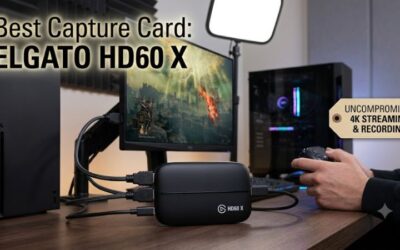
Building a reliable dual PC or console streaming rig requires understanding how signal passthrough, bus bandwidth, and video encoding interact. This capture card guide explains how internal PCIe cards and external USB devices process video frame rates without degrading your gaming display. Proper configuration prevents frame drops and audio desync.
What Capture Card Setup Really Comes Down To
Capturing high-resolution video comes down to managing data throughput between your gaming display and recording software. This capture card guide breaks down how USB 3.2 Gen 2 devices process 10Gbps of uncompressed video while PCIe Gen 3 x4 cards offer 32Gbps. Hardware encoding offloads work to preserve system responsiveness.
Bus Bandwidth and Interface Speeds
Data transfer capacity dictates the maximum uncompressed resolution and frame rate your system can receive. A USB 3.2 Gen 1 connection caps throughput at 5Gbps, which forces video compression or limits capture to 1080p at 60Hz. Upgrading to a USB 3.2 Gen 2 port doubles bandwidth to 10Gbps for 4K 60Hz video without visual compression.
Internal capture devices connect directly to motherboard expansion slots using PCI Express protocols. A PCIe Gen 3 x4 slot delivers approximately 32Gbps of real-world bandwidth, which easily handles 4K 144Hz pass-through and 4K 60Hz recording simultaneously. This capture card guide section highlights why matching bus speeds is vital.
Video Passthrough and Refresh Rates
Zero-latency passthrough routes the raw video signal from your gaming GPU directly to your primary monitor. Modern HDMI 2.1 interfaces support variable refresh rate technology alongside 4K resolution at 144Hz or 1080p at 360Hz. Older HDMI 2.0 connections restrict output to 4K at 60Hz or 1440p at 140Hz, capping high-refresh monitors.
When using passthrough, monitor resolution and frame rate must match supported hardware profiles to avoid signal drops. If your gaming monitor uses Display Stream Compression, passthrough rates may drop to 4K 120Hz depending on the hardware controller. Verifying HDMI cable specs ensures your display operates at its native speed.
Encoding Offload and Color Formats
Color format selection dictates how pixel color data is transmitted from the capture card to system memory. Standard YUY2 and NV12 formats use chroma subsampling to save bandwidth while delivering clean 8-bit color for live broadcasts. Advanced RGB24 or P010 HDR formats require substantial USB bandwidth to preserve full dynamic range.
Video capture devices do not perform hardware H.264 or AV1 video encoding for your final stream output. Following proper capture card guide specifications, the streaming PC graphics card handles encoding using blocks like NVIDIA NVENC. The capture device simply delivers raw frame buffers for software in OBS Studio.
What Doesn’t Help Capture Performance
Third-party system optimization utilities and background process terminators do not increase capture card frame rates. Frame processing limitations stem directly from hardware bus saturation, incorrect color settings, or outdated USB drivers. Software tweaks outside video settings cannot compensate for insufficient PCI Express or USB bandwidth.
Attempting to force higher resolutions through display duplication in Windows Settings often introduces refresh rate capping. Duplicating displays forces the primary gaming monitor to run at the maximum refresh rate supported by the capture device. Extending displays or using OBS Fullscreen Projector keeps native gaming performance intact.
How to Set Up a Capture Card: Step by Step
Configuring your streaming capture setup requires precise alignment between GPU video outputs, hardware interface settings, and software canvas parameters. This capture card guide outlines four key operational adjustments to stabilize video feeds and prevent caps. Reference the table below for quick setting locations and risks.
| Setting | Where | Effect | Risk |
| Extended Display Mode | Windows Settings > System > Display | Prevents refresh rate caps on gaming monitor | Mouse pointer can drift off primary display |
| Color Format NV12 | OBS Studio > Video Capture Device | Minimizes USB bandwidth usage while maintaining clarity | Reduced color depth for HDR color grading |
| Disable HDCP Encryption | Console Settings > System | Allows video capture signal to pass through | Blocks playback on protected media apps |
| PCIe Lane Allocation | Motherboard BIOS > Advanced > PCIe | Allocates full PCIe Gen 3 x4 bandwidth to slot | May reduce lanes on secondary M.2 SSD slots |
Step 1: Configure Display Output Settings
Set up Windows display topology to extend rather than duplicate your gaming monitor feed. Navigate to Windows Settings, select System, click Display, and set Multiple Displays to Extend These Displays. Select the virtual monitor created by the capture card and set its resolution to 1920×1080 at 120Hz or 240Hz under Advanced Display.
Open OBS Studio on your gaming PC, right-click the preview screen, and select Fullscreen Projector (Source) to map the game feed directly to the capture card display. This routing method allows your primary gaming monitor to maintain 360Hz refresh rates without physical passthrough limitations or hardware timing synchronization issues.
Step 2: Match OBS Canvas and Capture Parameters
Open OBS Studio on your streaming system and enter the Settings menu under the Video tab. Set Base (Canvas) Resolution to match your incoming video stream, typically 1920×1080 or 3840×2160. Match Output (Scaled) Resolution to your target broadcast output and set Common FPS Values to 60 to ensure smooth video playback without stutter.
Add a Video Capture Device source, select your hardware device, and set Resolution/FPS Type to Custom. Choose NV12 color format and set Color Space to Rec. 709 to match standard broadcast specifications. This detailed capture card guide step ensures the incoming buffer matches software processing layers without scaling overhead.
Step 3: Disable HDCP Encryption on Video Sources
High-bandwidth Digital Content Protection prevents video capture hardware from processing encrypted video signals from consoles or media players. On PlayStation consoles, open Settings, select System, click HDMI, and uncheck Enable HDCP. Xbox consoles automatically manage encryption for games but block capture when launching streaming apps.
If you capture footage from an iOS or iPadOS device using a USB-C adapter, verify that HDCP toggles are disabled within video output preferences. Disabling encryption restores the video signal in OBS Studio immediately. Re-enable HDCP when using copyrighted streaming apps like Netflix to restore normal playback on protected displays.
Step 4: Upgrade Interface Ports or PCIe Hardware
When diagnosis confirms hardware bus saturation, move external USB capture devices to a dedicated USB 3.2 Gen 2 port on the motherboard back I/O panel. Avoid front panel USB headers or unpowered hubs, as shared internal bus lanes reduce available bandwidth. Verify port speed specs in Device Manager under Universal Serial Bus Controllers.
For internal PCI Express capture cards, shut down your PC and relocate the card to a PCIe x4 slot routed directly to the CPU or PCH. Consult your motherboard manual to ensure the slot runs at full Gen 3 or Gen 4 speeds without lane sharing against secondary M.2 NVMe drives. Restart Windows and update device drivers to verify fix.
Capture Card FAQ: Common Setup Questions
Resolving video capture issues involves addressing common hardware limitations, software misconfigurations, and connectivity choices. The following section addresses frequent questions regarding capture performance, latency overhead, and signal blackouts. Use these answers to streamline your streaming or recording workflow effectively.
Do Capture Cards Reduce Lag During PC Gaming?
No, capture cards do not increase or decrease gaming PC frame rates because video encoding is handled by the streaming system GPU. The capture card simply acts as a video receiver that processes video frames sent over HDMI. Offloading capture overhead to a secondary machine prevents encoding impact on primary gaming performance.
When using a single PC setup, software capture methods like OBS Game Capture offer identical performance compared to loopback capture devices. Hardware capture devices shine in dual PC configurations where render pipelines must remain completely isolated. This capture card guide section demonstrates why dual PC setups maintain smooth gameplay.
Why Is the Video Preview Black in OBS Studio?
A black screen preview in OBS Studio is typically caused by active HDCP encryption, incorrect resolution settings, or USB bandwidth constraints. Disabling HDCP on source consoles and matching the device resolution solves most blackout issues immediately. Verifying that device drivers are active in Windows Device Manager also resolves input failures.
Software conflicts between competing video apps like Discord or Zoom can also lock the video capture device interface. Ensure no other background application is accessing the hardware camera feed before launching OBS Studio. Resetting the Video Capture Device properties to default in OBS often restores the video feed instantly.
Is a PCIe Capture Card Faster Than USB 3.2?
PCIe capture cards deliver lower latency and higher bandwidth than USB 3.2 external capture devices due to direct motherboard bus lanes. While USB 3.2 Gen 2 operates at 10Gbps with minor packet processing delay, PCIe Gen 3 x4 provides up to 32Gbps for uncompressed 4K video. PCIe internal slots eliminate external USB cable overhead.
External USB devices offer superior portability across laptops, desktop PCs, and gaming consoles without requiring internal desktop slot installation. Modern USB 3.2 Gen 2 units achieve imperceptible preview latency under 50 milliseconds in OBS Studio. Choose PCIe for permanent dual PC desktops and USB for flexible multi-device setups.
Can a Dual PC Setup Work Without Capture Hardware?
Yes, a dual PC setup can send video signals across a local gigabit network using NDI or Teleport software protocols without capture hardware. Network streaming requires a stable wired Ethernet connection to prevent dropped frames and network latency spikes. Hardware capture devices remain superior for zero-network overhead and console support.
Software NDI solutions add minor CPU rendering overhead on the primary gaming PC to encode network video streams. Dedicated video capture devices bypass CPU rendering completely by receiving GPU display outputs directly over HDMI. Refer to our capture card guide steps to determine if hardware or software transport suits your rig.
Final Thoughts
Setting up capture hardware requires aligning display settings, bus interface bandwidth, and video encoding parameters. By following this capture card guide, you can avoid signal dropouts, prevent monitor refresh rate throttling, and maintain smooth stream broadcasts. Proper hardware matching ensures long-term operational stability.