🛒 Best Price Today on Amazon
Prime members get fast, free shipping on everything above, plus member-only deals. New members get a 30-day free trial — cancel anytime.
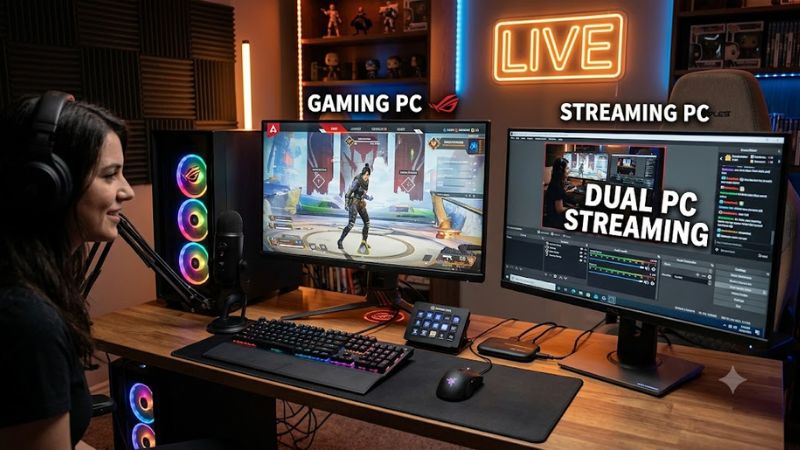
Configuring dual pc streaming allows creators to separate gameplay rendering from live video encoding on two distinct computers. By isolating system tasks, the primary gaming rig maintains maximum frame rates while the secondary machine processes video. This guide explains key network protocols, capture cards, and OBS Studio configurations.
What Dual PC Streaming Really Comes Down To
Separating video rendering from encoding isolates game performance from stream compression workload on separate systems. A primary gaming computer runs the game at native refresh rates while sending video frames to a dedicated secondary machine. Understanding signal transfer methods prevents unexpected frame drops and audio sync discrepancies.
Capture Card Passthrough and Bandwidth
Hardware capture devices accept HDMI input from the gaming computer and route zero-latency passthrough to your monitor. USB 3.2 Gen1 capture cards like the Elgato HD60 X support 4K60 HDR passthrough alongside 1080p60 video recording. Internal PCIe expansion cards offer direct motherboard bandwidth to handle high bitrate color formats.
Selecting the proper HDMI bandwidth prevents display resolution downscaling and color subsampling issues across monitors. HDMI 2.0 connections support up to 18 Gbps throughput, allowing high frame rate passthrough without video compression artifacts. High frame rate displays require compatible passthrough modes to maintain local fluidity.
NDI Network Streaming Requirements
Network Device Interface technology streams uncompressed video frames across a local area network without hardware capture cards. High Bandwidth NDI consumes roughly 100 Mbps to 150 Mbps of local bandwidth for a 1080p video stream at 60 frames per second. Dedicated Gigabit Ethernet switches prevent network packet loss during live transmission.
Utilizing NDI requires installing software plugins on both computers connected to the same gigabit network subnet. The gaming machine executes NDI Screen Capture to broadcast desktop frames directly to OBS Studio on the stream machine. Wireless Wi-Fi connections introduce packet jitter and drop video frames during high motion scenes.
Digital Audio Routing Architectures
Routing dual pc streaming audio requires mirror configurations between HDMI video outputs and primary audio devices. Virtual audio software like Voicemeeter duplicate desktop audio feeds from the gaming PC directly into capture card digital inputs. Hardware mixers bypass software routing overhead by balancing analog or digital signals via USB.
Establishing stable audio sampling rates across all active playback devices prevents robotic pitch distortions during streams. Setting both computers and all audio interfaces to 48 kHz 24-bit audio depth prevents clock drift over long broadcasts. Mismatched sampling frequencies cause gradual audio synchronization errors during live events.
What Doesn’t Help Dual PC Systems
Applying registry tweaks or running third-party memory cleaner applications does not improve encoding stability on the second PC. Modifying Windows telemetry settings yields no measurable gain in video encoder throughput or network packet delivery. Modern operating systems manage system memory allocation and background services efficiently without tools.
Overclocking system memory beyond rated XMP or EXPO profiles often introduces invisible bit errors into video encoding pipelines. Operating system stability remains paramount when processing continuous high bitrate H.264 or AV1 video streams. Default hardware stability produces consistent broadcast results without introducing system crashes.
How to Set Up Dual PC Streaming: Step by Step
Building an effective dual pc streaming system demands methodical configuration across operating system settings, cable routing, and streaming software. Following structured hardware and software configuration steps prevents video latency and audio sync errors. Each setting must be applied correctly to maintain peak system stability.
| Setting | Where | Effect | Risk |
| Duplicate Display | Windows Display Settings | Clones gaming display signal to capture card | May cap primary monitor refresh rate if unscaled |
| Audio Duplication | Voicemeeter / Windows Sound Control Panel | Sends PC audio to headphones and HDMI output | Software updates can reset default audio outputs |
| NVENC / x264 Encoder | OBS Studio Output Settings | Offloads video compression to streaming PC hardware | Incorrect bitrate causes stream buffering |
| Audio Buffer Delay | OBS Studio Advanced Audio Properties | Syncs microphone audio with capture card video | Excessive offset causes noticeable lip-sync delay |
Configure Display Cloning in Windows
To configure dual pc streaming display output, open Windows Display Settings on your primary gaming desktop. Select your primary monitor and choose the duplicate option to mirror video output to your hardware capture card. This sends identical video frames to your local display and your secondary streaming machine simultaneously.
Ensure your primary gaming monitor maintains its native high refresh rate when enabling display mirroring modes in Windows. If display mirroring forces your main monitor down to 60 Hz, create a custom resolution profile inside NVIDIA Control Panel. Select your native refresh rate manually to preserve smooth gameplay rendering on screen.
Route Desktop Audio via Digital Software
Open the Windows Sound Control Panel on the gaming computer to configure digital audio routing parameters. Set your primary audio device to output sound through both your main headset and the HDMI capture output device. Utilizing application software like Elgato Wave Link or Voicemeeter prevents digital audio routing failure.
Verify audio level meters inside OBS Studio on the streaming computer while playing test audio on your gaming PC. Check that desktop audio channels register clear stereo peaks without crossing into red distortion threshold limits. Adjust individual application volume levels inside Windows Volume Mixer to balance game and voice audio.
Optimize Encoder Settings in OBS Studio
Launch OBS Studio on the secondary streaming computer and open Settings to configure video encoder parameters. Select x264 for CPU-based encoding or NVIDIA NVENC H.264 for dedicated graphics processor video compression. Set rate control to CBR at 6000 Kbps for Twitch or 10000 Kbps for higher resolution YouTube streams.
Set keyframe interval to two seconds and choose the Medium CPU preset when using x264 software encoding modes. High core count processors like the AMD Ryzen 9 7900X handle CPU encoding efficiently without dropping video frames. Adjusting encoder presets according to system thermals prevents thermal throttling on secondary PCs.
Synchronize Video and Audio Delay Buffers
Capture cards introduce tiny hardware processing delays between incoming video signals and secondary system playback buffers. Open Advanced Audio Properties in OBS Studio on your streaming machine to adjust audio delay timing offsets. Adding a modest 50 ms to 100 ms audio delay aligns your camera and microphone feeds with video.
Record a brief test video featuring a distinct hand clap while speaking directly into your streaming microphone. Play back the video recording inside media player software to inspect precise audio sync against visual motion cues. Adjust the millisecond delay value in small 10 ms increments until audio and video match perfectly.
Frequently Asked Questions About Dual PC Streaming
Adopting dual pc streaming raises practical questions regarding hardware overhead, network stability, and component selection. Understanding performance gains helps content creators evaluate whether secondary systems justify additional physical desk space. Clear technical answers ensure streamlined setup process across all hardware tiers.
Does Dual PC Streaming Reduce Gaming Input Lag?
Yes, dual pc streaming reduces input lag on your main gaming rig by offloading video encoding background tasks entirely. Removing live video encoding from the gaming PC frees up graphics processing units and system processor cores. Games run with more consistent frame times and fewer system micro-stutters during heavy action.
Single PC setups encoding high resolution video can experience frame rate drops during CPU or GPU bound game scenes. Separating workloads across two distinct physical machines ensures game rendering engines operate at peak priority. Input responsiveness remains consistent regardless of stream encoding settings on the second machine.
Is a Capture Card Required for Dual PC Streaming?
No, a physical hardware capture card is not strictly required for dual pc streaming setups using local network protocols. Open-source NDI software plugins transmit video frames across local gigabit networks without requiring external capture hardware. However, physical capture cards offer plug-and-play simplicity without network overhead.
Hardware capture cards remain the preferred choice for creators wanting zero network strain and minimal CPU usage on gaming PCs. Modern USB 3.2 capture cards process high resolution video pass-through without relying on local network bandwidth. Creators can choose between NDI software transmission or capture card hardware based on budget.
What CPU Specs Are Recommended for Streaming PCs?
An 8-core CPU like the AMD Ryzen 7 7700X or Intel Core i5-13600K provides ample processing power for encoding. Dedicated streaming machines running x264 software encoding benefit heavily from multi-threaded processing power and high L3 cache. Higher core counts allow slower, higher quality x264 compression presets without dropped frames.
Pairing modern processors with 16 GB of dual-channel DDR5 system memory ensures smooth multitasking inside streaming software applications. If utilizing hardware encoding like NVIDIA NVENC or Intel QuickSync, even 6-core processors deliver exceptional encoding performance. Choose CPU components based on your target encoding preset and budget.
Can Windows Audio Router Replace Hardware Mixers?
Yes, Windows software audio routers can replace physical hardware mixers for basic dual pc streaming audio setups. Free software options like Voicemeeter Banana allow creators to split and route audio streams to multiple output channels digitally. Physical hardware mixers provide physical volume knobs and zero-latency hardware monitoring.
Software routing requires careful setup to avoid audio driver conflicts or unwanted background audio delay across platforms. Hardware mixers like the TC Helicon GoXLR or Elgato Wave XLR simplify audio adjustments during live broadcasts with tactile controls. Choose software routing for zero cost or physical hardware mixers for tactical control.
Final Thoughts
Implementing a dedicated dual pc streaming configuration provides maximum frame rate stability while delivering clean video streams to viewers. Offloading video encoding tasks to a second computer prevents gaming micro-stutters and protects system frame rates. With proper capture card routing and audio synchronization, your stream will perform reliably.