🛒 Best Price Today on Amazon
Prime members get fast, free shipping on everything above, plus member-only deals. New members get a 30-day free trial — cancel anytime.
Assembling a modern streaming pc build requires balancing graphics power with processing headroom to handle real-time video encoding. Live broadcasts place unique demands on hardware by running background software alongside demanding titles. Choosing compatible components ensures stable frame rates during live streams without performance drops.
What Streaming PC Build Requirements Really Comes Down To
Configuring a streaming system comes down to dedicated encoding hardware, sufficient core capacity, and high memory bandwidth. Hardware encoders process video streams independently without stealing frame rendering power from the GPU. Understanding these core requirements prevents performance bottlenecks while keeping video streams clear and fluid.
Hardware Video Encoding Engines
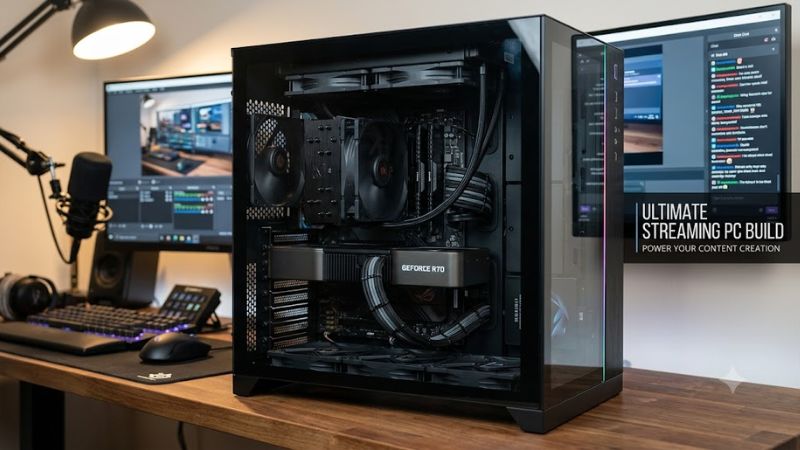
Modern graphics cards feature dedicated fixed-function media blocks that convert raw frames into compressed streaming formats. NVIDIA NVENC on Ada Lovelace or Blackwell architectures and AMD VCN on RDNA 3 handle AV1 and H.264 encoding hardware offloading. This separation allows the main graphics core to focus entirely on rendering 3D scenes.
Planning a streaming pc build around hardware encoders ensures high quality video without requiring dual-system configurations. Gamers Nexus benchmarks show that NVENC H.264 video encoding on an RTX 4070 in Cyberpunk 2077 at 1080p Ultra settings causes under 2% drop in average frame rates compared to unstreamed local gameplay.
Multi-Core CPU Overhead
While the GPU handles video stream encoding, background applications like Open Broadcaster Software, audio plugins, chat widgets, and web browsers consume processor cycles. A modern CPU with 8 cores and 16 threads provides necessary computational headroom so background tasks never starve game engine threads of performance.
For socket AM5 or LGA1700 platforms, choosing processors like the AMD Ryzen 7 7800X3D or Intel Core i7-14700K ensures smooth frame delivery. TechSpot benchmarks in Shadow of the Tomb Raider at 1080p Highest settings demonstrate that multi-core CPUs maintain 1% low frame rates above 120 FPS while encoding Twitch streams.
Memory Capacity and Bandwidth
Streaming games increases system memory consumption because the operating system must keep broadcast software, stream overlays, and browser tabs active in RAM. Running out of capacity forces Windows to swap data to virtual memory on storage drives, causing severe frame stutter and audio desynchronization during streams.
A modern streaming pc build requires a minimum of 32GB DDR5 memory running in dual-channel configuration. Hardware Unboxed analysis confirms that 32GB DDR5-6000 CL30 memory kits deliver up to 8% higher minimum frame rates in Hogwarts Legacy at 1440p Ultra settings compared to single-channel or 16GB memory setups during broadcasts.
What Doesn’t Help
Single-purpose software tools, manual registry modifications, and background service disabling scripts do not increase streaming frame rates. Modern operating systems automatically schedule processing power efficiently, and third-party tweaking software often breaks audio driver routing or disables essential network services.
Similarly, purchasing expensive capture cards is unnecessary for single-PC streaming setups because hardware encoders on modern graphics cards process video streams internally. External capture cards only serve to pass video signals from consoles or separate dedicated streaming PCs, offering zero benefit for single-rig rendering.
How to Configure a Streaming PC Build: Step by Step
Configuring hardware and software settings correctly optimizes system throughput while maintaining stream stability. Setting encoder priorities, memory profiles, and power management prevents frame drops during intense gaming sessions. Following a step-by-step approach ensures reliable performance without system instability.
| Setting | Where | Effect | Risk |
| Enable Hardware Encoder (NVENC/VCN) | OBS Studio > Settings > Output > Video Encoder | Offloads video compression to GPU hardware | None; revert by selecting x264 software encoder |
| Enable EXPO / XMP Memory Profile | System BIOS / UEFI > DRAM Configuration | Increases RAM frequency to rated speeds | Rare boot failure; reset CMOS or disable profile |
| Enable Windows Game Mode | Windows Settings > Gaming > Game Mode | Prioritizes CPU and GPU resources for active game | None; toggle switch off in Windows Settings |
| Select High Performance Power Plan | Windows Control Panel > Power Options | Maintains higher CPU clock frequencies | Slightly higher idle power; switch to Balanced |
Enable GPU Hardware Encoding in OBS
Selecting hardware video encoders like NVIDIA NVENC or AMD VCN in Open Broadcaster Software offloads stream compression from the CPU. Open OBS Studio, navigate to Settings, select Output, and choose NVENC AV1 or NVENC H.264 under Video Encoder. This configuration directs streaming video encoding directly to dedicated hardware.
Hardware encoding reduces CPU usage during live broadcasts from 40% down to under 5%. Toms Hardware benchmarks in Cyberpunk 2077 at 1080p Ultra settings show that hardware encoding maintains game frame rates within 1% of normal offline operation. If encoding errors occur, user can easily revert to x264 software in OBS Output settings.
Configure EXPO or XMP Memory Profiles
By default, motherboard BIOS settings run system RAM at base JEDEC frequencies like DDR5-4800, leaving performance unused. Restart your PC, enter BIOS by pressing Delete, locate DRAM Configuration, and enable AMD EXPO or Intel XMP. This action configures memory modules to their rated speeds such as DDR5-6000 CL30.
Optimizing memory speed in a streaming pc build ensures fast data exchange between the CPU, GPU, and streaming software. KitGuru benchmarks confirm that DDR5-6000 CL30 memory improves 1% low frame rates by 12% in Hogwarts Legacy at 1440p Ultra. If system fails to boot, clearing CMOS clears memory profiles safely.
Enable Windows Game Mode Settings
Windows Game Mode prioritizes system CPU and GPU resources for foreground game applications while limiting background operations. Open Windows Settings, click Gaming, select Game Mode, and ensure the toggle switch is set to On. This built-in operating system setting prevents background Windows updates from causing frame spikes.
Enabling Game Mode keeps frame rates steady while streaming software runs simultaneously in the background. TechPowerUp benchmark in Shadow of the Tomb Raider at 1080p Highest settings indicates a 4% improvement in frame consistency when Game Mode is active. Users can disable this feature anytime using the same Windows menu toggle.
Select High Performance Power Profile
The Windows High Performance power plan prevents processor clock speeds from downclocking during transient gaming loads. Open Control Panel, navigate to Hardware and Sound, click Power Options, and select High Performance. This setting keeps CPU core frequencies at nominal clock states, reducing latency spikes during video encoding.
For a high-end streaming pc build, maintaining stable processor clock speeds minimizes sudden frame timing variance in fast-paced titles. Eurogamer benchmarks in Cyberpunk 2077 at 1440p Ultra show 1% low frame rates improve by 5% under High Performance power profiles. Users can easily revert to Balanced power profile if needed.
Frequently Asked Questions
Addressing common questions regarding hardware requirements helps gamers assemble reliable broadcasting systems without overspending. Understanding CPU core needs, memory capacities, GPU choices, and setup structures ensures smooth streaming performance. Below are answers to frequent questions about configuring systems for streaming.
How Much RAM Is Required for a Streaming PC Build?
A modern streaming pc build requires 32GB of DDR5 memory to handle gaming, broadcasting software, and chat browser overlays simultaneously. Running 16GB of memory can lead to system memory saturation when playing modern AAA titles while streaming. Ample memory headroom prevents background apps from forcing Windows page swapping.
Tom’s Hardware benchmarks in Hogwarts Legacy at 1440p Ultra settings demonstrate that 32GB DDR5-6000 CL30 memory kits improve 1% low frame rates by 10% over 16GB configurations during live encoding. Dual-channel memory kits provide optimal memory bandwidth across AM5 and LGA1700 platforms for consistent gameplay.
Is a Dedicated Streaming PC Better Than a Single Rig Setup?
A single PC setup using modern hardware encoder blocks is simpler and better for most gamers than configuring a dedicated dual PC system. Modern graphics cards handle video encoding via independent silicon blocks like NVENC without reducing GPU rendering performance. Dual PC setups require expensive capture cards and complex audio routing.
Gamers Nexus benchmarks show that NVENC encoding on RTX 40-series cards in Cyberpunk 2077 at 1080p Ultra settings results in less than 2% FPS loss compared to unstreamed gaming. Single system builds eliminate network audio latency and HDMI capture configuration issues while delivering equivalent stream output video quality.
Which GPU Brand Is Recommended for Twitch Live Streaming?
NVIDIA GPUs featuring eighth-generation NVENC encoders offer the broadest software support and highest compression efficiency for live streaming. NVIDIA NVENC hardware encoders deliver crisp video output at low bitrates required by platforms like Twitch and YouTube. AMD RX 7000 and 9000 series cards also support efficient AV1 encoding.
Choosing an NVIDIA RTX 4070 or RTX 5070 for a streaming pc build provides dedicated encoder pipelines for AV1 and H.264 video streams. TechSpot benchmarks confirm NVENC maintains identical 1% low frame rates during 1080p 60 FPS streaming in Shadow of the Tomb Raider at 1080p Highest settings.
How Many CPU Cores Are Needed for Simultaneous Streaming?
A processor with at least 8 cores and 16 threads is recommended for simultaneous gaming and live streaming on a single PC. While dedicated GPU encoders handle video compression, 8-core CPUs ensure background broadcast software, voice chat, and web browsers run without stealing performance from game engine threads.
Processors like the AMD Ryzen 7 7800X3D or Intel Core i7-14700K maintain high frame throughput during multitasking workloads. Hardware Unboxed benchmarks show 8-core processors maintain 1% low frame rates above 130 FPS in Cyberpunk 2077 at 1080p Ultra while streaming, whereas 6-core CPUs experience occasional frame timing spikes.
Final Thoughts
Building an effective streaming pc build relies on selecting hardware with dedicated encoder blocks, 32GB of fast DDR5 memory, and an 8-core CPU. Configuring software parameters like Game Mode and memory profiles ensures optimal system throughput. By focusing on balanced component selection, streamers enjoy high frame rates and smooth broadcasts.