🛒 Best Price Today on Amazon
Prime members get fast, free shipping on everything above, plus member-only deals. New members get a 30-day free trial — cancel anytime.

Samsung 32" Odyssey (G55C) Series QHD 1000R Curved Gaming Monitor,
Included for 'Monitor for xbox series x: Complete Guide to Best Displays' as a relevant option in this category; details come from the product listing.
View on AmazonSelecting a monitor for xbox series x requires understanding specific display standards that match console hardware. The Xbox Series X outputs up to 4K resolution at 120Hz refresh rates with Variable Refresh Rate technology over HDMI 2.1. Standard computer displays designed solely for PC graphics cards often lack these specific console capabilities. Matching hardware specs guarantees high visual performance across every video game.
How to Choose a Monitor for Xbox Series X
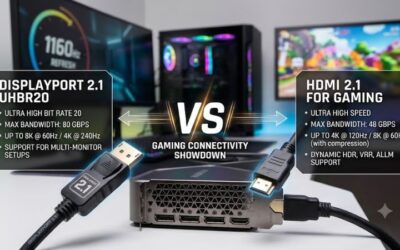
Display bandwidth forms the foundation of console visual fidelity. HDMI 2.1 delivers 48Gbps throughput, enabling uncompressed 4K signals at 120 frames per second directly from console hardware. HDMI 2.0 displays cap output at 4K 60Hz or 1440p 120Hz. Gamers seeking maximum frame rates must prioritize displays built with certified HDMI 2.1 inputs.
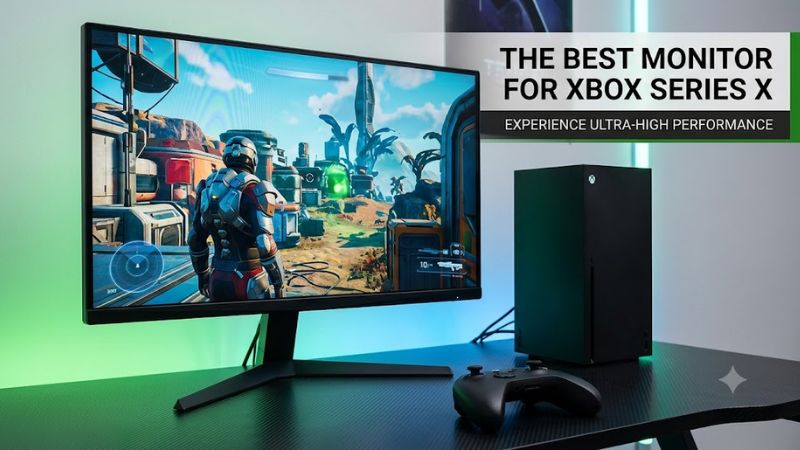
Color depth and high dynamic range require proper panel backlight technology. DisplayHDR 400 certifications provide minimal brightness increases, whereas DisplayHDR 600 or OLED panels offer true contrast. Quantum dot overlays and local dimming zones help eliminate washed-out dark areas in competitive titles. Evaluating peak brightness ratings ensures games maintain vivid highlights without losing shadow detail.
Console variable refresh rate systems require explicit AMD FreeSync Premium or HDMI VRR support. Without adaptive sync, action games suffer from screen tearing and stuttering when frame rates drop below targets. Monitors lacking console VRR forcing options may lock output to fixed refresh rates. Selecting displays with broad VRR windows maintains fluid motion under heavy rendering loads.
Ultrawide monitors measuring 21:9 or 32:9 aspect ratios do not work with console hardware. The console only supports standard 16:9 widescreen ratios, forcing ultrawide screens to display black side bars. Spending extra funds on ultra-curved ultra-wide panels yields no visual benefits for console gaming setups. Stick to traditional widescreen display dimensions for ideal pixel mapping.
Top Display Picks for Console Gaming
Finding a monitor for xbox series x requires balancing screen size, panel type, and budget. High-end OLED models offer instant response times, while IPS panels provide bright highlights and reliable color reproduction. The following display comparison outlines four distinct models tailored for current console capabilities across different price points and gaming environments.
| Product | Best For | Key Spec | Compatibility | Watch Out For |
| Gigabyte M32UC | Best Overall | 32-inch 4K 144Hz VA | HDMI 2.1 VRR | Narrow viewing angles |
| LG 27GR83Q | Best Value | 27-inch 1440p 240Hz IPS | HDMI 2.1 VRR | Moderate HDR contrast |
| Alienware AW3225QF | Enthusiast OLED | 32-inch 4K 240Hz QD-OLED | HDMI 2.1 eARC | Higher purchase cost |
| ASUS TUF VG27AQL3A | Budget Esports | 27-inch 1440p 180Hz IPS | HDMI 2.0 VRR | No 4K 120Hz support |
The Gigabyte M32UC delivers excellent balance for players seeking a 32-inch 4K screen. Its curved VA panel provides a 3000:1 contrast ratio, ensuring deep blacks in dark environments. Dual HDMI 2.1 ports allow full 4K 120Hz console output with active FreeSync Premium Pro. Casual and competitive players benefit from its sharp image quality and moderate pricing.
Viewing angle limitations make the M32UC less ideal for off-axis group viewing. Colors shift slightly when viewed from steep side angles due to VA panel traits. Gamers requiring perfect color consistency from any seating angle should consider IPS options instead. However, direct desk seating reveals exceptional picture depth for single-player adventure titles.
The LG 27GR83Q targets players focused on high frame rate competitive shooters. Its 27-inch IPS panel produces clear 1440p visuals while accepting downsampled 4K console signals. HDMI 2.1 integration allows seamless 120Hz operation with Variable Refresh Rate enabled. Low input lag keeps control response crisp during fast multiplayer matches.
Peak HDR performance remains modest on this panel due to edge-lit backlighting. SDR brightness excels, but HDR highlights lack the impact seen on local dimming or OLED displays. Players who prioritize high contrast HDR gaming over fast response rates might feel limited by standard IPS depth. It remains an exceptional high-value choice for esports players.
The Alienware AW3225QF represents peak display engineering with its QD-OLED panel. Infinite contrast ratios and true black levels transform native 4K console visuals. Full 48Gbps HDMI 2.1 bandwidth supports 4K 120Hz gaming alongside Dolby Vision HDR processing. Near-instant pixel response time eliminates motion blur in fast action scenes.
High purchase costs make this monitor a serious financial investment. Bright rooms with direct sunlight can cause ambient light reflections on glossy screen coatings. Users who play primarily in bright environments without light control may not experience maximum black levels. Dedicated night gaming setups unlock its full picture potential.
The ASUS TUF VG27AQL3A serves as an accessible entry point for fast 1440p gaming. It accepts console signals up to 1440p at 120Hz over HDMI 2.0 connection ports. Rapid IPS panel response keeps competitive titles clear without ghosting artifacts. Robust stand ergonomics allow smooth height and tilt adjustments on small desks.
Lacking HDMI 2.1 bandwidth prevents this display from accepting native 4K 120Hz video signals. Players must choose between 4K 60Hz or 1440p 120Hz inside system video settings. Gamers demanding native 4K resolution alongside high frame rates must look toward higher tier displays. Budget-conscious esports competitors will appreciate its low latency performance.
Console Video Settings and Troubleshooting
Configuring a monitor for xbox series x involves adjusting internal dashboard menus. Navigate to Profile and System, choose Settings, then select TV and Display Options. Under the Resolution dropdown, select 4K UHD or 1440p depending on panel specs. Set the Refresh Rate option to 120Hz to allow high frame rate output in supported titles.
Dashboard diagnostic tools help verify current display feature compatibility. Opening the 4K TV Details menu reveals green checkmarks next to supported resolution modes. If 4K 120Hz shows an error, check that the HDMI cable connects to an HDMI 2.1 port. Certain monitors restrict full bandwidth to specific primary inputs.
Enabling Variable Refresh Rate fixes screen tearing across demanding titles. Inside Video Modes settings, place a checkmark next to Allow Variable Refresh Rate. Ensure the monitor internal OSD menu has FreeSync or Adaptive-Sync turned on simultaneously. Mismatched menu toggles can cause screen flickering or default video dropouts.
Console audio setup requires attention when connecting monitors without built-in speakers. Monitors process audio signals through HDMI and pass them to 3.5mm headphone jacks or optical converters. Selecting Stereo Uncompressed inside Console Audio Settings avoids latency issues. Users seeking spatial sound can enable Dolby Atmos for Headphones through system software.
Final Thoughts
Finding the right monitor for xbox series x comes down to matching console output modes with appropriate panel hardware. HDMI 2.1 connectors unlock native 4K 120Hz gaming, while 1440p IPS displays offer high performance at lower costs. Verifying port specs and adaptive sync compatibility ensures smooth gameplay across all your favorite titles.