Proper thermal care keeps gaming desktop performance steady across demanding titles. Following a structured pc maintenance guide prevents unexpected thermal throttling when running heavy modern titles like Cyberpunk 2077. Regular removal of debris and driver updates ensure hardware operates efficiently without premature wear.
What PC Maintenance Really Comes Down To
Maintaining a system requires understanding how physical contamination and software bloat degrade performance over time. Heat buildup inside the computer case directly impacts clock speeds, while corrupted storage entries cause stuttering. Addressing these core factors creates a stable environment for long sessions.
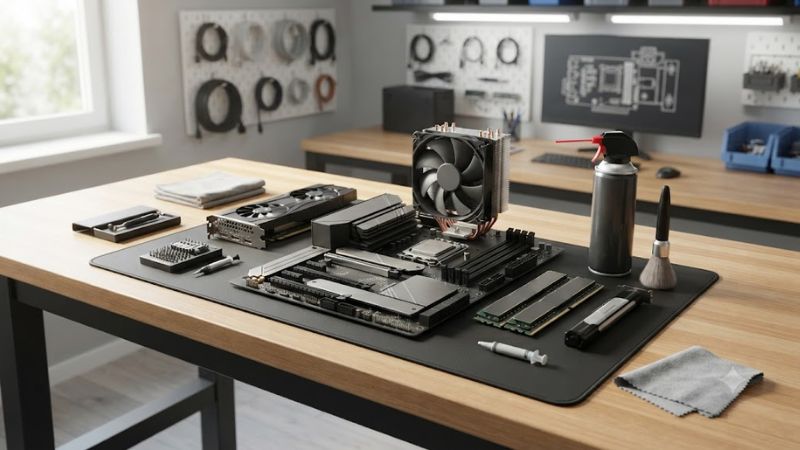
Thermal Throttling and Dust Accumulation
Dust acts as a thermal insulator when it settles on heatsink fins and radiator grids. As airflow becomes restricted, component temperatures rise rapidly during heavy gaming loads. According to Hardware Unboxed benchmarks on an Intel Core i7-14700K at 1440p high settings, heavy dust increases CPU temperatures from 68C to 84C.
When temperatures cross safe thresholds, processors drop clock speeds to protect internal silicon from damage. This thermal throttling causes sudden drops in frame rates and micro-stuttering during gameplay. Keeping cooling surfaces clear allows fans to run at lower speeds while maintaining target boost clocks consistently.
Airflow Dynamics and Fan Care
Proper intake and exhaust balances ensure positive internal air pressure within the chassis. Dust filters on intake vents capture larger particles before they reach delicate circuit boards. Applying this pc maintenance guide concept prevents debris accumulation on the graphics card shroud and motherboard power phases.
Cooling fans suffer mechanical stress when dust builds up on blade edges or bearing hubs. Unbalanced blades cause vibration, leading to premature bearing failure and excessive acoustic noise. Cleaning fan blades with a dry microfiber cloth preserves smooth rotation and maintains original manufacturer airflow specifications.
Driver Hygiene and Storage Health
Outdated display drivers often cause stability issues and frame pacing irregularities in newer titles. NVIDIA and AMD release driver updates containing game-specific optimizations and bug fixes. Performing clean driver installations using Display Driver Uninstaller prevents lingering configuration conflict errors.
Solid-state drives require adequate free capacity to maintain fast read and write speeds across sessions. Filling an NVMe drive beyond ninety percent capacity degrades write performance due to block management overhead. Deleting temporary files and trimming drive blocks keeps storage responsive for quick game loads.
What Does Not Help PC Maintenance
Automated registry cleaners and system boosters often modify critical system files without delivering performance gains. These utilities frequently background processes that consume system memory and processor cycles. Modern Windows operating systems manage system registries efficiently without external interference.
Disabling core telemetry services or running aggressive RAM cleaner scripts does not improve gaming frame rates. Third-party memory cleaners force active memory pages into storage paging files, causing severe stuttering when games reload assets. Using a valid pc maintenance guide focuses strictly on verified hardware care.
How to Maintain Your PC: Step by Step
Executing routine system care systematically prevents hardware damage and maintains optimal operating conditions. Following structured steps ensures that physical cleaning and software management occur safely without risking sensitive electronics. Use the following guide table and detailed steps for regular upkeep.
| Setting | Where | Effect | Risk | How to Undo | | Filter Cleaning | Front & Bottom Vents | Restores Intake Airflow | Low | Reinstall Filter | | Dust Blowout | Heatsinks & Fans | Reduces Core Temps | Low | No Action Needed | | Driver Refresh | Windows Safe Mode | Resolves Driver Bugs | Low | Roll Back Driver | | Storage Trim | Windows Storage Menu | Maintains NVMe Speed | Very Low | Re-enable Schedule |
Cleaning Case Dust Filters
Removable dust filters protect intake fans from pulling room debris into the desktop chassis. Referencing a pc maintenance guide for filter cleaning every month keeps internal airflow unrestricted. Slide or lift magnetic mesh filters off the case exterior, then wipe them down using a dry microfiber cloth or compressed air.
Never reattach washable filters until they are completely dry to prevent moisture from entering electrical components. Clean intake filters allow fans to draw cool air efficiently, reducing overall system temperatures. Checking bottom power supply filters prevents power supply unit overheating and sudden power shutoffs under load.
Clearing Dust From Heatsinks and Fans
Shut down the system completely, turn off the power supply switch, and disconnect the main power cable before opening the chassis. Hold fan blades still while directing short bursts of compressed air through radiator fins and heatsinks. Letting fans spin freely from compressed air can generate reverse voltage and damage fan headers.
Direct compressed air outward from inside the chassis to push dust away from delicate electrical contacts. Pay special attention to graphics card cooling fins and the CPU cooler tower where dust packs tightly. Maintaining clear heatsink channels ensures maximum surface area contact between air and metal cooling fins.
Updating Display Drivers Safely
Obtain official graphics drivers directly from NVIDIA or AMD websites rather than third-party download portals. Running Display Driver Uninstaller in Windows Safe Mode removes residual files from previous installations cleanly. This process prevents driver corruption that causes black screens or game crashes in DirectX 12 titles.
Install the newly downloaded graphics driver package using express settings to refresh system display files. Following this pc maintenance guide step ensures that new game profiles and stability patches apply properly. Re-enable customized graphics settings inside your control panel after the driver installation finishes.
Managing System Storage and Drive Health
Open Windows Settings and navigate to Storage to review installed applications and temporary system files. Use the built-in Storage Sense feature to clear temporary updates and emptied recycle bin contents automatically. Removing unneeded game installations frees storage blocks required for efficient solid-state drive operation.
Run the native Windows Optimize Drives tool to execute a manual TRIM command on solid-state storage. TRIM informs the SSD controller which memory blocks are free for writing, maintaining fast file write speeds. Avoid defragmenting solid-state drives, as defragmentation causes unnecessary write wear without performance benefits.
Frequently Asked Questions
Understanding maintenance frequency and monitoring tools helps keep desktop hardware running reliably over many years. Addressing common questions clarifies safe cleaning procedures and software practices for daily gaming setups. Read these responses to resolve typical system maintenance concerns without risking hardware.
How Often Should You Clean Dust From a PC?
Clean dust filters every month and perform a full internal compressed air blowout every six months. Systems placed on carpets or in homes with pets require more frequent filter inspection to prevent intake blockages. Regular cleaning schedules prevent dust from packing tightly between radiator fins and fan blade edges.
Monitoring system idle and load temperatures provides a clear indicator of when cleaning becomes necessary. If CPU idle temperatures rise significantly above normal ranges, dust accumulation is likely restricting radiator airflow. Keeping a consistent schedule preserves low ambient case temperatures and quiet fan operation.
Can Compressed Air Damage Computer Components?
Compressed air will not damage electronics if canned cans are held upright and fan blades are held stationary. Using a pc maintenance guide prevents liquid propellant from spraying onto circuit boards when spraying air. Short controlled bursts from an upright can safely dislodge dust without exposing hardware to moisture.
Holding fan blades stationary prevents high RPM rotation that can strain fan bearings or send electrical current back into fan headers on the motherboard. Avoid using household vacuum cleaners, as vacuum nozzles build static charge that damages sensitive integrated circuits. Canned compressed air remains the safest option.
When Should CPU Thermal Paste Be Replaced?
Replace CPU thermal paste every three to five years or whenever component temperatures remain unusually high after cleaning. High-quality thermal compound maintains thermal conductivity across several years of daily heat cycles. Reapplying paste is unnecessary unless you remove the cooler or observe persistent thermal throttling.
Clean off dried thermal compound using ninety-nine percent isopropyl alcohol and a lint-free cloth before applying new paste. Apply a small pea-sized dot of fresh thermal compound to the center of the CPU integrated heat spreader. Tighten heatsink mounting screws evenly in a cross pattern to ensure uniform thermal compound spread.
What Temperature Range Is Safe During Gaming?
Safe gaming temperatures range between sixty and eighty-five degrees Celsius for both CPU and graphics components. Modern processors automatically manage boost clocks to remain within safe thermal envelopes during extended workloads. Sustained load temperatures exceeding ninety degrees Celsius signal inadequate airflow or cooler contact.
Track hardware thermals using trusted monitoring applications like HWiNFO64 or MSI Afterburner during heavy gaming sessions. Utilizing this pc maintenance guide protocol helps you identify temperature spikes early before performance degradation occurs. Maintaining temperatures below eighty degrees extends component lifespan significantly.
Final Thoughts
Maintaining a gaming desktop through routine physical cleaning and software upkeep preserves component stability and peak performance. Applying this pc maintenance guide systematically prevents thermal throttling, lowers fan noise, and extends system lifespan. Regular attention to airflow and drivers keeps your rig running reliably.