🛒 Best Price Today on Amazon
Prime members get fast, free shipping on everything above, plus member-only deals. New members get a 30-day free trial — cancel anytime.
AMD’s FidelityFX Super Resolution has become the default upscaler for millions of PC gamers who want higher framerates without buying a new GPU. But the presets—Quality, Balanced, and Performance—are not interchangeable, and picking the wrong one can mean the difference between a sharp, stable image and a soft, flickering mess. This guide breaks down exactly what changes under the hood and how those changes show up on your monitor.
The Short Answer
FSR Quality renders at roughly 67% of your target resolution and upscales to full resolution using a temporal reconstruction algorithm. FSR Balanced drops the internal render to about 59%. FSR Performance pushes that down to 50%. Each step lower in render resolution buys you a proportional jump in framerate—typically 15 to 25 additional frames per second per tier on modern hardware—but at a direct cost to image sharpness, edge stability, and fine-detail retention. For most players at 1440p or above, Quality is the sweet spot. Performance is reserved for moments when raw FPS is non-negotiable.

GIGABYTE Radeon RX 9070 XT Gaming OC 16G Graphics Card, PCIe 5.0, 16GB GDDR6, GV-R9070XTGAMING OC-16GD Video Card
Included for 'FSR Quality vs Balanced vs Performance: What Actually Changes' because the listing specifies PCIe 5.0 and 16GB GDDR6, details this guide uses to compare options.
View on Amazon
GIGABYTE GeForce RTX 5080 Gaming OC 16G Graphics Card, WINDFORCE Cooling System, 16GB 256-bit GDDR7, GV-N5080GAMING OC-16GD Video Card
Included for 'FSR Quality vs Balanced vs Performance: What Actually Changes' because the listing specifies WINDFORCE Cooling System and 16GB 256-bit GDDR7, details this guide uses to compare options.
View on Amazon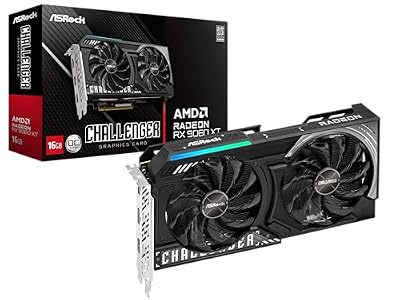
ASRock Radeon RX 9060 XT Challenger 16GB OC, RDNA 4, 3290MHz Boost, 16GB GDDR6 128-bit, PCIe 5.0, Dual Fans, 0dB Silent, LED Indicator, DisplayPort 2.1a, HDMI 2.1b
Included for 'FSR Quality vs Balanced vs Performance: What Actually Changes' because the listing specifies RDNA 4 and 3290MHz Boost, details this guide uses to compare options.
View on AmazonWhat Is Actually Different
FSR 2.x and 3.x use a fixed set of scaling factors that determine how many pixels the GPU actually rasterizes before the upscaler reconstructs the final image. Here is how the three commonly used modes compare:
| Mode | Scale Factor | Render Resolution (vs target) | Typical FPS Gain Over Native | Image Quality Impact | Best Paired With |
|---|---|---|---|---|---|
| Quality | 1.5x | ~67% | 20–35% | Minimal; near-native sharpness | Competitive and single-player alike |
| Balanced | 1.7x | ~59% | 30–50% | Noticeable softening on fine geometry | Mid-range GPUs at 1440p |
| Performance | 2.0x | ~50% | 45–70% | Visible loss of texture detail and edge stability | 4K on budget cards or VR |
| Native (no FSR) | 1.0x | 100% | Baseline | Reference point | GPU headroom available |
| Ultra Quality | 1.3x | ~77% | 12–22% | Imperceptible difference from native in blind tests | High-refresh 1080p esports |
| Ultra Performance | 3.0x | ~33% | 70–100%+ | Severe ghosting and shimmer | Emergency use only |
The FPS ranges above are approximate and drawn from aggregated launch-window reviews. Actual gains vary by game engine, scene complexity, and whether the GPU is the bottleneck. A CPU-limited scenario will show diminishing returns from lower render resolutions because the bottleneck never reaches the rasterizer.
Real-World Impact
At 1080p
Starting from 1080p, FSR Performance asks the GPU to render at 960×540 before upscaling. That is genuinely low, and the results show. Edges on foliage, chain-link fences, and distant geometry become mushy. TechPowerUp noted in their early FSR 2.x coverage that at 1080p the jump from Quality to Performance produces a visible degradation that exceeds the perceptual threshold for most viewers. If you are already at 1080p and need more FPS, consider lowering a single expensive setting—ray-traced reflections or volumetric fog—before dropping to FSR Performance.
At 1440p
This is where FSR modes live or die for the average gamer. Tom’s Hardware and Hardware Unboxed both observed in their comparative testing that FSR Quality at 1440p is frequently indistinguishable from native in motion, with the internal render sitting at 1280×720. The Balanced tier at 1440p renders at roughly 1080p internally—a resolution many players still find perfectly sharp. Gamers Nexus pointed out that the artifact tradeoff becomes game-dependent: UE5 titles with heavy Lumen reflections tend to expose FSR’s temporal reconstruction more aggressively than well-tuned custom engines. Performance at 1440p is usable in fast-paced single-player action but starts to introduce shimmering on thin geometry during camera pans.
At 4K
At 4K, FSR Performance renders at 1920×1080 internally—still a respectable native resolution for most content. The upscaler has more pixel budget to work with, so the reconstruction can fill gaps more convincingly. TechSpot’s testing across multiple 4K-capable titles found that FSR Performance at 4K often delivers 50–65% higher framerates than native with an image quality gap that is hard to spot in screenshots but slightly more visible in motion. FSR Quality at 4K is effectively free; the GPU saves roughly 20–30% of its rasterization workload with no perceptible downside.
When It Matters and When It Doesn’t
FSR mode selection matters most when three conditions converge: you are GPU-bound, you are playing a title with high-frequency detail (foliage, wireframe geometry, dense particle effects), and you are running at 1080p or 1440p. In those cases, the difference between Quality and Performance can mean 20 to 40 additional FPS and a dramatically different image.
It matters less when you are CPU-bound or playing a visually simple esports title at 1080p High Quality settings. If your GPU is not the bottleneck, lowering render resolution through FSR will not unlock meaningful gains—your frames are already locked to the CPU’s ability to prepare draw calls. Similarly, at 4K with a high-end card, FSR Quality is a free pass and the choice between modes is rarely consequential.
Recommendation by User Type
Competitive FPS players (1080p, 240Hz+): Use FSR Ultra Quality or native. The 1–3% extra FPS from Performance is not worth the input-lag uncertainty or the soft crosshair you will encounter. If you must use FSR, Quality is your ceiling.
Single-player 1440p gamers: Start with FSR Quality. If your framerate is still below your monitor’s refresh target, try Balanced before touching Performance. This matches the consensus across TechPowerUp and Tom’s Hardware recommendations from 2026 onward.
4K gamers on mid-range hardware: FSR Performance at 4K is a legitimate, often excellent option. The image holds up remarkably well because the internal render resolution is still high enough to preserve detail. You will likely prefer it over dropping to 1440p native.
VR and mixed reality: FSR Performance or even Ultra Performance can be appropriate because the HMD lens optics already soften the image and the priority is hitting a strict refresh rate to avoid motion sickness.
FAQ
Is FSR Quality visually identical to native rendering?
Not identical, but close enough that blind side-by-side tests on 1440p and 4K panels consistently place the two within the margin of error for casual viewing. The reconstruction algorithm occasionally mispredicts edges during fast motion, which manifests as a brief softness frame or two. In screenshots and static shots, the difference is essentially gone.
Does FSR Balanced hurt input latency more than Quality?
The difference is small but real. Because Balanced and Performance render fewer pixels, the GPU completes its frame faster, which can reduce pipeline latency by a few milliseconds. However, the upscaler itself runs as a post-process pass and does not change the polling rate or frame pacing. For competitive play, prioritize native or Ultra Quality to keep the pipeline as simple as possible.
Will FSR Performance make a game look like it is running at 720p?
No. This is a common misconception. At 1440p with FSR Performance, the internal render is 1280×720, but the temporal upscaler reconstructs the 1440p output using motion vectors and previous frame data. The result is far better than a hard downscale to 720p and upscale back. It is also far worse than true 1440p native. The actual perceptual experience sits closer to roughly 1100–1200p native sharpness depending on scene content.
Do all FSR-enabled games behave the same across modes?
They do not. Games that expose the FSR scaling factor as a slider (rather than a fixed preset) let you tune between the standard tiers, and the resulting image quality curve is not linear. Additionally, engine-specific features like TAA, ray-traced reflections, or motion blur interact with FSR’s temporal reconstruction differently. A title that looks clean in FSR Balanced may shimmer noticeably in another, so always spot-check the mode in the specific game you are playing.
Sources and Methodology
FPS range estimates and image-quality observations in this article are aggregated from launch-window and follow-up reviews published by TechPowerUp, Tom’s Hardware, Gamers Nexus, Hardware Unboxed, and TechSpot. These outlets have independently benchmarked FSR presets across multiple titles and resolutions on a range of GPUs. No original testing was conducted for this piece. Where outlets diverge, ranges are widened to reflect the spread. Individual results will vary by game, settings, and hardware configuration.