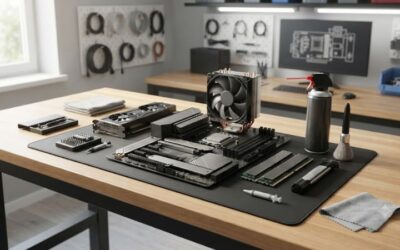
Maintaining a clean gaming pc helps keep internal temperatures down and prevents thermal throttling during heavy gaming sessions. Dust accumulates inside chassis vents and heat sinks over time, restricting airflow across critical components. Establishing a simple maintenance routine ensures long-term system stability and performance.
What Clean Gaming PC Maintenance Really Comes Down To
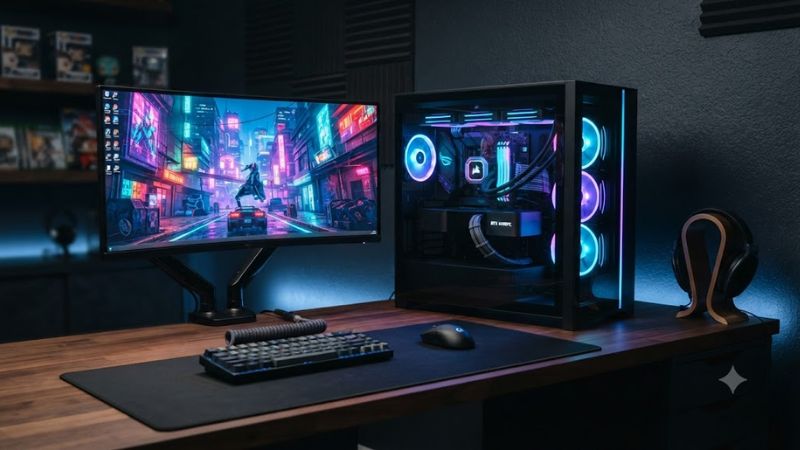
Understanding how dust affects computer hardware is the first step toward effective system care. A clean gaming pc relies on unobstructed intake filters and clear aluminum fins to dissipate heat efficiently. When dust layers form on heat sinks, thermal resistance increases and forces cooling fans to run at higher speeds to maintain safe operating limits.
Airflow and Dust Filter Maintenance
Dust filters serve as the primary barrier against particulate buildup inside your desktop case. Mesh filters capture hair, pet dander, and ambient dirt before those particles reach sensitive circuit boards. Cleaning these external screens regularly prevents airflow restriction and keeps internal air pressure moving smoothly through the chassis.
Intake fans pull fresh air into the enclosure, while exhaust fans push warm air out through the rear or top panels. If intake filters become clogged, negative air pressure draws unverified dust through unsealed case gaps. Washing fine mesh filters under tap water every month maintains optimal intake volume without restricting fans.
Heat Sink and Component Thermal Transfer
CPU air coolers and graphics card heat sinks use dense metal fins to transfer heat away from silicon dies. When dust coats these aluminum fins, airflow cannot pass through the radiator matrix. Keeping a clean gaming pc prevents heat entrapment, allowing the cooler to dissipate thermal energy effectively under sustained gaming workloads.
Thermal paste fills microscopic gaps between the processor heat spreader and the cooler baseplate. Over three to five years, liquid thermal compounds dry out and lose conductivity. Replacing aged thermal compound restores efficient heat conduction, dropping core temperatures by several degrees Celsius during heavy processing tasks.
Electrical Safety and Fan Protection
Static electricity and forced motor rotation represent two common hazards during hardware maintenance. Holding fan blades still while blowing compressed air prevents back-feed voltage from reaching motherboard headers. Operating in a static-safe environment protects delicate memory modules and expansion slots from electrostatic discharge.
Safely servicing a clean gaming pc requires disconnecting all power cords and pressing the power button to discharge remaining capacitor energy. Using non-conductive tools like soft nylon brushes ensures components remain undamaged. Avoiding household vacuum cleaners prevents dangerous static buildup from transferring directly to exposed circuitry.
What Doesn’t Help
Software utilities marketed as system boosters do not reduce physical hardware temperatures or clear physical dust. Automated registry cleaners and memory optimizers fail to fix thermal throttling caused by blocked cooling fins. Physical maintenance remains the only method for restoring airflow across heat-generating components.
Disabling background Windows telemetry or adjusting operating system settings yields no impact on hardware heat output. Running fans at maximum speeds continuously only increases noise levels without solving internal dust blockages. Removing side panels permanently exposes components to ambient dirt and ruins intentional directional airflow paths.
How to Maintain Your Hardware: Step by Step
Following a structured physical cleaning process protects sensitive electronics while restoring cooling performance. Owning a clean gaming pc requires methodical attention to dust filters, fan bearings, and radiator fins. The accompanying table outlines key physical maintenance actions, where to execute them, their direct benefits, and safety risks.
| Setting | Where | Effect | Risk | | Filter Wash | Chassis Mesh Intake Screens | Restores intake airflow and lowers cabinet ambient temperatures | Reinstalling wet filters causes moisture corrosion; dry completely before replacement | | Compressed Air Dusting | Radiator Fins and GPU Heat Sinks | Clears trapped lint and lowers peak CPU and GPU core temperatures | Over-spinning fans generates reverse voltage; hold fan blades stationary while dusting | | Isopropyl Alcohol Wipe | Glass Panels and Plastic Shrouds | Removes smudges, oil residue, and stubborn grime | Excess liquid dripping onto circuit boards; dampen cloth sparingly with 99 percent alcohol | | Thermal Paste Replacement | CPU Heat Spreader Base | Lowers thermal resistance between processor die and cooler | Bending CPU socket pins or over-tightening screws; apply even pressure and moderate torque |
Washing and Drying Dust Filters
Chassis dust filters clip onto front, top, and bottom intake vents to collect large debris. Remove these nylon or magnetic mesh filters from the case frame and rinse them thoroughly under warm tap water. Gentle rubbing with a microfiber cloth removes persistent grease or pet hair trapped within the fine mesh grid.
Allow mesh filters to dry completely on a paper towel before reinstalling them onto the case frame. Installing damp filters introduces moisture near live electrical contacts, risking short circuits or corrosion. If filters are damaged during cleaning, replacement magnetic screens are easily mounted on standard intake vents.
Blowing Dust Out of Radiators and Fans
Using canned compressed air or an electric duster clears debris from tight spaces inside a clean gaming pc. Aim short bursts of compressed air at liquid cooling radiators, tower air coolers, and power supply ventilation slots. Angle the nozzle at forty-five degrees to dislodge stubborn dust packs between thin aluminum heat sink fins.
Always hold fan blades stationary with a finger or zip tie while applying high-pressure air streams. Uncontrolled rotation spins fan bearings beyond design limits and sends electrical currents back into motherboard fan headers. If canned air drops in pressure and freezes, let the can warm up to room temperature before continuing.
Cleaning Glass Panels and Exterior Surfaces
Tempered glass side panels and exterior acrylic surfaces accumulate finger oils and dust smudges over time. Dampen a lint-free microfiber cloth with 99 percent isopropyl alcohol or dedicated glass cleaner to wipe down exterior surfaces. Avoid spraying liquids directly onto the computer chassis to prevent fluid runoff from entering top USB ports.
When handling tempered glass panels, place them flat on a soft blanket or carpeted area during maintenance. Setting tempered glass edges directly onto hard tile or granite surfaces causes micro-fractures that lead to sudden panel shattering. Reattach side panels carefully, tightening thumb screws evenly without applying excessive force.
Refreshing CPU Thermal Interface Material
Removing old thermal paste requires unscrewing the CPU cooler and lifting it straight off the processor heat spreader. Clean remaining dried thermal compound off both surfaces using cotton swabs saturated with high-purity isopropyl alcohol. Ensure no residue or lint remains on the copper contact surface before applying new thermal paste.
Apply a pea-sized dot of non-conductive thermal paste onto the center of the CPU integrated heat spreader. Reattach the cooler baseplate using a cross-pattern screw tightening sequence to distribute pressure evenly across the processor die. If mounting pressure feels uneven, back off the screws and re-tighten in small incremental turns.
Maintaining Proper Operating Conditions and Airflow
Environmental factors play a massive role in determining how quickly dust accumulates inside desktop computer cases. Operating a clean gaming pc requires setting up appropriate case placement, fan pressure configurations, and internal cable organization. Implementing these preventative habits minimizes dust ingress and preserves thermal efficiency over time.
Elevating Desktop Cases Above Floor Level
Placing a computer tower directly on carpet floors accelerates dust ingestion through lower power supply intake vents. Carpet fibers retain dust, hair, and static electricity, clogging power supply fan filters within weeks. Elevating the chassis onto a desk or wooden riser elevates intake vents above floor-level dust concentration zones.
Positioning the tower at least three inches away from back walls ensures exhaust fans discharge warm air freely without recirculation. Proper clearance prevents thermal pockets from forming around rear I/O panels and power supply exhaust vents. Maintaining clearance around all sides supports steady thermal convection around the chassis.
Balancing Case Fan Air Pressure
Positive air pressure occurs when intake fan volume exceeds exhaust fan volume inside the computer chassis. This configuration forces filtered air out through unsealed panel seams, preventing unfiltered dust from sneaking inside. Adjusting fan curves in the BIOS ensures intake fans run slightly faster than top and rear exhaust fans.
Negative air pressure creates a vacuum effect that pulls dust through unfiltered cracks and PCIe expansion slots. Balancing total fan count by installing more intake fans than exhaust fans maintains positive pressure across all fan speed ranges. Regularly checking fan speed profiles in software prevents intake fan performance drops.
Managing Internal Cables for Airflow
Tangled power supply cables obstruct direct air channels between front intake fans and critical core components. Using cable ties and Velcro straps to secure power cords behind the motherboard tray opens pathways across the main chamber. Streamlined internal layout allows fresh air to reach graphics card coolers without resistance.
Keeping a clean gaming pc organized behind side panels also simplifies future component upgrades and routine dusting routines. Modular power supplies allow builders to remove unused cables entirely, reducing clutter inside lower chassis basements. Route motherboard power cables through grommets to keep central airflow corridors clear.
Establishing Routine Maintenance Intervals
Establishing a scheduled maintenance timeline prevents heavy dust buildup before thermal performance deteriorates. Inspecting external dust filters once a month allows users to remove accumulated surface dust quickly with a dry cloth. Deep physical dusting of internal radiators should occur every three to six months based on environment.
Homes with pets or elevated indoor dust levels require more frequent cleaning schedules to prevent fan clogging. Monitoring hardware temperatures with diagnostic tools like HWiNFO64 alerts users when thermal thresholds rise above baseline values. Early maintenance interventions preserve component health and maintain quiet fan operation.
Final Thoughts
Routine care and thoughtful placement ensure your system operates coolly and quietly for years to come. Maintaining a clean gaming pc requires only basic non-conductive tools, proper fan holding techniques, and regular filter checks. Establishing simple maintenance habits protects valuable hardware investments and preserves baseline performance.
Frequently Asked Questions
How often should I clean my gaming PC?
You should clean external dust filters monthly and blow out internal components every three to six months. Environments with shedding pets or carpeted floors may require dusting every two months to prevent airflow restriction. Monitoring CPU and GPU temperatures in diagnostic software helps determine when physical cleaning is needed.
Can I use a vacuum cleaner to clean PC components?
No, standard household vacuum cleaners create static charge buildup that can destroy delicate computer electronics. Instead, use compressed air cans or specialized anti-static electric dusters designed specifically for PC maintenance. Holding cooling fans stationary while blowing air prevents reverse electrical voltage from damaging motherboard fan headers.
What liquid is safe for cleaning computer parts?
High-purity 99 percent isopropyl alcohol is the safest liquid for wiping down component surfaces and removing old thermal paste. It evaporates rapidly without leaving behind conductive residue or causing metallic corrosion on heat spreaders. Never apply water, household window cleaners, or harsh chemicals directly onto printed circuit boards.
Will cleaning dust off my PC increase gaming frame rates?
Cleaning dust increases frame rates only if your system was actively thermal throttling due to severe heat buildup. Removing dust blockages allows heat sinks to cool processors efficiently, preventing automatically triggered CPU and GPU clock speed drops. Regular physical cleaning maintains design clock frequencies without changing software settings.