🛒 Best Price Today on Amazon
Prime members get fast, free shipping on everything above, plus member-only deals. New members get a 30-day free trial — cancel anytime.
DLSS has become one of the most consequential technologies in modern PC gaming, but the three primary modes—Quality, Balanced, and Performance—remain poorly understood by a surprising number of players. Choosing the wrong one can leave you with visible artifacts at a resolution where a different preset would have delivered a sharper image and nearly identical frame rates. This guide breaks down exactly what changes between the presets, how the differences play out at each resolution, and what you should be using based on your hardware and display.
The Short Answer
DLSS Quality renders the game at roughly 67% of native resolution and upscales it, prioritizing image fidelity over frame-rate gain. Balanced renders at approximately 58% of native resolution, splitting the difference. Performance drops to about 50% of native resolution, maximizing frame rate at the cost of some sharpness. For most players on a 1440p monitor with mid-to-high-end hardware, Quality is the default choice because the visual penalty is minimal and the performance uplift is still substantial. Performance mode makes the most sense at 4K on older or lower-tier GPUs. At 1080p, the gaps between presets are often small enough that Balanced or Quality will serve you well regardless.

GIGABYTE Radeon RX 9070 XT Gaming OC 16G Graphics Card, PCIe 5.0, 16GB GDDR6, GV-R9070XTGAMING OC-16GD Video Card
Included for 'DLSS Quality vs Balanced vs Performance: What Actually Changes' because the listing specifies PCIe 5.0 and 16GB GDDR6, details this guide uses to compare options.
View on Amazon
GIGABYTE GeForce RTX 5080 Gaming OC 16G Graphics Card, WINDFORCE Cooling System, 16GB 256-bit GDDR7, GV-N5080GAMING OC-16GD Video Card
Included for 'DLSS Quality vs Balanced vs Performance: What Actually Changes' because the listing specifies WINDFORCE Cooling System and 16GB 256-bit GDDR7, details this guide uses to compare options.
View on Amazon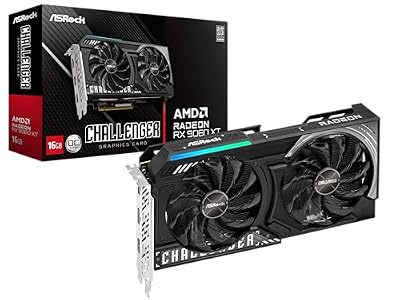
ASRock Radeon RX 9060 XT Challenger 16GB OC, RDNA 4, 3290MHz Boost, 16GB GDDR6 128-bit, PCIe 5.0, Dual Fans, 0dB Silent, LED Indicator, DisplayPort 2.1a, HDMI 2.1b
Included for 'DLSS Quality vs Balanced vs Performance: What Actually Changes' because the listing specifies RDNA 4 and 3290MHz Boost, details this guide uses to compare options.
View on AmazonWhat Is Actually Different
The three presets differ in render resolution, upscaling ratio, and the degree to which the neural network has to reconstruct missing detail. A lower render resolution means fewer pixels to process per frame, which directly reduces GPU load. However, it also means the AI model must hallucinate more image data, which increases the risk of ghosting, shimmering on fine geometry, and softness in distant detail.
| Preset | Render Resolution (% of native) | Upscale Factor | Typical FPS Gain vs Native | Visual Quality Impact | Best Resolution Fit | GPU Load Reduction | Common Artifacts |
|---|---|---|---|---|---|---|---|
| Quality | ~67% | 1.5x | Approx. 25-40% | Minimal; near-native sharpness at 4K | 1080p, 1440p | Moderate | Faint edge softening in motion |
| Balanced | ~58% | ~1.7x | Approx. 40-60% | Slight; barely visible on moving scenes | 1440p, 4K | Moderate-high | Mild shimmer on foliage at 1080p |
| Performance | ~50% | 2.0x | Approx. 55-80% | Moderate; softness becomes apparent | 4K | High | Ghosting on fast camera pans, UI blur |
| Ultra Performance | ~33% | 3.0x | Approx. 70-100%+ | Significant; often unacceptable | 8K (theoretical) | Very high | Heavy softening, persistent ghosting |
| Native (comparison) | 100% | 1.0x | Baseline (0%) | Reference standard | Any | None | None |
| DLAA (adjacent mode) | 100% | 1.0x | Slight negative (0 to -5%) | Exceeds native TAA in clarity | 1080p, 1440p | Marginal overhead | Rare temporal instability |
| Frame Generation (layered) | Varies with preset | Same as base preset | Adds 30-50% on top of base preset gain | Same as base preset; no added artifacts | Any with sufficient base FPS | Moderate VRAM increase | Minor UI latency if base FPS is low |
Frame-rate ranges above reflect the spread seen across multiple launch reviews compiled by TechPowerUp, Tom’s Hardware, and Hardware Unboxed for titles such as Cyberpunk 2077: Phantom Liberty, Alan Wake 2, and Starfield. Exact numbers vary enormously by title, setting, and GPU.
Real-World Impact
1080p
At 1080p, the render resolutions become genuinely small. Quality mode renders at approximately 720p internally, and Performance drops to around 540p. Tom’s Hardware and Gamers Nexus have both noted that at this resolution, the gap between Quality and Balanced is often negligible in blind-snapshot comparisons, while Performance can introduce noticeable softness on text and HUD elements. TechPowerUp’s side-by-side captures have shown that ghosting becomes visible at Performance even on 1080p panels, particularly on fast-moving foliage or chain-link fences. If you are playing at 1080p and already hitting 100+ FPS without DLSS, Balanced or even native may be preferable. DLAA is worth testing here if you have headroom.
1440p
This is the sweet spot for most players. Quality renders at roughly 960p internally, which is still high enough that the upscaler produces results many reviewers consider indistinguishable from native in motion. Hardware Unboxed’s 1440p comparisons across multiple 2026-era titles have consistently shown Quality delivering a 30-45% frame-rate uplift with no meaningful visual regression over native TAA. Balanced at 1440p renders at about 830p—still strong—and Performance at around 720p begins to show softening that becomes more apparent on 55-inch-plus TVs or very high-DPI monitors. TechSpot’s long-term testing has found that Balanced at 1440p is a safe “set and forget” option for players with mid-range GPUs who want more headroom without committing to Performance.
4K
At 4K, the stakes change dramatically. Native 4K is brutally demanding, and the frame-rate gains from DLSS are at their largest. Performance mode renders at 1080p, and across the board, outlets like Gamers Nexus and Hardware Unboxed have found that 4K Performance often looks comparable to or sharper than 1440p native on a 4K display, thanks to the superior scaling and the AI model’s handling of the larger final output. TechPowerUp’s 4K reviews frequently show Performance delivering 60-80% uplifts over native with image quality that only dedicated frame-by-frame analysis can distinguish from Quality. This makes 4K the resolution where Performance mode earns its name without a severe quality tax.
When It Matters and When It Doesn’t
Mode selection matters most when you are on a high-DPI display where you sit close enough to resolve individual pixels, when the game features heavy vegetation, fine wireframe elements, or fast camera movement (racing, flight sims, third-person action), or when you are targeting competitive frame rates where every frame counts and you need the largest safe uplift. It matters least when you are playing a story-driven single-player title on a 27-inch 1440p monitor from an arm’s length, when you are already GPU-bottlenecked at Quality and need the extra headroom, or when the game in question has a poorly implemented DLSS build (rare but documented in early access titles) where the difference between presets is less predictable.
Recommendation by User Type
Competitive multiplayer (1080p/240Hz+): Start with Quality. If you need more headroom, move to Balanced. Avoid Performance due to potential input latency from the lower internal render resolution and visible ghosting during rapid camera movement.
Single-player AAA at 1440p: Quality by default. Switch to Balanced if your GPU is older or if a specific title is poorly optimized. You will rarely notice the difference in motion.
4K gaming on RTX 4070 or equivalent: Quality first, Performance when you want to push ray tracing to the maximum. At 4K, the Performance preset is genuinely excellent.
VR headset gaming: Quality or DLAA. VR magnifies every artifact and the upscaler’s output is viewed through optics that amplify softness. TechPowerUp and Gamers Nexus VR coverage both lean strongly toward Quality or DLAA in headset contexts.
Content creation or screenshot work: Native or DLAA. Never rely on a reconstructed image for production output.
FAQ
Does DLSS Performance mode add input latency?
Indirectly, yes. Because the game renders at a lower internal resolution, the frame pipeline can complete faster, but the upscaling pass itself adds a small fixed cost. More importantly, if you are using Reflex alongside DLSS, the latency impact is negligible. Without Reflex, a lower render resolution means the game’s internal simulation step may update at a slightly different cadence. The practical impact is usually a few milliseconds—measurable in competitive play but invisible in single-player.
Is DLSS Quality better than native rendering?
In many titles, yes. This is counterintuitive but well-documented. The DLSS model can produce sharper and more temporally stable results than the game’s built-in TAA or FXAA at native resolution. TechPowerUp’s pixel-peeping has shown that at 4K, Quality often edges out native TAA in both sharpness and ghosting reduction. The neural network has learned what plausible detail looks like in ways that traditional AA cannot replicate.
Can I mix DLSS modes mid-game?
You can switch presets in the settings menu at any time without restarting. The GPU load adjusts immediately. There is no persistent artifact carryover between presets. This makes it easy to A/B test in your specific title and hardware configuration.
Does Frame Generation change my choice of Quality vs Performance?
Not the preset choice itself, but it changes the practical need. If your GPU is powerful enough to run DLSS Quality at 80+ FPS without Frame Gen, enabling Frame Generation can push you past 120 without any additional visual cost to the DLSS preset. In that scenario, you can leave the preset on Quality and let Frame Generation handle the extra throughput. The two systems are independent layers.
Sources and Methodology
All frame-rate ranges and image quality observations in this article are approximate aggregates drawn from launch reviews and long-term testing published by TechPowerUp, Tom’s Hardware, Gamers Nexus, Hardware Unboxed, and TechSpot. Individual results vary by title, GPU architecture, driver version, and in-game settings. This site did not conduct independent benchmarking for this article.