🛒 Best Price Today on Amazon
Prime members get fast, free shipping on everything above, plus member-only deals. New members get a 30-day free trial — cancel anytime.
- Follow one click to the screen
- Pixel response: how fast a transition settles
- Refresh interval: the clock between frames
- Input lag: when the monitor starts responding
- Four combinations you can actually encounter
- VRR changes timing, not definitions
- How to read a monitor review
- Choose based on the problem you want to solve
- FAQ
- Related Guides
Monitor Response Time vs Input Lag Explained
Monitor response time and input lag are measured in milliseconds, but they describe different delays. Response time is how long a pixel takes to change luminance or color. Input lag is the delay before the display begins showing a new frame after receiving it. Neither number alone describes the full time between a mouse click and a visible result.
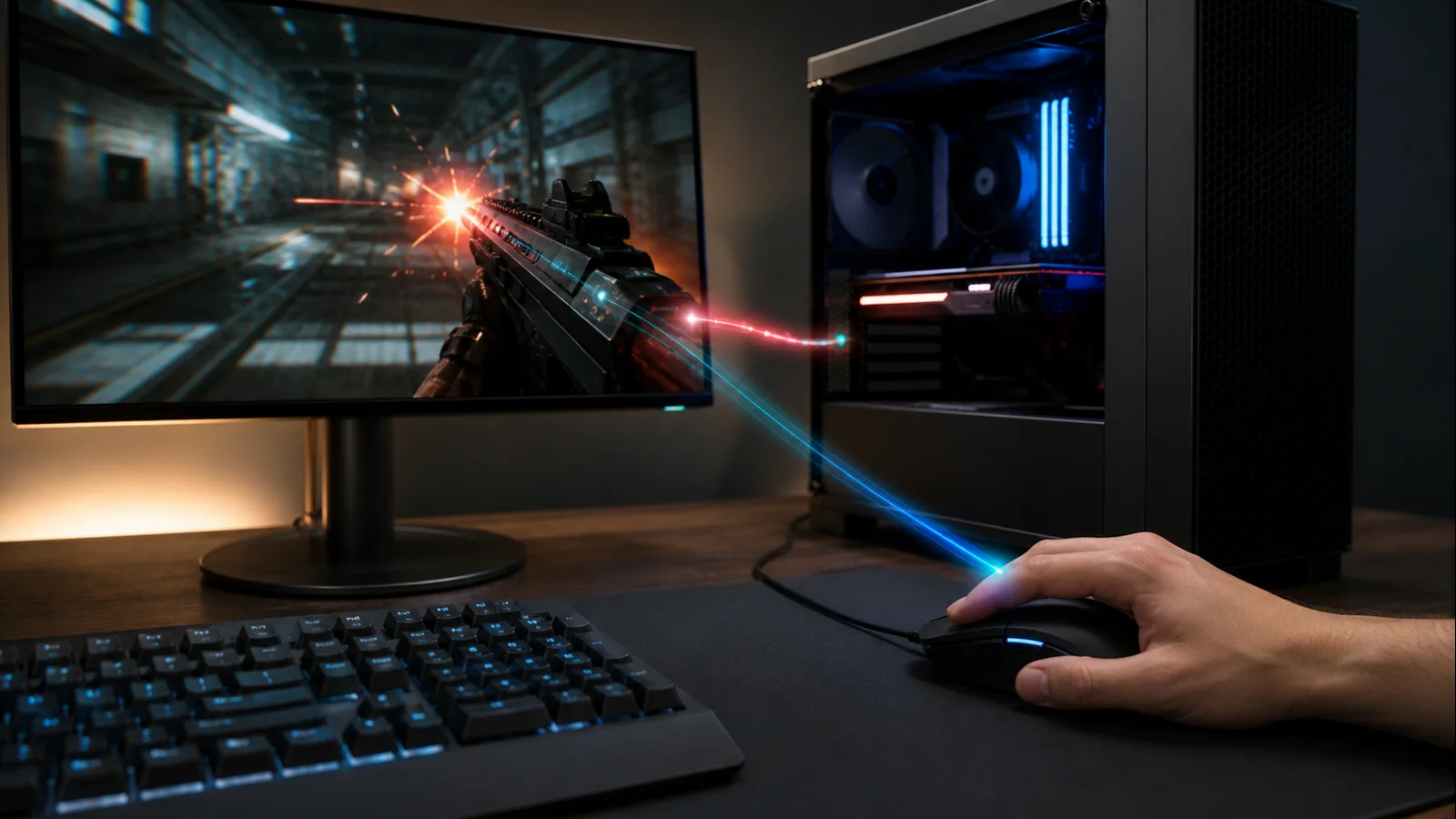
AI-created editorial illustration; not product photography or benchmark evidence.
As an Amazon Associate we earn from qualifying purchases at no extra cost to you.




Follow one click to the screen
Imagine clicking to fire in a game. The mouse must first report the click. The game samples it, CPU simulation updates, the GPU renders a frame, a presentation queue releases that frame, the cable carries it, the monitor processes it, a refresh scan reaches the relevant row, and pixels begin moving toward new values.
That chain is end-to-end system latency, sometimes called click-to-photon latency. The monitor contributes more than one part: signal processing and scan timing affect when change starts, while pixel response affects how quickly the new state becomes visible. NVIDIA’s official Reflex overview makes the same system-level distinction by describing CPU/GPU pipeline synchronization and a Reflex Analyzer measurement from compatible mouse click to pixels changing on screen.
Reviewers must define their measurement point. “Display lag,” “signal delay,” “input lag,” and “total display latency” can include different portions of scanout and pixel transition. Two numbers cannot be compared fairly unless the methods match.
Pixel response: how fast a transition settles
LCD pixels rotate liquid crystals to change the light passing through them. OLED pixels change their own light output. A gray-to-gray response measurement times a transition between specified levels, often using thresholds such as part of the journey toward the target rather than waiting for perfect stability.
There is no single universal transition. Black to dark gray may be slower than light gray to white, and the reverse direction may differ again. A quoted “1 ms GtG” can be the fastest transition in an aggressive mode rather than an average across the panel. Temperature, refresh rate, overdrive level, and measurement thresholds matter.
Overdrive applies extra voltage to move LCD pixels faster. Too little leaves conventional ghosting; too much drives past the requested level and creates inverse ghosting. A low response number achieved with obvious overshoot is not cleaner motion. VESA’s Adaptive-Sync Display standard update specifically notes gray-to-gray testing plus overshoot and undershoot limits, illustrating why transition quality belongs beside speed.
MPRT is different again. It concerns how long a moving image remains visible and is often used with backlight-strobing modes. It should not be treated as interchangeable with GtG. VESA explains that its ClearMR approach was created to characterize motion clarity more meaningfully than simplistic MPRT claims in this display-performance standards overview.
Refresh interval: the clock between frames
Refresh rate tells how often a display can update. The interval is 1,000 divided by refresh rate:
| Refresh rate | One refresh interval |
|---|---|
| 60 Hz | 16.67 ms |
| 120 Hz | 8.33 ms |
| 144 Hz | 6.94 ms |
| 165 Hz | 6.06 ms |
| 240 Hz | 4.17 ms |
| 360 Hz | 2.78 ms |
A 240 Hz monitor has a new refresh opportunity every 4.17 ms. That does not prove its pixels finish every transition inside 4.17 ms, nor does it mean a click always waits exactly one interval. Depending on when a frame becomes ready and where an object sits vertically, scan timing changes the wait.
Microsoft’s Windows refresh-rate guide defines refresh rate as the number of screen updates per second and shows how to verify the active value. This matters because owning a 240 Hz display while Windows runs it at 60 Hz preserves the 16.67 ms refresh cadence.
Higher refresh also reduces sample-and-hold persistence blur when frame rate rises with it. However, duplicated frames at 60 fps on a 240 Hz display do not create the temporal detail of native 240 fps. The game, GPU, connection, and monitor must deliver the full chain.
Input lag: when the monitor starts responding
Monitor input lag usually covers signal receipt, internal processing, buffering, scaling, and waiting for scanout. A gaming mode may bypass image processing and reduce this delay. Noise reduction, motion interpolation, complex scaling, or cinematic processing can add work. The impact is model-specific; labels alone are not evidence.
Input lag may be reported at the top, center, or bottom of the screen because a refresh scans over time. A center-screen result naturally includes part of scanout. Some testers subtract pixel response; others report the first visible change. Read the methodology before comparing tables.
A fast pixel response does not guarantee low input lag. A monitor can hold a frame in a processing buffer and then switch pixels quickly. Conversely, it can start scanout promptly but have slow transitions that smear the result. The first feels delayed; the second looks unclear; a poor monitor can do both.
Four combinations you can actually encounter
Low input lag, fast response
The image starts changing promptly and transitions settle cleanly. This is the desired competitive result, assuming overshoot is controlled and the selected overdrive works across the used refresh range.
Low input lag, slow response
Controls feel immediate, yet moving edges trail because pixels cannot keep up. Dark-level smearing on some LCDs fits this pattern. Increasing overdrive may help until inverse ghosting appears.
High input lag, fast response
Each delivered frame looks crisp once shown, but actions feel disconnected. A non-gaming picture preset, frame interpolation, or heavy processing may be responsible. Switch to Game or Low Latency mode and retest without changing five other settings.
High input lag, slow response
The display both waits and smears. No resolution or GPU upgrade repairs those display characteristics. Confirm the active mode, then rely on measured reviews or consider replacement.
VRR changes timing, not definitions
Variable refresh rate lets the monitor begin a refresh when a rendered frame is ready within the supported range. This can reduce tearing and the stutter associated with mismatched fixed cadences. It does not make liquid crystals change faster, and it does not remove latency elsewhere in the game pipeline.
Frame-rate limits, V-Sync behavior, queue depth, and the top of the VRR range affect total latency. A cap slightly below the maximum refresh is commonly used to remain inside the VRR window, but the best configuration depends on the GPU ecosystem and game. Follow our G-Sync and FreeSync setup guide for a controlled configuration.
Overdrive can also behave differently as VRR moves through refresh rates. A strong setting tuned for the maximum may overshoot at lower rates. Evaluate response quality at both high and low points, not only at the box’s headline refresh.
How to read a monitor review
Look for a response-time matrix or average across many transitions, not one best result. Check error or overshoot values, cumulative deviation if provided, and pursuit-camera images. Note the overdrive mode and whether one setting remains usable across VRR. For input lag, identify resolution, refresh rate, screen position, and whether the number includes pixel response.
Avoid adding response time and input lag from unrelated methodologies into a fake “total.” An average GtG value is not necessarily the moment a pixel first becomes visible, while an input-lag result may already include that transition. End-to-end tools are useful precisely because they measure the complete configured system.
Manufacturer claims can establish supported modes, not how every transition behaves. Independent instrumented reviews should guide model comparisons. Our gaming-monitor buying guide places those measurements beside resolution, size, HDR, ports, and price, while TN versus IPS versus VA explains panel tendencies without pretending every panel of one type performs identically.
Choose based on the problem you want to solve
Competitive players should prioritize low measured input lag at the intended refresh rate, a fast and well-controlled response distribution, and a GPU capable of feeding the display. Cinematic players may accept slightly slower transitions for better contrast or HDR, but high processing delay is still unnecessary. Mixed-use buyers should check performance at 60 Hz as well as maximum refresh because consoles, video, and demanding games may operate lower.
Set the monitor to native resolution, its intended refresh, and Game mode. Select the fastest overdrive level that does not create obvious inverse ghosting. Then measure the whole experience with consistent game scenes. The useful question is not “Which millisecond is best?” It is “Does the complete system begin the right frame quickly and show it clearly?”
FAQ
Is 1 ms response time the same as 1 ms input lag?
No. Response time describes pixel transition behavior; input lag describes delay before the new frame starts appearing. A product can be strong in one and weak in the other.
Does 144 Hz mean a 1 ms response time?
No. A 144 Hz refresh interval is about 6.94 ms. Pixel transitions have separate timings and may be faster or slower than that interval depending on the colors and overdrive.
Does response time affect aiming?
Slow transitions can obscure moving targets and make their position less clear. Input lag more directly delays visual feedback. Both can influence play, alongside frame rate, game latency, mouse polling, and the player.
Can a better cable reduce input lag?
A compliant digital cable normally either carries the selected mode correctly or shows faults. It can enable a higher refresh mode that lowers refresh intervals, but a premium cable does not independently accelerate monitor processing or pixel transitions.