🛒 Best Price Today on Amazon
Prime members get fast, free shipping on everything above, plus member-only deals. New members get a 30-day free trial — cancel anytime.
- First decide whether the fans should be spinning
- Perform a powered-off visual inspection
- Return software control to a known baseline
- Test the driver without changing hardware
- Check power and seating only when authorized
- Use temperature as the safety signal
- Stop troubleshooting and request service when appropriate
- Top Pick: SCCCF 3x90mm 92mm Graphic Card Fans, Graphics Card Video Card VGA PCI Slot Fan GPU Cooler
- Best Value: GA92S2U CF9015H12S 4PIN GPU RTX3080 RTX3090 Cooling Fan for Zotac RTX 3070Ti 3080 3080TI 3090 Trinity Oc Video Card Cooling Fan (Fan-ABC)
- Premium Choice: SCCCF Dual 92mm Graphic Card Fans, Graphics Card Cooler, Video Card VGA Cooler, PCI Slot Fan GPU Cooler
GPU Fans Not Spinning: Diagnose It Safely
A GPU fan that sits still on the Windows desktop is not automatically broken. Many modern graphics cards use a zero-RPM mode: the fans remain off at light load, then start when temperature or power crosses a programmed threshold. A fan that never starts during a game, makes grinding noises, or lets temperatures climb continuously is a different problem.
This guide separates normal fan-stop behavior from a control, power, obstruction, or hardware fault. Change one variable at a time, record the result, and return it to its original state before the next test. That discipline prevents an accidental “fix” from hiding the real cause.
As an Amazon Associate we earn from qualifying purchases at no extra cost to you.






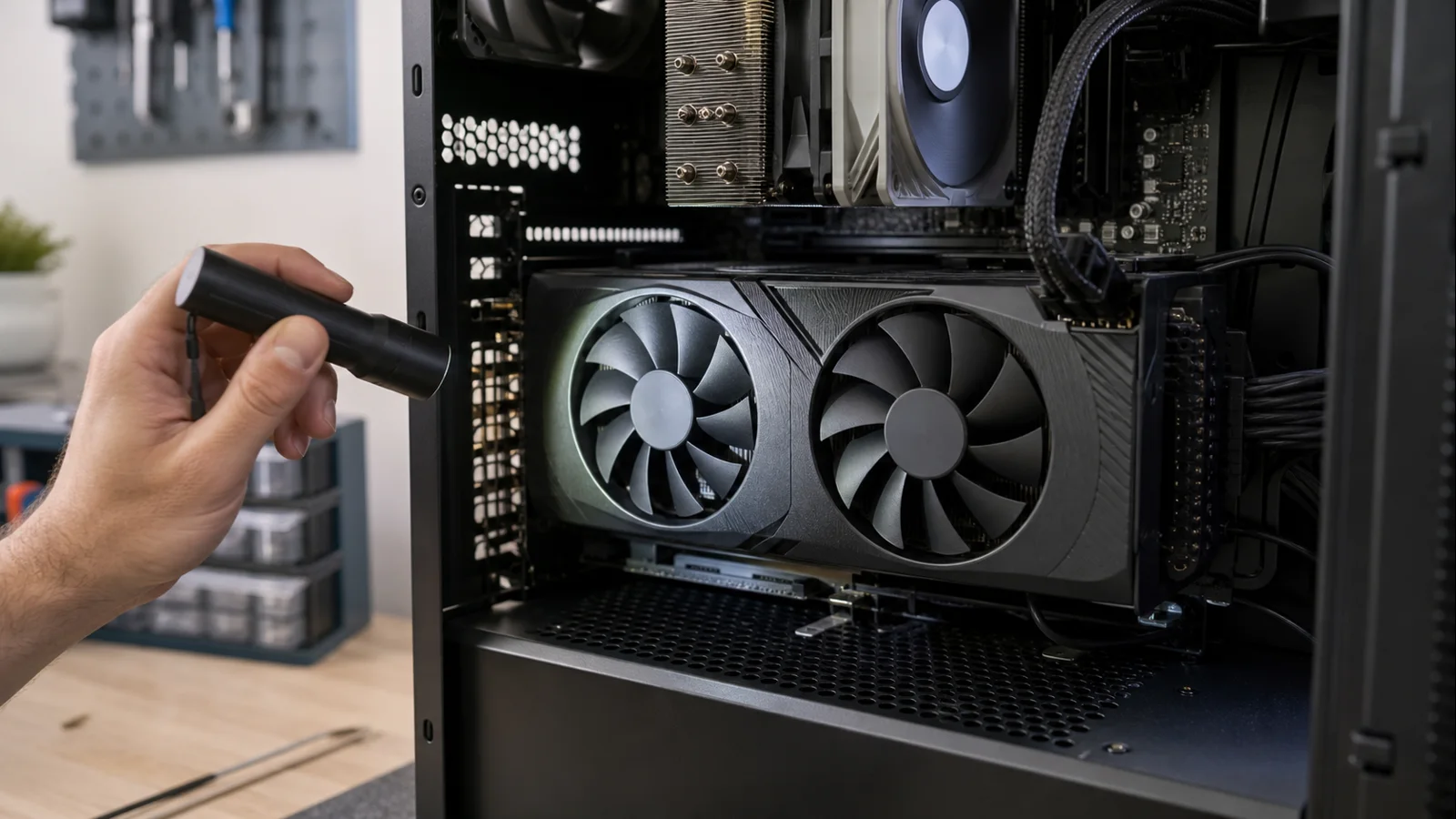
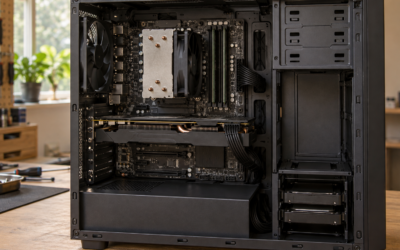
AI-created editorial illustration; not product photography or benchmark evidence.
First decide whether the fans should be spinning
Start with the PC cool and idle. Open the GPU vendor’s monitoring software and note GPU temperature, fan RPM, and fan percentage without changing anything. An RPM reading of zero at low temperature can be expected. AMD explicitly documents that its Zero RPM feature allows quiet operation under light load and should start the fans as load and temperature increase in AMD’s GPU tuning guide.
Now run a game you already trust for five minutes at a capped frame rate. Watch temperature and fan RPM. Do not combine this test with an overclock, new driver, side-panel removal, or altered fan curve. Stop the game if temperature rises past the GPU manufacturer’s published limit, you smell hot electronics, the display corrupts, or the card produces scraping or clicking sounds.
Interpret the result, not just the fan position:
- Fans start and temperature levels off: the card was probably using normal zero-RPM behavior.
- Fans pulse briefly near a threshold: the default curve may be moving above and below its start point.
- Software reports fan speed but every fan is stationary: stop the load; a sensor, controller, or physical fan fault is possible.
- One fan turns while another does not: treat the stationary fan as a likely local obstruction, connector, motor, or bearing problem.
- No fan starts and temperature keeps rising: end the test and continue with unloaded checks only.
Perform a powered-off visual inspection
Shut Windows down, switch the power supply off, unplug the mains cable, and wait for motherboard lighting to go dark. Do not put fingers near fans while the PC is powered. Use a flashlight to check for a cable, support bracket, packing material, or dense dust touching a blade. Look from several angles because a thin wire can hide beneath the card.
Do not force a fan to spin and do not blast it with compressed air until it overspeeds. Hold the blade hub still if you clean loose dust with short, upright bursts. A blade that is cracked, detached, or rubbing the shroud is a stop condition. Photograph it and contact the seller or manufacturer instead of gluing, bending, lubricating, or disassembling it.
If the card is new, inspect for shipping film only where the manual says it should be removed. Do not peel serial labels or warranty seals. On a prebuilt PC, opening the case or removing the GPU may affect service terms; check the system warranty before proceeding.
Return software control to a known baseline
Fan-control utilities can conflict when two programs try to manage the same controller. Close third-party overclocking, RGB, motherboard, and fan tools. Reboot, open only the GPU manufacturer’s application, and restore its global tuning settings to default. AMD provides a documented factory-reset procedure for Radeon settings.
Repeat the same five-minute game test with the same frame cap and room conditions. If the fans now work, re-enable optional utilities one at a time, rebooting and repeating the identical test after each. The first reintroduced control layer that recreates the fault is the useful finding.
Next, make one temporary fan-control change if your card and vendor utility support it: disable zero-RPM mode or request a modest fixed fan percentage. Apply it while the GPU is cool and idle. Do not jump to 100 percent. If the fans respond immediately, the motors and controller can act, and the issue is more likely a curve, profile, or software conflict. Restore defaults after the observation.
If the control is unavailable, do not install several utilities just to expose it. Proceed to the driver baseline.
Test the driver without changing hardware
A driver or profile problem is plausible when the fan issue began immediately after an update, crash, or tuning change. Note the current driver version first. Install the correct package for the exact GPU from NVIDIA, AMD, or the laptop/system manufacturer. NVIDIA advises closing GPU monitoring tools and background programs before installation in its driver installation hints.
After one clean reboot, repeat the same controlled load. If the symptom began with a specific driver and remains on the newest release, test one previously stable vendor version rather than cycling through many packages. Prepare the installation carefully and avoid changing unrelated settings during this test.
Do not update the BIOS, reseat the card, and replace the driver in the same round. You would no longer know which change mattered.
Check power and seating only when authorized
If software control cannot start the fans, a poor card or power connection may be involved, especially after transport or recent component work. Before touching hardware, check your warranty and the graphics card manual. If removal is allowed, power down, unplug the PC, discharge static by touching grounded bare metal, and photograph the existing connections.
Confirm each required PCIe power plug is fully latched and connected as the PSU and GPU makers specify. Never mix modular PSU cables between power-supply models, even when the connector fits. If the system was recently assembled, compare its capacity and connector arrangement with our guide to picking PSU wattage. That is a specification check, not permission to open a sealed unit.
Reseat the GPU only if you are comfortable supporting its weight and releasing the motherboard slot latch correctly. Make that the sole change, then retest. AMD’s official system stability guidance likewise recommends a stock configuration, direct seating in the primary PCIe slot, proper power connections, and removal of a riser while isolating faults.
Use temperature as the safety signal
Fan behavior matters because cooling matters. Compare idle and repeatable-load temperatures, not an isolated number. Ambient temperature, case airflow, card design, and sensor type all affect readings. If the fans operate but the GPU remains unusually hot, follow our controlled steps for lowering GPU temperature before considering more invasive work.
Undervolting can reduce heat on a functioning card, but it is not a repair for a dead fan. Do not use our GPU undervolting guide until fan operation is confirmed and the system is stable at factory settings.
Stop troubleshooting and request service when appropriate
Stop immediately for smoke, a burning smell, melted plastic, sparking, liquid exposure, severe grinding, a broken blade, or rapidly rising temperature with no fan response. Unplug the PC after a safe shutdown and do not power it again for another “quick check.”
Use warranty or RMA support when a fan remains stationary under a verified load at factory settings, one fan consistently fails, software commands cannot produce movement, or the card overheats with a clear and unobstructed cooler. Also choose service when the card is within its return window; replacing a cooler or fan yourself can trade an easy exchange for a disputed warranty.
Prepare useful evidence: GPU model and serial number, purchase date, driver version, default-settings confirmation, idle and load temperatures, reported RPM, a short video of all fans during the controlled test, and a list of the single-variable checks performed. Do not remove the cooler, inject lubricant, splice fan wires, flash an unofficial firmware, or power a fan from an improvised connector unless the manufacturer explicitly directs it. Those actions introduce electrical and warranty risk without proving the original fault.
The safe conclusion is simple: stationary fans at cool idle can be normal; stationary fans during sustained heat are not. Verify the threshold, remove software conflicts, inspect without force, and let warranty support handle a fan assembly that cannot respond.