🛒 Best Price Today on Amazon
Prime members get fast, free shipping on everything above, plus member-only deals. New members get a 30-day free trial — cancel anytime.
- First identify the kind of crash
- Establish a clean baseline
- Reset the game-side state
- Reset driver settings before reinstalling
- Reinstall or roll back the driver
- Check temperature and power only if crashes remain
- A one-variable confirmation matrix
- When to stop troubleshooting
- Official references
- Related Guides
- Top Pick: Spin Master Games, SolidRoots Crash, The Crypto Currency Family Strategy Game from The Makers of Mind The Gap, Family Games for Game Night, Ages 14+
- Best Value: Peaceable Kingdom Crash Monsters Toddler Game – Learning Toys for 2 Year Olds and up, Preschool Games, Toddler Board Games – Develops Fine Motor Skills, Color Matching, Stacking Blocks
- Premium Choice: Spin Master Games Dumb Ways to Die Survival Strategy Party Card Game
Games Crash After a GPU Driver Update: Fixes
A game that worked yesterday but crashes after a graphics-driver update gives you a useful clue: something in the software path changed. That does not prove the new driver itself is defective. The update may have reset a tuning profile, invalidated a shader cache, exposed a game-specific bug, or installed incompletely. Treat the timing as a lead, then test it.
The safest approach is a controlled rollback ladder. Record the failure, remove variables, and change one item per test. Do not start by changing the driver, BIOS, memory profile, power limit, and game settings together; even a successful result would not reveal which change mattered.
As an Amazon Associate we earn from qualifying purchases at no extra cost to you.






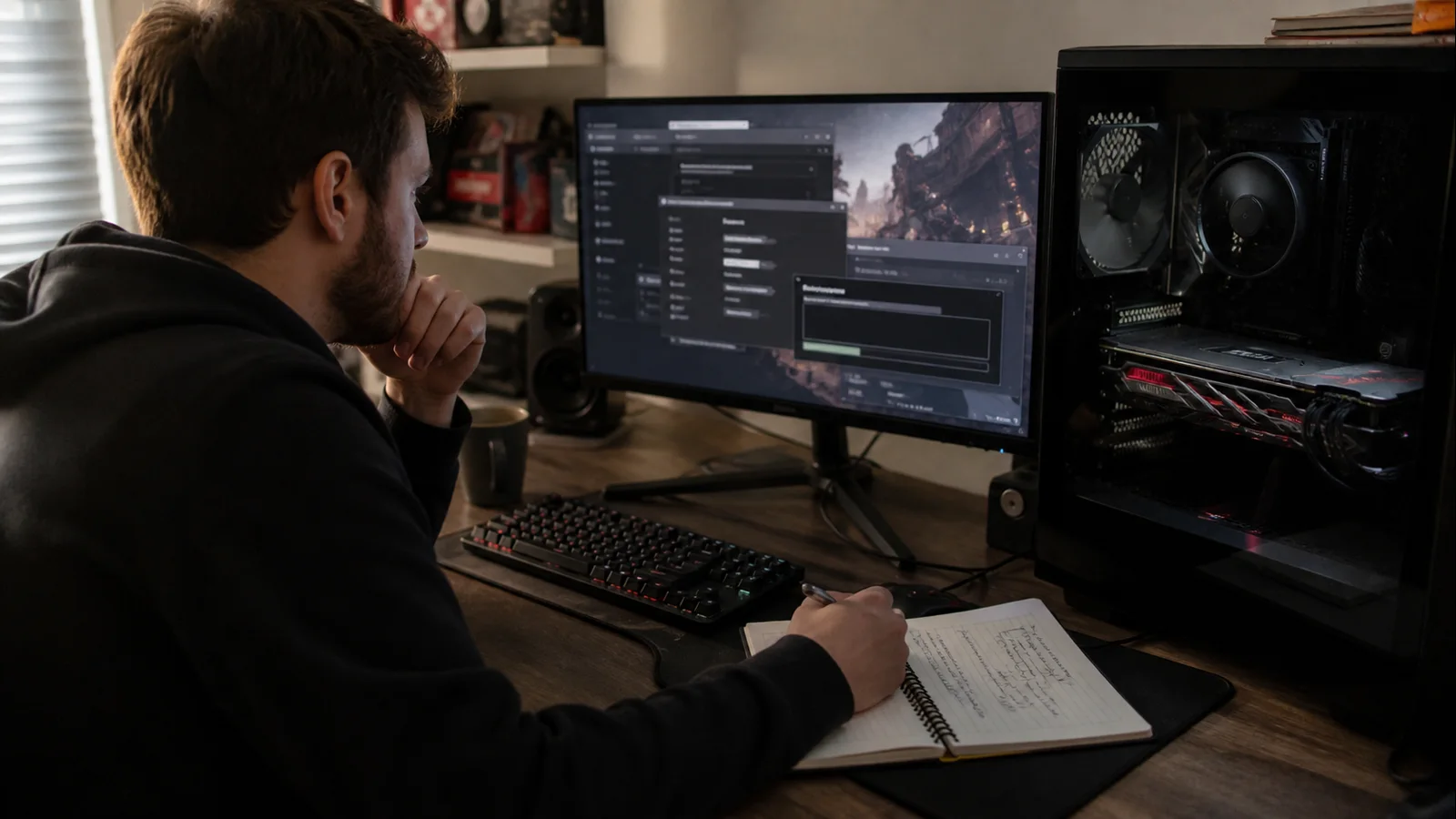
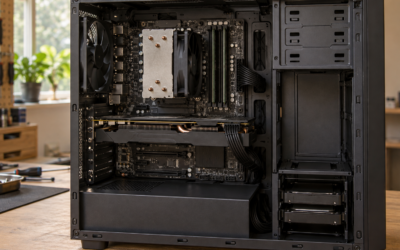
AI-created editorial illustration; not product photography or benchmark evidence.
First identify the kind of crash
Write down what happens and when. “Crashes” can mean four different failures:
- The game closes to the desktop while Windows remains responsive.
- The image freezes, then returns after a brief black screen.
- The PC restarts or powers off without a normal shutdown.
- Windows shows a blue-screen stop code.
Also record the game, graphics API, location or action that triggers it, driver version, and whether the problem began on the first launch after updating. A crash in one title points toward its files, settings, overlays, or a driver-game interaction. Crashes in several unrelated games make the driver installation, global tuning, heat, power, or hardware more plausible.
A brief black screen followed by recovery can be Windows Timeout Detection and Recovery, or TDR. Microsoft explains that Windows may reset the graphics stack when the GPU does not complete or yield work within the timeout. That differs from a power loss: a system that instantly reboots under load may need power and hardware checks rather than repeated driver reinstalls.
Establish a clean baseline
Restart Windows once before doing anything invasive. Then return the GPU to stock settings. Disable GPU overclocks, undervolts, custom voltage curves, raised power limits, and VRAM tuning. If you use an app that applies a profile at startup, stop it from doing so for the test. A driver update can change boost behavior enough to make a previously marginal tune unstable.
Close optional overlays and capture tools, including platform overlays, monitoring overlays, RGB suites, and third-party frame limiters. Keep security software and normal Windows protections enabled. Launch the same game, load the same save or repeatable scene, and test for roughly the same duration.
If the crash stops, restore one optional component at a time. Test between changes. If it continues, leave the baseline clean and proceed.
Reset the game-side state
Verify the game files through its launcher. Then reset only the game’s graphics configuration, either with its built-in defaults option or by renaming its configuration folder so the game can create a fresh one. Renaming is preferable to deletion because it preserves a way back.
Switch graphics APIs if the game officially supports alternatives, such as DirectX 12 and DirectX 11. This is a diagnostic step, not proof that one API is universally better. If only one API crashes, keep the stable mode while checking the game developer’s known-issues and patch notes.
Let any visible shader-compilation process finish. The first run after a driver change can rebuild cached graphics data and may be rougher than later runs. Do not repeatedly clear every cache: that can recreate first-run work and hide whether the system settles normally.
Reset driver settings before reinstalling
Open the vendor control panel and restore global 3D settings to defaults. Remove per-game overrides for antialiasing, low-latency modes, frame caps, scaling, sharpening, and synchronization. On AMD Software, the documented Factory Reset for settings returns profiles to defaults without necessarily reinstalling the package.
Test again with one known game. If stability returns, reapply only settings you actually need, one per test. If not, continue to the installation branch.
For future updates, follow a deliberate GPU driver update process and note the working version before replacing it. That small record makes rollback much easier.
Reinstall or roll back the driver
Download the intended driver from NVIDIA, AMD, Intel, or your laptop manufacturer before removing anything. Laptop vendors sometimes customize switchable-graphics and power behavior, so their validated package can be the better baseline.
Try reinstalling the same version first and select the vendor’s clean-install option when available. Intel defines a clean graphics-driver installation as removing driver files before installing the new package. AMD’s installer also documents an optional Factory Reset path, but warns that it removes earlier packages and prevents rolling back to the previously installed driver. Read the installer prompt rather than treating every “reset” label as identical.
If the same version still crashes and the previous version was stable, install that previous vendor release. Disconnecting from the internet is usually unnecessary; what matters is preventing Windows Update and a vendor installer from competing during the same installation. Pause, finish one installation, restart, and confirm the displayed version before testing.
Do not download repacked drivers from mirror sites. Do not use registry “TDR delay fixes” copied from forums. Microsoft describes those TDR keys as testing and debugging controls for driver developers, not a consumer stability repair. Extending a timeout can conceal a hang without removing its cause.
Check temperature and power only if crashes remain
Once both a known-good driver and stock settings fail, observe temperatures and clocks during a repeatable load. Use the same scene and avoid changing fan curves during the measurement. If the GPU temperature rises abnormally or the fans do not respond, work through safe GPU temperature reduction steps before retesting.
For restarts or blackouts, inspect the GPU power connectors with the PC shut down, switched off, and unplugged. Confirm plugs are fully seated and that the power supply is appropriate for the card. Do not open a power supply; it contains hazardous components even when disconnected.
If Device Manager no longer lists the card correctly, the troubleshooting path has moved beyond a normal game crash. Use these GPU not detected checks to distinguish enumeration, slot, cable, and firmware problems.
A one-variable confirmation matrix
Use a short sequence and keep the same game scene:
- New driver, stock GPU, no optional overlays.
- Same driver, fresh game settings.
- Same driver, alternate supported graphics API.
- Clean reinstall of the same driver.
- Previous known-good driver.
Stop when one change produces two or three stable repetitions of a failure that was previously repeatable. Then reverse that single change once if it is safe. For example, if the old driver is stable, reinstalling the new version once can confirm the version relationship. Do not keep provoking hard shutdowns to gain certainty; one repeatable power loss is enough to move to hardware inspection.
When to stop troubleshooting
Stop software testing and seek service if you smell hot electronics, see smoke or sparks, find melted or discolored connectors, hear electrical arcing, or the PC repeatedly loses power. Shut it down, unplug it, and do not reuse the suspect cable or supply.
Professional diagnosis is also appropriate when multiple driver versions crash at stock settings across several games, the GPU shows artifacts before Windows loads, or another known-good GPU proves stable in the same PC. Preserve crash codes, Event Viewer timestamps, driver versions, and your test matrix. Those details are more useful to a technician or vendor than a long list of simultaneous tweaks.
Official references
- Microsoft: WDDM Timeout Detection and Recovery
- AMD: Auto-Detect tool and Factory Reset installation option
- Intel: What is a clean driver installation?